
Install Alpha Channel Checker
Alpha Channel Checker runs on macOS 14 Sonoma or later, on Apple silicon and Intel Macs. After buying, you land on a page with a Download button. You can also get the app from your Creem receipt. Unzip the app and drag Alpha Channel Checker to your Applications folder.
The app is signed and notarized by Apple. Confirm Open at the normal first-launch prompt.
Alpha Channel Checker asks macOS for no permission. It reads the file you choose and writes only the comparison frame you save.
The app checks for updates once a day. When a new version is ready, click Install and Relaunch. To check anytime, choose Alpha Channel Checker → Check for Updates….
Open a file
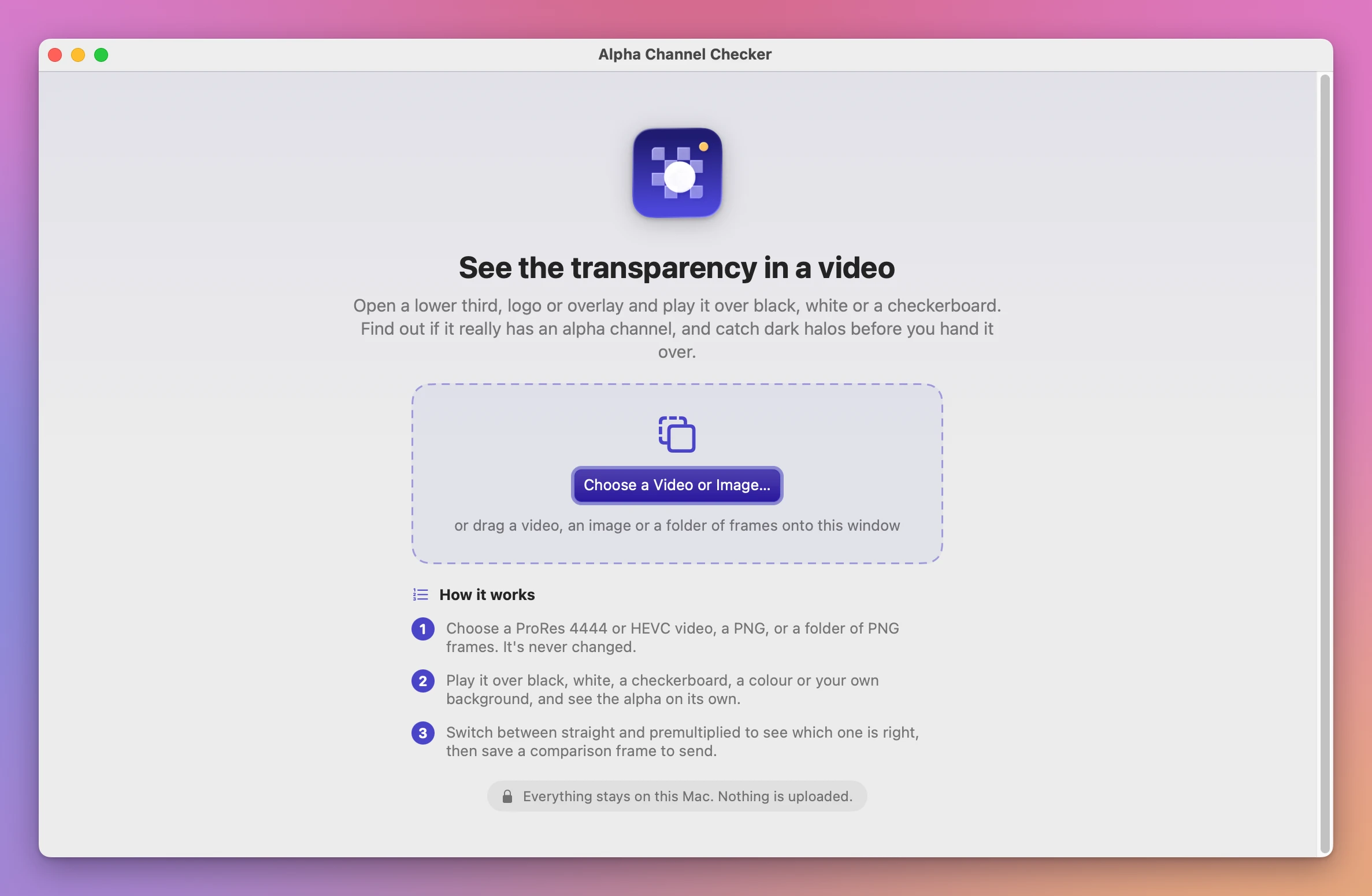
There are four ways:
- click Choose a Video or Image…;
- choose File → Open… (⌘O);
- drag the file onto the window;
- drag it onto the app’s icon in the Dock.
It opens:
- Videos: MOV, MP4 and M4V files your Mac can play, like Apple ProRes 4444 and 4444 XQ and HEVC with alpha. Videos in the old Animation or PNG codec don’t open, because macOS no longer plays them. Export them again as ProRes 4444 or PNG frames.
- Images: PNG, TIFF, TGA, PSD, EXR, WebP and GIF, and animated PNGs.
- Folders of frames: a folder of PNG, TIFF, TGA or EXR files, in name order the way the Finder sorts them (frame 2 before frame 10). Other files in the folder are left out. A sequence plays at 24 frames a second.
While it opens a file, the window shows “Checking the transparency” and how many of its 12 frames it has looked at. The file is never changed.
Read the answer
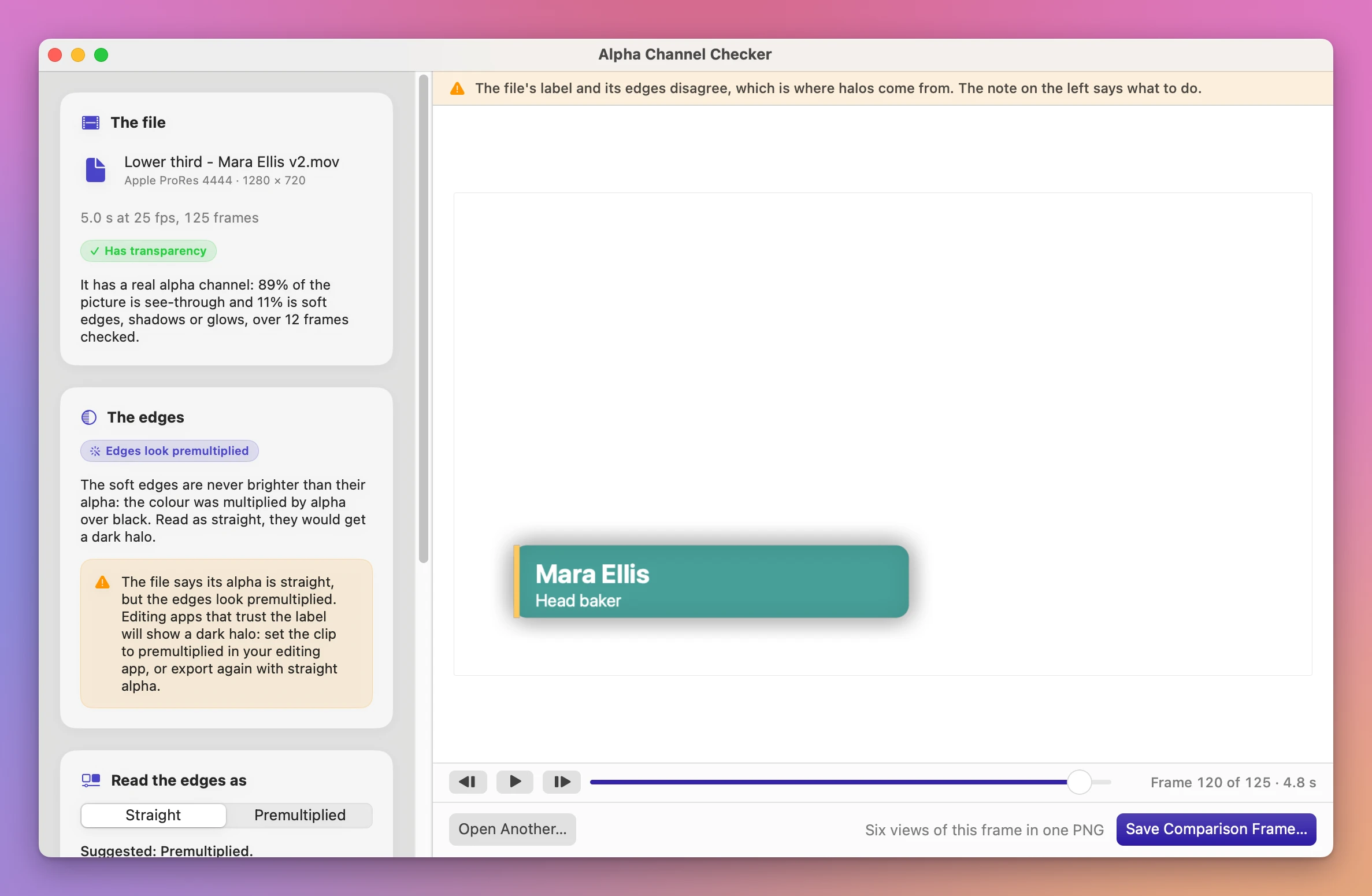
The The file card names the file, its format and size, and its length. Then one of four answers:
- Has transparency: there’s a real alpha channel, with the share of the picture that’s see-through and the share that’s soft edges, shadows or glows.
- No alpha channel: everything in the file is solid. The sentence under it depends on the format. H.264 and ProRes 422 can’t store transparency; a ProRes 4444 or HEVC file was exported without it.
- Alpha is all solid: the alpha channel is there, but every pixel checked is solid. A background layer was probably left on.
- Everything is see-through: nothing would show. The export may be empty, or the alpha inverted.
The numbers come from 12 frames spread from the start to the end of the file.
The edges: straight or premultiplied
When a file has transparency, the The edges card says how its soft edges are stored:
- Edges look straight: some soft pixels have colour brighter than their alpha, which only straight alpha has.
- Edges look premultiplied: the colour was already mixed with black.
- Either reading works: the soft parts are dark, so both look the same.
- Not enough soft edges: hard edges look the same both ways.
Under it, a note compares that with what the file says about itself. QuickTime files can be labelled straight or premultiplied, and PNG is always read as straight. When the label and the edges disagree, the note is orange. That’s where dark halos and light fringes come from: editing apps that trust the label read the edges the wrong way. The note says what to change.
Read the edges as
Straight and Premultiplied change how the picture is drawn. The app starts on the one it suggests, shown as “Suggested: Straight” or “Suggested: Premultiplied”. Switch between them over black and over white, and watch the soft edges. The right one has no dark outline and no glow. Preview → Read Edges as Straight (⌥⌘1) and Read Edges as Premultiplied (⌥⌘2) do the same from the menu.
Pick a background
The Background card has five choices:
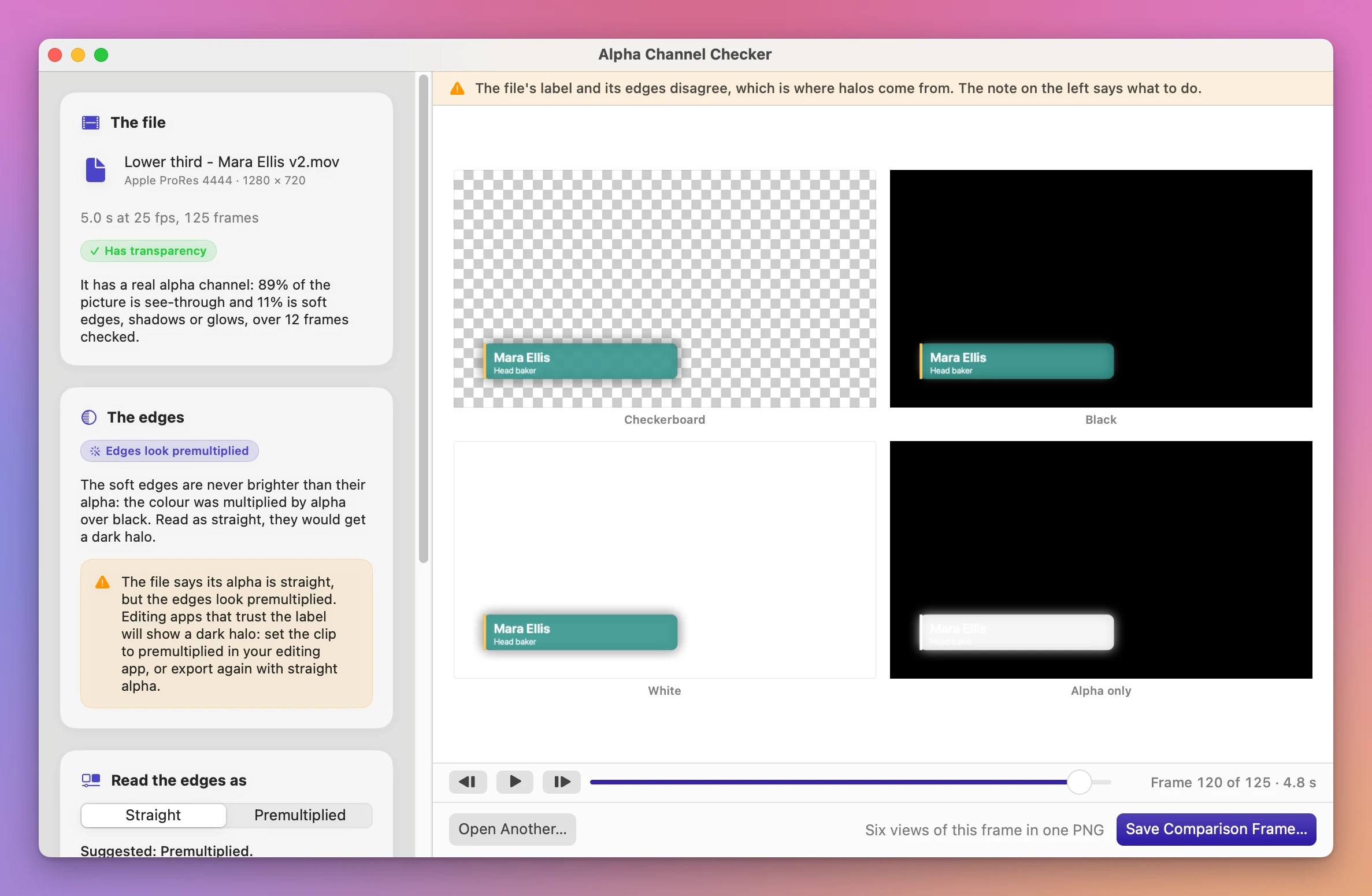
- Checkerboard, grey and white squares, like editing apps show.
- Black and White, where halos stand out.
- Colour: click the swatch to pick one, or type it in the field next to it as
#1E2A3Aand press Return. A value that isn’t a colour is refused with a sentence in the line above the picture. - Image: click Choose Background… (⇧⌘O) and pick an image, or a video to use its middle frame. It’s cut to fill the frame.
Show the alpha on its own
The Show card switches the picture:
- Over the background (⌘1).
- Alpha only (⌘2): white is solid, black is see-through, and greys are soft edges.
- Four at once (⌘3): the checkerboard, black, white and the alpha side by side, read the way you chose.
Play and step
Under the picture are Previous Frame, Play and Next Frame, a slider and where you are (“Frame 115 of 125 · 4.6 s”). Space plays and pauses, and the left and right arrow keys step one frame, except while you’re typing a colour. The menu has Play (⌘P), Previous Frame (⌘←) and Next Frame (⌘→). Playing loops until you pause, and a change of background or reading shows on the next frame.
A big file plays as fast as your Mac can decode it, so 4K ProRes may play slower than real time. Every frame is still there when you step.
Save a comparison frame
Click Save Comparison Frame… (⌘S) and pick where. The app saves one PNG of the frame you’re on, at up to 960 pixels wide a view:
- over black, read as straight;
- over black, read as premultiplied;
- over white, read as straight;
- over white, read as premultiplied;
- over your background, read the way you chose (the checkerboard when you chose black or white);
- the alpha alone.
A line at the top names the file, its format, size and frame, and a line at the bottom says what the check found. The window then shows “Comparison frame saved” with Check Another File, Back to the Preview and Show in Finder.
The app won’t save the PNG over the file you’re checking.
When a file can’t be checked
The window says what happened and what to do:
- WebM, MKV, AVI or MXF: macOS can’t play them. Export as Apple ProRes 4444 with alpha, HEVC with alpha, or PNG frames.
- A file that isn’t a video or an image, or a folder with no frames in it.
- A video with sound but no picture, or one protected by the store it came from.
- Frames that can’t be decoded: usually HEVC with alpha on a Mac that can’t decode it. Check it on a Mac with Apple silicon, or export as ProRes 4444.
Click Choose Another File… or Start Over.
What it doesn’t do
The app reads files and never fixes or converts them. Premultiplied always means “over black” here. There’s no colour management, so a log or wide-gamut file looks flatter than in a grading app, and a video’s rotation is ignored.
Alpha Channel Checker isn’t made by, affiliated with or endorsed by Apple, Adobe or Blackmagic Design.