How to use Availability Text Copier
Availability Text Copier
Copy a few free meeting times from your Mac calendars as text, in the other person's time zone, ready to paste into an email.
Bought Availability Text Copier? Sign in with the email you bought it with to download the latest version or ask me a question.
On this page
Install
Availability Text Copier requires macOS 14 Sonoma or later, on Apple silicon or Intel. Download the ZIP from the order page or your Creem receipt. Unzip it and move the app to Applications.
The app checks for updates once a day. When a new version is ready, click Install and Relaunch. To check anytime, choose Availability Text Copier → Check for Updates….
For help, choose Help → Availability Text Copier Support, which opens the support site in your browser.
Allow Calendar access
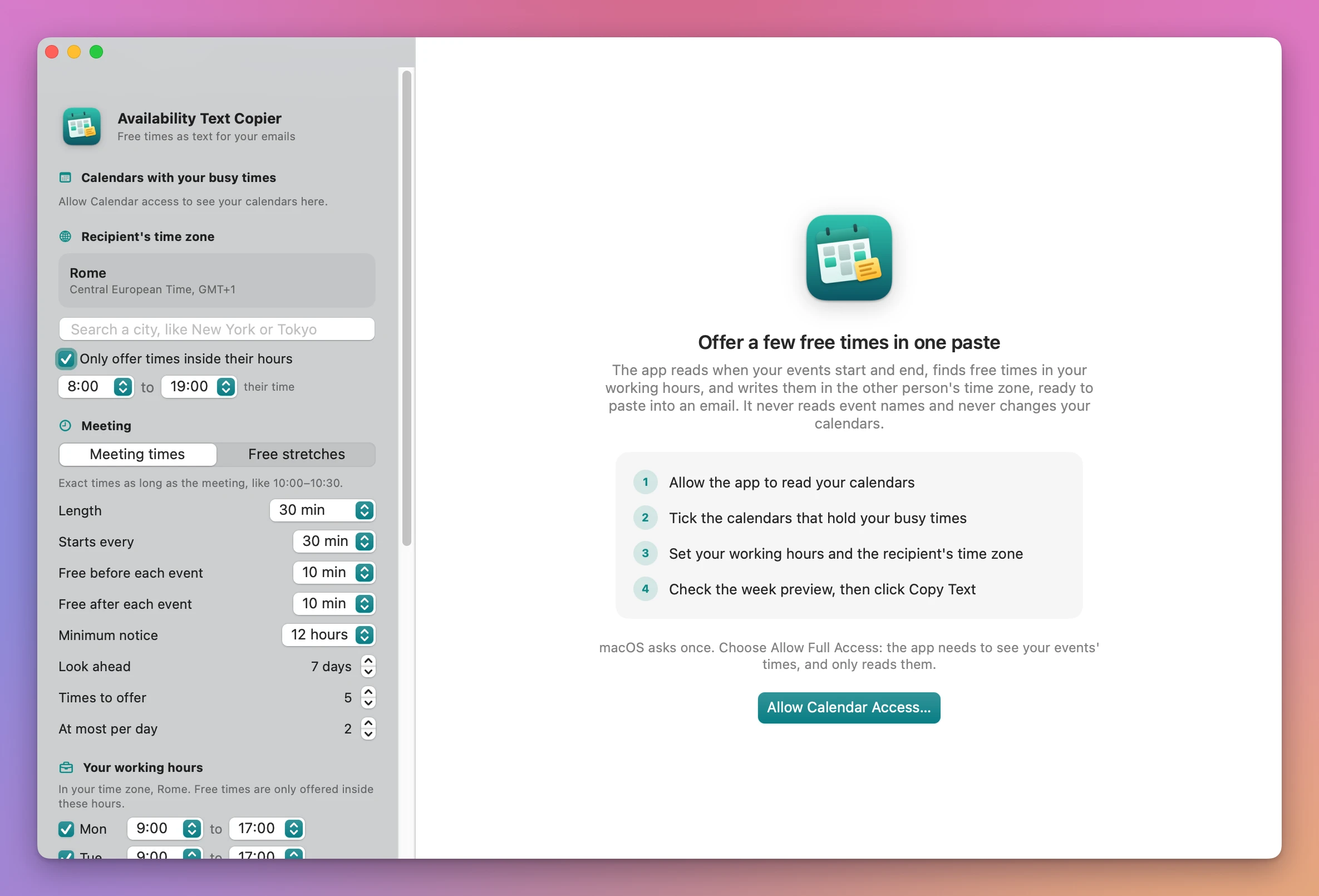
The first time, the window shows four steps and an Allow Calendar Access… button. Click it, then Allow Full Access in the dialog macOS shows. The app reads when your events start and end, in the calendars you choose. It never reads event names and never changes your calendars.
After you allow access, every calendar is ticked. When access was denied, or set to add events only, an orange banner explains it and the button becomes Open Privacy Settings, for System Settings → Privacy & Security → Calendars. With no calendar ticked, the window says “Next: tick at least one calendar” and offers Use All Calendars. A Mac with no calendars at all gets a banner and a Check Again button.
Choose the calendars
Under Calendars with your busy times, each calendar has a checkbox, its color and its account. All and None tick or untick them all. Keep the calendars that hold your meetings, and untick the ones that would block time for no reason, like Birthdays or a subscribed holidays calendar.
The recipient’s time zone
The box at the top shows the city, the zone’s name and its GMT offset, like “New York, Eastern Time, GMT-5”. To change it, type in Search a city, like New York or Tokyo. Up to 8 matches appear. Click one, or press Return to pick the first. Use Mine switches back to your own zone.
The search uses the cities macOS knows for each time zone. For a small town, search for the nearest big city in the same zone.
Only offer times inside their hours keeps every time inside the other person’s day. The default is 8:00 to 19:00 their time. Change the two pickers to widen or narrow it.
Meeting settings
- Meeting times offers exact slots as long as the meeting, like 10:00–10:30. Free stretches offers longer free ranges, and the other person picks a time inside one.
- Length: 15 to 120 minutes.
- Starts every: 10, 15, 30 or 60 minutes. Times start on this grid, so with 30 minutes they start on the hour or the half hour.
- Free before each event and Free after each event: 0 to 60 minutes of room around your existing events.
- Minimum notice: from none to 2 days. The default is 12 hours.
- Look ahead: 1 to 30 days, today included.
- Times to offer: 1 to 20. The default is 5.
- At most per day: 1 to 10. The default is 2, and the times are spread over the day.
Your working hours
Each day from Monday to Sunday is on or off, with a start and an end in 30-minute steps. The default is Monday to Friday, 9:00 to 17:00. A warning icon shows next to a day whose end is before its start.
Working hours are in this Mac’s time zone. If you travel and the Mac changes zone, the hours follow it.
Events that don’t block time
- All-day events don’t block time by default.
- Events marked Free don’t block time by default.
- Tentative events block time by default.
Canceled events and invitations you declined never block time. Declined invitations are known only for calendar accounts that keep who’s invited and their answers.
Text settings
- Style: Bulleted list, One line per day or Single line.
- Language: English, Italiano, Español, Français or Deutsch. Days and months come from macOS. The opening and closing sentences were written for each language but haven’t been reviewed by native speakers.
- Clock: the language’s default, 12-hour or 24-hour.
- Add my own time in brackets adds your time and GMT offset after each time.
- Opening and closing sentence adds “Here are a few times that work for me (Eastern Time):” and “Let me know which one suits you best.” Turn it off to copy only the times.
- Quick copy from the menu bar shows the calendar icon in the menu bar.
Every setting is saved for next time.
Read the preview
“Your free times” shows a week grid, one column per day. The colored blocks are in your time, and the text below is in the other person’s.
- Your working hours are the white area of each day.
- Busy events are gray blocks labeled only “Busy”, with the buffers around them in a light color.
- Events that don’t block time (skipped) are dashed outlines.
- The times the text offers are colored, with their start time.
Under each day a note says what happened: N times offered, Day off, Too soon, Fully booked, Outside their hours or Free, not needed (a free day the text didn’t need, because it already has enough times). The pills at the top count the times offered, busy events and skipped events, and show the city, its GMT offset and how many calendars were read. “Calendars read at …” says when the app last read them.
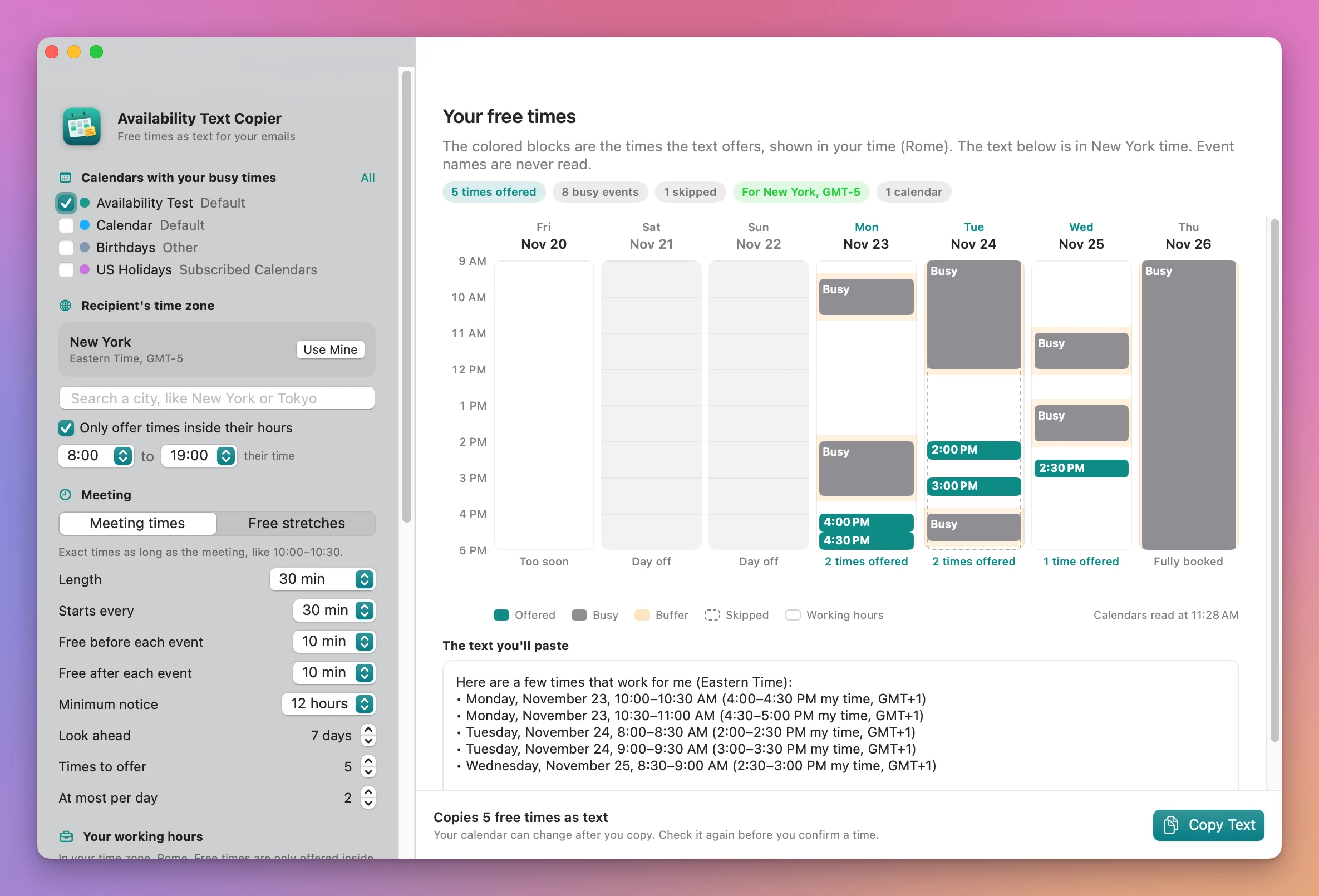
The text you’ll paste shows the text exactly as it will be copied.
When no time fits, the first pill turns red, the explanation says what to try (more days, a shorter meeting, shorter buffers or less notice), and the bottom bar says “Nothing to copy yet”. Copy Text stays off until at least one time is offered.
Copy the text
Click Copy Text, or choose Edit → Copy Availability Text (Shift-Command-C). The app reads your calendars again right before it copies. It also reads them when the window comes back to the front, and when something changes in Calendar.
The done screen shows the copied text and the time your calendars were read. Paste it into your email with Command-V. Copy Again copies it once more, and Back to the Preview returns to the week. Changing any setting also goes back to the preview.
Nothing is booked or sent. Your calendar can change after you copy, so check it again before you confirm the time the other person picked.
The menu bar
The calendar icon in the menu bar has Copy N Free Times, a line with the city and language it uses (“For Tokyo, in Italiano”), the times it will offer in your time, Open Availability Text Copier and Quit. It uses the same settings as the window.
When it can’t copy, the menu says why: “Open the window to allow Calendar access”, “Open the window and tick a calendar” or “No free time fits the settings”.
Limits
- The app copies text only. It doesn’t create events, send invitations, hold times or make booking links.
- Working hours use this Mac’s time zone.
- Recipient zones are picked by city.
- It was tested with calendars stored On My Mac. Other accounts shown in Calendar are read the same way.
Your calendars are read on your Mac. The app uses the internet only to check for updates.
Availability Text Copier is $20, a one-time purchase.