How to use Batch URL Download Queue
Batch URL Download Queue
Download every file in a list of links into one folder, with a preview, retries, resume and a CSV of the links that failed.
Bought Batch URL Download Queue? Sign in with the email you bought it with to download the latest version or ask me a question.
On this page
Install
Batch URL Download Queue requires macOS 14 Sonoma or later, on Apple silicon or Intel. Download the ZIP from the order page or your Creem receipt. Unzip it and move the app to Applications.
The app checks for updates once a day. When a new version is ready, click Install and Relaunch. To check anytime, choose Batch URL Download Queue → Check for Updates….
Add the links
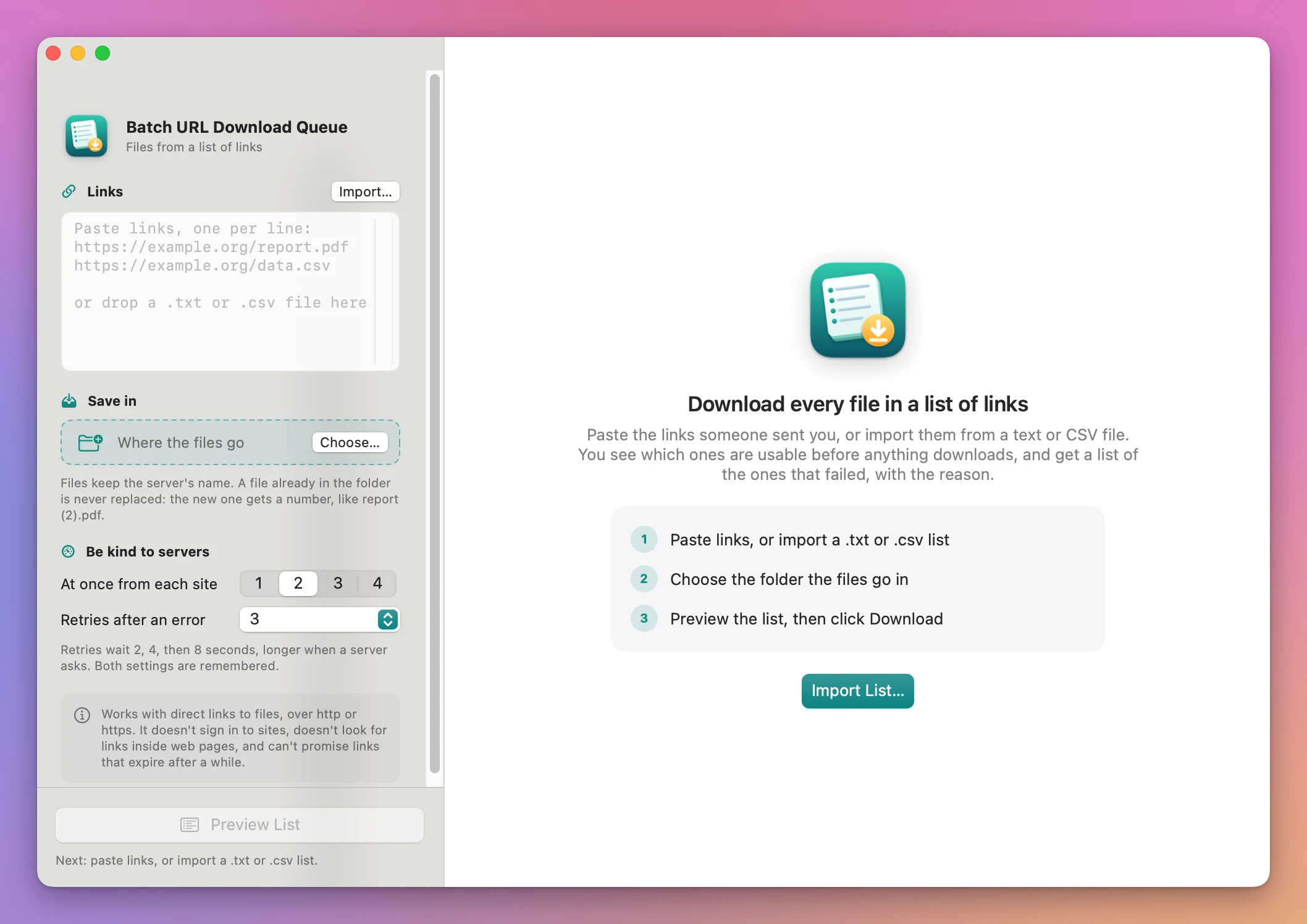
The Links box in the sidebar takes one link per line. Paste them, click Import… to open a .txt or .csv file, or drop the file on the box or the window. The app finds the web address on each line, so a CSV with other columns (a title, notes) works without editing.
Pills under the box count the links, the repeats and the lines that aren’t links, and say which file the list came from.
Choose the folder and the settings
Click Choose… under Save in, or drop a folder on the card. The folder is remembered between launches.
Under Be kind to servers:
- At once from each site is how many files download at the same time from one site: 1, 2, 3 or 4. The default is 2. The app never runs more than 6 downloads at once in total.
- Retries after an error is None, 1, 3 or 5. The default is 3. Retries wait 2, 4, then 8 seconds (doubling, up to 60), or what the server asks for, up to 60 seconds.
Both settings are remembered.
Preview the list
Click Preview List, or press Command-R. Until the list and the folder are set, the line under the button says what’s missing.
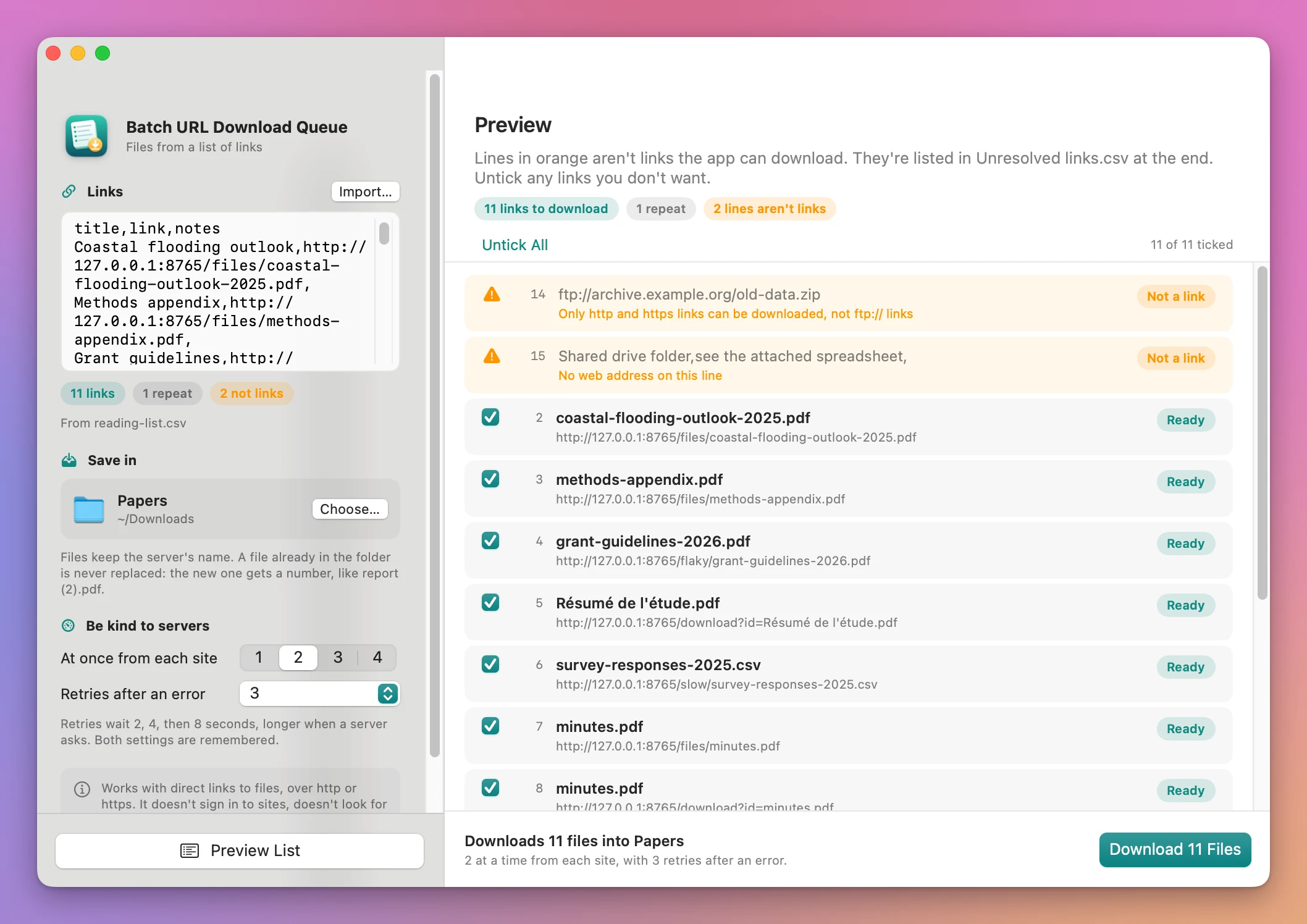
Lines the app can’t download come first, in orange, with the reason, for example “Only http and https links can be downloaded, not ftp:// links”, “No web address on this line” or “This is an email address, not a link”. Every link has a checkbox, its line number, the file name it points to and the link. A repeated link says “Same link as line 3. It’s downloaded once.”
Use Untick All or Tick All, or untick single links. The footer says how many files will download, into which folder, and with which settings.
Download
Click Download 11 Files (the count matches your ticked links). The heading says how many are finished, downloading and waiting to try again, above an overall progress bar. Each row shows Waiting, a progress bar with the size, a retry countdown like “Retrying: The server had an error (HTTP 500). Try 3 of 4 in 4 s”, Downloaded, or the reason it failed.
Network errors, dropped connections and the HTTP errors 408, 425, 429 and 5xx are retried. 401, 403, 404, 410 and other 4xx errors fail at once with a plain sentence. A dropped connection in the middle of a file continues from where it stopped when the server supports it.
Stop, or Esc, stops the batch and keeps the partial files.
File names
Each file gets the name the server sends. Without one, it gets the last part of the link after any redirects, and an extension from the file type when the name has none. Slashes, colons and other characters a file name can’t hold are removed.
A file already in the folder is never replaced. A name that’s taken, in the folder or by another link in the same batch, gets a number: minutes (2).pdf. Two links that reach the same name are numbered in the order their servers answer, not strictly in list order.
The result
The done screen says how many files were downloaded and how many couldn’t be. The links that need a look are at the top: not found, server errors after the last retry, and Web page rows where the site sent a web page instead of a file. Those pages are saved as .html. Then each downloaded file is listed with its size, and notes like “resumed” or “after 3 tries”.
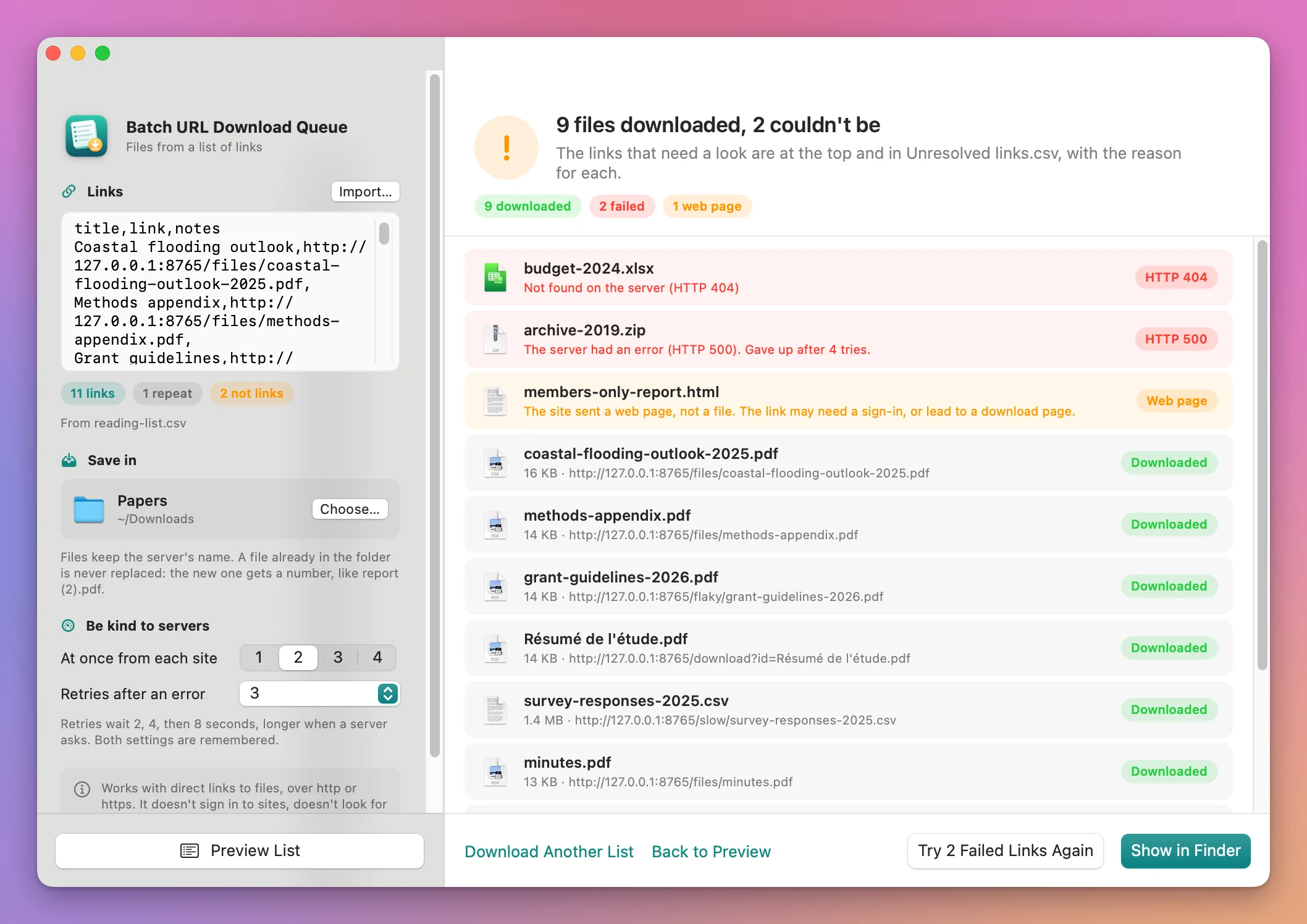
- Try 2 Failed Links Again retries what didn’t finish.
- Show in Finder opens the folder with Unresolved links.csv selected.
- Back to Preview goes back to the list, which now shows the files already in the folder.
- Download Another List starts over.
Unresolved links.csv
The app writes Unresolved links.csv in the folder when something needs a look, with an Open button on its row. Its columns are Line, URL, Result, HTTP status, Reason and Attempts. It lists failed downloads, web pages saved instead of files, and lines that weren’t links. It never replaces an existing file with the same name.
Resume after a stop or a quit
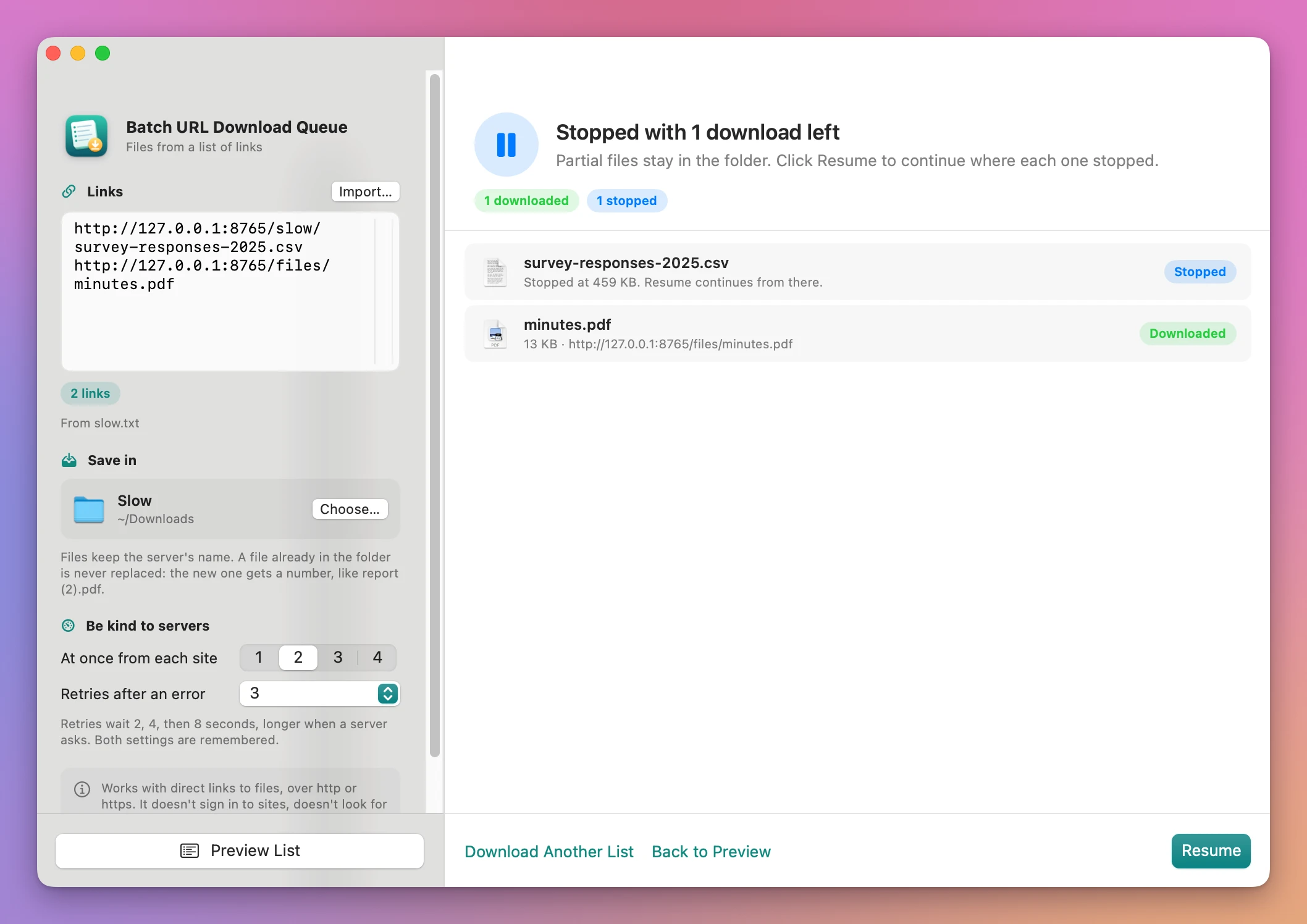
Partial files are kept as hidden .part files, and a hidden file in the folder remembers what’s done. After a Stop, click Resume.
After quitting the app, open it, use the same list and the same folder, and click Preview List. The preview shows the files already in the folder and the ones to resume (“Resumes at 459 KB”), and the button reads Resume Download. Finished files are skipped.
A partial file continues only when the server supports it and reports when the file last changed. Otherwise it starts over. If the file on the server changed since the first try, the app downloads it again from the start.
Limits
- Direct links to files, over http or https. No FTP, and no download pages driven by JavaScript.
- No sign-ins or cookies. A link behind a sign-in usually comes back as a web page.
- It doesn’t look for links inside web pages.
- Links that expire work only while they’re valid. A resume after expiry fails with 403 and is reported.
- A file the server sends as a web page, behind a link that doesn’t end in
.html, is flagged as a web page even when that page is what you wanted. - No custom names per link, no subfolders, no bandwidth limit and no scheduling.
The app connects to the links in your list, and to the update server to check for updates.
Batch URL Download Queue is $20, a one-time purchase.