How to use Bookmark Merge Desk
Bookmark Merge Desk
Merge bookmark exports from Safari, Chrome, Firefox, Edge and Brave into one bookmarks file, with folder merges and duplicates reviewed first.
Bought Bookmark Merge Desk? Sign in with the email you bought it with to download the latest version or ask me a question.
On this page
Install
Bookmark Merge Desk requires macOS 14 Sonoma or later, on Apple silicon or Intel. Download the ZIP from the order page or your Creem receipt. Unzip it and move the app to Applications.
The app checks for updates once a day. When a new version is ready, click Install and Relaunch. To check anytime, choose Bookmark Merge Desk → Check for Updates….
Export your bookmarks
The app works on the bookmark files each browser exports, never on the browsers themselves. Export one file per browser:
- Safari: File › Export Browsing Data to File… saves a zip. Double-click it in the Finder to unzip it, and add the bookmarks
.htmlfile inside (or the unzipped folder). Before Safari 18 the command was File › Export › Bookmarks. - Chrome, Brave and Edge: open the bookmarks manager, click the ⋮ menu (in Edge, …) and choose Export bookmarks.
- Firefox: Bookmarks › Manage Bookmarks, then Import and Backup › Export Bookmarks to HTML.
Add the exports
Click Add Bookmark Exports…, or drop the files or a folder on the Bookmark exports box in the sidebar. A folder adds every .html file in it.
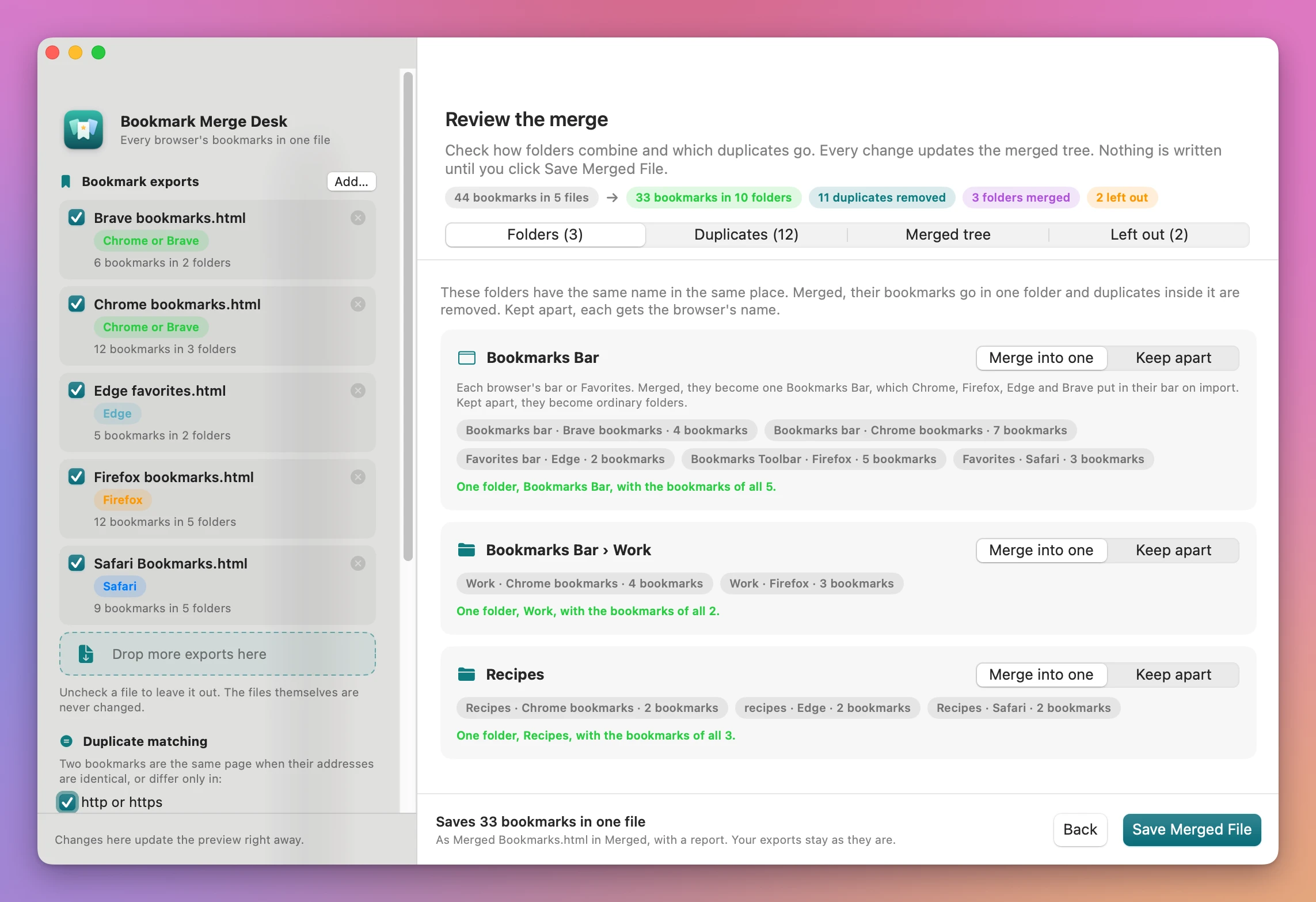
Each file gets a row with a checkbox, the browser it came from (Safari, Firefox, Edge, “Chrome or Brave”, or “Bookmarks HTML”), and how many bookmarks and folders it has. Chrome and Brave exports are identical, so the app can’t tell them apart and uses the file name as the label.
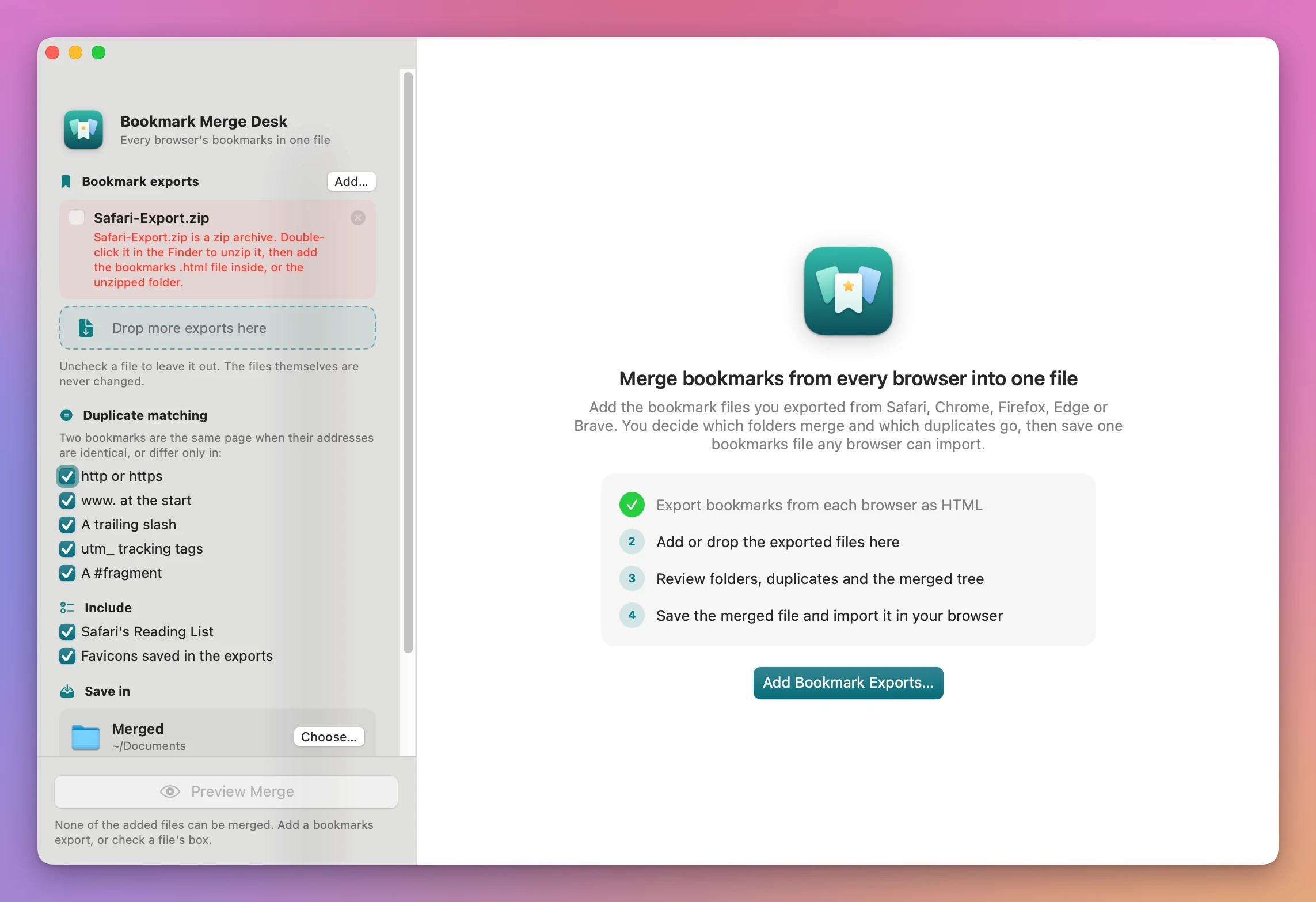
Untick a file to leave it out. A file the app can’t use shows a red sentence and its checkbox is disabled: a file that isn’t a bookmarks export, an empty or unreadable file, or a zip that still needs unzipping.
Set the options
The sidebar options are remembered between launches.
Duplicate matching. Two bookmarks are the same page when their addresses are identical, or differ only in the things that are ticked: http or https, www. at the start, A trailing slash, utm_ tracking tags (this one also covers fbclid and gclid), and A #fragment. All are on by default.
Include. Safari’s Reading List adds the Reading List as a folder. Favicons saved in the exports keeps the site icons that the exports contain.
Save in. Click Choose… for the folder, and type a File name (Merged Bookmarks by default). The app saves <name>.html and <name> report.txt. An existing file is never replaced: the new one gets ” 2”, ” 3” and so on.
Review the merge
Click Preview Merge. The Review the merge screen shows the totals at the top (bookmarks in, bookmarks out, duplicates removed, folders merged, left out), and four tabs. Every change updates the totals and the tree right away. Nothing is written until you save.
Folders
Every place where two or more exports have a folder with the same name (ignoring capitals) at the same path. Each browser’s bar (Chrome and Brave’s Bookmarks bar, Edge’s Favorites bar, Firefox’s Bookmarks Toolbar, Safari’s Favorites) counts as one Bookmarks Bar. Pick Merge into one or Keep apart for each. Kept apart, each folder gets its source’s name, like “Work (Firefox)”. When the bars are kept apart, none of them is marked as the bar in the merged file.
Duplicates
Groups of copies of the same page, side by side. Each copy shows its title, address, folder, the export it came from, and a label for what differs. Tick Keep on the copies to keep. The Show menu filters the groups: All, Near matches, Exact, In several folders.
By default the app keeps one copy per folder, choosing the cleanest address (https, no tracking tags, the form most exports agree on). Copies in different folders all stay. The quick buttons change a whole group: Keep one or Keep all for copies in one folder, One per folder, Only one or Keep all for a page saved in several folders. The last copy can’t be unticked: untick its folder in the tree instead.
Merged tree
Exactly what the file will contain, with the export each bookmark came from. Expand All and Collapse All open and close the folders. Untick a folder to leave it out with everything inside it.
Left out
What won’t be in the file, each with the reason: Firefox smart folders (saved searches that only work in Firefox), bookmarks with no address, separator lines, the Reading List if it’s turned off, and folders you unticked.
Save and import
Click Save Merged File (or Choose Folder and Save… if you haven’t picked a folder). The done screen shows the counts, the two files, and how to import the merged file:
- Safari 18: File › Import Browsing Data from File or Folder…, then choose the merged file. Safari asks for your Mac password first. Before Safari 18: File › Import From › Bookmarks HTML File….
- Chrome, Brave and Edge: the bookmarks manager, the ⋮ menu (in Edge, …), Import bookmarks.
- Firefox: Bookmarks › Manage Bookmarks › Import and Backup › Import Bookmarks from HTML.
Show in Finder opens the folder. Merge Other Exports starts again with a new set.
The report lists the exports read, each folder merged or kept apart, each duplicate removed with the copy kept and why, the pages kept in more than one folder, and everything left out.
Limits
- Separator lines are dropped. Firefox keywords, tags and descriptions are kept in the file, but only Firefox uses them.
- Folders with different names never merge: “Recipes” and “Cooking” stay apart.
- A folder emptied by duplicate removal stays in the file, empty.
Everything happens on your Mac. The app uses the internet only to check for updates.
Bookmark Merge Desk is $20, a one-time purchase.