How to use Broken Alias Repair Desk
Broken Alias Repair Desk
Scan folders for broken Finder aliases, review the likely file for each one with its reasons, relink the ones you confirm, and undo the repair from the backup.
Bought Broken Alias Repair Desk? Sign in with the email you bought it with to download the latest version or ask me a question.
On this page
Install
Broken Alias Repair Desk requires macOS 14 Sonoma or later, on Apple silicon or Intel. Download the ZIP from the order page or your Creem receipt. Unzip it and move the app to Applications.
The app checks for updates once a day. When a new version is ready, click Install and Relaunch. To check anytime, choose Broken Alias Repair Desk → Check for Updates….
For help, choose Help › Broken Alias Repair Desk Support, which opens the support site in your browser.
What it fixes
A Finder alias is a small file that opens another file or folder. You make one with File › Make Alias (Control-Command-A). When the original item is moved or renamed on the same disk, the alias usually keeps working on its own. It breaks when the file comes back from a backup, is copied to another disk, is re-created by a sync service, or is deleted and replaced. Then Finder says the original item can’t be found.
The app relinks Finder aliases only. Symbolic links, another kind of link, are listed and go in the report, but they’re never changed.
Set up a scan
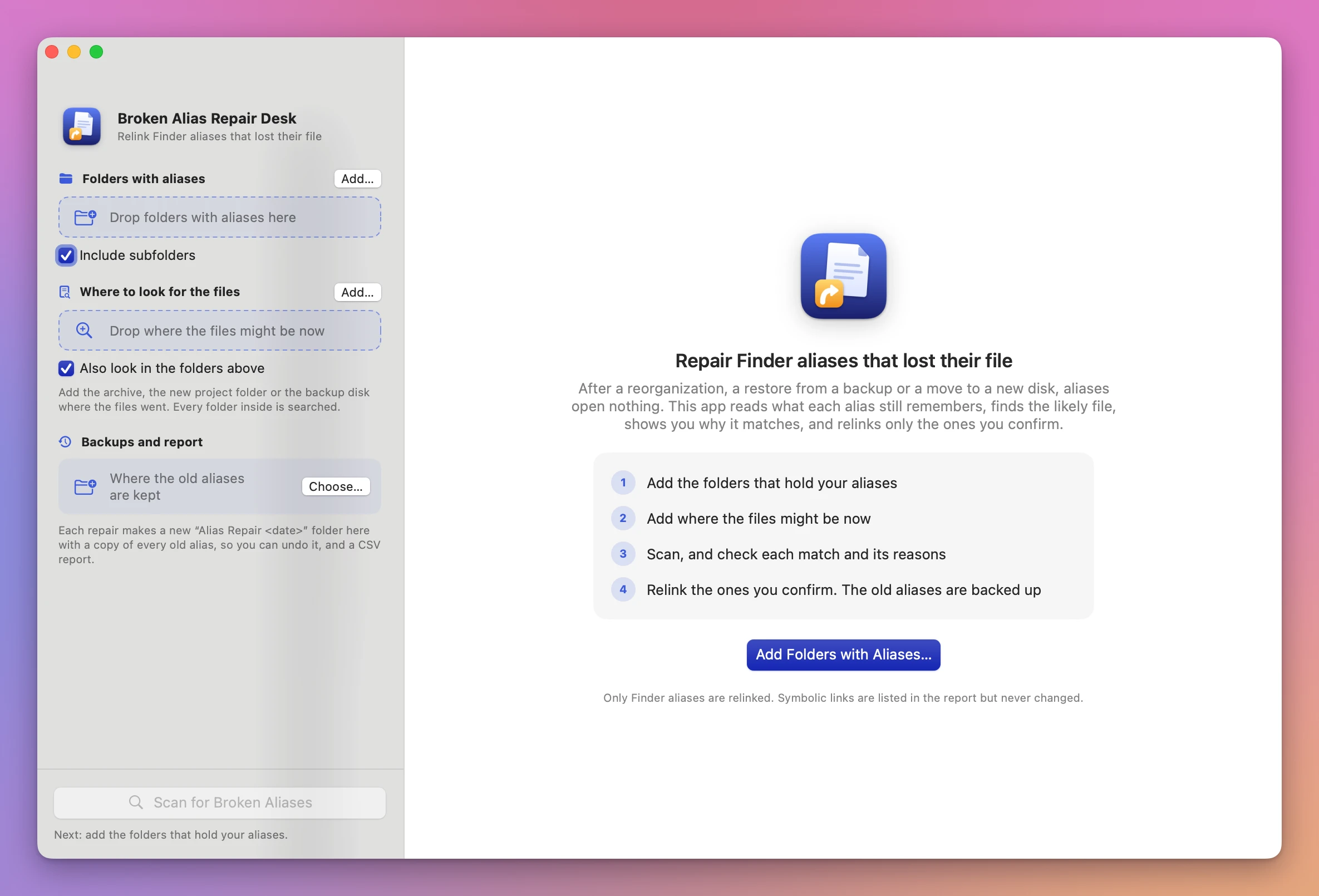
The sidebar has three sections.
- Folders with aliases. Click Add… or drop the folders that hold your aliases. With Include subfolders on (the default), aliases in every folder inside are found too.
- Where to look for the files. Click Add… or drop the archive, the new project folder or the backup disk where the files went. Every folder inside is searched, except hidden files and the inside of packages. With Also look in the folders above on (the default, remembered), the folders with aliases are searched too.
- Backups and report. Click Choose… and pick a folder. It’s remembered. Each repair makes a new “Alias Repair
” folder there.
The big button in the main area changes with what’s missing: Add Folders with Aliases…, then Add Where to Look…, then Scan for Broken Aliases. The Scan button at the bottom of the sidebar (Command-R) does the same, and the line under it says what to do next.
While it scans, the app shows how many items it has looked at. A big backup disk takes a while, and there’s no cancel button, so add the narrowest folder you can.
Review the matches
The pills at the top count the aliases found, the ones to repair, the working ones, the symbolic links (not changed) and the items searched. The tabs filter the list: To repair, Ready, Need a choice, No match, Working and Symbolic links.
Each broken alias shows:
- its name and its state: Broken, Points to the Trash or Disk not connected
- how good the match is: Ready, Check this, Ambiguous or No match
- its folder, a sentence about what happened, and Show in Finder
- What the alias remembers: the original path, the disk, the creation date, and the size, or “Size not saved in this alias”
- the possible matches, best first, each with its name, folder and reasons
Green reasons agree with what the alias remembers: same name, same size, same creation date, same last-modified date, in a folder with the same name, same kind of file. Red ones disagree, like a different size or creation date. The magnifier button shows the item in Finder.
What each match means
- Ready. The name and the saved details agree. These rows are checked to start with.
- Check this. Only the name matches, or the name is different but the date matches. An orange line says what to check. The row isn’t checked until you check it.
- Ambiguous. Two or more items match equally well, like the same file in a folder and in its copy. A purple line says so, and no item is picked. Click the right one, which also checks the row.
- No match. Nothing in the search locations looks like the original. Add another place to look and scan again, or choose the item yourself.
Aliases made by Finder save the name, path, disk and creation date, not the size. For those, Ready means the same name and the same creation date. A file that was edited after a restore has the same name and creation date, so it comes out Ready too. The reasons show exactly what matched.
Choose the item yourself
Choose Another Item… opens a file picker titled with the alias name. Pick any file (or a folder, for an alias to a folder), and the app scores it with the same reasons and marks it Chosen by you.
A row’s checkbox is disabled until there’s an item to relink to.
Relink
The bar at the bottom says what will happen, like “Relinks 7 aliases in place”, and where the old aliases are backed up. Click Relink N Aliases (Command-Return). If you haven’t chosen a backup folder, the button reads Choose Backup Folder and Relink… and asks for one first.
For each checked alias, the app:
- copies the old alias into the backup folder
- writes a new alias to the item you picked, with the same name in the same place
- opens the new alias to check it leads to that item, and puts the old one back if it doesn’t
The done screen says “Relinked N aliases”. Each row says which item it opens, or why it failed in red. Show in Finder shows an alias, and you can open it from there to try it.
The files and folders the aliases open are only read, never changed. The new alias shows the normal icon of its item: a custom icon you pasted on the old alias isn’t carried over, but it’s kept in the backup.
If the backup folder no longer exists, an orange banner says so, and nothing is changed. Choose another one under Backups and report.
Undo
Click Undo Repair on the done screen. The screen then says “Put back N old aliases”, and each row says “Put back as it was”. An alias you changed after the repair is left alone.
The backup folder and the report
Each repair writes an “Alias Repair
- Old aliases: a copy of every alias as it was before, numbered (
001 Brief,002 Invoices) - Alias repair report.csv: one row per alias and per symbolic link
repair.json: what Undo Repair reads
The report’s columns are the alias, its folder, its kind, its state, the original path, disk, creation date and size, the decision, the new target, the match, why it matched, the other candidates, the backup of the old alias and a note.
Save Report… on the review screen saves the same CSV before you relink anything, so you can get a list of every broken alias without changing one.
After the repair, the done screen has Show Report in Finder, Scan Again to look for anything left, and Repair Other Folders to start over with other folders.
Privacy
Everything happens on your Mac. The app goes online only to check for and download updates.
Broken Alias Repair Desk is $19, a one-time purchase.