How to use Calendar Batch Rescheduler
Calendar Batch Rescheduler
Move a group of Calendar events by a number of days or working days, skip weekends and days off, check the new dates and clashes, and undo a batch later.
Bought Calendar Batch Rescheduler? Sign in with the email you bought it with to download the latest version or ask me a question.
On this page
Install
Calendar Batch Rescheduler requires macOS 14 Sonoma or later, on Apple silicon or Intel. Download the ZIP from the order page or your Creem receipt. Unzip it and move the app to Applications.
The app checks for updates once a day. When a new version is ready, click Install and Relaunch. To check anytime, choose Calendar Batch Rescheduler → Check for Updates….
For help, choose Help › Calendar Batch Rescheduler Support. It opens the support site in your browser.
Allow Calendar access
The first time you open the app, click Allow Calendar Access. macOS asks whether the app can access your calendars: choose Allow Full Access. The app needs full access to read events and change their dates.
If you said no, or access is set to Add Events Only, the start screen says so and the button becomes Open Privacy Settings. In Privacy & Security › Calendars, set Calendar Batch Rescheduler to Full Access, then reopen the app.
Choose the events
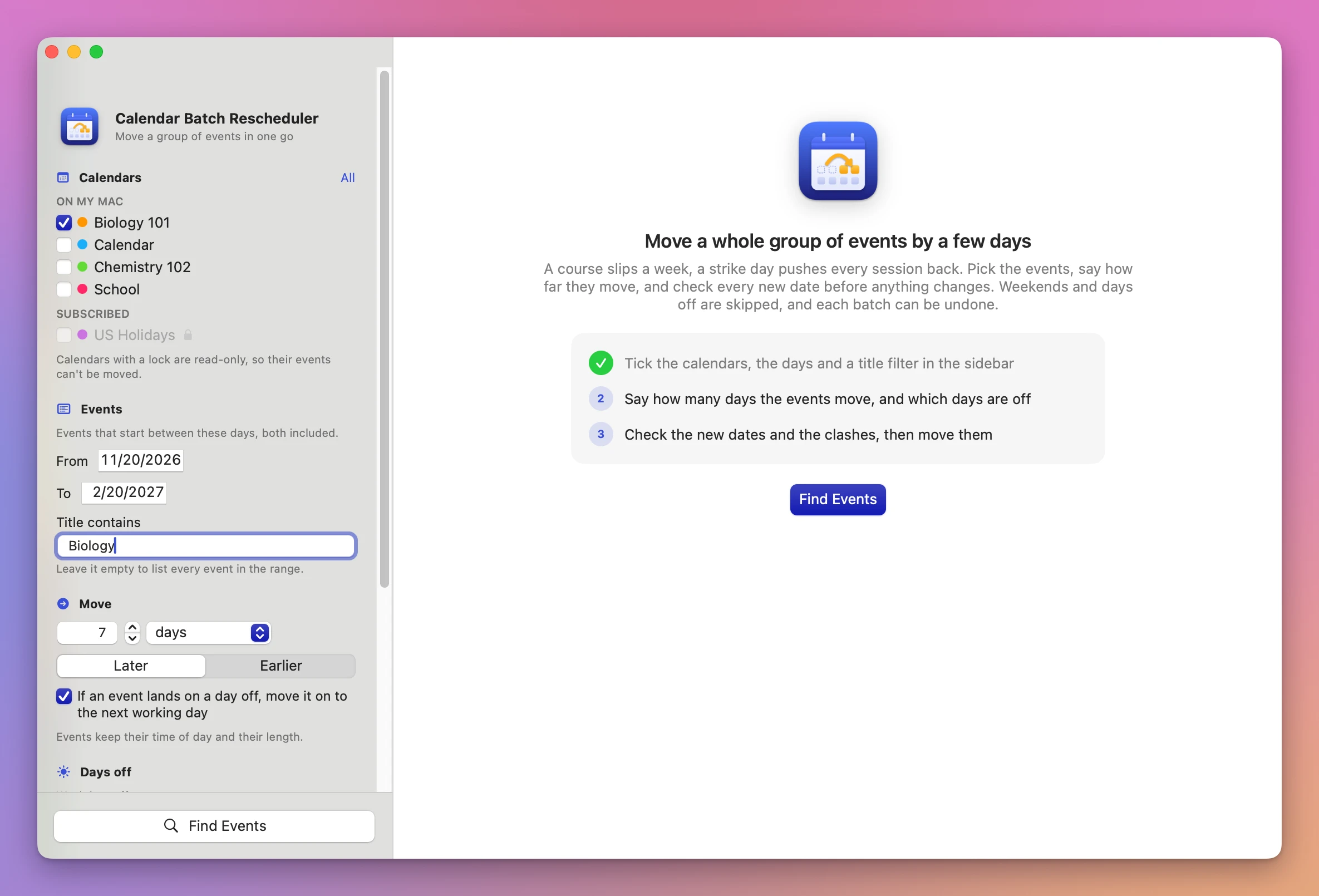
Everything is in the sidebar. The app remembers your settings, except the dates and the title.
- Calendars: your calendars grouped by account, each with its color. Tick the ones that hold the events, or click All. Read-only calendars, like subscriptions, show a lock and can’t be ticked.
- From and To: the app takes the events that start between these two days, both included.
- Title contains: part of the title, like
Biology. Capitals and accents don’t matter. Leave it empty to take every event in the range.
Say how far they move
Under Move, type a number or use the stepper (0 to 3650), then pick:
- days or working days.
- Later or Earlier.
With days, the app adds that many calendar days. If If an event lands on a day off, move it on to the next working day is ticked (it is to start with), an event that lands on a day off moves on to the next working day. It always moves forward off a day off, also when you move events earlier.
With working days, the app steps day by day and counts only days that aren’t off. 0 working days moves only the events that sit on a day off now.
Events keep their time of day and their length. All-day and multi-day events stay as long as they were, and a 9:00 AM lecture stays at 9:00 AM across a change to or from summer time.
Mark the days off
- Weekdays off: click a weekday to turn it on or off. Highlighted days are off. Saturday and Sunday are off to start with, and any set works, like Friday and Saturday.
- Extra days off: pick a first and a last day in the two date fields and click Add Days Off. For a single day, pick the same day twice.
- Type them: in the field below, type or paste dates and ranges, like
2026-12-08, 2026-12-21..2027-01-06or2026-12-21 to 2027-01-06, and click Add. Anything the app can’t read stays in the field with an orange line, like “Couldn’t read 2026-13-01”.
Each extra day off or range has a remove button, and Remove All clears the list.
If every weekday is off, or there’s no working day within 10 years, the app says so instead of making a plan.
Count all-day events as clashes decides whether a timed event that lands on an all-day event is a clash. Off, all-day events only clash with other all-day events.
Check the new dates
Click Find Events (Command-R). When it can’t run yet, a “Next:” line under the button says what’s missing, like “Next: tick the calendars that hold the events.”
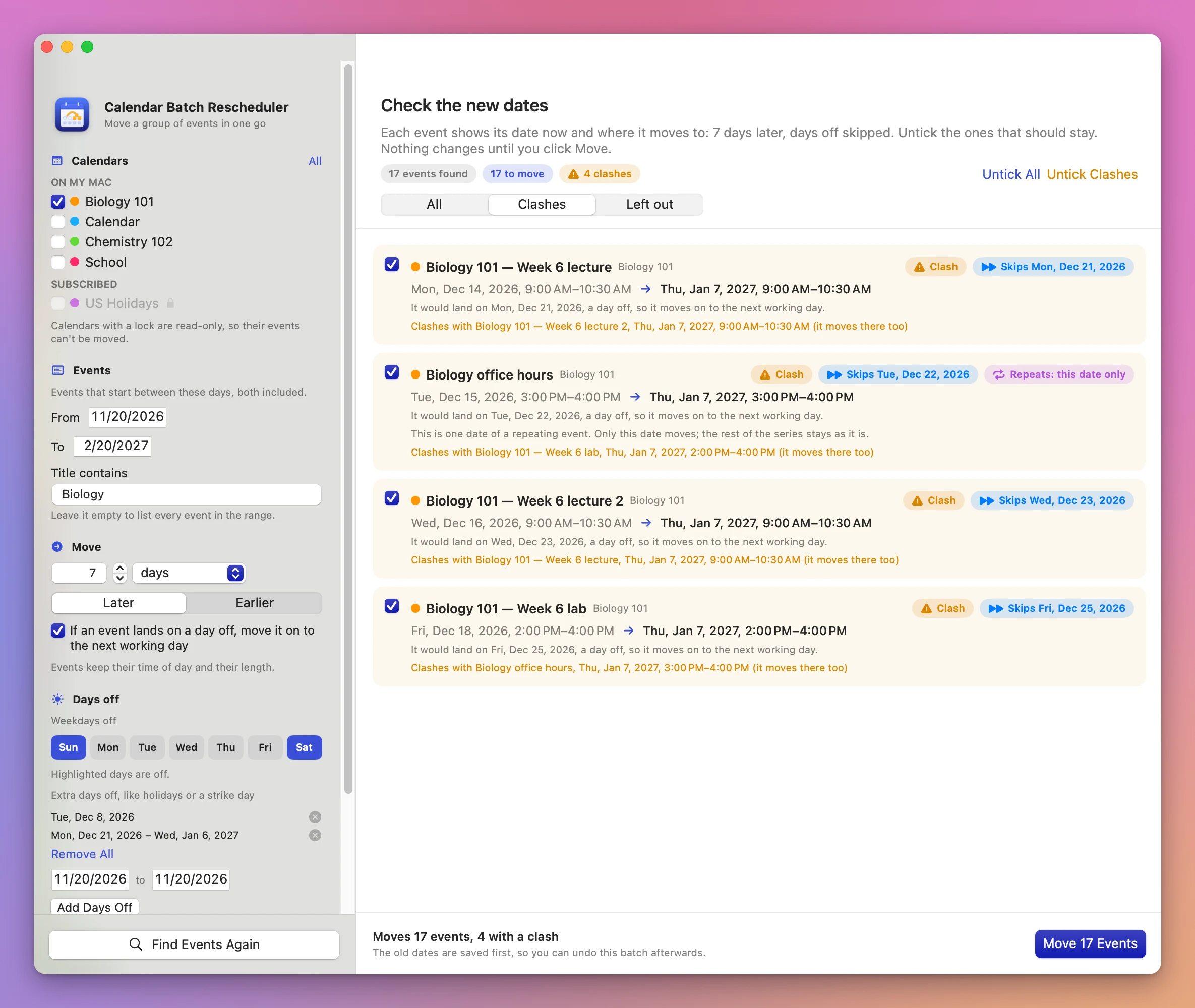
Check the new dates lists every event found. Each row has a checkbox, the title and calendar, the date it has now, an arrow and the date it gets. The pills at the top count the events found, the ones to move, the clashes and the ones that can’t move. All, Clashes and Left out filter the list.
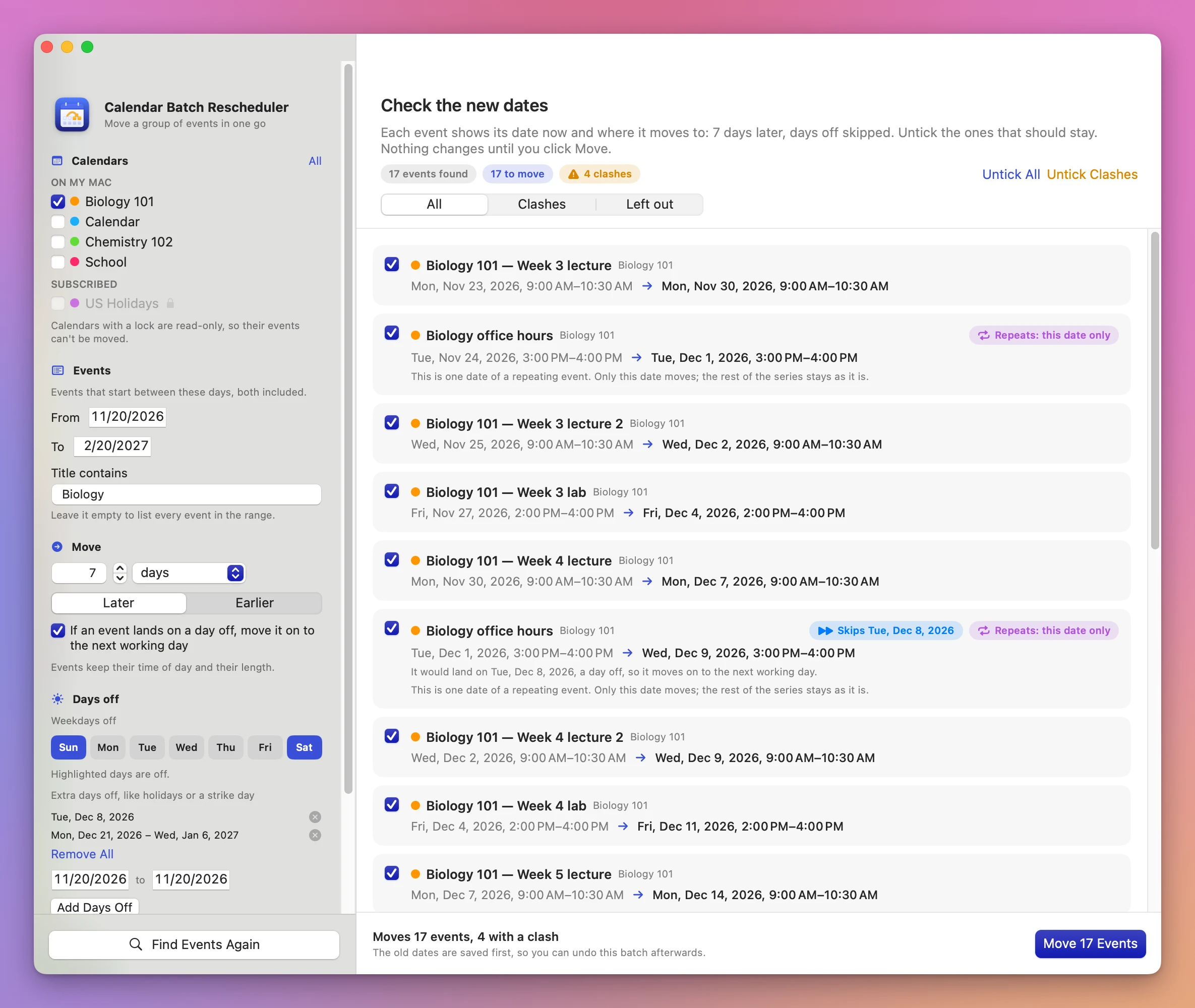
A row can also say:
- Skips and a date: the event would land on a day off, so it moves on to the next working day. The line under it says which day it skipped.
- Repeats: this date only: one date of a repeating event. Only this date moves; the rest of the series stays as it is.
- All day.
- Clash, in amber: the new time overlaps another event in the ticked calendars. The line names that event and its time, with “(it moves there too)” when it’s in the same batch.
- Stays: and a reason: the event can’t move. It has invitees, its calendar is read-only, or its date doesn’t change.
Untick an event to leave it where it is. Untick All and Untick Clashes do it for many at once. Clashes are checked again each time: an unticked event stays put, so another moved event can now land on it.
Changing anything in the sidebar updates the list right away.
Ticking another calendar also brings its events into the clash check, even when Title contains leaves them out of the move. Tick the calendar with the staff meetings to see which lectures would land on one.
Move the events
The bottom bar says what will happen, like “Moves 12 events, 4 with a clash”. Click the Move button and confirm. When some events clash, the confirmation says how many land on a time that’s already taken.
The app saves the batch to a file first, then moves the events. If the file can’t be saved, nothing moves. Right before moving each event, the app reads it again: if it’s gone, or its time or calendar changed since the preview, it’s skipped and listed with the reason.
Repeating events: only the dates in your range move, each one as “only this event”. The rule of the series is never changed.
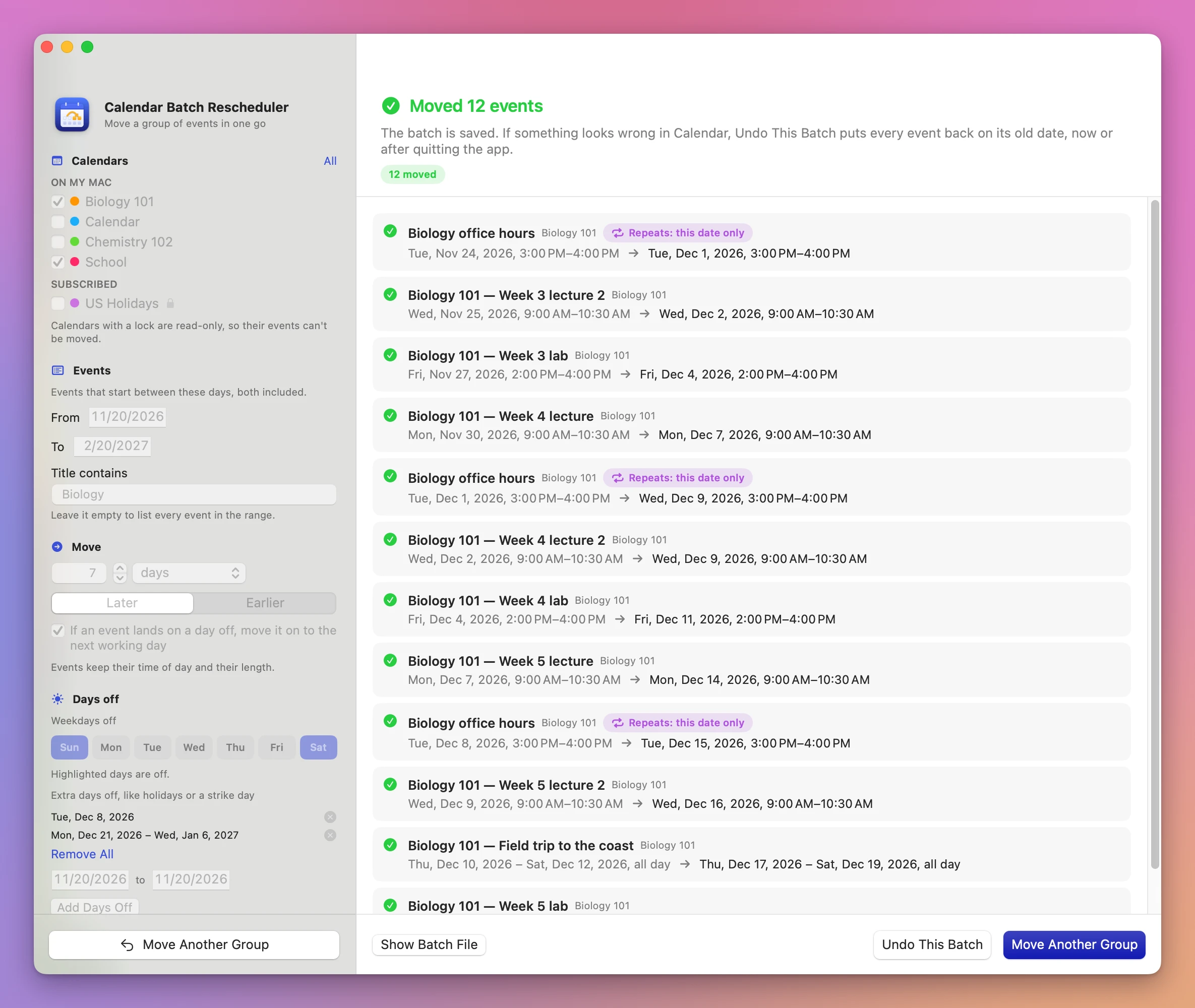
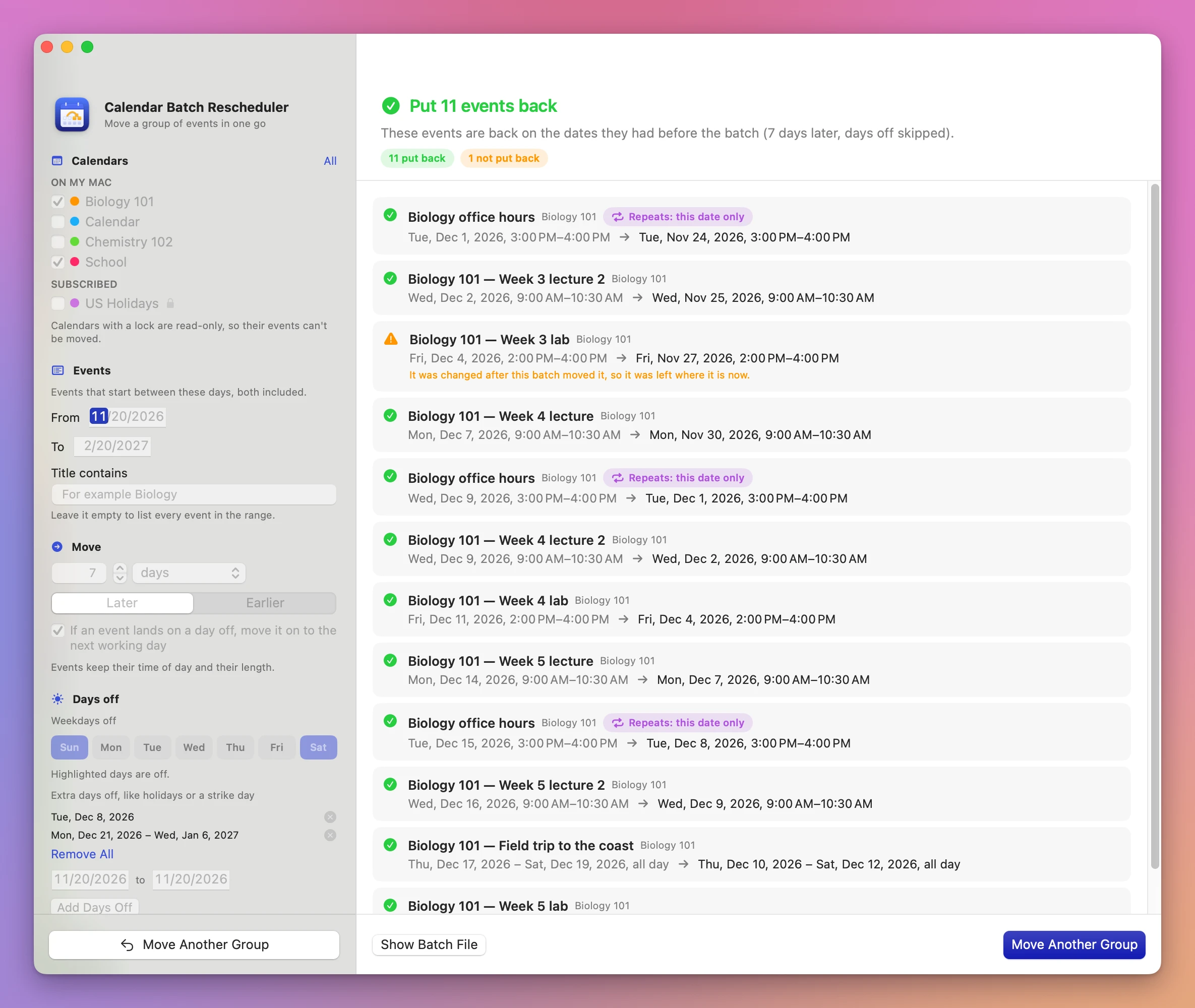
The done screen says how many events moved and lists each one, old date to new date, with a reason for any that didn’t move.
- Show Batch File shows the saved batch in Finder.
- Undo This Batch puts the events back.
- Move Another Group goes back to the start.
Undo a batch
Click Undo This Batch on the done screen, or Undo… next to a batch under Earlier batches on the start screen. The start screen lists the last five batches with their summary, date and state (moved, undone or partly undone), also after you quit and reopen the app.
The app asks for confirmation, then puts the events back on their old dates. An event you changed after the batch moved it stays where it is now, with the line “It was changed after this batch moved it, so it was left where it is now.” A partly undone batch can be undone again later.
The batch files are in ~/Library/Application Support/Calendar Batch Rescheduler/Batches/.
What it never moves
- Events with invitees or an organizer. Move them in Calendar, so the others get the new time.
- Events in read-only calendars, like subscriptions.
Limits
- It shifts by days or working days. It doesn’t move each session into the next session’s slot.
- A multi-day event is checked against days off by its first day only.
- Days off are picked or typed by hand. The app doesn’t read a holidays calendar.
- Clashes are checked only against events in the ticked calendars.
- Whole repeating series (“all future events”) aren’t moved, only their dates in the range.
- Moving and undoing were tested on calendars stored On My Mac. iCloud, Google and Exchange calendars haven’t been tested. Moved events sync to your other devices like any change in Calendar.
Everything happens on your Mac. The app uses the internet only to check for and download updates.
Calendar Batch Rescheduler is $19, a one-time purchase.