How to use Calendar CSV Importer
Calendar CSV Importer
Import a schedule spreadsheet saved as CSV into a new calendar in Calendar, check every row first, and undo the import with one click.
Bought Calendar CSV Importer? Sign in with the email you bought it with to download the latest version or ask me a question.
On this page
Install
Calendar CSV Importer requires macOS 14 Sonoma or later, on Apple silicon or Intel. Download the ZIP from the order page or your Creem receipt. Unzip it and move the app to Applications.
The app checks for updates once a day. When a new version is ready, click Install and Relaunch. To check anytime, choose Calendar CSV Importer → Check for Updates….
Allow Calendar access
The app needs full access to Calendar to create the new calendar, add the events and check for duplicates. The first time, click Allow Calendar Access… in the sidebar, then Allow Full Access in the dialog macOS shows.
Without access you can still choose a file and preview it. Duplicates are then checked only within the file, and the Import button stays off. You can turn access on later in System Settings → Privacy & Security → Calendars.
Prepare the spreadsheet
Save the sheet as CSV from Excel, Numbers or Google Sheets. The app doesn’t open .xlsx or .numbers files.
Each row is one event. Two columns are required: a title and a start date. These are optional: start time, end date, end time, duration, all day, location and notes. Column names don’t matter, but common names are matched for you, including the Google Calendar (Subject, Start Date, Start Time…) and Outlook CSV layouts. A schedule with Date, Start and End columns, where Start and End hold only times, works too.
Choose the file
Click Choose CSV File… or Choose…, or drop the file on the drop zone. The sidebar shows the file name, the number of rows and the text encoding. A file that isn’t a CSV gets “This doesn’t look like a CSV file. Save the spreadsheet as CSV and try again.”
The New calendar name is filled from the file name: school-term-schedule.csv becomes “School Term Schedule”. Under it, Account says where the calendar is created (like On My Mac) and Duplicates says where to look for duplicates: all calendars, one calendar, or none.
Match the columns
Under Columns, each field has a picker with the spreadsheet’s columns, like D · Event. Fields marked with * (Title and Start date) are required. Set a field to Not used to ignore a column. Hover over a field to see what it takes.
Turn off First row has column names when the first row is already an event.
Columns the app can’t use, like Repeat, Attendees, Reminder or Time zone, are listed in a note above the preview as not imported.
Dates and times
- Date order: Automatic looks at every date in the file. If one date is
24/09/2026, the file is day/month. If every date is ambiguous, the app guesses from your Mac’s region and says so in the preview. You can also pick Day/Month/Year, Month/Day/Year or Year/Month/Day. - Time zone: the zone the times in the file are written in. This Mac is the default. When you pick another one, the preview reminds you that Calendar shows the events in your Mac’s time zone.
- Month names: the language of written-out months, like
1 Sep 2026or3 settembre 2026. This Mac or one of 16 languages and regions. - No end time: how long an event lasts when the row has no end time or duration, from 15 minutes to 8 hours. The default is 1 hour.
The app remembers the date order, the month names and the default length.
What it reads:
| Kind | Examples |
|---|---|
| Dates | 2026-09-01, 01/09/2026, 9/1/26, 01.09.2026, 1 Sep 2026, Tuesday, September 1st, 2026 |
| Times | 9:00, 09.30, 9am, 9:30 PM, 21h30, 1530, noon |
| Ranges in one cell | 9:00-10:30, 9-11am |
| Durations | 90 (minutes), 1:30, 1h 30m, 1.5 hours, 45 min |
| Timestamps | 2026-09-01T09:00:00Z, 2026-09-01T09:00:00+02:00, converted to the chosen zone |
A bare 1.5 as a duration is rejected as ambiguous: write 1.5 hours or 90.
Read the preview
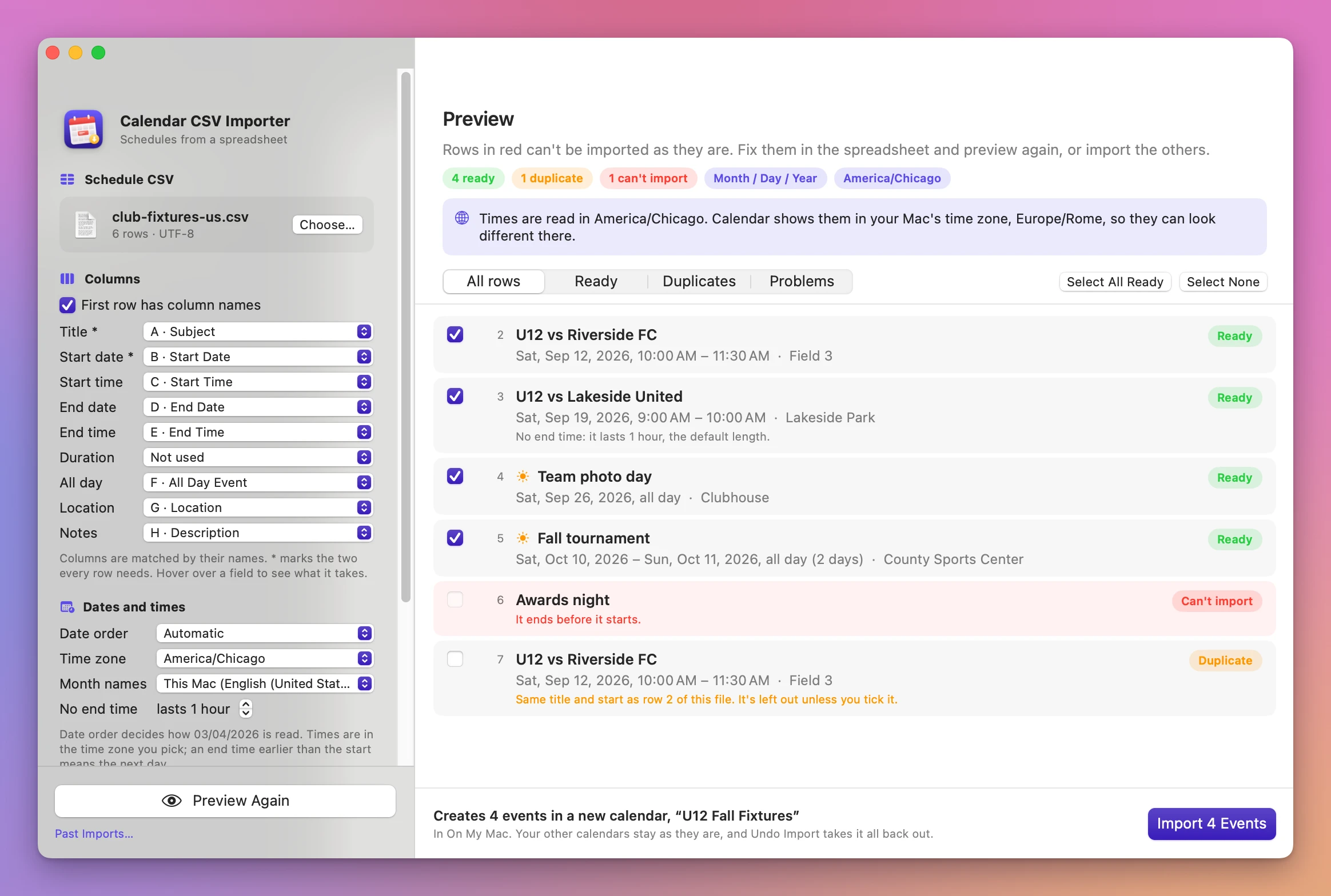
Click Preview. The pills at the top count the rows that are ready, duplicates and can’t be imported, and show the date order and time zone used. Use All rows, Ready, Duplicates and Problems to filter, and Select All Ready or Select None to change the ticks.
Each row has its spreadsheet row number, the title, the date and time as Calendar will have it, the location and a status:
- Ready rows are ticked. A sun icon marks an all-day event, a moon icon an event that ends the next day.
- Duplicate rows start unticked, with the reason in orange: “Already in Calendar, in “School”.” or “Same title and start as row 2 of this file.” Tick one to import it anyway.
- Can’t import rows can’t be ticked. The problem is in red, and a row whose date couldn’t be read shows the raw cells after “In the file:”.
Grey notes explain what the app decided, like “Ends the next day.” or “No end time: it lasts 1 hour, the default length.”
The rules behind the preview:
- No time means an all-day event. An all-day end date is included, so 10/10 to 10/11 is two days.
- An end time earlier than the start, with no end date, ends the next day. With an end date, it’s a problem: “It ends before it starts.”
- An event that starts and ends at the same moment, a timed event longer than 14 days, or an all-day event longer than a year is a problem.
- A time skipped when the clocks go forward is a problem. A time that happens twice when the clocks go back gets a note and uses the first one.
- Duplicates match on the title (ignoring case and spacing) and the start minute, or the same day for all-day events.
Fix problem rows in the spreadsheet, save, and click Preview Again.
Import
The bottom bar says what will happen, like “Creates 7 events in a new calendar, “School Term Schedule” · In On My Mac.” If the button is off, it says why: no rows ticked, no calendar name, or no Calendar access.
Click Import N Events. The done screen lists the events that were added. Open Calendar opens Calendar, and Import Another File starts over.
Every import makes a new calendar. Events get the title, start, end, location and notes from the file. The app never adds attendees, alerts or repeat rules, so no invitations are sent. If Calendar refuses any event, the new calendar is removed and nothing stays.
Undo an import
Click Undo Import on the done screen. The app removes the events it added and the calendar. If you added other events to that calendar, the calendar stays with them. Events you already deleted by hand are counted in the message.
Older imports are in File → Past Imports… (Shift-Command-I), also linked under the Preview button. Each import shows its calendar, the number of events, the source file and the date, with an Undo button, or an Undone label.
The CSV file is never changed.
Limits
- One event per row: no repeat rules, alerts or attendees.
- One time zone per import, except timestamps that carry their own offset.
- Always a new calendar, never an existing one.
- Duplicates match on title and start, not on end, location or notes.
Everything happens on your Mac. The app uses the internet only to check for updates.
Calendar CSV Importer is $20, a one-time purchase.