
Install Camera Card Copier
Camera Card Copier runs on macOS 14 Sonoma or later, on Apple silicon and Intel Macs. After buying, you land on a page with a Download button. You can also get the app from your Creem receipt. Unzip the app and drag Camera Card Copier to your Applications folder.
The app is signed and notarized by Apple. Confirm Open at the normal first-launch prompt.
The first time you choose a card or a drive, macOS may ask whether Camera Card Copier can open files on removable volumes. Click Allow. A network folder gets the same question about network volumes. Nothing is asked when the app opens.
The app checks for updates once a day. When a new version is ready, click Install and Relaunch. To check anytime, choose Camera Card Copier → Check for Updates….
Choose the card
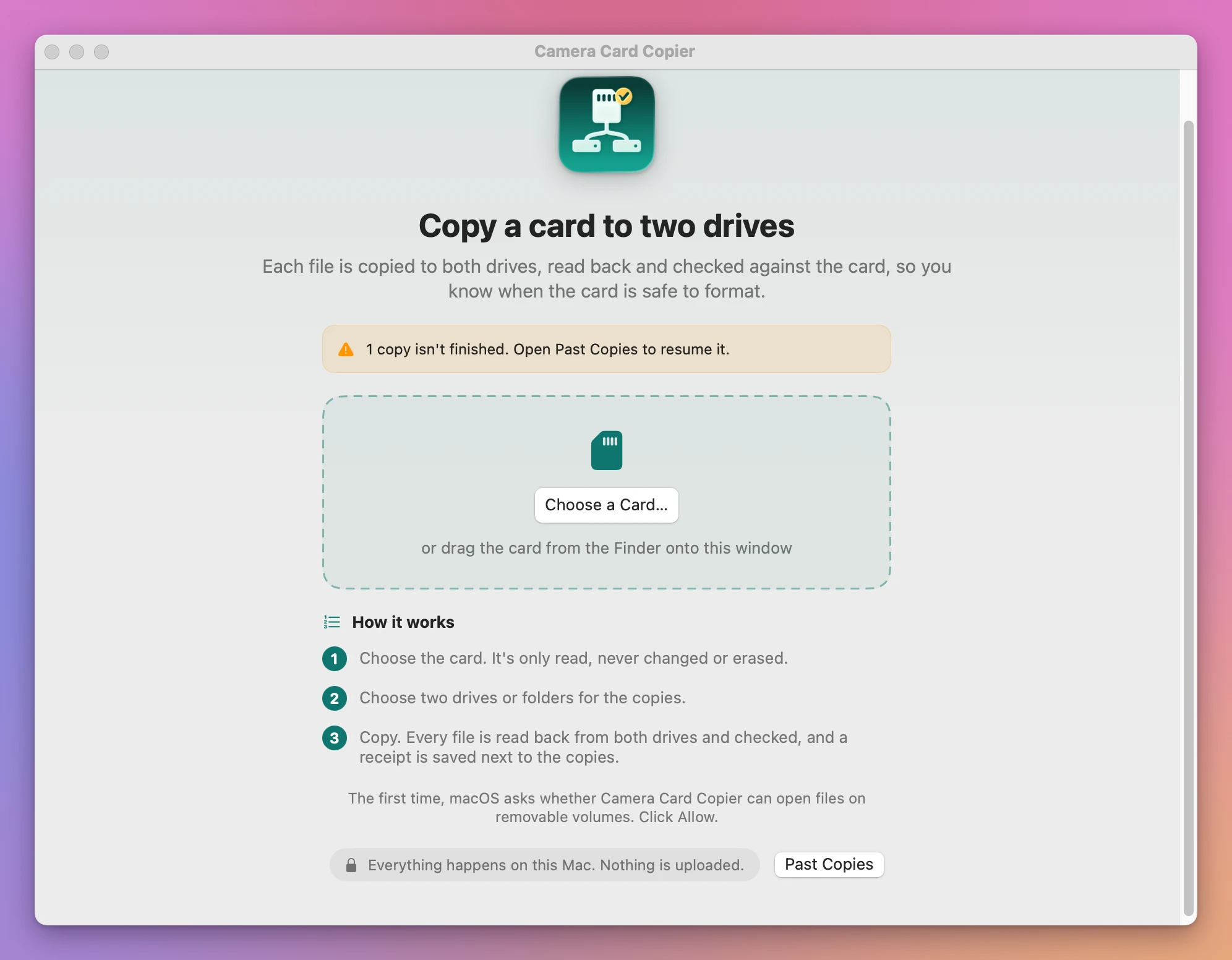
Put the card in the reader. Then either:
- click Choose a Card…, or choose File → Choose a Card… (⌘O), and pick the card in the sidebar of the panel;
- drag the card from the Finder’s sidebar or desktop onto the window.
You can also choose a folder, on the card or anywhere else. The copy then starts from that folder.
The app lists every file on the card with its folder, date and size, and counts the videos, photos and audio files. It leaves out the files the Mac makes on cards: .DS_Store and ._ files anywhere, and .Spotlight-V100, .fseventsd and .Trashes at the top of the card. Links are left out too.
If a folder on the card can’t be opened, the app stops and names it, so a copy never misses a folder without telling you. Nothing is copied in that case.
Choose the two drives
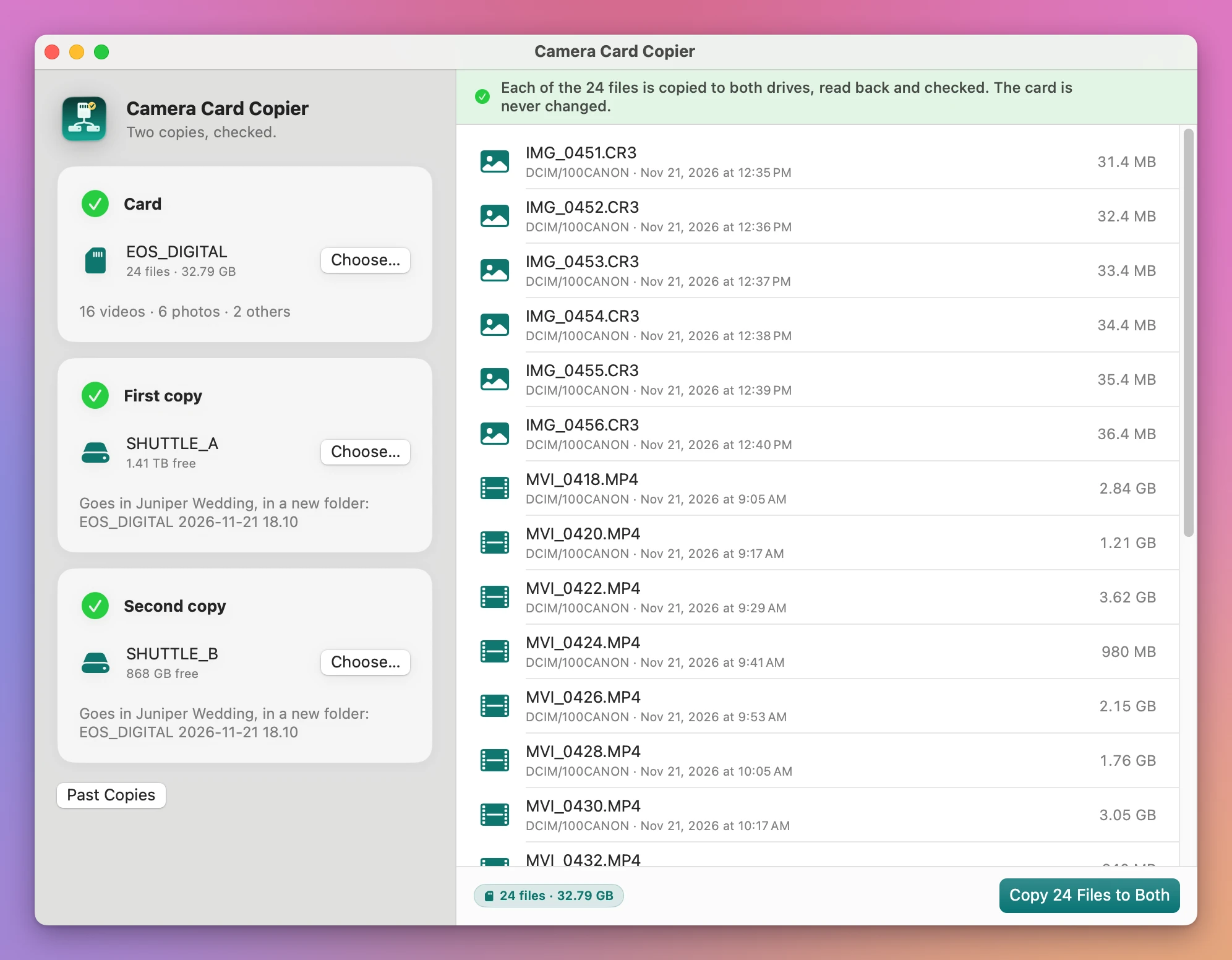
Under First copy, click Choose a Drive… and pick a drive, or a folder on it like Juniper Wedding. Under Second copy, pick the other drive. The free space of each drive is shown under its name.
Each copy goes in a new folder inside the one you picked, named after the card and the time: EOS_DIGITAL 2026-11-21 14.05. If a folder with that name is already there, the new one gets 2 at the end. The card’s own folders are kept inside it.
The app refuses, with a sentence that says what to do:
- a folder on the card itself,
- the same folder twice,
- a folder inside the other one,
- a drive that can’t be written to,
- a drive without room for the whole card (two copies on the same drive need room for two).
Both copies on the same drive are allowed. A notice says that if the drive fails, both copies go with it.
The Copy button stays off until both drives are chosen, and the reason is written next to it.
Copy
Click Copy 24 Files to Both (the number is your card’s).
Each file is read from the card once and written to both drives at the same time, under a temporary name like MVI_0430.MP4.cardcopy-partial. Then each copy is read back from its drive and compared with the card using a SHA-256 fingerprint. Only a copy that matched gets its real name and the card file’s date. The card is never written to.
The window shows the progress in bytes, “File 13 of 24”, the file being copied, and how many files each drive has checked. The Mac doesn’t go to sleep on its own while the app copies.
To stop, click Stop, or choose File → Stop (⌘.). The file being copied is dropped, and the files checked before that stay checked. If you quit the app during a copy, it asks first: Keep Copying is the default.
When both copies are verified
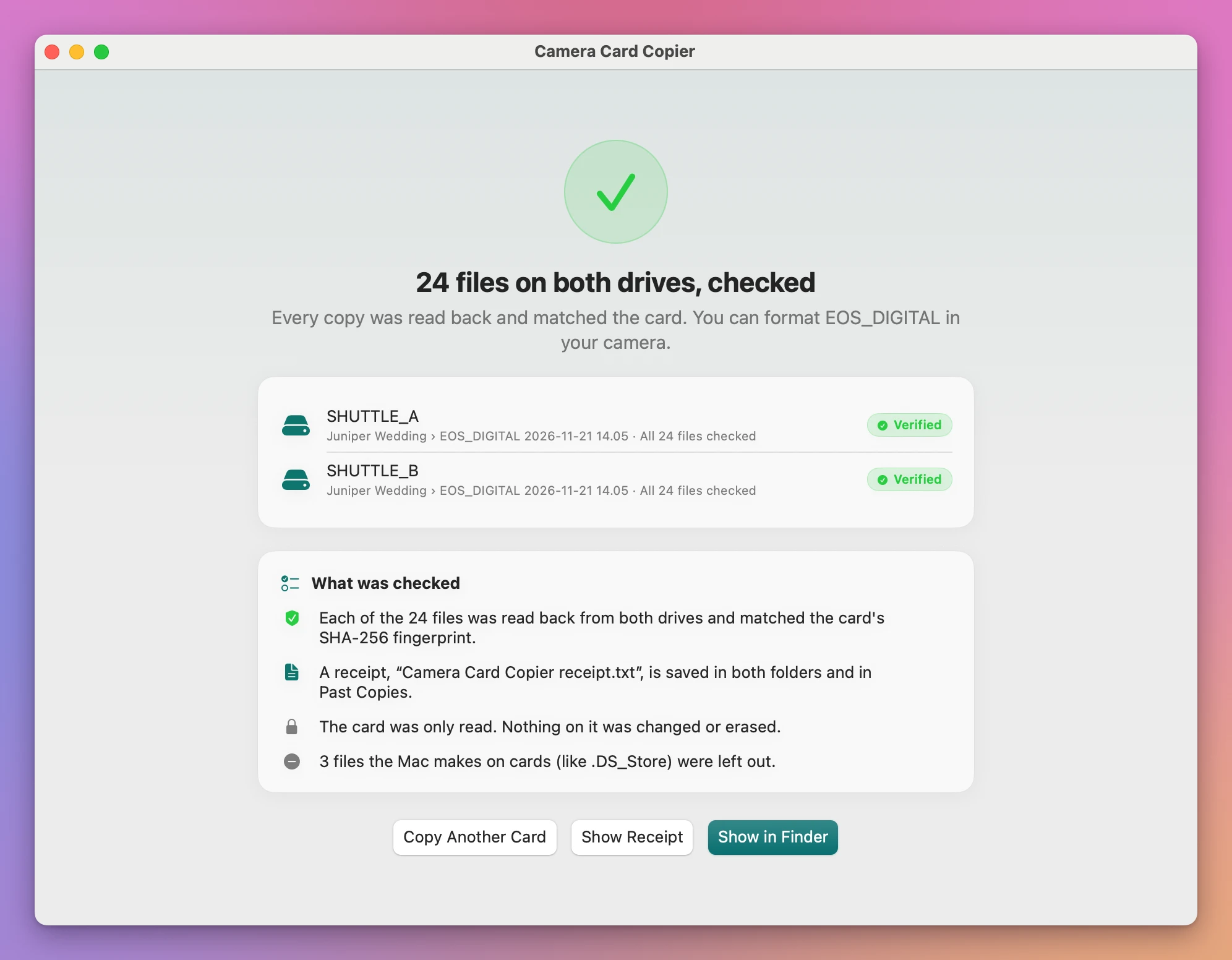
A green check says every file is on both drives, read back and matched. You can format the card in your camera.
- Show in Finder opens both job folders.
- Show Receipt opens the receipt in your text editor.
- Copy Another Card goes back to the start and keeps the two drives chosen for the next card.
When a copy isn’t finished
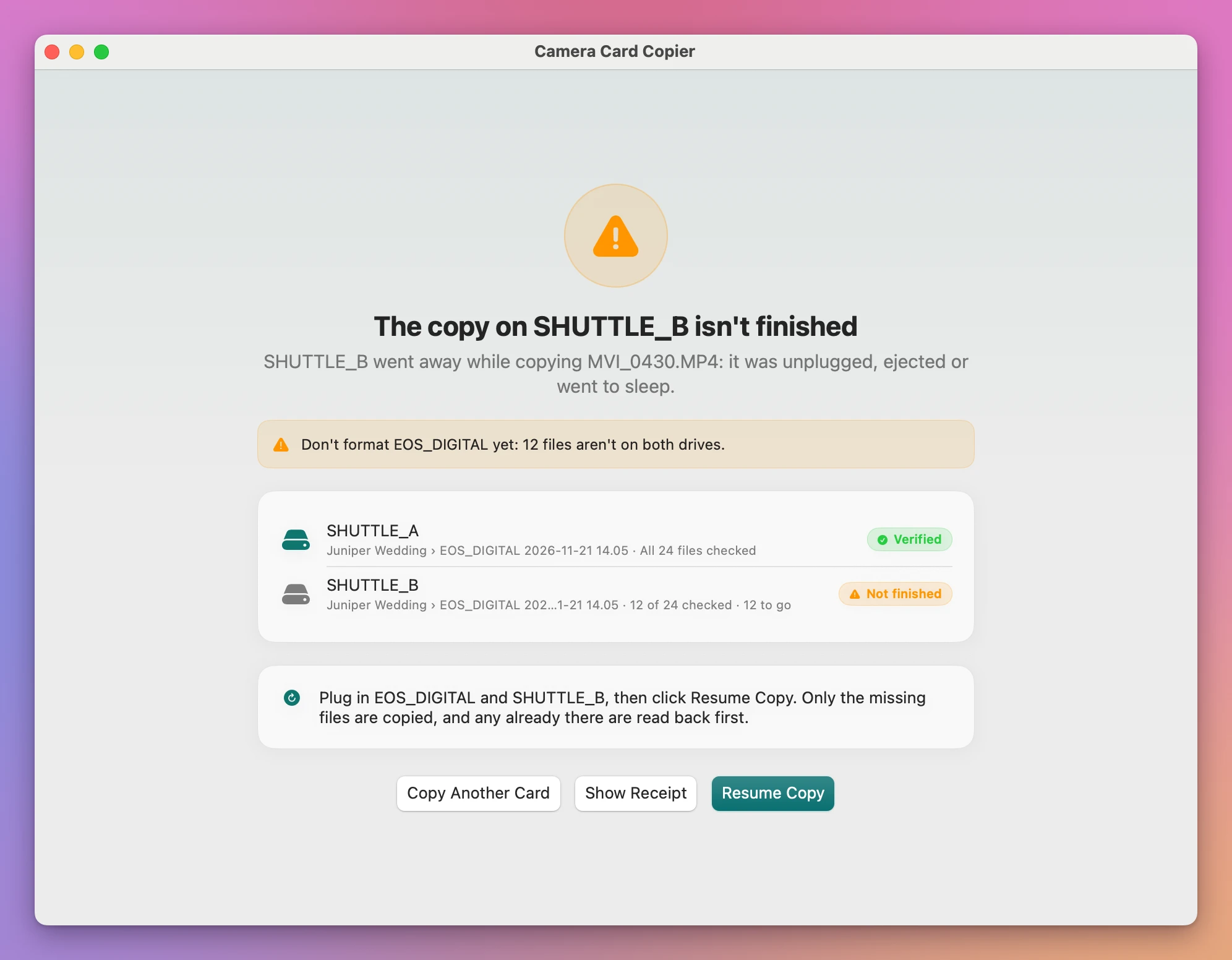
The screen is orange and says which copy isn’t finished and why:
- the drive went away (unplugged, ejected or asleep), with the file it was copying,
- the drive was full, or refused a file,
- you clicked Stop,
- the card went away,
- the app quit in the middle, or the Mac lost power.
The other copy carries on when one drive goes away. A notice says how many files aren’t on both drives yet, so you don’t format the card too early.
On the drive that stopped, the file that was cut off keeps its .cardcopy-partial name, so you can tell it apart in the Finder.
Resume a copy
Plug the card and the drive back in, then click Resume Copy, on the orange screen or on the job’s receipt in Past Copies.
- Files already verified on a drive are kept, after a check that they’re still there with the same size.
- A file that’s on the drive under its real name but wasn’t recorded as checked (the Mac lost power at the wrong moment) is read back and kept if it matches.
- Everything else is copied and checked.
The resume refuses, with a sentence, when the card isn’t plugged in, when it’s a different card, or when a file on the card isn’t the same size as before. If a drive is still missing, the resume finishes the other one and the job stays not finished.
Past Copies and receipts
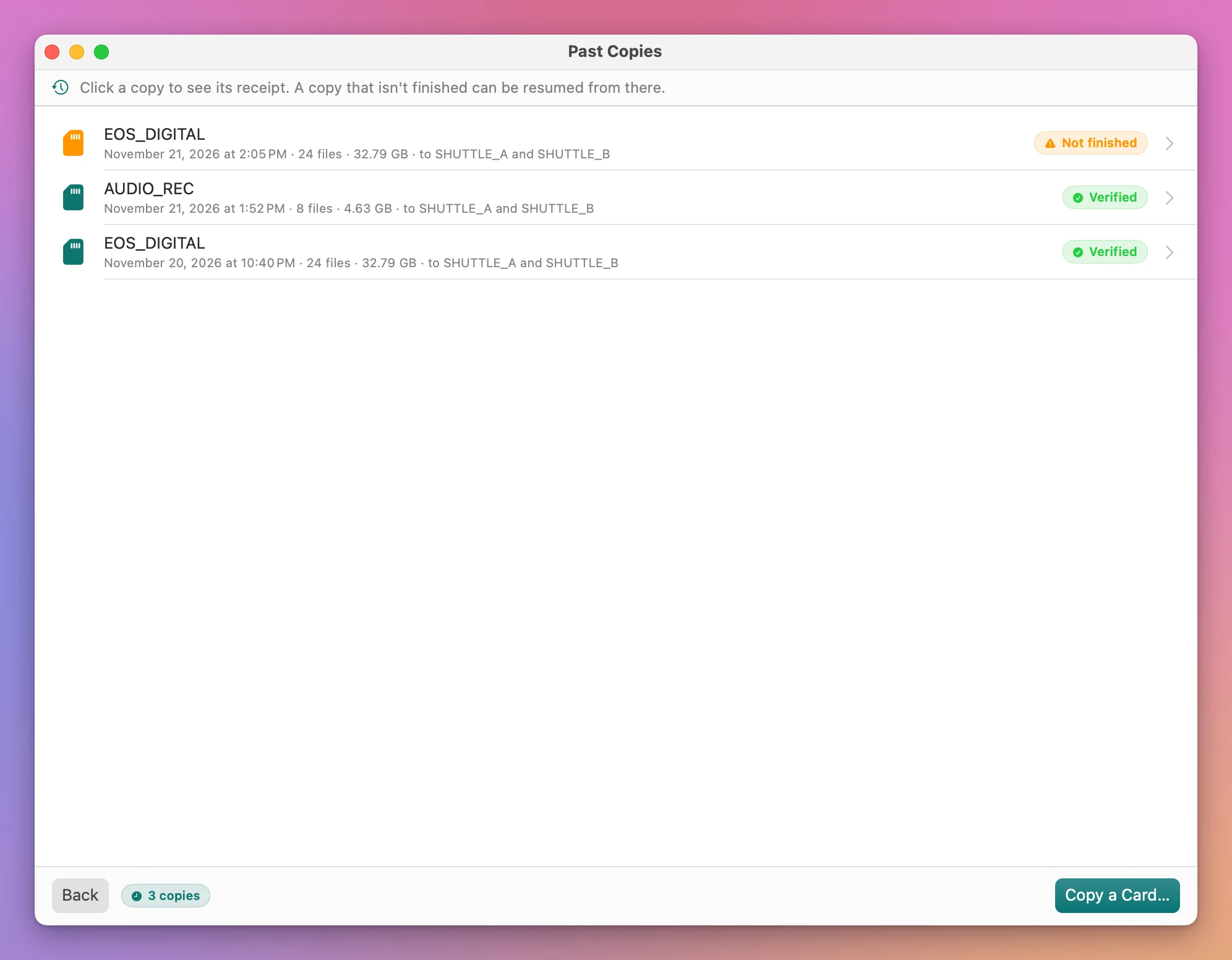
Choose File → Past Copies (⌘Y) to see every job, newest first. Click one to see its receipt: the card, each copy with its folder and state, and every file with a pill for each copy.
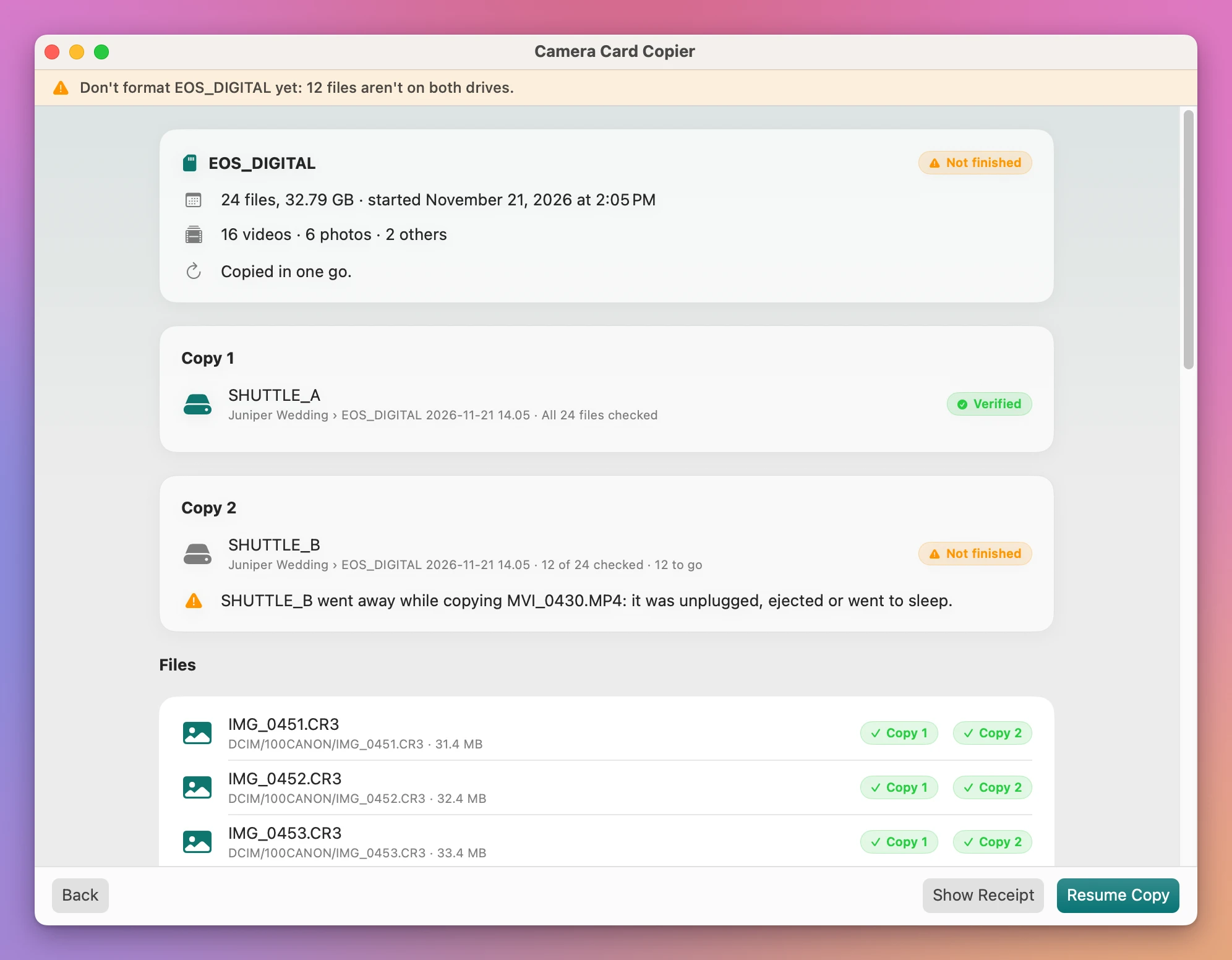
The receipt is also a text file, Camera Card Copier receipt.txt, saved in both job folders at the end of every copy and every resume. It says VERIFIED or NOT FINISHED, then the card’s name and size, when it was copied, how many runs it took, the counts of videos, photos, audio and other files, what was left out, each copy’s folder and how many files it has checked, why a copy stopped, and every file with its size, its state in each copy and its SHA-256 fingerprint.
Show Receipt
opens the one on a drive, or one made from Past Copies when no drive is plugged in.
Check the copies again
On a verified job’s receipt, click Check Copies Again. Both copies are read back from their drives and compared with the fingerprints taken during the copy. It doesn’t read the card, so it works after the card was formatted. Both drives have to be plugged in.
A copy that changed on a drive is marked Different, and the job isn’t verified anymore. With the card still around, Resume Copy copies that file again.
Troubleshooting
”That folder is on the card”
The copies have to go on other drives. Pick a folder on a drive.
”… has 12 GB free and the copy needs 41 GB”
Free space on that drive or pick another one. The number is what the card needs, twice when both copies are on that drive.
”The card … isn’t plugged in”
Put the card back in the reader and click Try Again. The copies already made are safe.
”The card … changed since this copy started”
A file on the card isn’t the same size as when the job started. Start a new copy of the card instead.
”Plug in … to check both copies”
Check Copies Again needs both drives.
Questions? Choose Help → Camera Card Copier Support.