

Install Client Notes to Markers
Client Notes to Markers runs on macOS 14 Sonoma or later, on Apple silicon and Intel Macs. After buying, you land on a page with a Download button. You can also get the app from your Creem receipt. Unzip the app and drag Client Notes to Markers to your Applications folder.
The app is signed and notarized by Apple. Confirm Open at the normal first-launch prompt.
Client Notes to Markers asks macOS for no permission. It reads what you paste, the files you choose or drag in, and saves into the folder you pick.
The app checks for updates once a day. When a new version is ready, click Install and Relaunch. To check anytime, choose Client Notes to Markers → Check for Updates….
Paste the notes
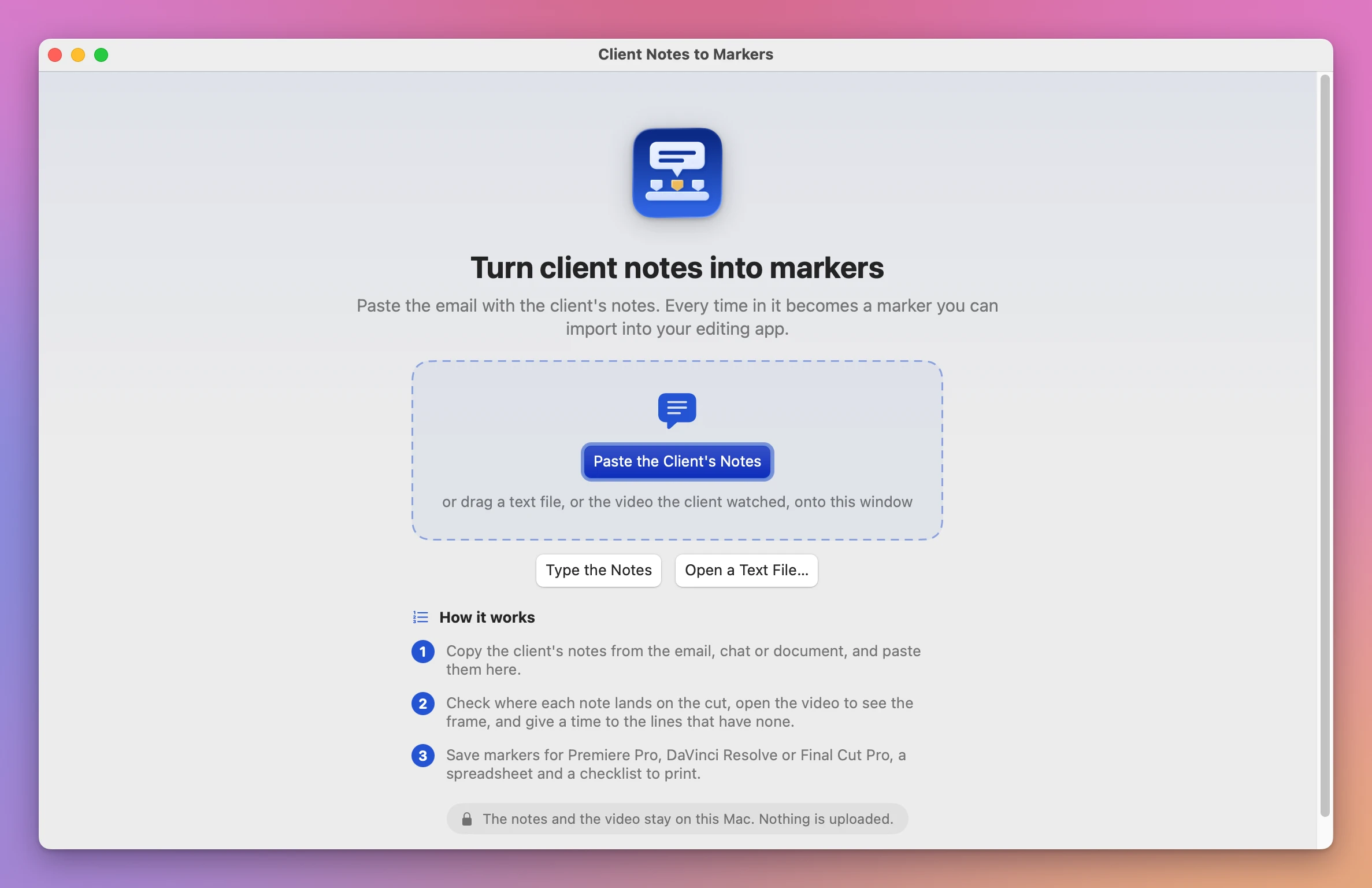
Copy the client’s notes from the email, the chat or the document, then click Paste the Client’s Notes (or choose File → Paste the Client’s Notes, ⇧⌘V). The notes open straight away.
There are two other ways in:
- Type the Notes (⌘N) opens an empty page to type or paste into. Click Find the Times (⌘Return) when you’re done.
- Open a Text File… (⌘O) reads a
.txt,.mdor saved email (.eml). You can also drag the file onto the window.
If the clipboard has no text, the empty page opens with a line that says so.
Paste the whole email if that’s easier. Greetings (“Hi Sam,”), sign-offs (“Thanks!”), a name on its own line, “Sent from my phone” and the “On Monday … wrote:” line of a reply are left out on their own.
The times it understands
One line can be one note or several. Every time on a line becomes a marker, with the line’s words.
| The client wrote | Read as |
|---|---|
0:42, 12:05, 1:02:03, 0:42.5 | Minutes and seconds, or hours, minutes and seconds |
01:00:12:10 | Timecode with frames |
1m20s, 1m 20s, 1 min 20 sec, 1m20, 1h02m10s | 1:20, 1:20, 1:20, 1:20, 1:02:10 |
2 minute mark, 2 mins, 90 seconds, 45s | 2:00, 2:00, 1:30, 0:45 |
at 1.15 | 1:15 (only after “at”, “around” or ”@”, or at the start of a line) |
1:15-1:20, 1:15 to 1:20, between 0:10 and 0:20, 1:15-20 | A range, a marker as long as the part |
2:31 and 2:40 | Two markers with the same words |
around, about, ~, -ish | The time is marked approximate |
These aren’t read as times: a time of day with AM or PM, a decade (“the 90s”), the number at the start of a list (“1.”, “2)”) and a length next to words like “longer”, “for” or “trim” (“hold it 2 seconds longer”).
Check the notes
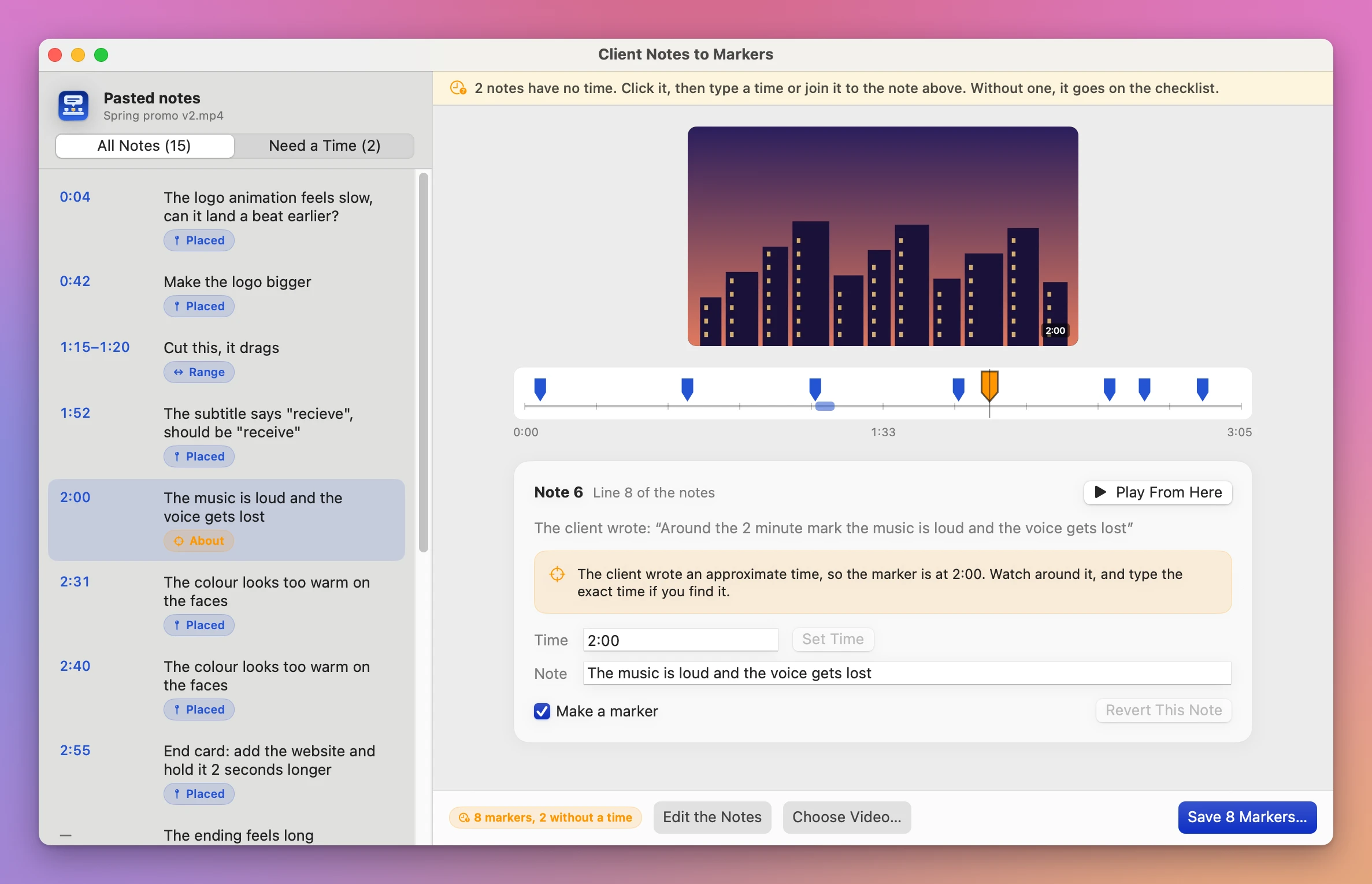
The list on the left has every note, by time, then the notes with no time, then the lines left out. Each one has a pill:
- Placed: a marker at that time.
- Range: a marker from the first time to the second.
- About: the client wrote an approximate time. The marker is there, and DaVinci Resolve shows it in yellow.
- After the end: the time is past the end of the video you opened.
- Needs a time: a note with no time in it.
- Left out: a greeting, a signature, an email header, or a note you unticked.
Click a note to see it on the right: the client’s own line, what the app made of it, its time and its words. Next Note (⌘]) and Previous Note (⌘[) are in the Notes menu.
The strip under the video is the whole cut, with a marker for each note. Ranges are bars, approximate notes are orange, and the note you picked is larger. Click a marker to pick its note. Click anywhere else on the strip to move the video there.
Open the video
Click Choose Video… at the bottom, or the same button where the video goes, or choose File → Choose Video… (⇧⌘O), and pick the export the client watched. You can also drag it onto the window. MP4, MOV and M4V work, as long as your Mac can play them.
With the video open:
- picking a note shows its frame, and Play From Here (⇧⌘P) plays from it;
- the frame rate for the marker files is read from the video;
- notes after the end of the video are flagged After the end.
The video is never changed. Without it, everything else works the same, and the strip runs to just past the last note.
Give a time to the notes without one
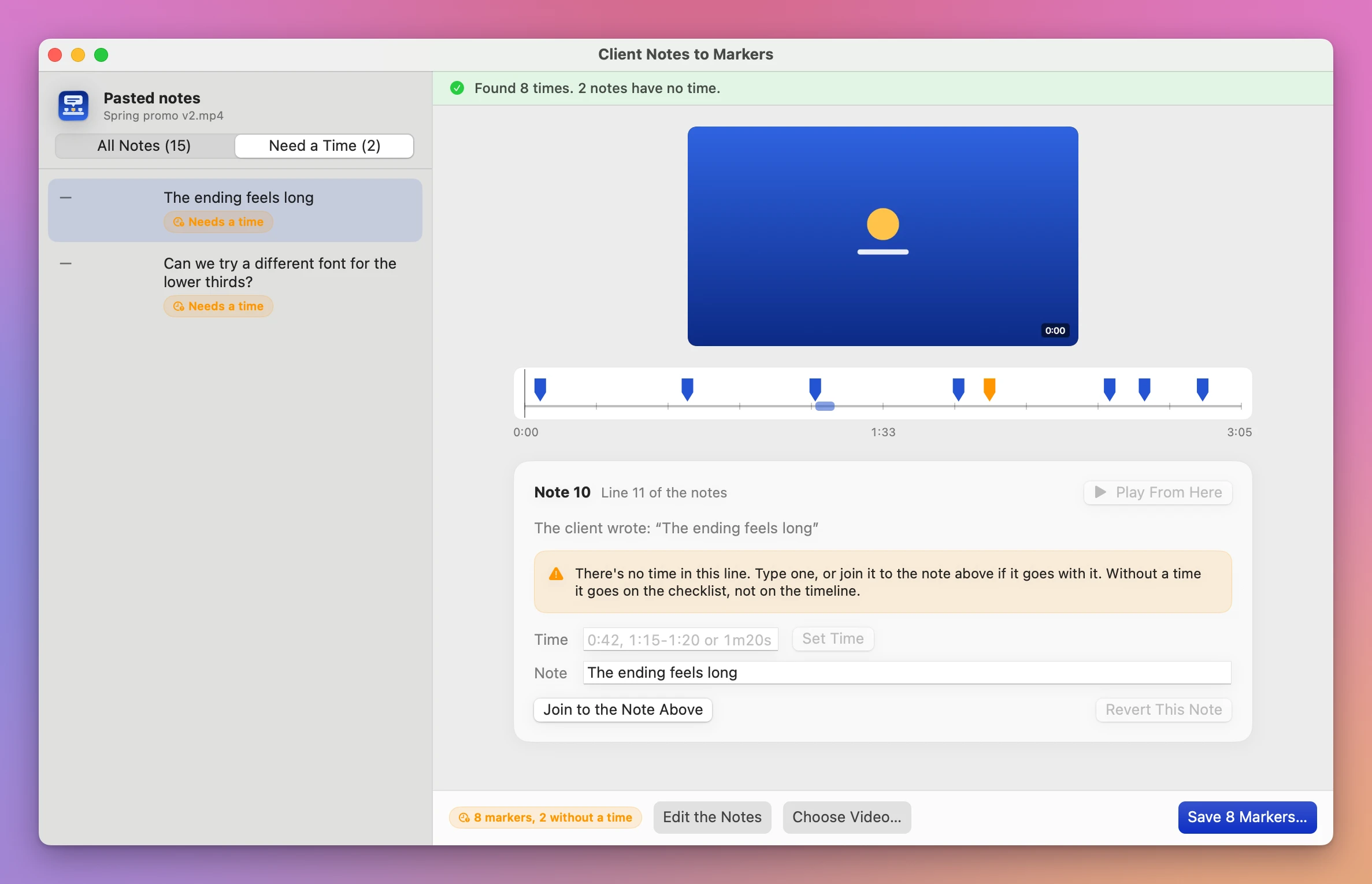
Click Need a Time at the top of the list to see only those notes. Next Note Without a Time (⌘’) jumps to the next one.
For each one, you can:
- type a time in the Time field, like
2:58,1:15-1:20,1m20sor01:00:42:10, and press Return or click Set Time. A number alone is seconds; - click Join to the Note Above when the line goes on from the one before it. Its words move to that note;
- leave it. It isn’t a marker, but it’s on the checklist and in the spreadsheet under its own heading.
You can type a new time for any note, not only those, if the client got one wrong.
Change a note
- The Note field holds the words on the marker. Change them and press Return or click elsewhere.
- Untick Make a marker to keep a note off the timeline. It stays in the spreadsheet as left out.
- Revert This Note puts back the time and words the client wrote.
Edit the Notes (⌘E) shows the whole text again. Fix a line or paste more notes, then click Find the Times. The changes you made to the lines you didn’t touch stay.
Times that start at one hour
Many timelines start at 01:00:00:00, so a producer reading times off the timeline writes 01:00:42:10 for 42 seconds in. When every time in the notes is an hour or more in, on a video shorter than an hour (or with no video), the app reads them that way and places them an hour earlier. A line under the strip says so. Click Keep the Times as Written if the times really are an hour in, and Start Them at 1:00:00:00 to switch back.
Save the markers
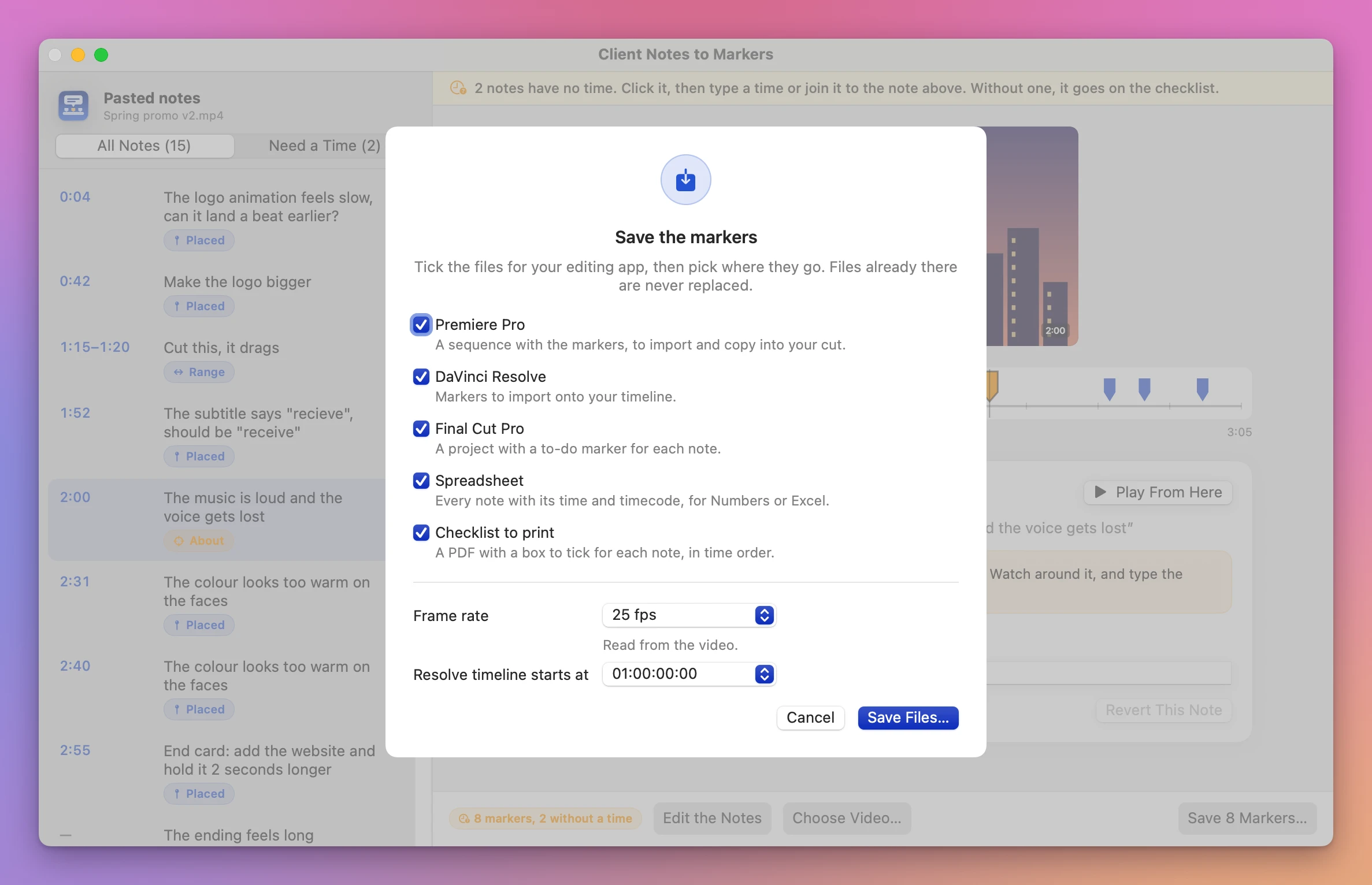
Click Save 8 Markers… at the bottom right (the number is how many notes have a time), or choose the same item in the File menu (⌘S). Tick the files you want:
- Premiere Pro: a sequence with the markers (
.xml). - DaVinci Resolve: a marker list (
.edl). - Final Cut Pro: a project with to-do markers (
.fcpxml). - Spreadsheet: every note with its time, timecode, status and the client’s line (
.csv). - Checklist to print: a PDF with a box for each note (
.pdf).
Check the Frame rate. With a video open it’s read from the video. Without one, pick your timeline’s rate: 23.976, 24, 25, 29.97, 30, 50, 59.94 or 60 fps. The app remembers the last one you picked.
Resolve timeline starts at is 01:00:00:00, DaVinci Resolve’s default for a new timeline. Pick 00:00:00:00 if yours starts at zero.
Click Save Files…, pick the folder and click Save. The Name field is the start of every file’s name: the video’s name with “notes”, or the notes file’s name, like Spring promo v2 notes, which gives Spring promo v2 notes - DaVinci Resolve.edl. Change it if you like. If a name is taken, the new file gets a “2”. Nothing is written over.
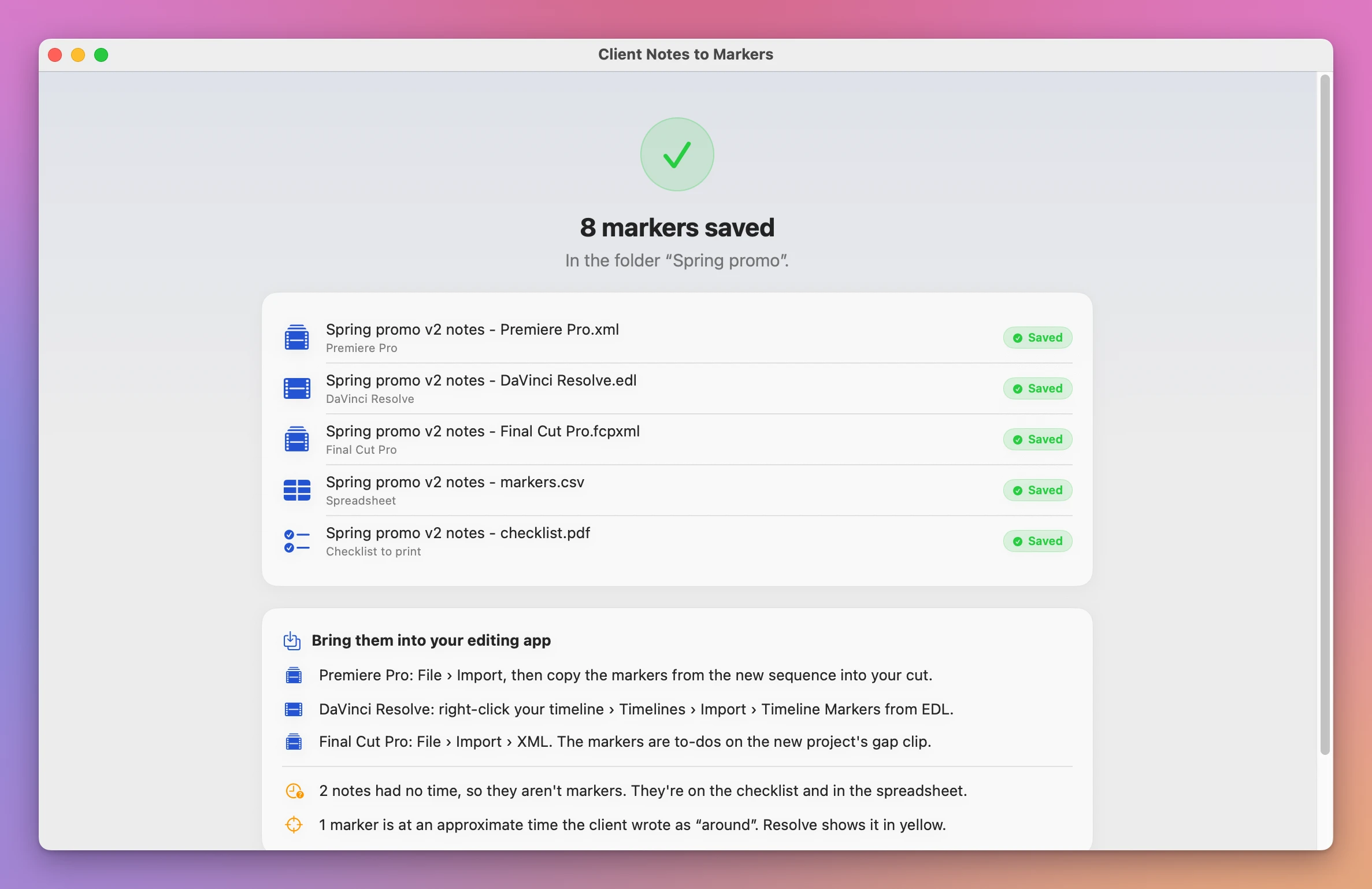
Bring the markers into your editing app
Premiere Pro. Choose File › Import and pick the .xml file. Premiere Pro adds a new sequence with the markers. Open it, open Window › Markers, select the markers, copy them, then go to your cut and paste. Or open the sequence next to yours and read the notes from it.
DaVinci Resolve. In the Media Pool, right-click your timeline and choose Timelines › Import › Timeline Markers from EDL, then pick the .edl file. The markers land on the timeline at their times. Approximate notes are yellow, the others blue, and ranges keep their length.
Final Cut Pro. Choose File › Import › XML and pick the .fcpxml file. Final Cut Pro adds an event and a project named after the notes, like “Spring promo v2 notes”, where every note is a to-do marker on a gap clip as long as the cut. Open the Timeline Index’s tags to see the to-do list. To have the markers over your own cut, copy the gap clip and connect it above your cut (Edit › Paste as Connected Clip).
The spreadsheet opens in Numbers or Excel, and the checklist PDF in Preview.
Troubleshooting
A time wasn’t found. Check how it’s written on the line. A time with a dot (“1.15”) is read only after “at”, “around” or ”@”, or at the start of the line, so it isn’t mistaken for a decimal. Type the time in the Time field.
A number became a marker it shouldn’t be. Untick Make a marker for that note, or fix the line with Edit the Notes.
The markers are an hour late, or an hour early. See “Times that start at one hour”. In DaVinci Resolve, also check that Resolve timeline starts at matches your timeline’s start timecode.
The markers drift by a frame or two on a long 29.97 timeline. The files use non-drop-frame timecode. On a drop-frame timeline, markers far into a long cut can land a couple of frames off.
The video doesn’t play. The app plays what macOS can play. Open an MP4 or MOV export of the cut. The markers don’t need the video.
“That’s a video.” Paste the notes first, then open the video beside them.
Quit with changes
If you changed notes and haven’t saved the markers, Start Over, opening other notes and Quit ask first. Keep Working is the default button.
Privacy
The app reads the notes you paste or open, and the video you pick, on your Mac. Nothing is uploaded. It connects to updates.flaviocopes.com to check for new versions.
Client Notes to Markers is an independent app. It’s not made by, affiliated with or endorsed by Adobe, Blackmagic Design or Apple.