How to use Contact Share Cards
Contact Share Cards
Share contacts as vCards with only the fields you choose, from Contacts or from a vCard file.
Bought Contact Share Cards? Sign in with the email you bought it with to download the latest version or ask me a question.
On this page
Install
Contact Share Cards requires macOS 14 Sonoma or later, on Apple silicon or Intel. Download the ZIP from the order page or your Creem receipt. Unzip it and move the app to Applications.
The app checks for updates once a day. When a new version is ready, click Install and Relaunch. To check anytime, choose Contact Share Cards → Check for Updates….
Allow access to Contacts
The first time you open the app, click Allow Access to Contacts, then Allow in the macOS prompt. The app only reads Contacts: it never changes a contact, and it never reads notes.
If you clicked Don’t Allow, the window says Contacts access is off and the button becomes Open Privacy Settings…. Turn the app on in System Settings → Privacy & Security → Contacts, then come back to the window. It checks again when it becomes active.
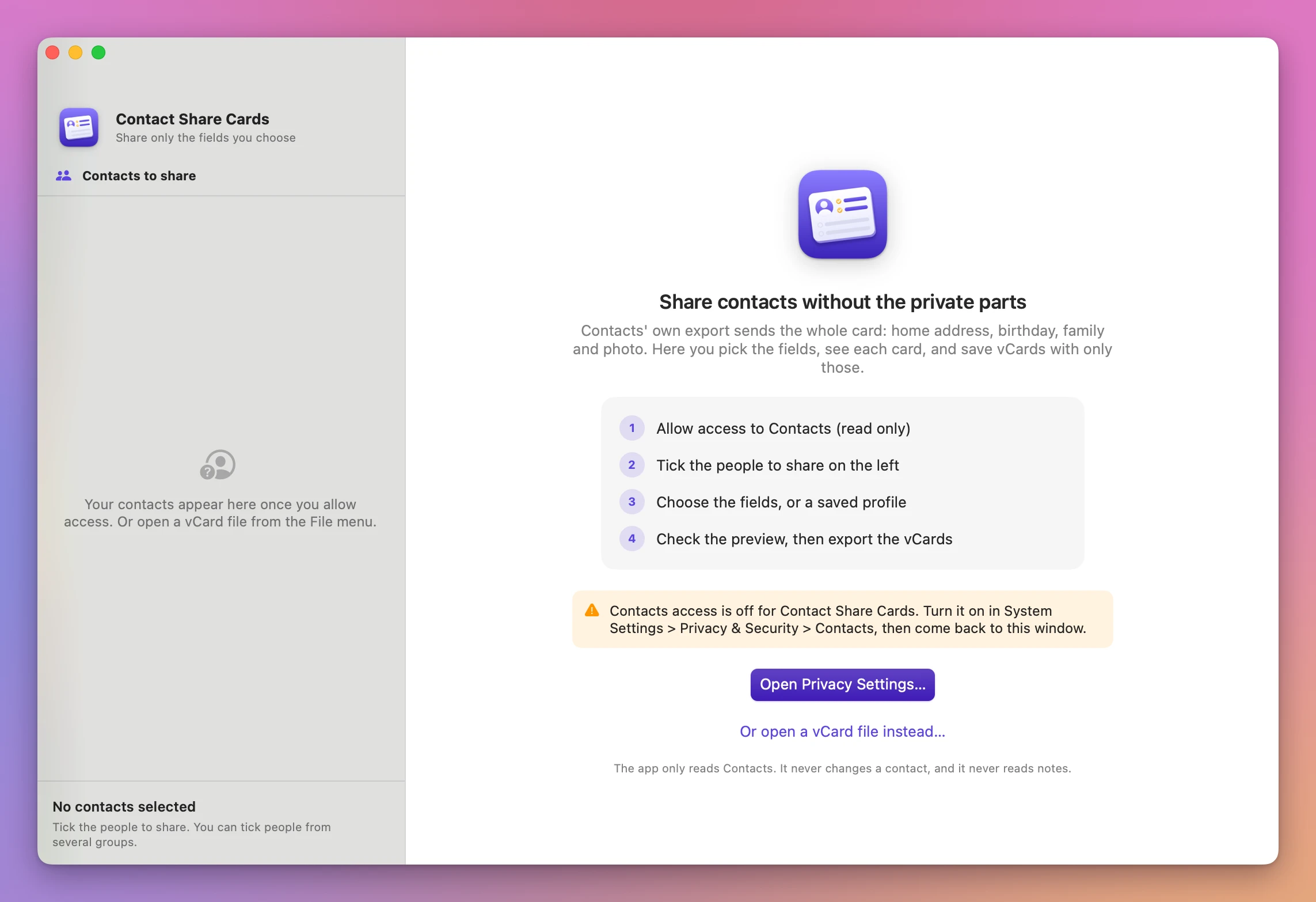
You can also skip Contacts and work from a file. Click Or open a vCard file instead…, or choose File → Open vCard File… (Command-O).
Pick the people
The sidebar lists your contacts with their company or job title. The picker at the top shows All Contacts and each of your groups, plus File:
- The search field matches names, companies, job titles, emails and phone numbers. Every word you type must match, and accents are ignored, so “zoe” finds Zoë.
- Select All and Select None act on what the list shows. In a group, Select All ticks everyone in that group.
- Ticks stay when you switch groups or search, so you can combine people from several groups.
The bottom of the sidebar says how many contacts are selected.
Choose the fields
The Choose what to share screen has four groups of checkboxes:
- Name: Prefix, First name, Middle name, Last name, Suffix, Nickname
- Work: Company, Job title, Department
- Contact details: Phone numbers, Email addresses, Postal addresses, Websites, Social profiles
- Personal: Birthday, Photo
Phone numbers, email addresses and postal addresses each have Any label, or a set of label checkboxes. Phones: Work, Home, Mobile, Main, Fax, Other. Emails and addresses: Work, Home, School, Other. Mobile includes iPhone numbers, and Other covers Other, Pager and custom labels. A line under each one says exactly what passes, like “Only Work, Mobile, Main phone numbers are shared”, in orange if no label is ticked.
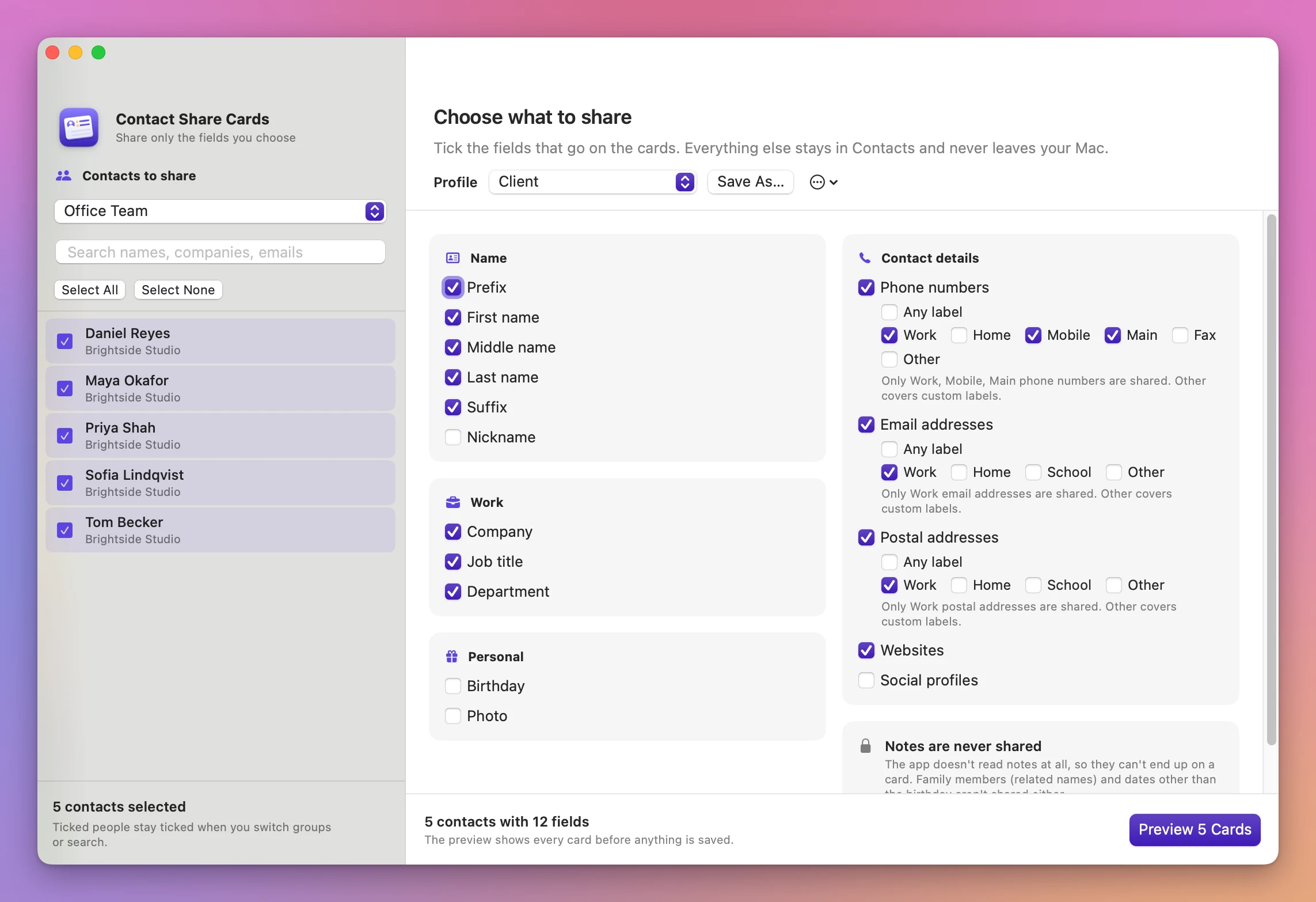
Notes are never shared, because the app doesn’t read them. Related names (family members) and dates other than the birthday aren’t shared either.
Profiles
The Profile picker starts with two:
- Client: prefix, first, middle and last name, suffix, company, job title, department, Work, Mobile and Main phones, Work emails, Work addresses, websites.
- Family: first, middle and last name, nickname, Mobile and Home phones, Home and Other emails, Home addresses, birthday, photo.
Change any checkbox and an orange Edited pill appears with Save, which updates the profile. Save As… asks for a name and saves a new profile; a name that’s already taken replaces that profile. The ⋯ menu has Delete
When the people and the fields are set, click Preview N Cards (Command-R).
Check the preview
The preview says which profile it uses, and that nothing is saved until you export. The pills count the cards:
- N cards ready (green)
- N with only a name (orange): the person has none of the fields you chose, so the card would carry only the name.
- N with nothing to share (red): not even a name is left. These are never written.
Cards with a problem come first. Untick anyone to leave them out. Click a card to see it on the right as it will read, with a “Left out:” line listing what was dropped, and the exact vCard text under it. Copy puts that text on the clipboard.
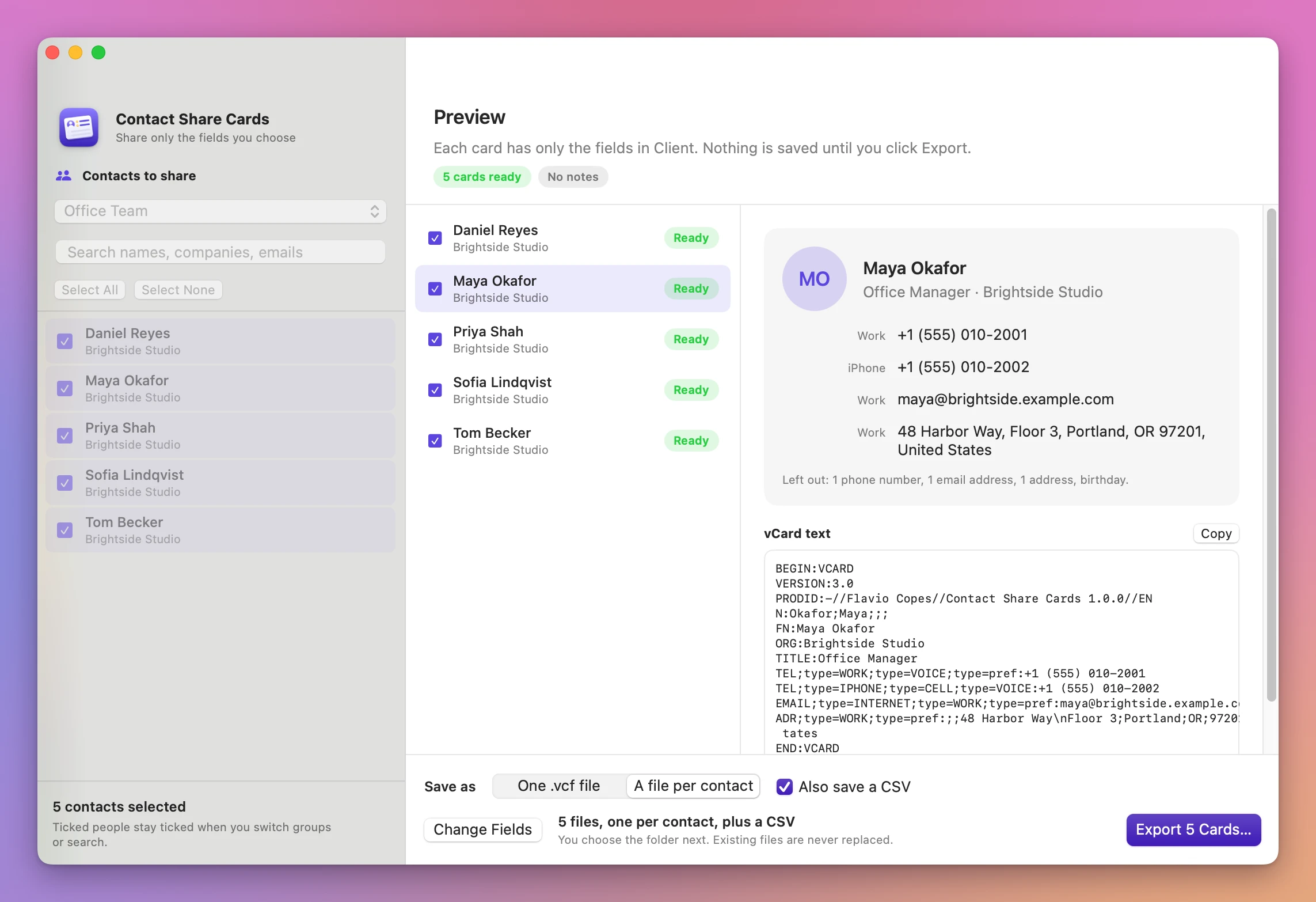
Change Fields goes back to the fields.
Export
At the bottom of the preview:
- Save as: One .vcf file writes every card in one file, named
Contactsunless you type another name. A file per contact writes one file per person, named after them (Maya Okafor.vcf). - Also save a CSV adds a spreadsheet with a Name column and one column per field you chose. Phones, emails, addresses and websites read like
Work: +1 (555) 010-2001.
The app remembers both choices. Click Export N Cards… and choose the folder with Export Here.
Existing files are never replaced. A second export into the same folder gives Contacts (2).vcf, and two people with the same name give Maya Okafor.vcf and Maya Okafor (2).vcf. A / or : in a name becomes -.
The done screen lists the files it saved, the names saved with only a name, and the names it skipped. Show in Finder opens the folder, Back to Preview goes back, and Share Another Set clears the ticks to start over.
Send the file by email or AirDrop. The person opens it to add the cards.
Open a vCard file
File → Open vCard File… reads any .vcf and lists its cards in the sidebar under File:
A file that isn’t a vCard, or has no cards, gets a plain message like “notes-not-a-vcard.vcf isn’t a vCard file: it has no contact cards in it.”
What the files contain
The app writes vCard 3.0, the format Contacts itself uses, with the same labels: a work phone stays a work phone, a custom label keeps its name, and a birthday without a year stays without a year. A company card stays a company card. The first phone, email, address and website on each card is marked as the preferred one.
Good to know
- The list follows the sort order you chose in Contacts (first or last name).
- Smart lists from Contacts don’t appear in the group picker.
- Tested with On My Mac contacts. iCloud, Google and Exchange groups are read the same way but weren’t tested.
- Choose Help → Contact Share Cards Support to open the support portal.
Your contacts stay on your Mac. The app uses the internet to check for and download updates.
Contact Share Cards is $19, a one-time purchase.