How to use CSV Trade Journal
CSV Trade Journal
Import your broker's trade history CSV, review round-trip trades with notes and tags, and read the P&L calendar and stats.
Bought CSV Trade Journal? Sign in with the email you bought it with to download the latest version or ask me a question.
On this page
Install
CSV Trade Journal requires macOS 14 Sonoma or later, on Apple silicon or Intel. Download the ZIP from the order page or your Creem receipt. Unzip it and move the app to Applications.
The app checks for updates once a day. When a new version is ready, click Install and Relaunch. To check anytime, choose CSV Trade Journal → Check for Updates….
CSV Trade Journal is a calculator for your own numbers, not financial advice.
Create a journal
Click Create a Journal… on the start screen, or choose File → New Journal (Command-N). Pick where the folder goes. It’s called “Trading Journal” unless you change the name. A folder that already has other files in it is refused.
The journal folder holds journal.json and an images folder for your screenshots. Nothing else is stored anywhere. To open a journal you already have, click Open a Journal… (Command-O). The last journal opens at launch, and Show in Finder at the bottom of the sidebar shows its folder.
Export your trades from the broker
The import screen lists where each broker keeps its export:
- Interactive Brokers: Client Portal › Performance & Reports › Flex Queries, a Trades query in CSV, or an Activity Statement downloaded as CSV.
- Charles Schwab: Accounts › History › Transactions, then Export as CSV.
- Tastytrade: History › Transactions, load every row, then the CSV button.
- Webull: History › Orders Records › Export Orders. Webull emails the CSV.
- DEGIRO: Inbox › Transactions, pick the dates, then Export › CSV.
These layouts were built from public samples and the brokers’ documentation, not from real exports. If your file doesn’t read, use Other (map the columns).
Import a CSV
Click Import Broker CSV… in the toolbar (Command-I), or drop a CSV on the window. The app reads the header to see which broker the file is from.
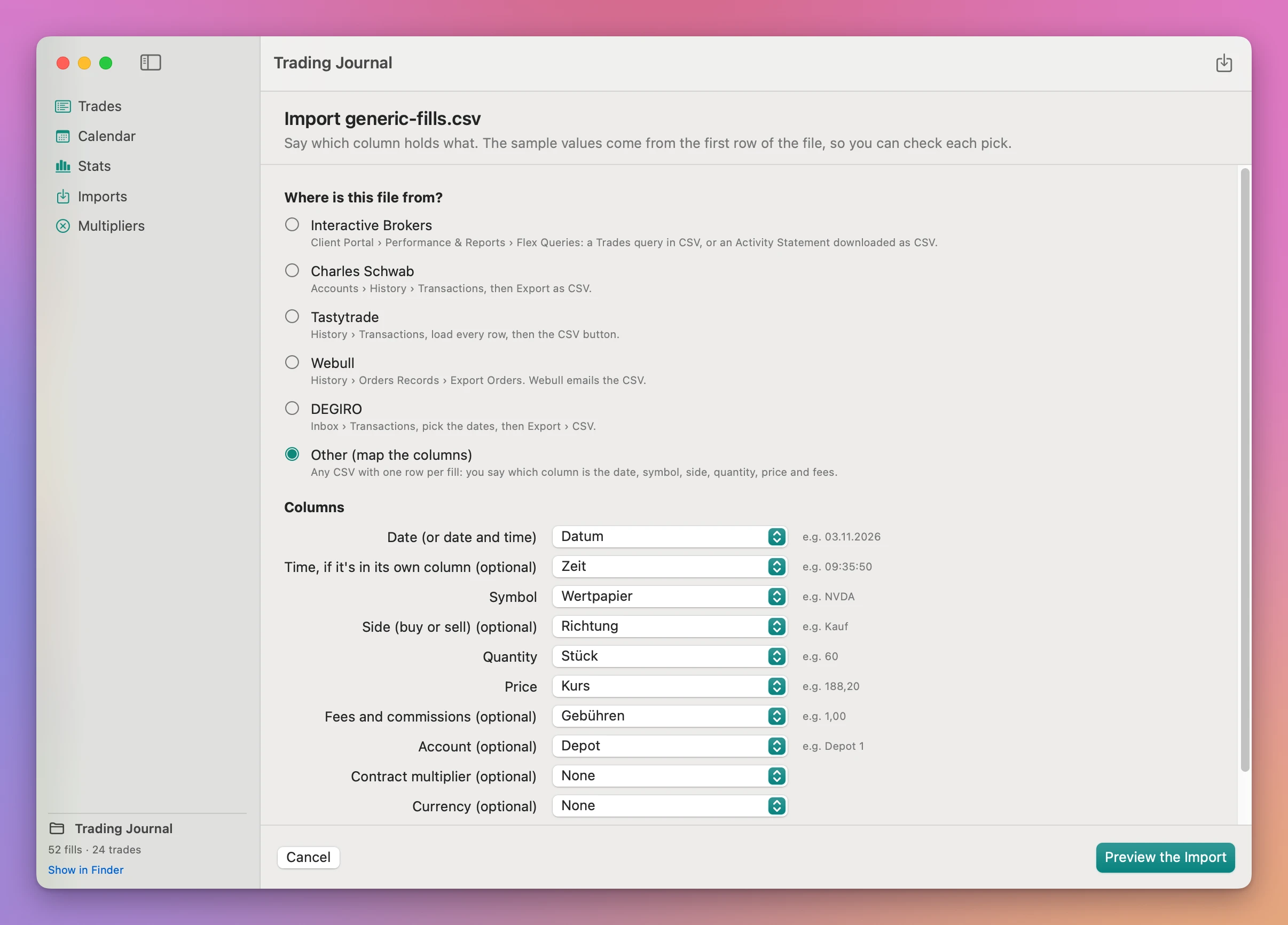
If it can’t tell, it asks Where is this file from? Pick the broker, or Other (map the columns) for any CSV with one row per fill. For Other, choose the column for each field. Each choice shows a sample value from the file’s first row.
- Required: date (or date and time), symbol, quantity, price.
- Optional: time in its own column, side (buy or sell), fees and commissions, account, contract multiplier, currency.
Pick whether dates are month first or day first, and whether decimals use a point or a comma. The app picks for you when the values settle it, like 19.11.2026. Preview the Import stays disabled until the required columns are picked.
If you pick the wrong broker, a sentence says why the file doesn’t match.
Check the preview
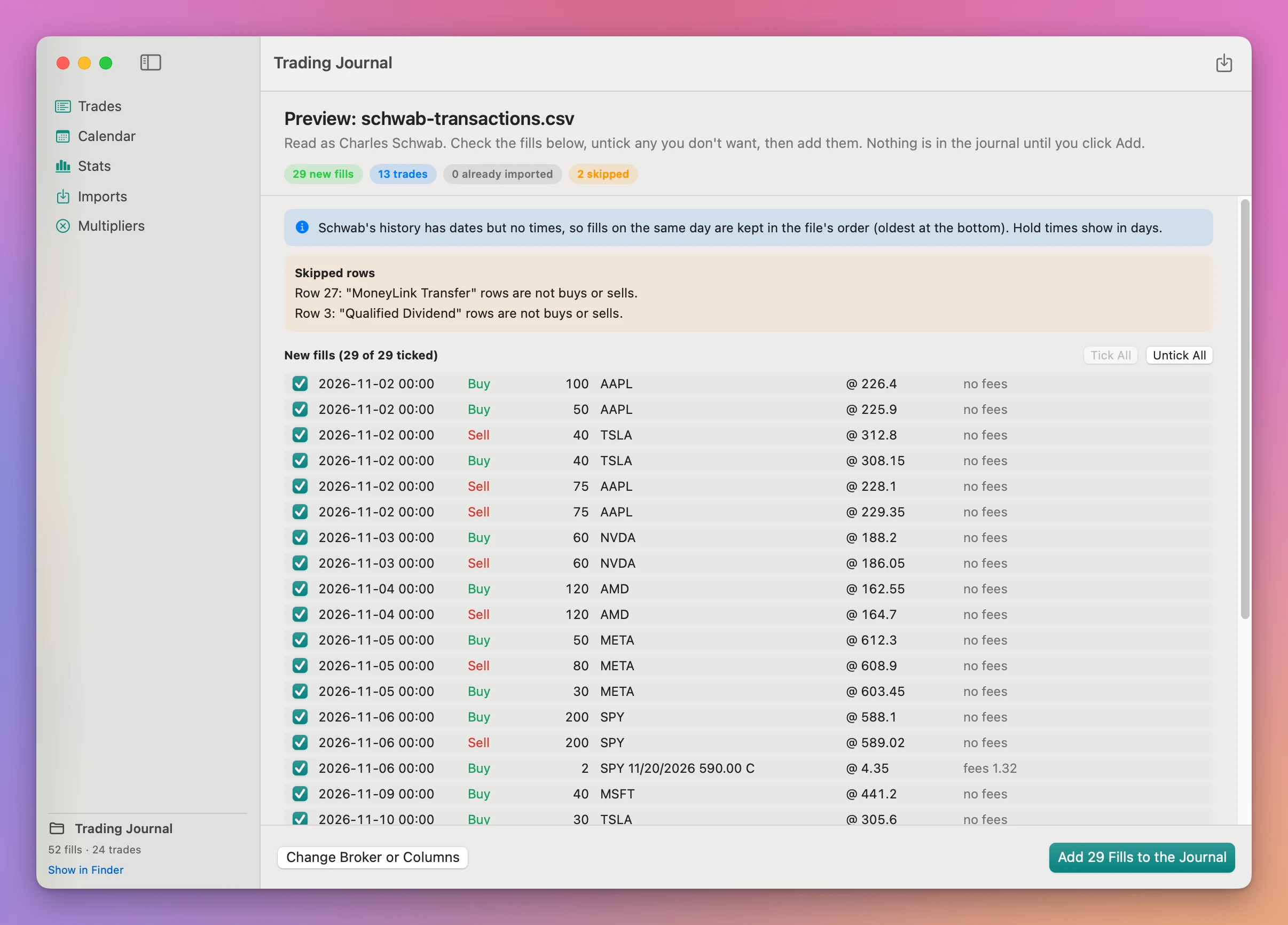
The preview shows:
- pills for the new fills, the trades they make (and how many stay open), the fills already in the journal, and the skipped rows
- notes about the whole file, like Schwab’s missing times
- skipped rows grouped by reason, with their row numbers
- every new fill with a tick box, and Tick All and Untick All
Nothing is written before you click Add N Fills to the Journal. The last screen says how many fills were added, how many were already in the journal, and how many rows were skipped, then offers Show the Trades and Import Another File…. Your CSV isn’t changed. Change Broker or Columns goes back a step.
What each broker’s file leaves out
- Schwab: dates but no times, so fills on the same day keep the file’s order and hold times show in days. Expired, assigned and exercised option rows are skipped, so that trade stays Open.
- Tastytrade: expirations are read at a price of 0. Assignments and exercises are skipped. The older tastyworks layout isn’t supported: use Other.
- Webull: the orders export has no fees.
- Interactive Brokers Activity Statements: no multipliers. Options default to 100, and futures need theirs set in Multipliers.
- DEGIRO: prices are in your account currency, from the Value column. The product name is the symbol.
How trades are built
A trade runs from flat to flat, per symbol and per account. Scale-ins and partial exits stay in one trade. Closing fills are matched first in, first out, and each one shows its profit in the trade’s fill list. A fill that takes you through zero is split: part closes the trade, the rest opens one in the other direction, and its fee is split by quantity.
A position you still hold is Open, with the P&L realized so far. The calendar and the stats count closed trades only, on the day they closed.
Each fill is recognized by its account, symbol, time, side, quantity and price, so importing an export that overlaps an earlier one never adds a fill twice. Two identical rows in the same file are both kept.
Review a trade
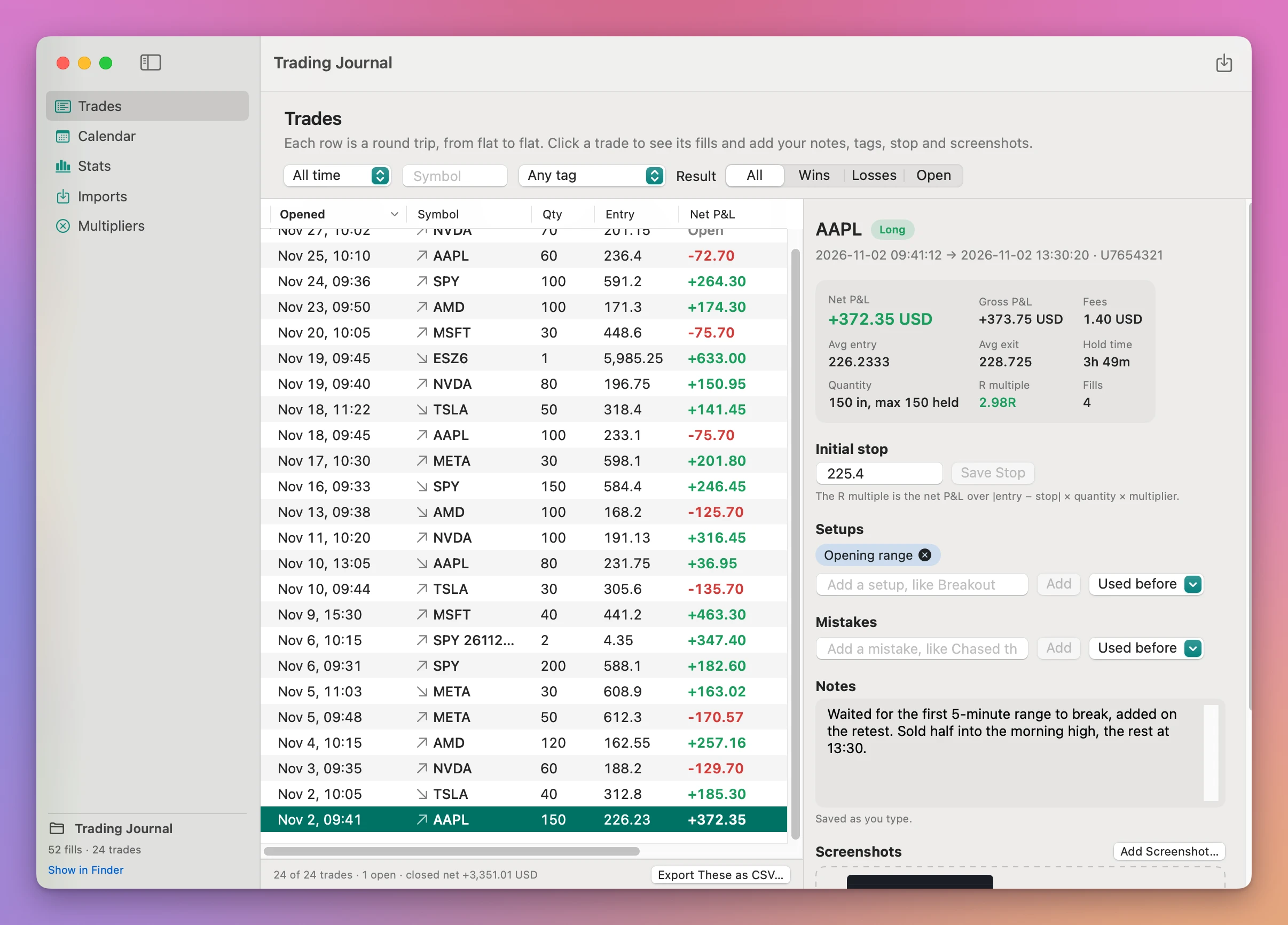
Trades lists every trade with when it opened, the symbol with a long or short arrow, quantity, entry, net P&L, hold time and tags. Filter by period, symbol, tag and result (All, Wins, Losses, Open). Clear Filters (Shift-Command-L) resets them.
Click a trade to see:
- net P&L, gross P&L, fees, average entry and exit, hold time, quantity and the most held, the R multiple and the number of fills
- Initial stop: type it and click Save Stop. The R multiple is the net P&L over |entry − stop| × quantity × multiplier.
- Setups and Mistakes: type a tag and click Add, or pick one from Used before
- Notes, saved as you type
- Screenshots: drop images or click Add Screenshot… (Shift-Command-S). They’re copied into the journal’s
imagesfolder. Double-click one to open it in Preview, and right-click to remove it to the Trash. - the fills, with each closing fill’s profit
Notes belong to the trade’s opening fill. If you later import older fills that change where a trade starts, its notes can stop showing. They stay in journal.json.
Calendar and stats
Calendar shows each day’s net P&L after fees and the number of trades closed, tinted green or red. The month’s total, closed trades, green days and red days are at the top. Click a day to see its trades.
Stats shows net P&L, win rate, expectancy, profit factor, average win and loss, max drawdown and average R for the period you pick, a running net P&L line, and a breakdown by tag, weekday or symbol.
- Win rate counts breakeven trades as not won.
- Expectancy is net P&L divided by the closed trades.
- Profit factor is money won divided by money lost.
- Max drawdown is the deepest fall of the running net P&L from its high, starting at 0.
- Average R counts only trades with a stop.
Trades in different currencies are never added together. When the journal has more than one, the calendar and the stats have a currency picker.
Multipliers
Multipliers lists the options and futures in the journal with the multiplier used. Option multipliers come from the file, or default to 100. For a future, type the value and click Set. A root like ES applies to every ES contract. Use the File’s removes yours.
Export
Export These as CSV… under the trades list (or File → Export Trades CSV…) saves the filtered trades with their tags, stop, R multiple and notes. Export Stats PDF… saves the stats for the period you picked.
Imports
Imports lists every past import with its broker, date, and how many fills were added, already in the journal and skipped.
Privacy
The journal is a folder in the place you picked. The app never connects to a broker. It uses the internet only to check for and download updates. If the same journal is open in two copies of the app at once, the last one to save wins. The app reloads the journal when its window becomes active.
CSV Trade Journal is $19, a one-time purchase.