How to use Deadline Checklist Generator
Deadline Checklist Generator
Turn a template of steps into dated reminders counted back from an event date, skip weekends and holidays, and re-date or undo the list.
Bought Deadline Checklist Generator? Sign in with the email you bought it with to download the latest version or ask me a question.
On this page
Install
Deadline Checklist Generator requires macOS 14 Sonoma or later, on Apple silicon or Intel. Download the ZIP from the order page or your Creem receipt. Unzip it and move the app to Applications.
The app checks for updates once a day. When a new version is ready, click Install and Relaunch. To check anytime, choose Deadline Checklist Generator → Check for Updates….
Templates
A template is the list of steps you repeat for every event, each with when it’s due compared with the event date.
With no templates yet, click Add Sample Templates for two ready ones, Event (10 steps) and Client workshop (8 steps), or New Template… to start from scratch. Later, the Template picker in the sidebar has Edit…, New… and More (Duplicate, Import Template…, Export Template… and Add Sample Templates).
In the template editor, give the template a name and click Add Step for each step. A step has:
- a title, which becomes the reminder’s title
- an amount and a unit: days, working days, weeks or months
- before or after the event (0 means on the day)
- optional notes, which go into the reminder’s notes
A read-out under each step says what it means, like ”= 3 working days before”. Use the arrows to reorder steps. Save Template stays disabled until every step has a title, and says which one is missing. Delete Template removes a template; checklists already made from it stay in Reminders and can still be moved or undone.
Export Template… saves a template as a JSON file you can send to someone, and Import Template… reads one back.
How dates are counted
- Working days count only working days, starting from the day before (or after) the event. Weekends don’t count when Weekends are days off is ticked. Holidays never count.
- Days, weeks and months count calendar time. A month offset clamps to the end of the month: 1 month before 31 March is 28 February (29 in a leap year).
- If a calendar date lands on a weekend or a holiday, When a date lands on a day off decides: Move it to the working day before (the default), Move it to the working day after, or Keep the date.
- A step never moves across the event. A step due after the event that would move back onto or before it moves forward instead, and the other way round.
- On the day never moves, even when the event is on a weekend or a holiday.
The app treats Saturday and Sunday as the weekend, and other weekend patterns aren’t supported.
Holidays
Under Holidays in the sidebar, pick a date and click Add Holiday, or click Paste List… to add many at once. The paste box takes one date per line written like 2027-12-25. Anything after # is ignored, so 2027-12-25 # Christmas works. Lines that aren’t dates are listed in red and skipped, and the button says how many holidays it adds. Click the × next to a holiday to remove it.
Holidays and the working-day settings are saved between launches.
Preview and create
- Type the Event name. It becomes the name of the new Reminders list.
- Set the Event date. The weekday shows next to it, and a line warns you when the date is a weekend day or a holiday.
- Pick the template and click Preview Due Dates (Command-R). When something is missing, a “Next: …” line under the button says what.
- The preview lists each step with its due date, its offset and a pill: Working day, Event day, or an orange row when the date moved off a weekend or a holiday. Untick a step to leave it out this time. The preview updates as you change the date, template or rules.
- Click Create Reminders List.
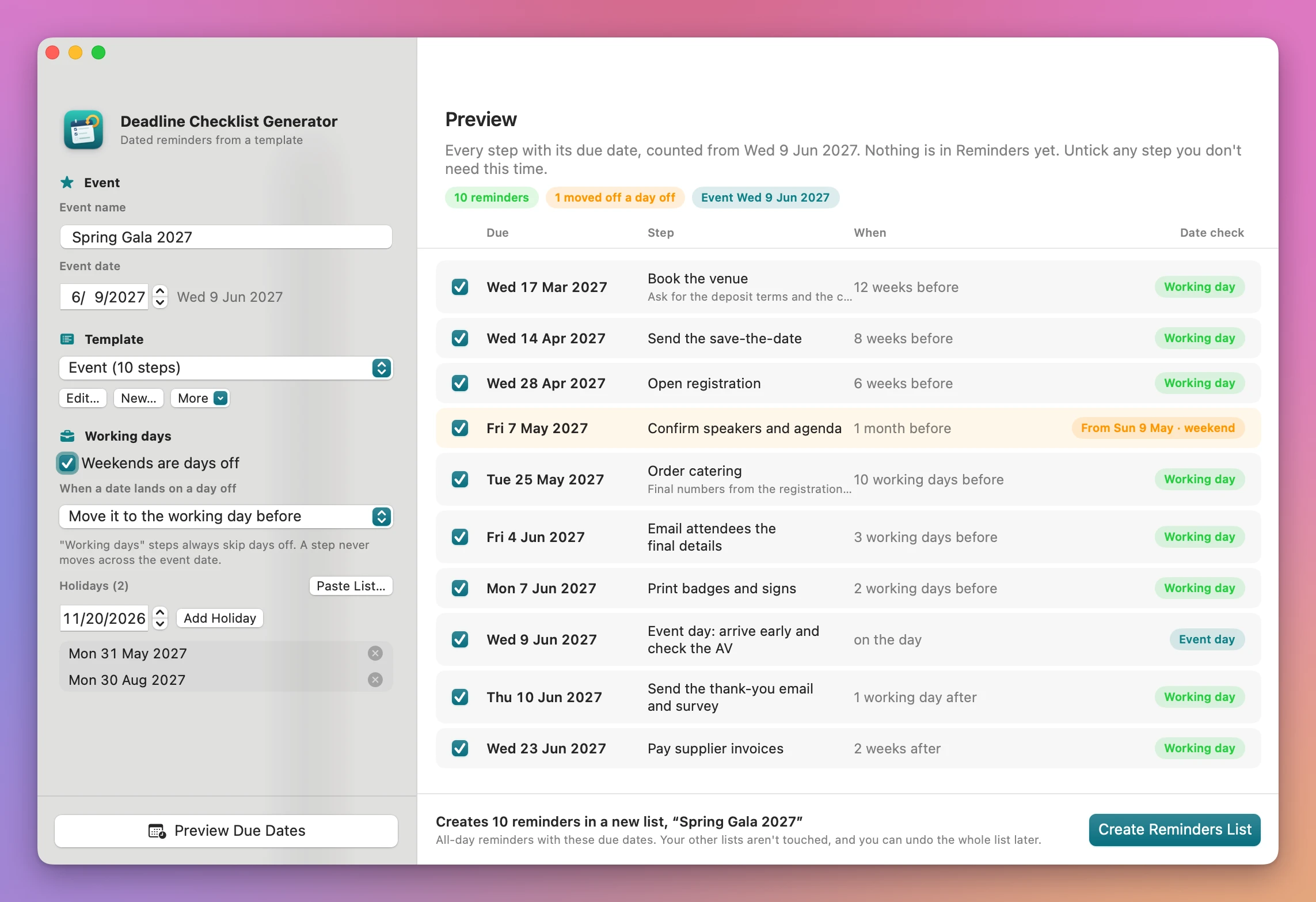
Each step becomes an all-day reminder in a new list, in your default Reminders account. If a list with the event’s name already exists, the new one gets “(2)” after the name. Existing lists are never reused or changed.
Reminders access
The first time you create a list, macOS asks whether Deadline Checklist Generator can use your reminders. If you choose Don’t Allow, the app explains how to turn it on and shows Open Privacy Settings. Turn the app on in System Settings → Privacy & Security → Reminders, then click Create Reminders List again.
Move a checklist to a new date
Every list you create appears under Checklists you created in the sidebar. Choose one, set the New event date and click Review New Dates.
The review shows each reminder’s old and new date:
- Moves: the reminder goes to its new date. Untick it to leave it where it is.
- Same date: nothing changes.
- Changed in Reminders: you changed its date (or added a time) in Reminders. It keeps the date you set.
- Completed: left alone.
- Deleted in Reminders: nothing to move.
Click Move Reminders to apply the ticked moves. The checklist then records the new event date.
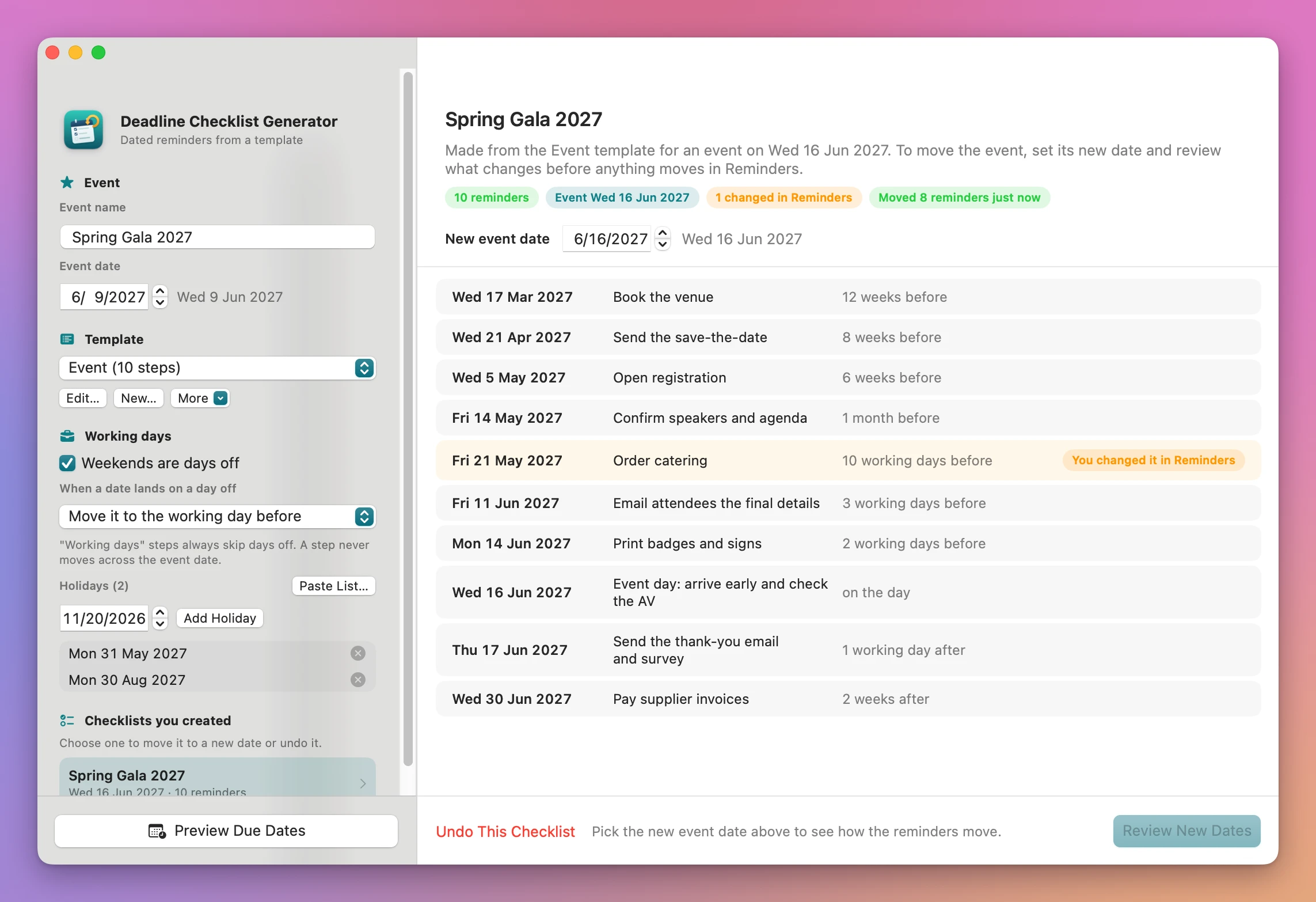
Re-dating uses the current working-day settings and holidays, not the ones the list was created with.
Undo a checklist
Choose the checklist and click Undo This Checklist. The app deletes every reminder it created in that list, including ones you changed or completed, and the list itself when nothing else is in it. Reminders you added to the list yourself stay, and the list stays with them.
Limits
- Every step counts from the one event date. Steps can’t depend on each other.
- There’s no built-in holiday calendar: add the dates that apply to you.
- Reminders are all-day, with no time or alert.
- If iCloud sync changes a reminder behind the scenes, the app finds it again by its exact title in its list.
The app changes only the lists it creates. It uses the internet to check for and download updates.
Deadline Checklist Generator is $20, a one-time purchase.