

Install Duplicate Clip Name Finder
Duplicate Clip Name Finder runs on macOS 14 Sonoma or later, on Apple silicon and Intel Macs. After buying, you land on a page with a Download button. You can also get the app from your Creem receipt. Unzip the app and drag Duplicate Clip Name Finder to your Applications folder.
The app is signed and notarized by Apple. Confirm Open at the normal first-launch prompt.
The first time you choose a memory card or a network folder, macOS may ask whether the app can read files there. Click Allow. The app only reads what you choose.
The app checks for updates once a day. When a new version is ready, click Install and Relaunch. To check anytime, choose Duplicate Clip Name Finder → Check for Updates….
Choose your cards and folders
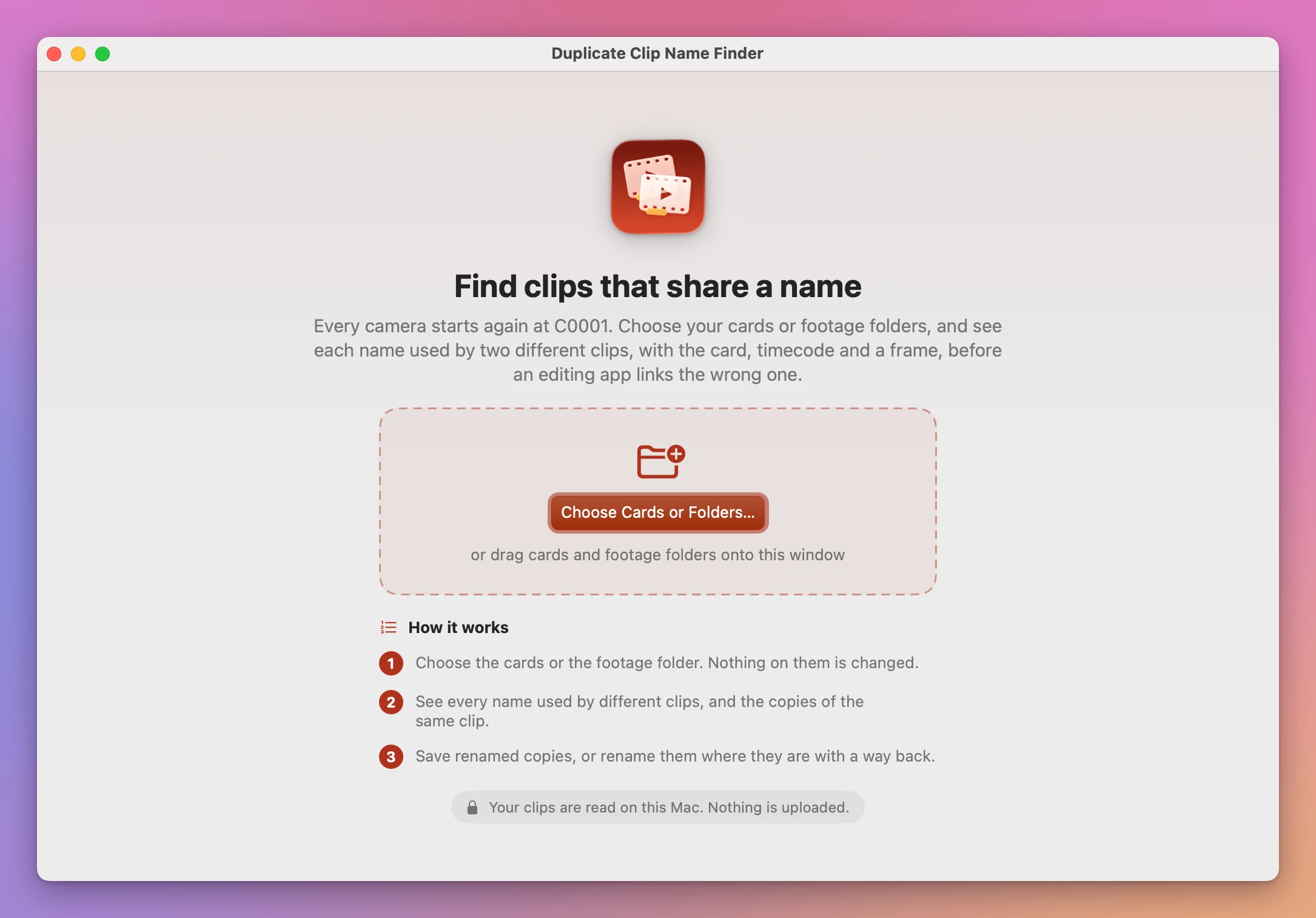
Click Choose Cards or Folders…, or choose File → Choose Cards or Folders… (⌘O). Pick a card, or hold Command to pick several cards and folders, then click Compare. You can also drag them onto the window, or onto the app’s icon in the Dock.
How the app names each source in the list:
- Several cards or folders chosen: each one is a source, named after it. Two cards with the same name, like two cards called “Untitled”, become “Untitled” and “Untitled 2”.
- One folder that holds a folder per card, like a footage folder with “A-cam Day 1”, “A-cam Day 2” and “B-cam Day 1” in it: each of those folders is a source.
- One folder with the clips in it: that folder is the source.
The app looks into every folder inside, including the ones cameras make, and lists video files (MP4, MOV, M4V, MXF, MTS, M2TS, AVI, MKV, BRAW, R3D, CRM, INSV, 360) and sound files (WAV, BWF, MP3, M4A, AIF, AIFF). Hidden files and the camera’s thumbnail folders are skipped. Nothing is changed.
While it works, the window shows three steps: looking for clips, comparing clips with the same name, and reading timecode and dates.
The list
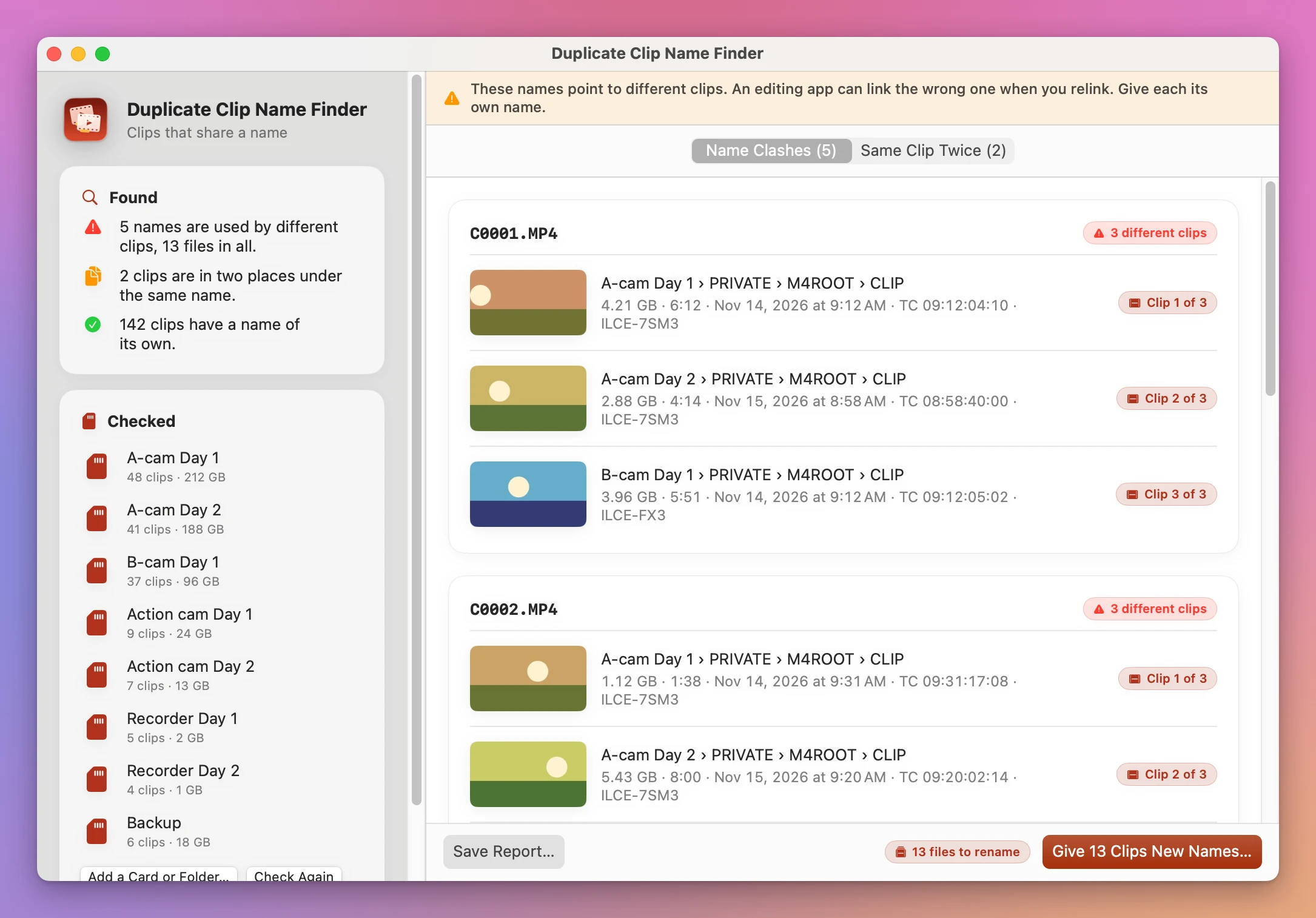
On the left, Found sums up what the app saw: how many names are used by different clips, how many clips are copied twice under the same name, and how many have a name of their own. Checked lists each card or folder with its number of clips and its size. Add a Card or Folder… (⇧⌘O) adds another one to the comparison, Check Again (⌘R) reads them all again, and Start Over clears the list.
On the right, two tabs:
- Name Clashes: names used by two or more different clips. These are the ones an editing app can mix up.
- Same Clip Twice: files that are the same clip, byte for byte, in two places, like a card and its backup. Nothing is wrong with these.
Each name gets a card with a row per file. A row shows a frame from near the start (or a sound symbol), the card and the folders, then the size, the length, the recording date, the start timecode (TC) and the camera, when the file has them. The pill on the right says Clip 1 of 3, Clip 2 of 3 and so on, or Same as above for a copy. Control-click a row and choose Show in Finder to see the file.
How it tells clips apart
Two names are the same when they differ only in upper and lower case, because editing apps and Mac disks treat them as one. Files with different sizes are different clips. Files with the same size are read: first a piece at the start, the middle and the end, then, only if those match, the whole file. Two files are listed as the same clip only when every byte matches.
Where the details come from
- Length, date and camera: from the file itself, for MP4, MOV, M4V and sound files.
- Start timecode: from the timecode track in the file, or from the XML file some cameras write next to each clip (
C0001M01.XMLnext toC0001.MP4). The XML wins when both have it. - A frame: for videos macOS can play. MXF, BRAW and R3D files get no frame and only the details their XML file gives.
Save a report
Click Save Report… (⌘S) and pick where to save it. The report is a CSV file that opens in Numbers or Excel, with a line for every file that shares a name: the name, whether it’s a different clip or a copy of the one above, the clip’s number, the card, the folder, the size, the length, the recording date, the start timecode, the camera and the full location of the file.
Give the clips new names
Click Give 13 Clips New Names… (the number is how many files share a name with a different clip), or choose Clips → Give Clips New Names… (⌘E).
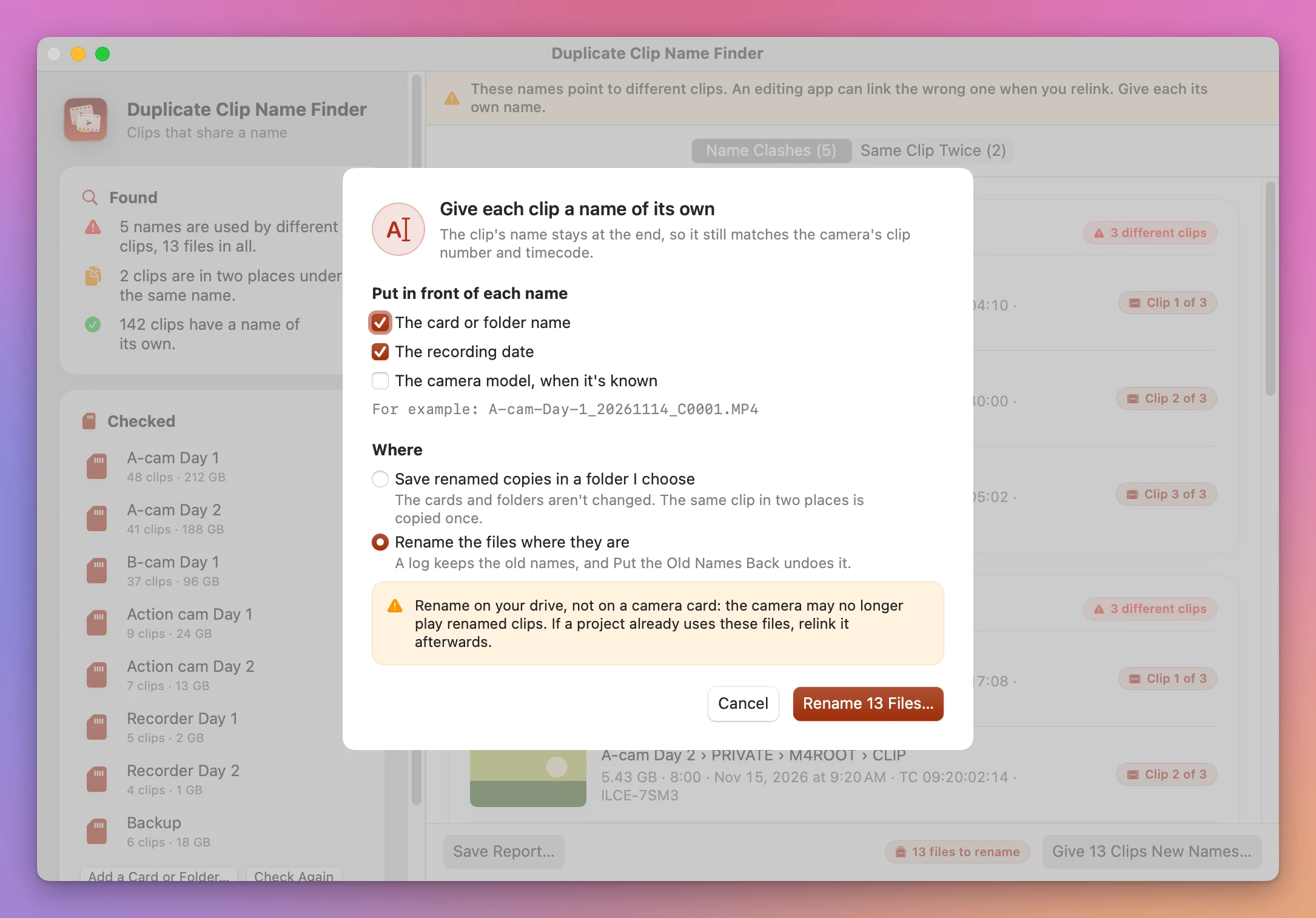
Under Put in front of each name, tick what goes before the camera’s name:
- The card or folder name:
A-cam Day 1becomesA-cam-Day-1. - The recording date:
20261114. - The camera model, when it’s known:
ILCE-7SM3.
The line under the choices shows an example. Spaces and characters editing apps don’t like become dashes. If two new names would still be the same, the second gets -2.
Under Where, pick one:
Save renamed copies in a folder I choose
Click Choose a Folder for 12 Copies… and pick a folder. A new, empty folder is best. The copies go into that one folder with their new names, with the camera’s XML and preview files for each clip, and a file called Renamed clips log.csv that lists each original and its new name.
If the same clip is in two places, it’s copied once. If the disk doesn’t have room for all the copies, nothing is copied and the window says how much space is needed. Your cards and folders aren’t changed.
Rename the files where they are
Click Rename 13 Files…. The app asks once more: Don’t Rename is the default button, and Rename 13 Files goes ahead. Each file is renamed in its own folder, with its camera XML and preview files. The old names are written to a log before the first file is renamed.
Rename on your drive, not on a camera card you’ll put back in the camera: a camera may not play clips it didn’t name. If an editing project already uses these files, relink it afterwards.
When it’s done
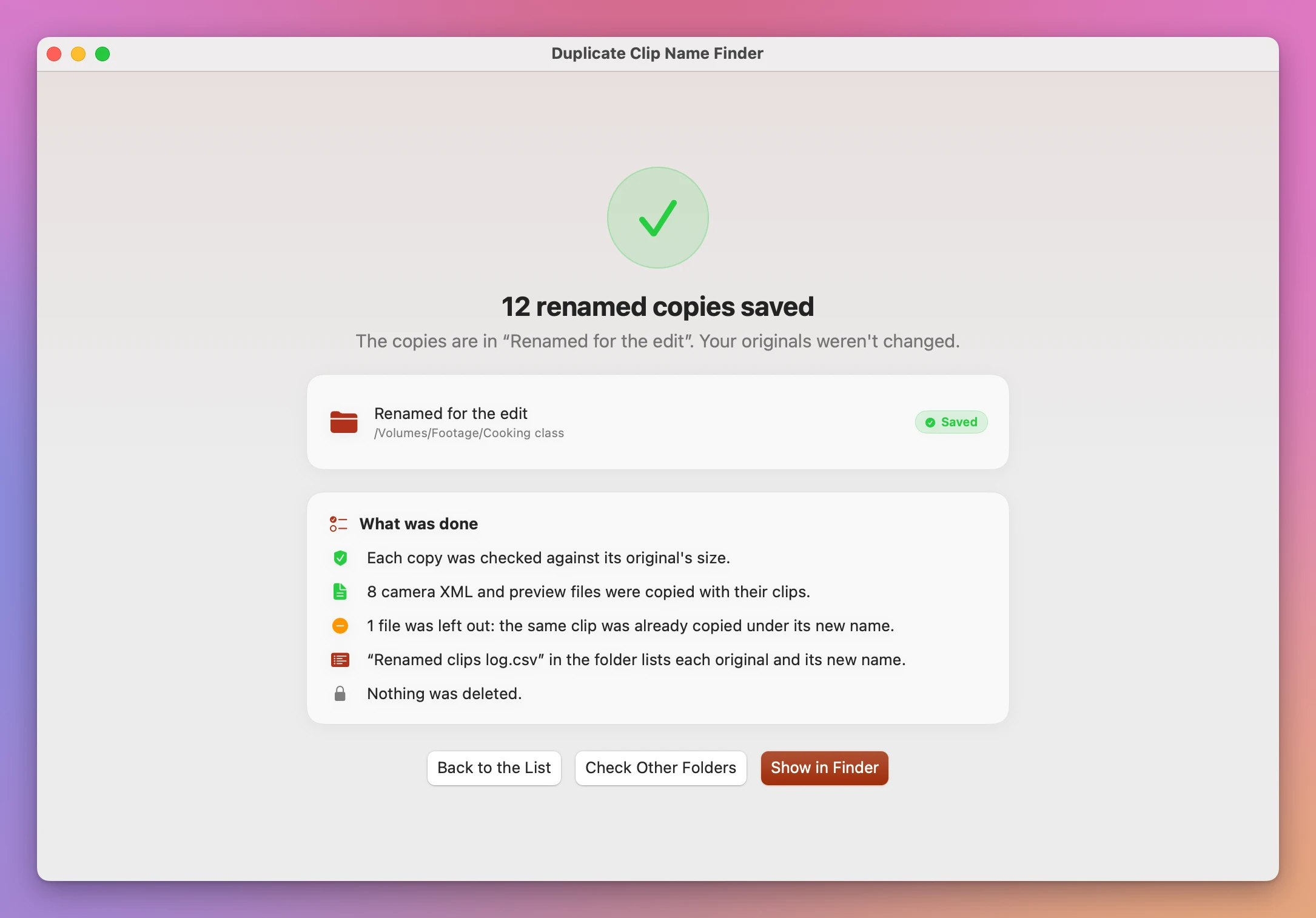
The window says how many copies were saved or files renamed, and what was done: the XML files that went with them, any file left out and why. Show in Finder opens the folder or the renamed files.
After a rename in place, Put the Old Names Back (⌥⌘Z, also in the Clips menu) undoes it. A file is put back only if it’s still where the rename left it, with the same size, and its old name is free. Anything left as it is gets named on the screen. Check Again reads the cards again.
The logs of renames in place are kept in your Library folder, in Application Support/Duplicate Clip Name Finder/Rename logs.
When there’s nothing to fix
If every clip has a name of its own, the window says No two clips share a name, with the cards and folders it checked. Add a Card or Folder… adds another one, and Check Other Folders starts over.
Troubleshooting
”Nothing to compare”
The folders you chose have no video or sound files, or the card was ejected. Choose the card itself or the folder with your footage. If you chose a file, choose the card or folder it’s in.
A clip shows “length unknown” and no frame
macOS can’t read that kind of file (MXF, BRAW, R3D and some others). The name, size and folder are still compared, and a timecode from the camera’s XML file shows when there’s one.
The copies weren’t saved
The window says why: not enough space on that disk, or the folder isn’t there any more. Give Clips New Names… opens the sheet again so you can pick another folder. Nothing was changed.
Some files weren’t renamed
A file is skipped when it was moved or deleted after the list was made, or when its new name is already taken in that folder. The done screen names them. Click Check Again to see what’s left.
Menus
- File: Choose Cards or Folders… (⌘O), Add a Card or Folder… (⇧⌘O), Check Again (⌘R), Close (⌘W), Save Report… (⌘S).
- Clips: Name Clashes (⌘1), Same Clip Twice (⌘2), Give Clips New Names… (⌘E), Put the Old Names Back (⌥⌘Z), Start Over.
- Help: Duplicate Clip Name Finder Support.
Privacy
The app reads the names, sizes and details of the clips in the folders you choose, on your Mac. Nothing is uploaded. It connects to the internet only to check for updates.
Duplicate Clip Name Finder is not made by, affiliated with or endorsed by Sony, GoPro, Zoom, Adobe, Blackmagic Design, Apple or any camera or recorder maker.