How to use File Association Presets
File Association Presets
See which app opens each kind of file on your Mac, change many file types at once, and save the setup as a preset to apply again or on another Mac.
Bought File Association Presets? Sign in with the email you bought it with to download the latest version or ask me a question.
On this page
Install
File Association Presets requires macOS 14 Sonoma or later, on Apple silicon or Intel. Download the ZIP from the order page or your Creem receipt. Unzip it and move the app to Applications.
The app checks for updates once a day. When a new version is ready, click Install and Relaunch. To check anytime, choose File Association Presets → Check for Updates…. Help → File Association Presets Support opens the support portal.
The file types table
The window opens on All file types: 113 common types grouped into Images, Video, Audio, Documents, Code & text, Archives, Ebooks and Web. Click a category in the sidebar to see only its rows. Extensions that macOS treats as the same type share a row, like .jpg .jpeg.
Each row shows the extensions, a description of the type, its type identifier, and the app that opens it now. Type in Filter by extension, type or app to narrow the list.
To add an extension that isn’t in the table, type it in Add an extension, like nfo and press Return or click Add. It shows up under Added by you.
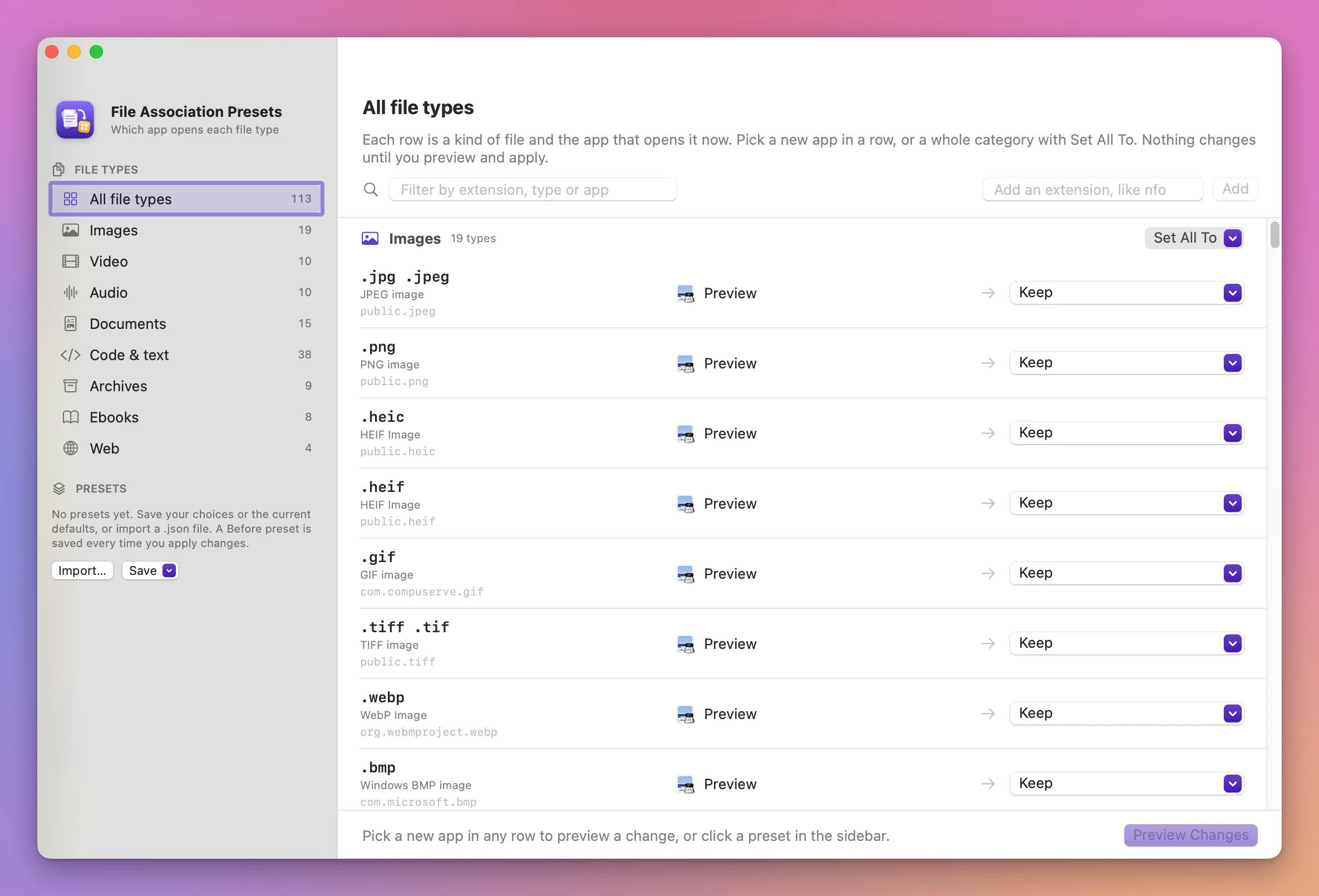
Pick new apps
Open the menu at the end of a row. It lists the apps that declare that type, Other App… to choose any app, and Keep … to undo your pick. A changed row is highlighted, and the sidebar shows “N new” next to its category.
To change a whole category, click Set All To in the category header. Apps are listed by how many of the category’s types they open, for example “ZedEditor (opens 27 of 38)”. Keep the Current Apps undoes the picks for that category.
The footer counts the file types that will open with a new app. Clear drops every pick. Nothing changes on your Mac yet.
Preview and apply
Click Preview N Changes. Each row shows the app that opens it now, the app that will, and a status:
- Will change: the row will be applied.
- Left alone: you unchecked it.
- Already set: the type already opens with that app.
- App not on this Mac: the app in the preset isn’t installed, so the row is skipped.
- Unknown extension: macOS doesn’t know the extension.
A row may also say “ZedEditor doesn’t list this type, macOS will still use it”. That’s fine: macOS accepts the change. Uncheck All and Check All toggle every row.
Click Apply N Changes. Before anything changes, the current apps of the checked rows are saved as a preset named like “Before 20 Nov 2026 at 21:53:07”. Then each type is set and read back from macOS. A row is Done only when macOS reports the new app, and Failed otherwise, with the reason.
Go back
The done screen has Restore Previous Apps…, which opens the Before preset in the preview. Click Apply there to put the previous apps back. Before presets stay in the sidebar, so you can restore later too. Each restore saves a Before preset of its own: delete old ones with right-click, Move to Trash.
A type that had no default app before can’t be set back to “no app”. The Before preset leaves those rows out.
Presets
Presets are listed in the sidebar. Click one to open it in the preview: nothing changes until you click Apply. Right-click a preset for Preview and Apply…, Export…, Show in Finder and Move to Trash.
Make a preset from the Save menu:
- Current Defaults… saves the apps that open each type now.
- Your Choices… saves only the rows you changed.
- Whole Table with Your Choices… saves every row, with your picks where you made them.
You can also click Save as Preset… in the footer. File → Export Current Defaults… (⌘E) saves the current defaults to a file you pick.
Move a setup to another Mac
- On the old Mac, choose Save → Current Defaults…, then right-click the preset and choose Export….
- Copy the
.jsonfile to the new Mac. - Click Import… in the sidebar, or choose File → Import Preset… (⌘O), and pick the file.
The preset opens in the preview. Each app is looked up by its bundle identifier, then by its path. Rows whose app isn’t installed are marked App not on this Mac and skipped, so you can import the preset again after installing it. Extensions not in the table are added to Added by you. A file that isn’t a preset shows “This file isn’t a preset this app can read…”.
Presets are kept in ~/Library/Application Support/File Association Presets/Presets/.
Limits
- HTML (
.html,.htm): macOS refused the change in testing and keeps HTML files for the default web browser. The row says so. Change the browser in System Settings → Desktop & Dock. - Web and email links (
http,mailto) aren’t covered. .tsis MPEG-2 Transport Stream video unless an app on your Mac declares TypeScript, so changing.tsalso changes those videos. The row shows the type.
Command line tool
The app includes a command line tool at File Association Presets.app/Contents/Helpers/file-association-presets. It isn’t added to your PATH.
file-association-presets list --category "Code & text"
file-association-presets apps mp4
file-association-presets export --out ~/Desktop/my-mac.json --name "My Mac"
file-association-presets apply ~/Desktop/my-mac.json --dry-run
file-association-presets set "Visual Studio Code" js ts json md
file-association-presets presetslist, apps, apply, set and presets take --json. apply saves a Before preset first and exits with status 2 if a row failed. set takes an app name, bundle identifier or .app path.
The app changes your defaults through macOS on your Mac. It uses the internet only to check for and download updates.
File Association Presets is $19, a one-time purchase.