How to use Keynote Kiosk Runner
Keynote Kiosk Runner
Play a Keynote deck unattended during opening hours, start it again when it stops, and show a closed screen after hours.
Bought Keynote Kiosk Runner? Sign in with the email you bought it with to download the latest version or ask me a question.
On this page
Install
Keynote Kiosk Runner requires macOS 14 Sonoma or later, on Apple silicon or Intel, and Keynote, which is free on the Mac App Store. Download the ZIP from the order page or your Creem receipt. Unzip it and move the app to Applications.
The first time the kiosk plays a deck, macOS asks to let Keynote Kiosk Runner control Keynote. Click Allow. If you clicked Don’t Allow, turn it on in System Settings › Privacy & Security › Automation.
The app checks for updates once a day. When a new version is ready, click Install and Relaunch. To check anytime, choose Keynote Kiosk Runner → Check for Updates….
Choose and check the deck
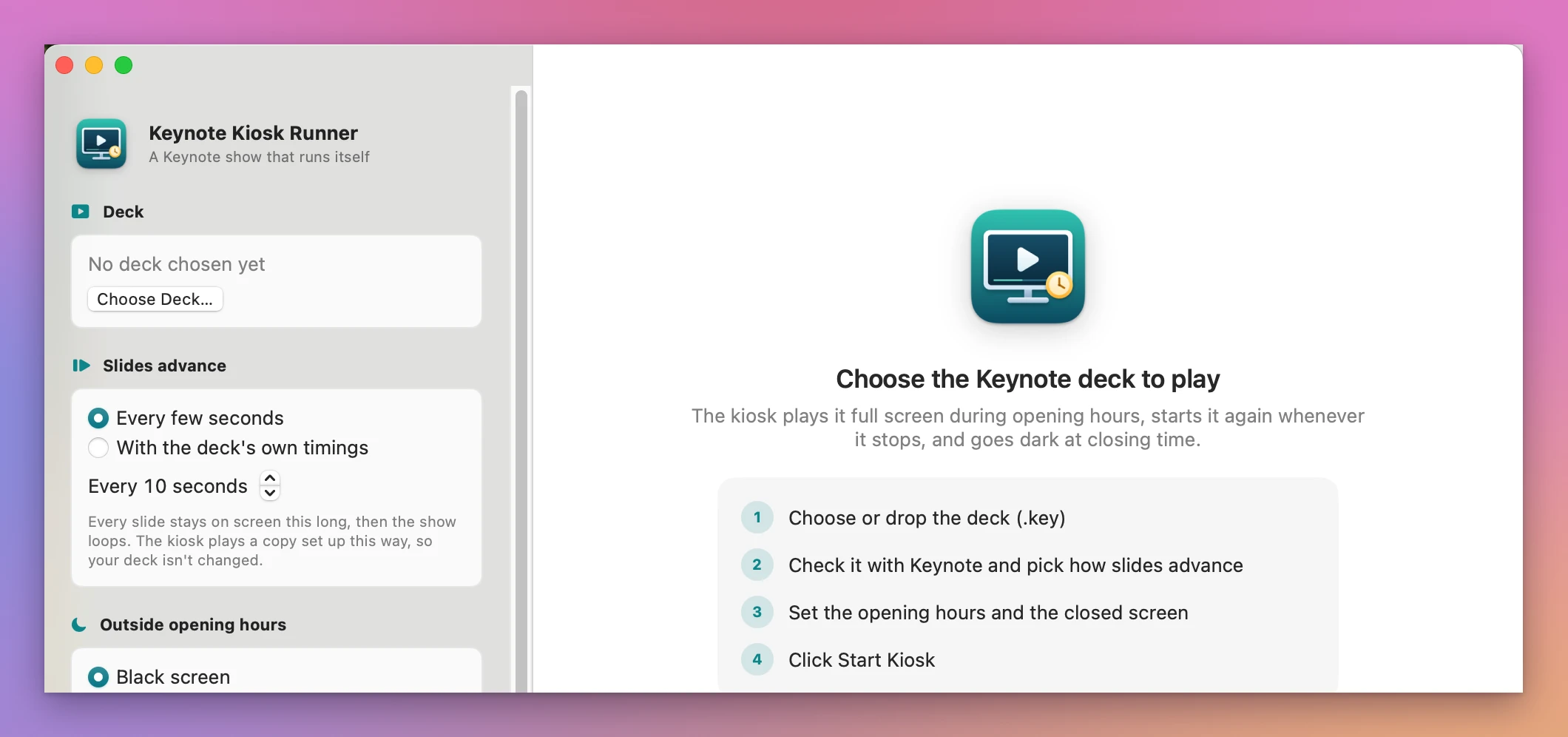
Click Choose Deck…, or drop a .key file on the window. Then click Check with Keynote. Keynote opens the deck for a moment, counts the slides and looks at whether each slide starts its transition by itself, then closes it. Nothing in the deck changes.
The result shows the slide count, the skipped slides, Plays by itself, Not self-playing or “N wait for a click”, and Loops or No loop. If slides wait for a click, an orange warning explains that the show would stop there.
How slides advance
Under Slides advance in the sidebar:
- Every few seconds shows each slide for the time you set, from 2 to 600 seconds. Use it for decks made for clicking. The time counts after a slide’s builds, so builds that wait for a click still wait.
- With the deck’s own timings uses the transitions set in Keynote. Use it for a deck that’s already self-playing. A slide that waits for a click stops the show in this mode.
Either way the show loops. The kiosk plays a copy of your deck, kept in ~/Library/Application Support/Keynote Kiosk Runner/Playback, set to loop and, for Every few seconds, to move on by itself. Your deck is never opened or changed. If you save changes to it while the kiosk runs, the next check makes a new copy and starts the show again.
Opening hours
Tick each open day and set its opening and closing time. A closing time of 0:00 means midnight. The presets Mon–Sat 9:00–19:00, Every Day 10:00–18:00 and Copy Monday to Open Days fill in the rows. Always on plays day and night. Impossible hours show a red line that says what’s wrong.
Outside opening hours
Under Outside opening hours:
- Black screen stops the show and covers the screen in black until opening time.
- A “closed” picture stops the show and fills the screen with the picture you pick with Choose….
- Let the display sleep stops the show and puts the display to sleep. Moving the mouse wakes it.
With several displays, choose which one shows the black screen or the picture. Keynote shows the slideshow itself on the display chosen in Keynote › Settings › Slideshow, and Keynote doesn’t let other apps pick it.
Start the kiosk
Click Start Kiosk. The bar above it tells you what happens now, for example “Open now: the show starts right away and stops today at 7:00 PM”, or the first problem to fix.
While the kiosk runs, the window shows its state (Playing, Closed, Recovering, Paused or Needs attention), a line with the slide number or the next opening time, and What happened: every start, opening, closing, pause and restart, with the time and the reason.
The Watchdog checks every 15 seconds by default (5 to 300). If the slideshow stopped, another document is in front, or Keynote quit, it opens the deck again and plays from the first slide. If Keynote doesn’t answer three checks in a row, it quits Keynote and starts again. Outside opening hours, a show started by hand is stopped at the next check. During opening hours the app keeps the display awake.
Pause and stop
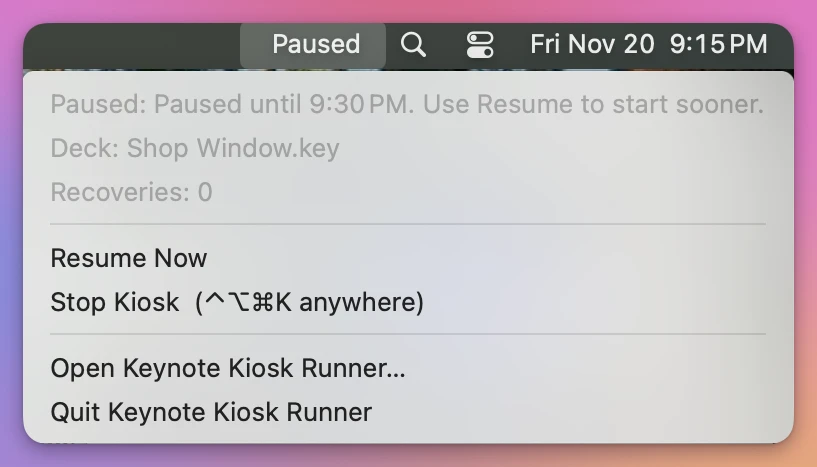
Pause for 15 Minutes stops the show so you can use the Mac, and it starts again by itself when the pause ends. Resume Now ends the pause early. Stop Kiosk stops it for good, and ⌃⌥⌘K does the same from anywhere, even during the slideshow.
The same actions are in the menu bar item, which shows the state, the deck and the number of restarts, and in the Kiosk menu.
After a restart or a power cut
Under When the Mac starts, turn on Open at login and Resume the kiosk when the app opens. Turn on automatic login in System Settings › Users & Groups too, so the Mac reaches the desktop without someone typing the password. If macOS asks you to approve the app, do it in System Settings › General › Login Items.
Command line
The app includes a command line tool at Keynote Kiosk Runner.app/Contents/Helpers/keynote-kiosk-runner:
keynote-kiosk-runner check ~/Kiosk/Window.key
keynote-kiosk-runner start --deck ~/Kiosk/Window.key --hours "mon-sat 9:00-19:00" --seconds 8
keynote-kiosk-runner status
keynote-kiosk-runner log --limit 20
keynote-kiosk-runner stop
start saves the settings and starts the kiosk in the app. Hours are always, or text like mon-sat 9:00-19:00, sun 10:00-16:00. Add --json to check, status and log for machine-readable output.
Everything happens on your Mac. The app uses the internet only to check for and download updates.
Keynote Kiosk Runner is $19, a one-time purchase.