How to use Keynote Notes Editor
Keynote Notes Editor
Export every presenter note of a Keynote deck to one file, edit it anywhere, and write the edited notes into a copy of the deck.
Bought Keynote Notes Editor? Sign in with the email you bought it with to download the latest version or ask me a question.
On this page
Install
Keynote Notes Editor requires macOS 14 Sonoma or later, on Apple silicon or Intel, and Keynote, which is free on the Mac App Store. Download the ZIP from the order page or your Creem receipt. Unzip it and move the app to Applications.
The app checks for updates once a day. When a new version is ready, click Install and Relaunch. To check anytime, choose Keynote Notes Editor → Check for Updates….
Open a deck
Click Choose a Keynote Deck… (or File › Open Deck…, Command-O), or drop a .key file on the window. The first time, macOS asks you to let the app control Keynote: allow it, since the app reads and writes notes through Keynote.
The app reads the deck and shows its name, the number of slides and of slides with notes, the words, and the total speaking time. Each slide has a row with its number, its title (or “No title”), a Skipped pill for skipped slides, the first lines of its notes, and its words and speaking time.
If you change the deck in Keynote while the app is open, click Read the Deck Again at the bottom of the sidebar.
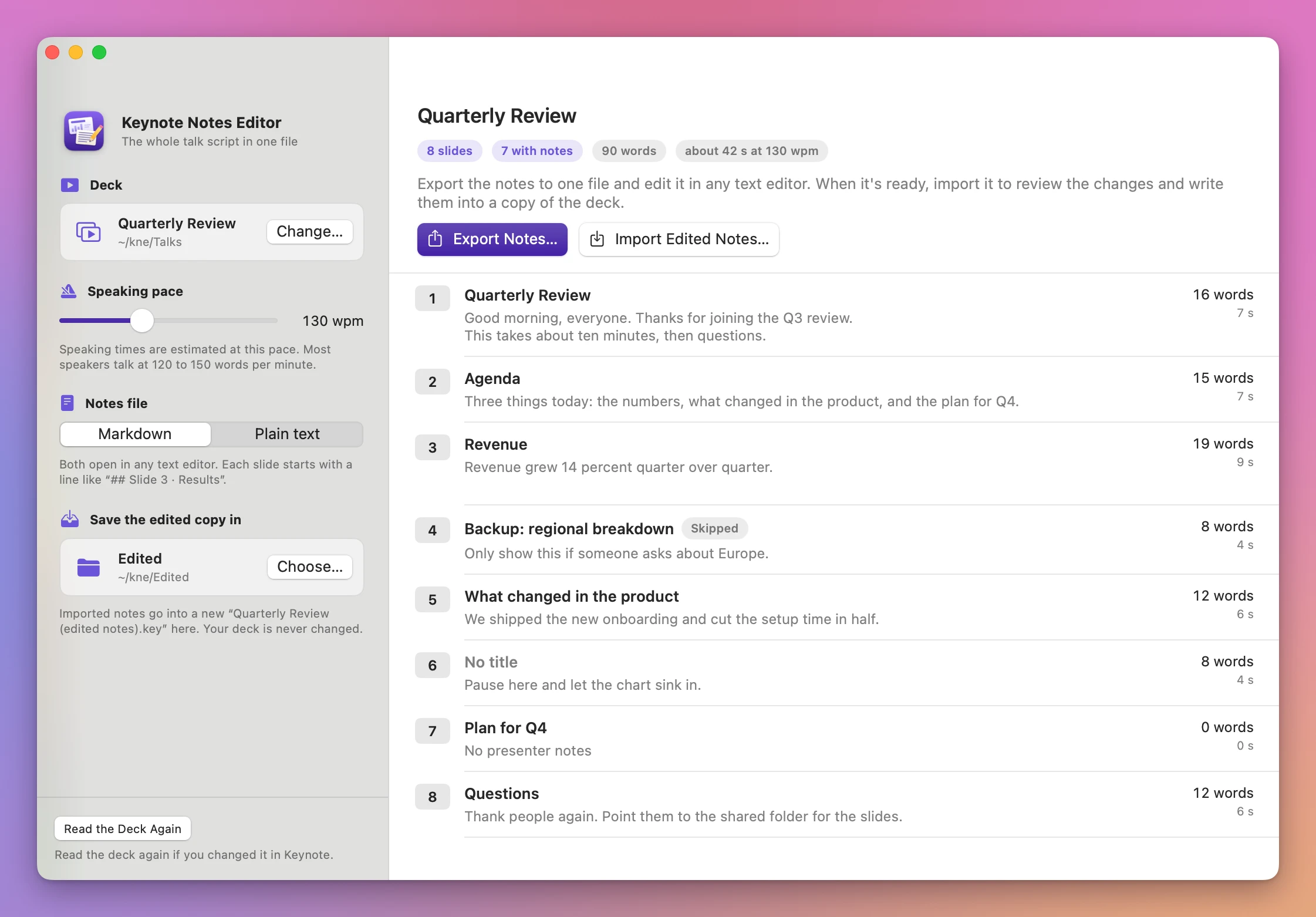
Settings in the sidebar
- Speaking pace: 90 to 200 words per minute, 130 to start. Every speaking time in the app uses it.
- Notes file: Markdown (
.md) or Plain text (.txt). Both open in any text editor. - Save the edited copy in: the folder for the edited copy. It starts as the deck’s own folder.
The app remembers all three.
Export the notes
Click Export Notes… (Command-E) and save the file. The suggested name is the deck’s name followed by “notes”, like “Quarterly Review notes.md”.
The file starts with a comment block that records the deck, the slide count, the export time, and one line per slide with a fingerprint of its notes and its title. Then each slide has a line like ## Slide 3 · Revenue, with its notes under it.
Edit the notes under each slide line. Keep the comment block and the ## Slide lines as they are: the import uses them to match slides and to spot slides that moved. A notes line that looks like a slide line is written with a backslash in front, so it stays part of the notes.
Import the edited notes
Click Import Edited Notes… (Shift-Command-I) and pick the .md or .txt file. The app reads the deck again and gives each slide a row with a checkbox, a pill and a sentence:
| Pill | Meaning | Ticked |
|---|---|---|
| New notes | The file has different notes for this slide | Yes |
| Unchanged | Same notes as the slide has now | No |
| Not in the file | The file has no section for this slide, its notes stay | No |
| Title changed | The slide at this number had another title at export time, so the slides may have been reordered | No |
| Edited in Keynote | The slide’s notes changed in Keynote after the export | No |
| No such slide / Listed twice | Notes for a slide number the deck doesn’t have, or the same slide twice | Can’t be written |
Changed rows show Now in the deck and From the file side by side, with the words before and after. A warning appears when the file was exported from a different deck or the number of slides changed. A copy called “(edited notes)” counts as the same deck.
Use Tick All and Untick All, or tick rows one by one. The footer shows the talk’s length after the import. Then click Write N Slides into a Copy.
The edited copy
The app writes the ticked notes into a new copy in the chosen folder, named after the deck with “(edited notes)” added, like “Quarterly Review (edited notes).key”. If that name is taken, it adds a number: “(edited notes 2)”. It saves the copy, opens it again and reads the notes back, and the done screen says whether they match.
Show in Finder opens the folder, Open in Keynote opens the copy, and Edit Another Deck starts over.
How it treats your files
- Your deck is never opened or saved by Keynote. Every step works on a private copy in a temporary folder, so a deck you have open in Keynote isn’t touched.
- If Keynote isn’t running, the app starts it and quits it when it’s done.
- Notes are written as plain text. Bold, colors and other formatting in the notes of a slide you write are replaced. Slides you don’t tick keep theirs. Images in notes aren’t exported.
- Titles come from each slide’s title box. A slide with a hidden or custom title box shows “No title” and is matched by its number.
Troubleshooting
- “Keynote isn’t installed”: install Keynote from the Mac App Store.
- The app can’t control Keynote: open System Settings › Privacy & Security › Automation and allow Keynote Notes Editor to control Keynote.
- The app gives up waiting for Keynote: Keynote is probably showing a dialog, like its theme chooser or a password prompt. Close it in Keynote and try again.
For questions, choose Help › Keynote Notes Editor Support.
Notes are read and written on your Mac. The app uses the internet to check for and download updates.
Keynote Notes Editor is $19, a one-time purchase.