How to use Meeting Buffer Blocks
Meeting Buffer Blocks
Add prep and wrap-up blocks around the meetings you choose in Calendar, preview every change, and keep the blocks in step when meetings move.
Bought Meeting Buffer Blocks? Sign in with the email you bought it with to download the latest version or ask me a question.
On this page
Install
Meeting Buffer Blocks requires macOS 14 Sonoma or later, on Apple silicon or Intel. Download the ZIP from the order page or your Creem receipt. Unzip it and move the app to Applications.
The app checks for updates once a day. When a new version is ready, click Install and Relaunch. To check anytime, choose Meeting Buffer Blocks → Check for Updates….
For help, choose Help › Meeting Buffer Blocks Support. It opens the support site in your browser.
Allow Calendar access
The first time you open the app, click Allow Calendar Access. macOS asks once: choose Allow Full Access. The app reads your meetings to find the time around them, and adds, moves and removes only the blocks it makes. It never changes a meeting or sends an invitation.
If access was refused, the button becomes Open Privacy Settings. In Privacy & Security › Calendars, give Meeting Buffer Blocks full access.
Set up a rule
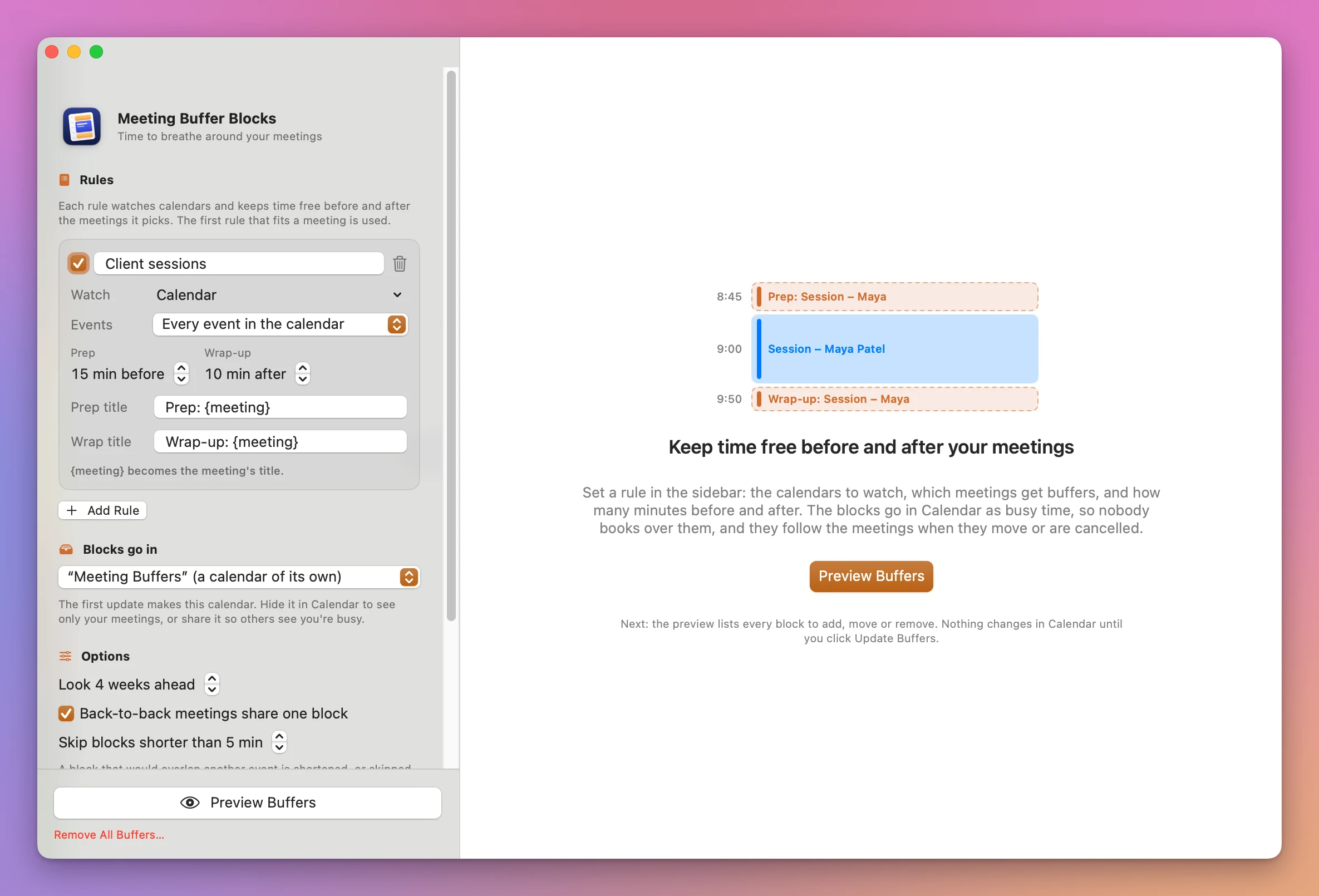
After access, the sidebar has a first rule called “Client sessions”. Each rule card has:
- A checkbox to turn the rule on or off, its name, and a trash button to delete it.
- Watch: a menu of every calendar, with its account. Tick the calendars whose meetings get buffers. The calendar the blocks go in isn’t listed.
- Events: Every event in the calendar, Events with other attendees (meetings with at least one invitee besides you), or Events whose title contains…. For the last one, type the words in Title has. Commas separate alternatives, and capital letters and accents don’t matter:
intake, first visitmatches “Intake – Laura Kim”. - Prep and Wrap-up: from None to 240 minutes, in steps of 5.
- Prep title and Wrap title: the names of the blocks.
{meeting}becomes the meeting’s title, soNotes: {meeting}gives “Notes: Session – Tom Becker”.
If a rule can’t work yet, it says why in orange under it: no calendar picked, no words typed, or no prep or wrap-up minutes.
Click Add Rule (Shift-Command-N) for another one. When several rules fit a meeting, the first enabled rule wins, so put the more specific one (say, “Intake” with 30 minutes of prep) above the general one.
Where the blocks go
Under Blocks go in, the default is “Meeting Buffers” (a calendar of its own). The app makes it on the first update, in your default account, or in the one you pick under Make it in when you have several. A calendar of its own lets you hide the blocks in Calendar, give them a color, or share the calendar so others see you’re busy.
You can pick one of your own calendars instead. Blocks already in another calendar are made again in the new one on the next update.
Options
- Look N weeks ahead: 1 to 26 weeks from the start of today, 4 by default.
- Back-to-back meetings share one block: on by default. When two meetings are closer than the wrap-up plus the prep, the gap becomes one block named after both, like “Notes: Session – Maya Patel + Prep: Session – Tom Becker”.
- Skip blocks shorter than N min: 5 minutes by default. A block that another event shortens below this is skipped.
Before placing a block, the app checks every timed event in every calendar. A block that would overlap another event is shortened, or skipped when too little time is left. All-day events, events marked Free, and cancelled or declined events don’t count.
Preview and update
Click Preview Buffers (Command-R). The preview, Buffers for the next 4 weeks, says how many meetings match and the date range, with pills for the blocks to add, to move, to remove, unchanged and skipped. Switch between Changes, Skipped and All Blocks at the top right.
Changes are grouped by day. Each one has a checkbox, the time, the block’s title, an Add, Move or Remove pill, whether it’s before, after or between meetings, and the reason:
- “New buffer for “Session – Maya Patel”.”
- “The meeting moved: was Mon, Nov 23 at 3:15 PM.”
- “The meeting was deleted or moved out of the next 4 weeks.”
- “Shortened to 10 min (asked for 15 min) because “Supervision call” ends at 12:50 PM.”
- “Shares the 10 min gap between the two meetings instead of stacking 10 + 15 minutes.”
- ““Session – Ben Carter” was cancelled or declined.”, or no longer matches a rule.
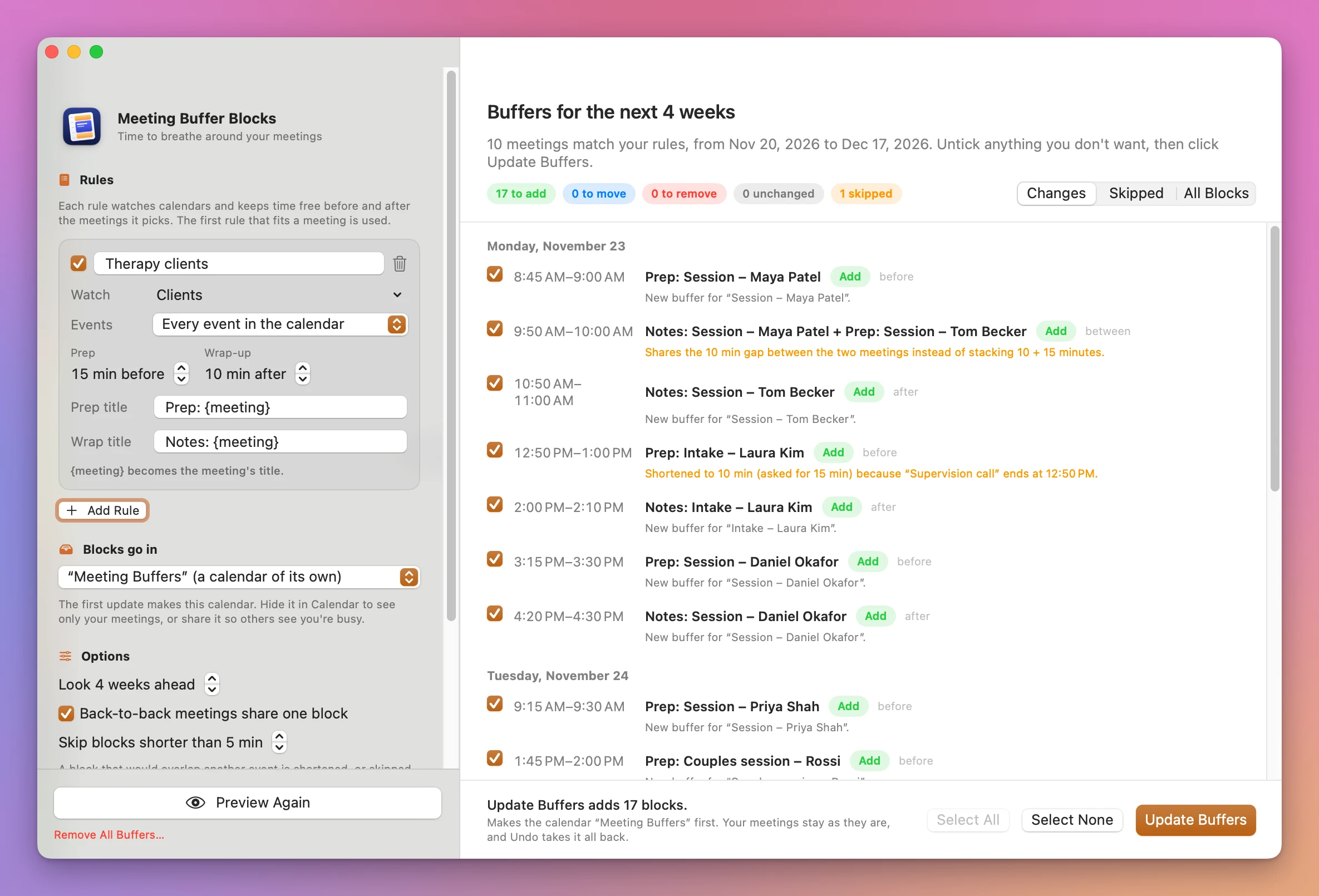
Untick anything you don’t want, or use Select All and Select None, then click Update Buffers. The done screen says how many blocks were added, moved and removed, and how many were skipped. From there, Undo This Update, Open Calendar or Preview Again.
When Calendar already matches your rules, the preview says “Calendar already matches your rules.”
Keep updating
Turn on Update buffers automatically under Keep updating in the sidebar. The app then updates the blocks, without a preview, whenever a meeting is added, moved or cancelled. The sidebar shows the last update, like “Last update: 9:43 PM (2 added, 1 moved, 1 removed).”, and the last check.
While it’s on, the app has a menu bar item with the last update and check, Update Now, Open Meeting Buffer Blocks…, Stop Keeping Buffers Updated and Quit. Closing the window leaves the app running there.
It works only while the app is open. The app doesn’t add itself to Login Items: add it to the Login Items in System Settings if you want it to start with your Mac.
Undo and Remove All
Every update, automatic or not, is saved, and the latest one can be undone. Undo This Update on the done screen removes the blocks it added and puts back the ones it moved or removed. Undo again to go further back. Undoing turns Keep updating off, so the blocks don’t come straight back.
Remove All Buffers…, at the bottom of the sidebar, counts the blocks the app made first, from a year ago to three years ahead, in every calendar. Then it asks, and Remove N Blocks removes only those. It turns Keep updating off, and the next screen has Undo and Back to Start. The “Meeting Buffers” calendar stays, empty.
How the app finds its own blocks
Each block is a busy event with a link and a line in its notes naming its meeting. That’s how the app finds it again, and why it only ever moves or removes events that carry them. Don’t copy a block’s link or notes into your own events.
Limits
- Each block is a single event, with no alerts and no invitees.
- Moving a whole repeating series removes and re-adds the blocks of each occurrence. Moving one occurrence moves its blocks.
- Blocks of meetings outside the Look ahead range are left as they are.
- Tested with calendars stored On My Mac. iCloud, Google and Exchange calendars haven’t been tested.
Everything happens on your Mac through macOS. The app uses the internet only to check for updates.
Meeting Buffer Blocks is $19, a one-time purchase.