
Install
Network Share Reconnector requires macOS 14 Sonoma or later, on Apple silicon or Intel. Download the ZIP from the order page or your Creem receipt. Unzip it and move the app to Applications.
The app checks for updates once a day. When a new version is ready, click Install and Relaunch. To check anytime, choose Network Share Reconnector → Check for Updates….
On macOS 15 Sequoia, the first check brings up macOS’s question about finding devices on local networks. Click Allow. If you clicked Don’t Allow, the shares show “macOS is keeping this app off your local network…”: turn the app on in System Settings → Privacy & Security → Local Network.
Add your shares
The window opens on its own the first time, with a drive icon in the menu bar.
- Pick a Connected Share… lists the SMB and AFP shares connected right now, all ticked. Shares already in your list are greyed out with “Already in your list.” Click Add N Shares (Add Share for one). They use the password the Finder saved, or guest access if that’s how they’re connected.
- Add a Share… (Command-N) takes an address:
smb://nas.local/Media,nas.local/Media,\\NAS\Media,cifs://orafp://. A share address on the clipboard is filled in for you. A user name or password in the address is moved into the fields.
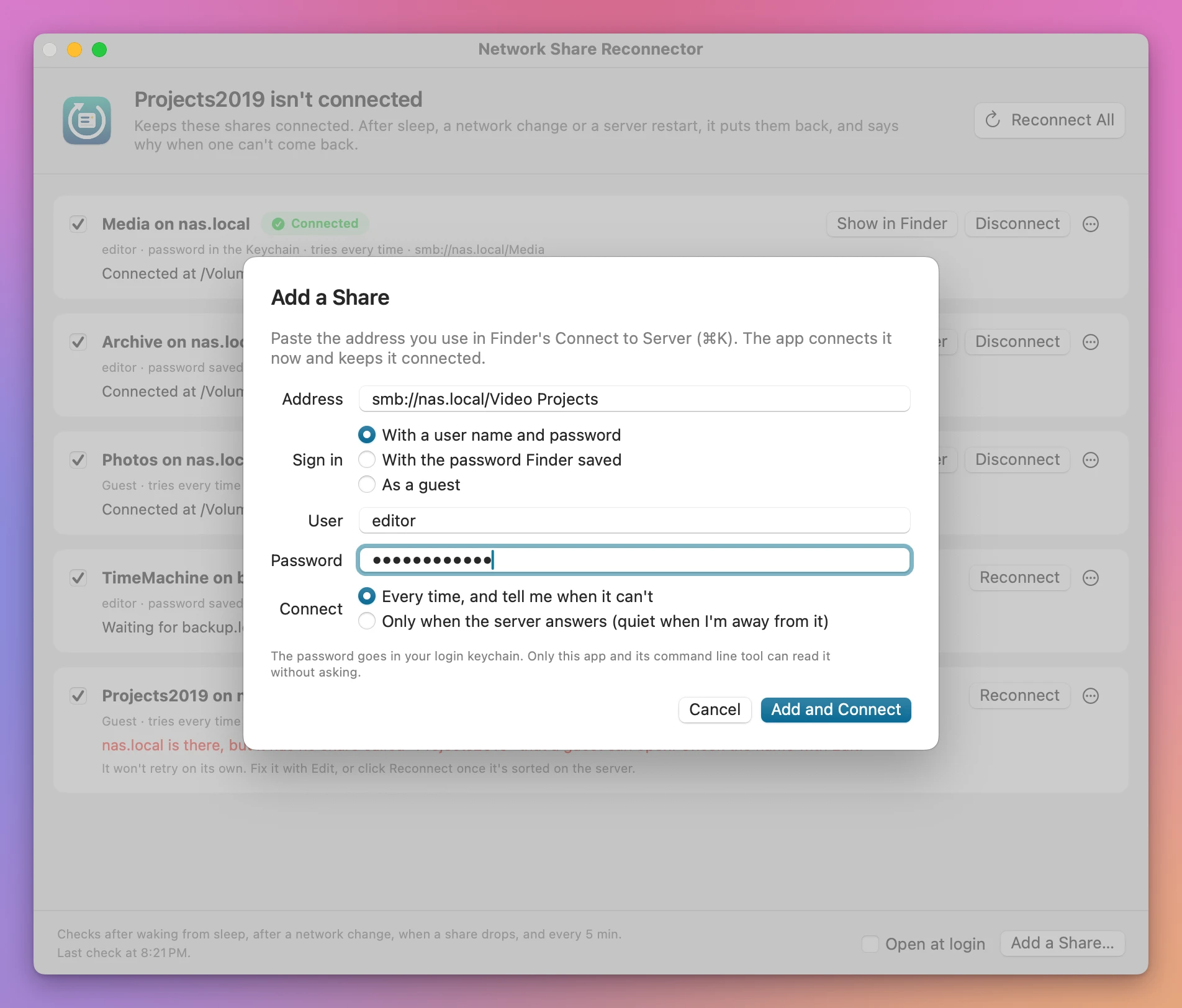
Sign in has three choices:
- With a user name and password: the password goes in your login keychain.
- With the password Finder saved: uses the password you saved when you connected in the Finder with Remember this password in my keychain. macOS may ask whether the app can use it the first time. If you deny it, the share says so.
- As a guest: no password.
Connect has two:
- Every time, and tell me when it can’t: a missing server shows as Can’t connect.
- Only when the server answers (quiet when I’m away from it): a missing server shows as Waiting for server, with no error. Use it for a share you only reach at the office.
When Add and Connect is greyed out, the line under the fields says what’s missing: the address, the share name, the user or the password, or a kind of address the app doesn’t support.
The list
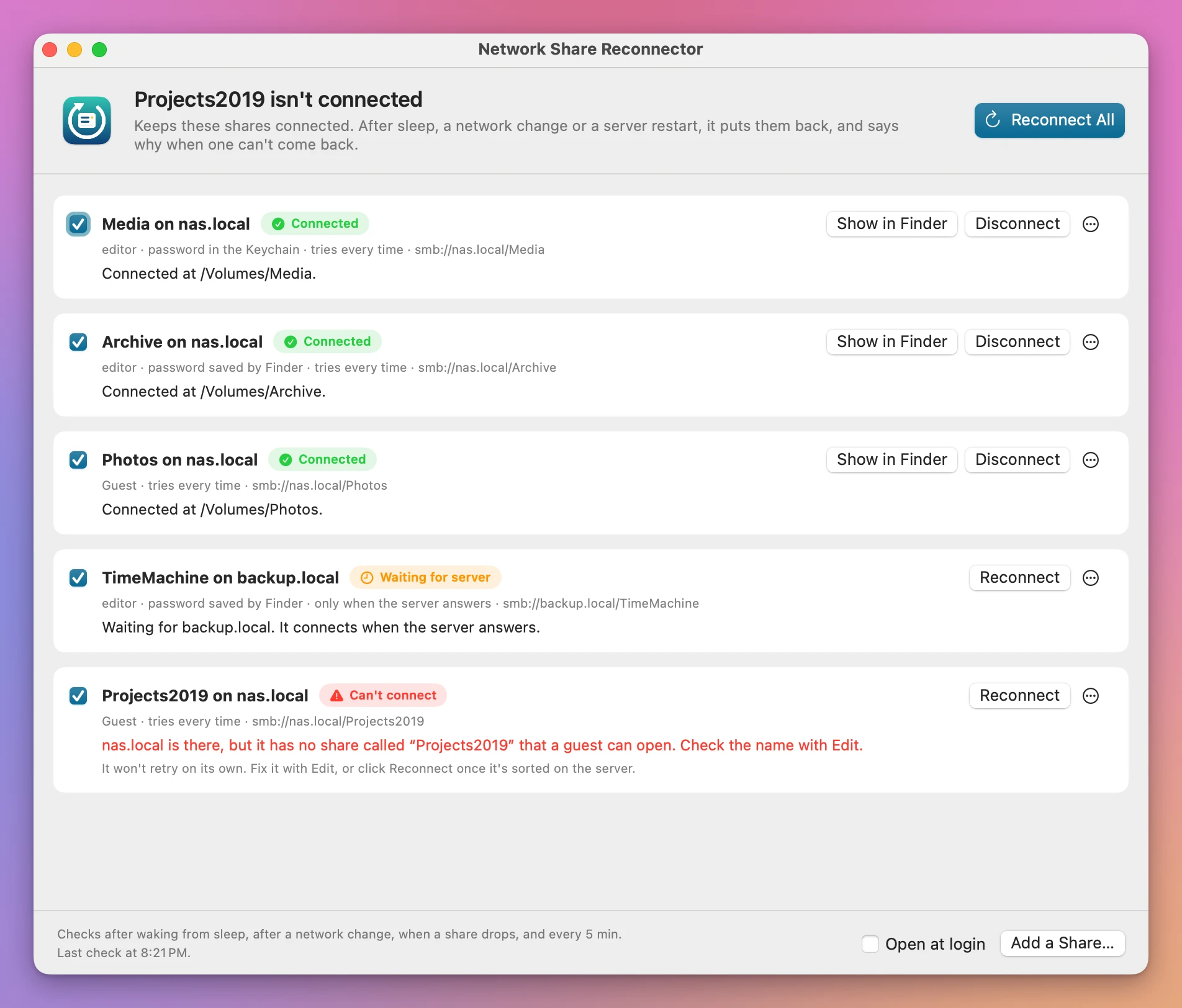
Each share is a card with a checkbox (ticked keeps it connected, unticked pauses it), a status (Connected, Checking, Waiting for server, Can’t connect or Paused), a line with the user, the password source, the rule and the address, and a sentence about what’s happening.
- Show in Finder and Disconnect appear when the share is connected. Disconnect ejects it and pauses it.
- Reconnect appears otherwise. It tries right away and unpauses the share.
- The ••• menu has Edit…, Copy Address and Remove…. Removing a share forgets its saved password. If the share is connected, it stays connected until you eject it.
The header sums things up (“All 3 shares are connected”, “Projects2019 isn’t connected”), next to Reconnect All.
When it checks
- When the app starts.
- 5 seconds after the Mac wakes from sleep.
- 3 seconds after a network change.
- When one of the shares disconnects.
- Every 5 minutes. Change it in Settings (Command-comma) to 1, 2, 10, 15, 30 or 60 minutes.
Before connecting, the app checks that the server answers on port 445 (548 for AFP), with a 3-second limit. Connections happen in the background, with no Finder window.
After a failure the app waits 30 seconds, then 1, 2, 5 and 10 minutes, then every 15 minutes. A wake, a network change or a share disconnecting tries right away.
When a share can’t connect
The red sentence on the card says why. Some failures retry on their own, others wait for you:
| What happened | What the app does |
|---|---|
| The server isn’t on this network | Tries again later |
| Wrong user name or password | Stops. Fix it with Edit… |
| No share with that name | Stops. Check the name with Edit… |
| Guests not allowed | Stops |
| No saved password, or macOS didn’t let the app use the Finder’s | Stops. Type the password with Edit… |
| Already connected under another name | Stops. Eject it in the Finder, then Reconnect |
| Local Network access off | Stops. Turn it on in System Settings |
A wrong password never retries on a timer, because some servers lock an account after several failures.
Ejecting a share yourself
If you eject a share in the Finder while its server is still there, the app pauses it: “You ejected it at 8:12 PM. Click Reconnect when you want it back.” If the server is gone, or the Mac just woke or changed networks, the app treats it as a drop and keeps trying.
The menu bar
The icon is a plain drive when there’s nothing to do, a connected drive when every share is there, and a drive with an exclamation mark when one can’t connect. The menu has a summary line, one item per share with a submenu (the sentence, Show in Finder and Disconnect, or Reconnect), Reconnect All Now, Open Network Share Reconnector… and Quit.
Closing the window removes the Dock icon, and the app keeps running in the menu bar. Open the app again from the Finder or Spotlight to bring the window back. Tick Open at login to start it with the Mac.
Command line
The app includes a command line tool at Network Share Reconnector.app/Contents/Helpers/network-share-reconnector. It uses the same list as the app, stored in ~/Library/Application Support/Network Share Reconnector/.
network-share-reconnector statusconnected Media on nas.local Connected at /Volumes/Media.
waiting TimeMachine on backup.local Waiting for backup.local. It connects when the server answers.
missing Projects2019 on nas.local nas.local is there, but it has no share called “Projects2019” that a guest can open. Check the name with Edit.status exits with code 3 when a share that isn’t paused is missing. The other commands:
list [--json]: the saved sharesstatus [--json]: which shares are connectedmount-all [--include-paused] [--json]: connect every share that isn’t connectedmount <share>: connect one share by name, address or id, even a paused oneadd <address> [--user NAME] [--finder-password | --guest] [--only-when-server-answers]: save a shareremove <share>: forget a share (it stays connected until you eject it)probe <server> [--port 445]: check whether a server answers
Passwords are never typed on the command line. Save a keychain password in the app.
Limits
- SMB was tested with real servers. AFP addresses are accepted but weren’t tested against an AFP server.
- macOS uses one sign-in per server, so a guest share on a server where you’re signed in as a user can end up connected as that user.
- There’s no rule based on the Wi-Fi network’s name. Use Only when the server answers instead.
The app only talks to your servers and, once a day, to the update server.