

Install Photo License Tracker
Photo License Tracker runs on macOS 14 Sonoma or later, on Apple silicon and Intel Macs. After buying, you land on a page with a Download button. You can also get the app from your Creem receipt. Unzip the app and drag Photo License Tracker to your Applications folder.
The app is signed and notarized by Apple. Confirm Open at the normal first-launch prompt.
Photo License Tracker asks macOS for no permission. It reads only the photos and files you choose or drop on it.
The app checks for updates once a day. When a new version is ready, click Install and Relaunch. The first time, it asks for the license key from your Creem receipt, and remembers it. To check anytime, choose Photo License Tracker → Check for Updates….
Add your first license
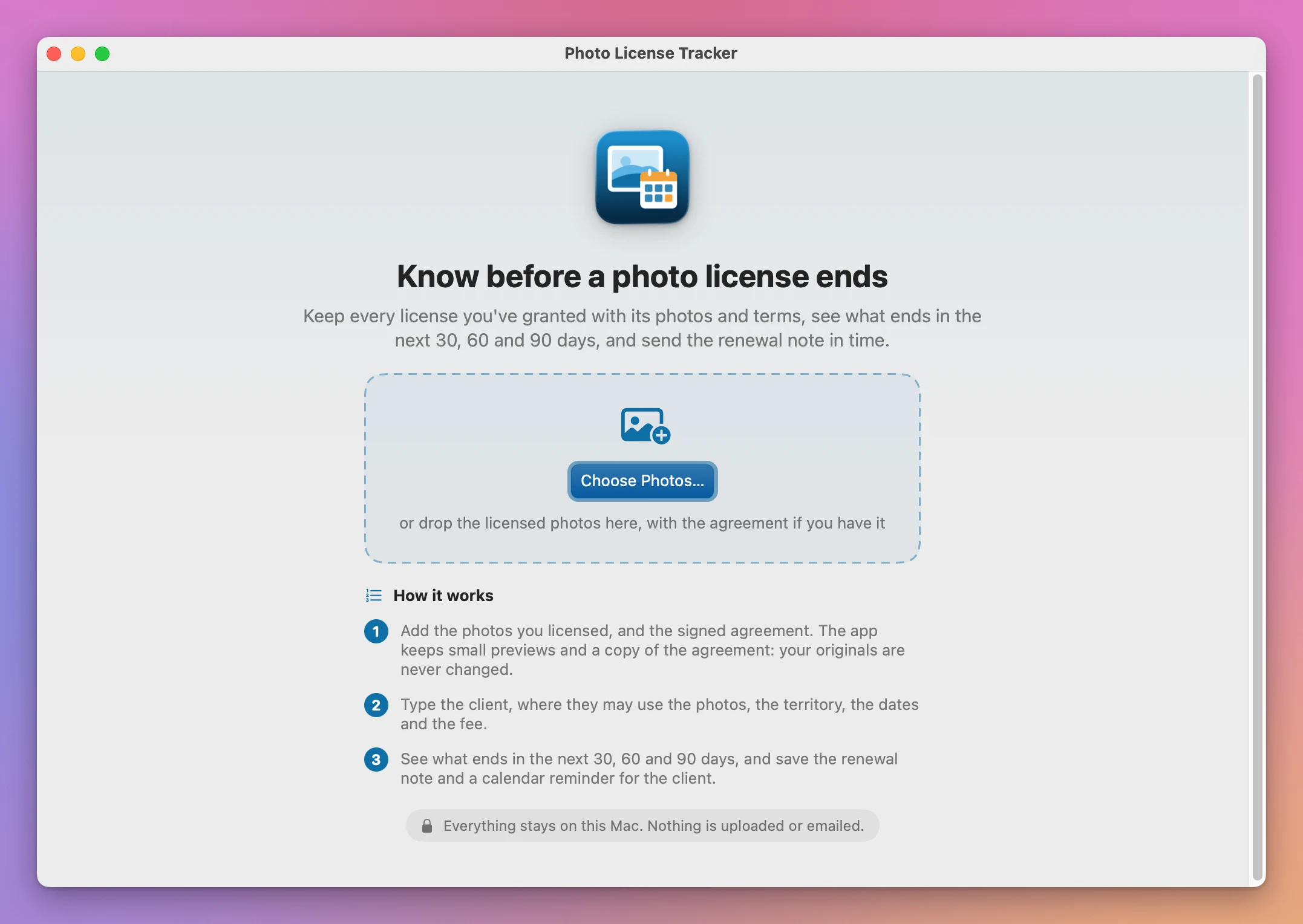
Click Choose Photos… and pick the photos you licensed to one client. Hold Command to pick more than one. Pick the signed agreement with them if you have it: a PDF, Word, Pages, RTF or text file becomes the license’s agreement, and the rest become its photos.
You can also drop the photos and the agreement on the window, or on the app’s icon in the Dock.
The app makes a small preview of each photo and keeps a copy of the agreement in its library. Your originals stay where they are and are never changed.
The new license starts today and ends a year later. The line at the top of the window asks you to type the client’s name, then check the terms and the end date.
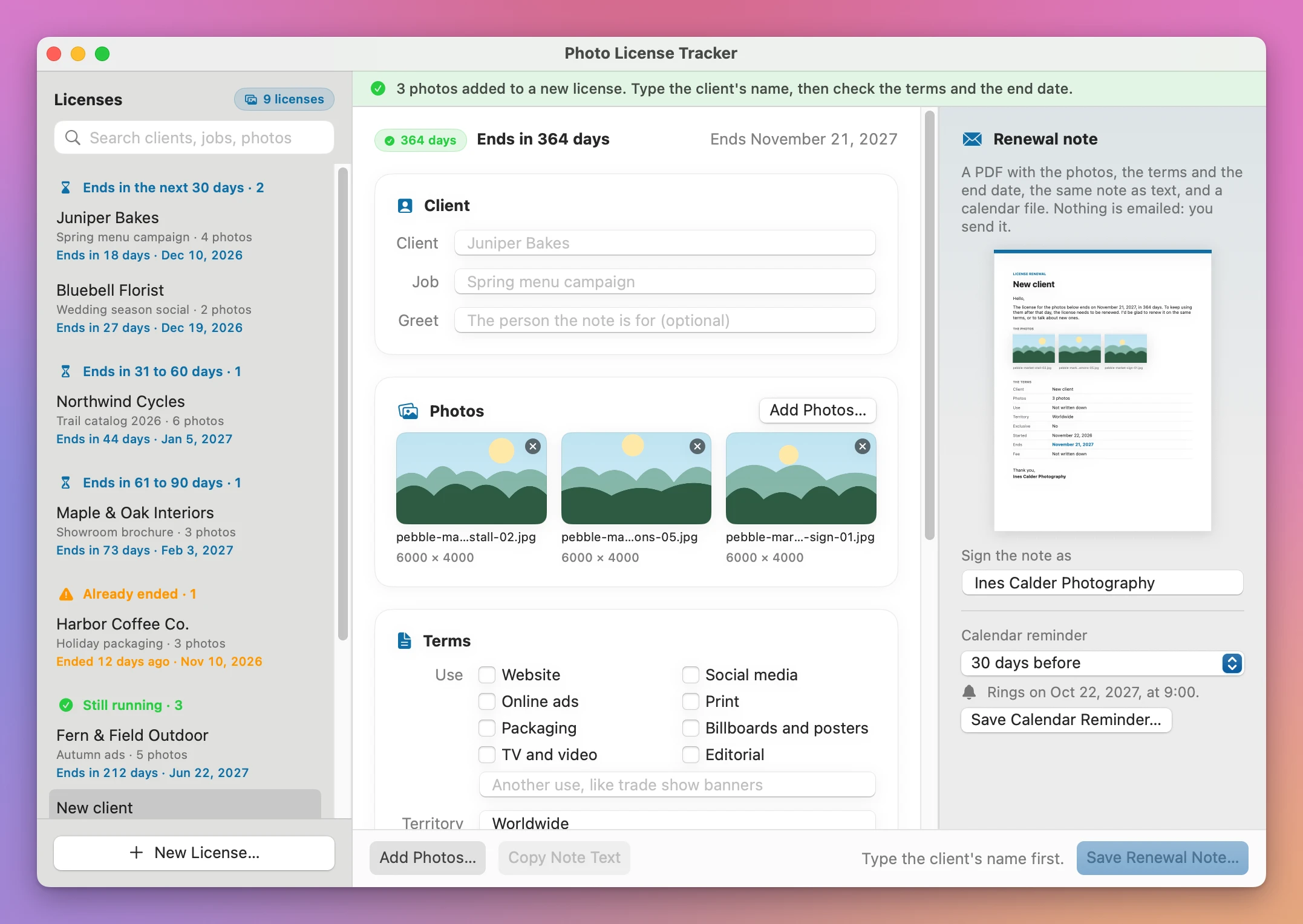
Fill in the client and the terms
Client: the client’s name, as it goes on the note. Job: the shoot or campaign, like “Spring menu campaign”. Greet: the person the note is for. Leave it empty and the note starts with “Hello,”.
Under Terms:
- Use: tick where the client may use the photos: Website, Social media, Online ads, Print, Packaging, Billboards and posters, TV and video, Editorial. Type anything else in the field under them, like “Trade show banners”.
- Territory: where, in your words: Worldwide, Europe, United States.
- Exclusive: tick Only this client may use these photos for an exclusive license.
- Starts: the first day of the license.
- Ends: the last day the client may use the photos. Untick Has an end date for a license with no end; it goes in Still running and has no renewal note.
- Fee: type it as you write it, like 1200, 1,200.50 or 1.200,50, and pick the currency.
Changes are saved when you press Return, click another field, or pick another license. A fee that isn’t an amount is refused, and the line at the top says how to type it.
Notes keeps anything else, like what the client asked about.
The photos
Each photo shows its preview, its file name and its size in pixels. To add more, click Add Photos…, choose File → Add Photos to This License… (⇧⌘A), or drop them on the Photos card. A photo with the same name as one already in the license is skipped, and so is a file macOS can’t read as a photo. The line at the top says which and why.
Click the × on a photo to remove it from the license. The app asks first, and removes only its preview. Right-click a photo and choose Show Original in Finder to find the original, if it’s still where it was when you added it.
The agreement
The Agreement card shows the agreement’s name, size and the day you added it, with a pill:
- Kept: the copy is in the library.
- Missing: the copy isn’t in the library any more. Click Replace… and choose the agreement again.
Open opens the copy. Replace… keeps a new copy and moves the old one to the Trash. Remove… asks first, then moves the copy to the Trash. Your original agreement isn’t touched. With no agreement kept, click Choose Agreement…, or choose File → Choose Agreement File….
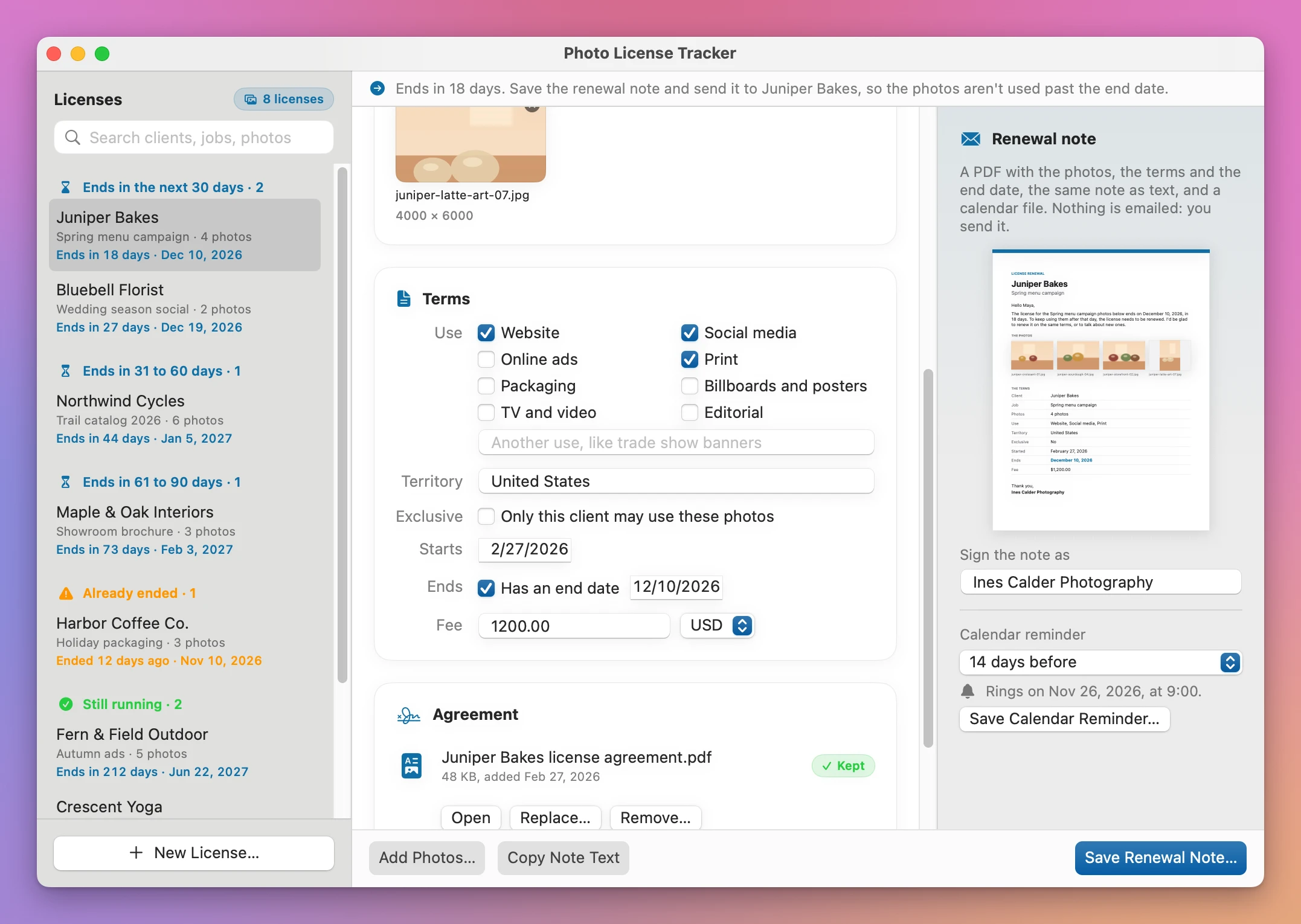
See what ends soon
The list on the left groups every license:
- Ends in the next 30 days (today included), Ends in 31 to 60 days, Ends in 61 to 90 days, soonest first;
- Already ended, in orange, the most recent first;
- Still running: more than 90 days left, or no end date;
- Done, not renewing: licenses you’ve marked as done.
Each row shows the client, the job and how many photos, then “Ends in 18 days · Dec 10, 2026”. The days are counted from today every time you open the app or come back to it.
When a client won’t renew, tick Done: this license won’t be renewed under the details. The license moves to Done, not renewing and stays as a record.
Find a license
Type in the search field at the top of the list, or press ⌘F. The search looks at the client, the job, the person to greet, the territory, the uses, the notes and the photos’ file names. Every word you type has to match, and case and accents don’t matter.
Save the renewal note
The Renewal note panel on the right shows the first page of the note as it will be saved.
Type your name or studio under Sign the note as. It’s saved once for every note.
Click Save Renewal Note… at the bottom right, or press ⌘S, and choose a folder. The app makes a new folder in it, named “Renewal -
- the note as a PDF: your contact’s name, the end date and how many days are left, the photos as thumbnails with their names, the terms (client, job, photos, use, territory, exclusive, start, end, fee), and your signature;
- the same note as a text file;
- a calendar file named ”
license ends.ics”.
If a folder with that name is already there, the new one gets a number. Nothing is emailed.
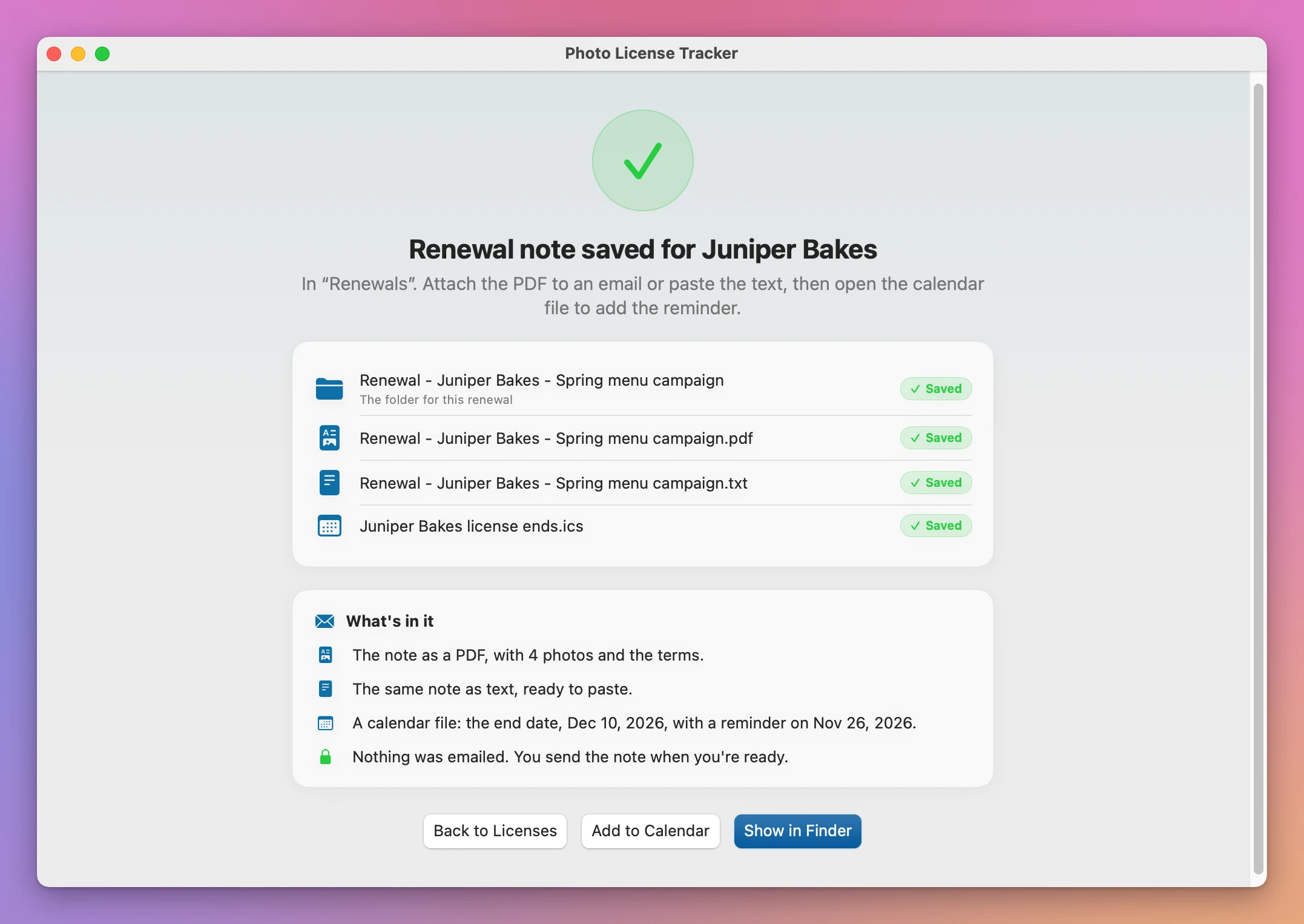
On the saved screen, Show in Finder shows the PDF, Add to Calendar opens the calendar file in your calendar app, and Back to Licenses goes back to the list.
Copy Note Text (⇧⌘C) puts the note’s text on the clipboard, to paste in an email.
When Save Renewal Note… is off, the reason is next to it: the license has no end date, the client’s name is empty, or the license ends before it starts.
Calendar reminders
Under Calendar reminder, pick 7, 14, 30, 60 or 90 days before. The line under it says the day it rings, at 9:00. If that day has already passed, it says so in orange: pick fewer days, or the calendar only shows the end date.
Save Calendar Reminder… (⇧⌘S) saves only the calendar file, for a license that’s still months away. Open the file to add it to Calendar or another calendar app.
Remove a license
Click Remove This License… under the details, or choose File → Remove This License… (⌘⌫). The app asks first, with Keep It as the default. Removing deletes the license’s previews and moves its agreement copy to the Trash. Your original photos and agreement aren’t touched.
Where your licenses are kept
Everything is in a library folder in your user Library. File → Show Library in Finder opens it, so you can see it and back it up with your other files. The list of licenses is library.json, with the version before the last change next to it as library.previous.json.
Troubleshooting
A photo was skipped. The line at the top says why: it’s a folder (add the photos inside it), it isn’t there any more, macOS can’t read it as a photo, or a photo with that name is already in the license.
The agreement shows Missing. Its copy was removed from the library folder. Click Replace… and choose the agreement again.
The list of licenses couldn’t be read. The app shows “The library couldn’t be opened”. Click Show Library in Finder: the previews and agreements are still there, with the copy of the list from before the last change.
The reminder day has passed. The license ends sooner than the reminder you picked. Pick fewer days, or send the renewal note now.
Photo License Tracker isn’t made by, affiliated with or endorsed by Apple or any photo agency or stock site. It keeps the terms you type and isn’t legal advice.