
Install
Podcast Markers needs macOS 14 Sonoma or later, on Apple silicon or Intel. Download the ZIP from the order page or your Creem receipt, unzip it and move the app to Applications.
The app doesn’t ask for any permission, at launch or later. The marker keys work without Accessibility access.
The app checks for updates once a day. When a new version is ready, click Install and Relaunch. To check anytime, choose Podcast Markers › Check for Updates….
Record a session
- Get your recorder ready.
- Click Start a Session in Podcast Markers at the moment you click Record in the recorder. The clock starts, and the window gets small and stays on top of other windows, so you can put it beside the recorder.
- While you record, mark moments with the keys. They work in any app, while the session runs:
| Key | Marker | Use it for |
|---|---|---|
| Control-Option-1 | Topic | A new topic or segment starts |
| Control-Option-2 | Correction | A flubbed line, a pickup, a cough, a wrong fact |
| Control-Option-3 | Clip | A moment worth a promo or a social clip |
You can also click Topic, Correction and Clip in the window, or use the Session menu.
- Pressed the wrong key? Click the arrow at the bottom left of the window, or choose Session › Remove Last Marker (Command-Delete). It removes the newest marker.
- When you stop recording, click End Session (Shift-Command-E).
Each marker is saved as soon as you press the key, so a crash or a flat battery doesn’t lose it. A session with no markers isn’t kept.
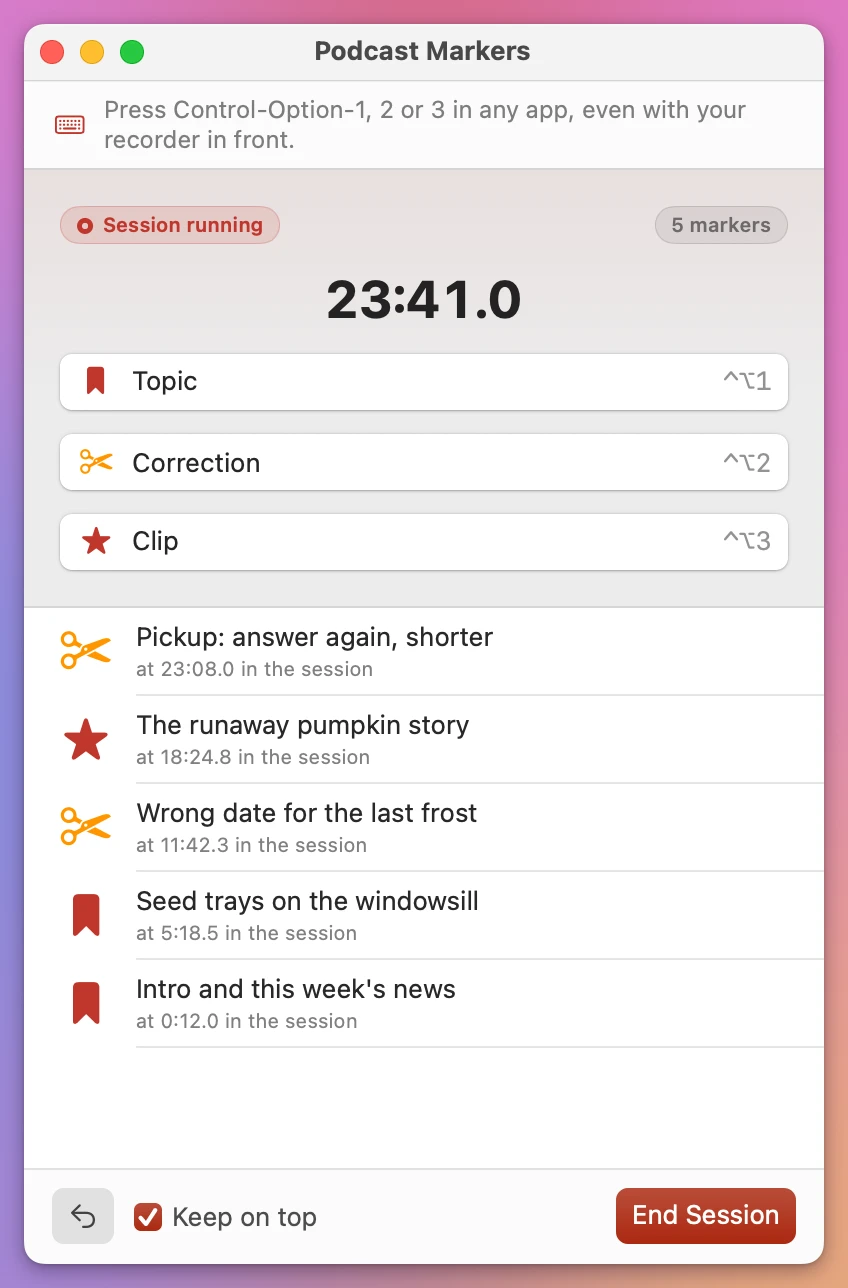
Keep on top, at the bottom of the window, keeps the window above the recorder while a session runs. Untick it if you’d rather it didn’t. It’s also in Session › Keep Window on Top While Recording.
If another app already uses one of the three keys, the line at the top of the window says which, and you click that marker’s button instead.
Open the recording
After End Session, click Open the Recording… (Command-O) and pick the audio file, or drag it onto the window. WAV, AIFF, M4A, MP3, FLAC and CAF work. If your recorder saves something else, export the audio in one of these formats first.
The app only reads the recording, to measure its length and to play a few seconds. It never changes it.
Check the start point
The markers were timed from the moment you clicked Start a Session. The recording started when you clicked Record. The start point is the difference: where the session’s 0:00 is in the recording.
- If you clicked both at the same moment, leave it at
0:00.0. - If the recorder started first, it’s a positive time, like
0:04.2. - If you started the session first, it’s negative, like
-0:03.
To check it, click ▶ next to a marker. The app plays the recording from two seconds before the marker, for ten seconds. If the moment comes late, make the start point bigger. If it comes early, make it smaller. Type a time in Session starts at and press Return, or click −1 s, −0.1 s, +0.1 s or +1 s.
When it sounds right, click Confirm Start Point. Moving the start point again asks for a new check. Export stays off until the start point is confirmed.
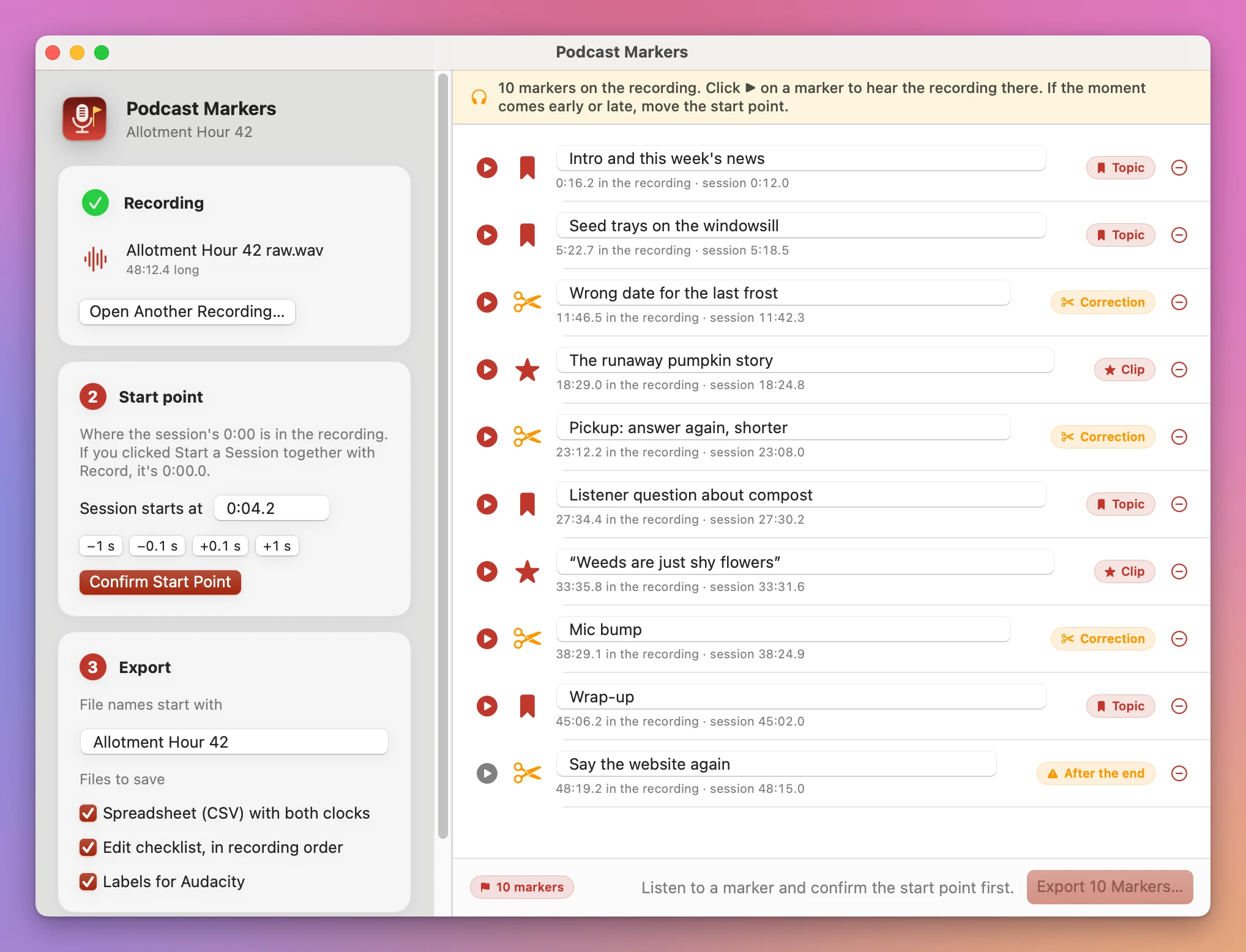
The start point is added on top of the markers’ times in the session, which never change.
Markers outside the recording
A marker that falls after the end of the recording (you pressed a key after stopping the recorder) gets an orange After the end pill. One before the start gets Before the start. They have no ▶ button. They stay in the spreadsheet and at the bottom of the checklist, under “Outside the recording”, with their session time, and they’re left out of the Audacity labels.
Rename and remove markers
Click a marker’s name and type. The new name is saved when you press Return or click somewhere else. To leave a marker out of the export, click the minus button at the end of its row.
Export
- In File names start with, type the name of the episode. Every file starts with it.
- Tick the files you want under Files to save.
- Click Export Markers… (Command-E) and choose a folder.
Existing files are never replaced: if a name is taken, the new file gets a “2” in its name.
The spreadsheet
<name> markers.csv, with one row per marker:
| Column | Example |
|---|---|
| Number | 3 |
| Kind | Correction |
| Name | Wrong date for the last frost |
| Recording time | 00:11:46.500 |
| Recording seconds | 706.500 |
| Session time | 00:11:42.300 |
| Session seconds | 702.300 |
| Within recording | yes, or “no, after the end” |
It opens in Numbers, Excel and Google Sheets.
The edit checklist
<name> edit checklist.txt, a plain text file. It names the recording and the start point, counts the topics, corrections and clips, then lists every marker in recording order with a box to tick:
[ ] 11:46.5 CORRECTION Wrong date for the last frostMarkers outside the recording come last, with their session time.
Labels for Audacity
<name> Audacity labels.txt. In Audacity, open the recording, then choose File › Import › Labels… and pick this file. Each marker becomes a label at its time, named like “Correction: Wrong date for the last frost”.
Earlier sessions
The start screen lists your three most recent sessions under Earlier sessions. Click Open to go back to one. If its recording is still where it was, the markers open lined up, with the start point and the names you gave them. Otherwise the app asks for the recording again.
Sessions are saved on your Mac in your Library folder, under Application Support › Podcast Markers.
Troubleshooting
”The recording couldn’t be opened”
The file isn’t audio this Mac can read, it’s empty, or it was moved. Export the recording from your recorder as WAV, AIFF, M4A or MP3 and open that. Your markers are saved.
The markers are all a few seconds off
That’s the start point. Click ▶ on a marker, then move the start point until the moment plays two seconds in, and confirm again.
Markers after a pause are off
The session clock doesn’t pause with the recorder. If you paused the recorder mid-session, markers after the pause come early by the length of the pause.
Nothing happens when I press Control-Option-1
The keys only work while a session runs. If the line at the top of the session window says another app uses the key, click the button in the window instead.
Privacy
The app reads only the recording you open, and never changes it. Nothing is uploaded. The app connects to updates.flaviocopes.com to check for new versions.
Podcast Markers isn’t made by, affiliated with or endorsed by Audacity or any recorder or audio editor maker.