
Install
Practice Loops requires macOS 14 Sonoma or later, on Apple silicon or Intel. Download the ZIP from the order page or your Creem receipt. Unzip it and move the app to Applications.
The first time you open it, macOS asks if you’re sure you want to open an app downloaded from the internet. Click Open. The app asks for no other permission: it reads the recording you choose and writes only where you save. It never records.
The app checks for updates once a day. When a new version is ready, click Install and Relaunch. To check anytime, choose Practice Loops → Check for Updates….
Open a recording
Click Choose a Recording…, or drag a recording onto the window or the app’s icon. MP3, M4A, AAC, WAV, AIFF and FLAC files work, at least a second long. The app draws the waveform, with a time ruler under it. The recording is never changed.
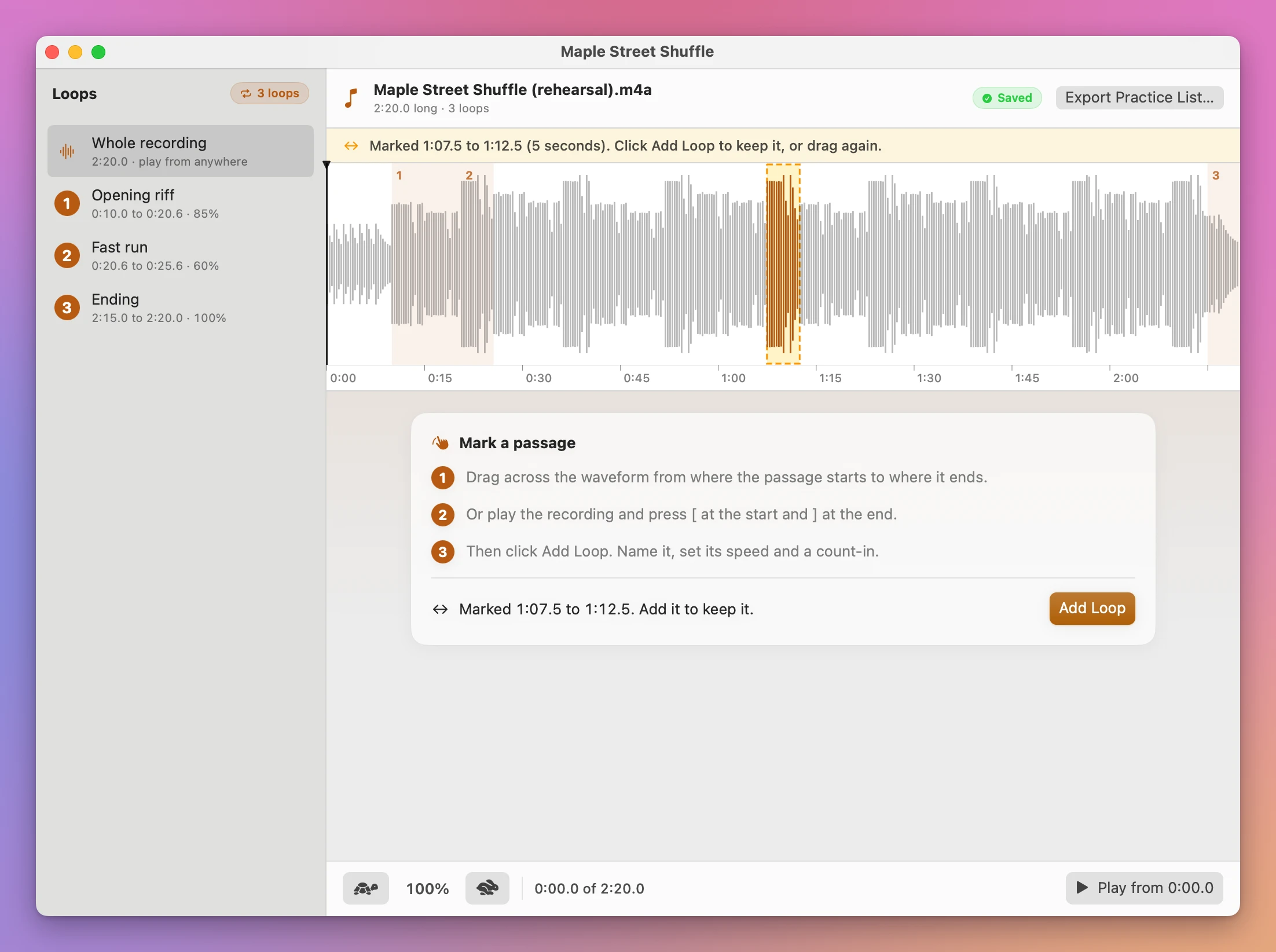
The left column lists Whole recording and, under it, your loops in the order they come in the recording.
Mark a passage
There are two ways.
- Drag across the waveform from where the passage starts to where it ends.
- Click Play from 0:00.0 (or click a spot on the waveform first to play from there), and press [ where the passage starts and ] where it ends.
The marked passage turns yellow, and the line above the waveform says its times. Click Add Loop (⌘L) to keep it. Press Escape to drop it, or drag again to change it.
Set up a loop
Click a loop on the left. The card under the waveform has its settings, and every change is kept.
- Name: what you call the passage, like “Bridge, bars 17 to 24”. The pill next to it says when you last practiced it.
- Start and End: type a time like
0:42.5or42.5and press Return, or use the arrows to move it a tenth of a second. You can also drag the loop’s edges on the waveform: the pointer changes when you’re on one. - Speed: 25% to 150%, in 5% steps. The pitch stays the same at every speed. The line under the times says how long one pass takes at this speed.
- Count-in: None, 2 beats, 4 beats or 8 beats, at the Tempo you type in BPM. The clicks play at the tempo times the speed: 96 BPM at 60% clicks at 58 BPM. The first click is higher. The count-in plays once, when you press Play.
- Notes: anything to remember, like fingering. They go in the practice list.
Remove Loop… asks first. Keep It is the default, and Escape presses it too.
Play
Press Space or click Play Loop. The passage repeats with no gap until you press Space again or click Stop. While a count-in plays, a Count-in pill shows next to the time.
With Whole recording selected, the button says Play from and a time: click the waveform to choose where.
Change the speed while it plays with − and +, the tortoise and hare buttons, or the slider. It carries on from where it was.
Keys
When you aren’t typing in a field:
| Key | What it does |
|---|---|
| Space | Play or stop |
| ↑ and ↓ | The loop before or after. ↑ from the first loop goes to the whole recording |
| 1 to 9 | That loop |
| − and + | 5% slower or faster |
| [ and ] | Mark where a passage starts and ends |
| Escape | Drop a marked passage, or leave the field you’re typing in |
Moving to another loop while one plays starts the new one at once. The Practice menu has the same commands with ⌘: Play or Stop ⌘P, Previous Loop ⌘↑, Next Loop ⌘↓, Slower ⌘−, Faster ⌘=, Mark Start Here ⌘[, Mark End Here ⌘], Add Loop ⌘L, Remove Loop… ⌘⌫.
Save and come back
A new recording shows Not saved yet. Click Save Project… (⌘S) and pick a name and a folder. The suggested place is next to the recording. After that the pill says Saved and every change is saved by itself, a moment after you make it. Save Project As… (⇧⌘S) saves a copy under another name, and the app goes on with the copy.
To come back, open the app and click Open next to the project under Pick up where you left off, use Open a Saved Project…, or double-click the project file. It opens on the loop you were practicing.
If you close a project, open another file or quit while loops were never saved, the app asks Save your loops before closing? with Save Project…, Don’t Save and Cancel.
When the recording moves
A project points at its recording. If you move both into the same folder, the app finds the recording by itself. Otherwise it shows The recording isn’t where it was: click Find the Recording… and pick it. Your loops come back, and the project remembers the new place.
If the recording you pick has a different length, the line above the waveform says so. Check that each loop still starts in the right place. Loops past the end of a shorter recording are moved inside it.
Export a practice list
Choose File → Export Practice List… (⌘E), or click the button above the waveform. The list has the recording’s name and length, then every loop in order with its times, length, speed, count-in, notes and the day you last practiced it. End the file name with .csv to get a spreadsheet with one row per loop.
Troubleshooting
- “This file can’t be opened”: the file isn’t a recording the Mac can play, or it’s shorter than a second. Choose another file. Nothing was changed.
- No sound: check the Mac’s output volume and device in the menu bar. The app plays through the Mac’s current output.
- Space types a space instead of playing: a text field has the cursor. Press Escape, or click the loop in the list or the waveform, and the keys work again.
Practice Loops isn’t made by, affiliated with or endorsed by Apple or any music software maker.