How to use Pre-Market Checklist
Pre-Market Checklist
Set up your trading routine as a checklist, fill it in before the session, write the recap, and read your history, streaks and exports.
Bought Pre-Market Checklist? Sign in with the email you bought it with to download the latest version or ask me a question.
Install
Pre-Market Checklist requires macOS 14 Sonoma or later, on Apple silicon or Intel. Download the ZIP from the order page or your Creem receipt. Unzip it and move the app to Applications.
The app checks for updates once a day. When a new version is ready, click Install and Relaunch. To check anytime, choose Pre-Market Checklist → Check for Updates….
Pre-Market Checklist is a checklist for your own routine and numbers, not financial advice. It never blocks other apps, your broker or your charts.
First launch
The start screen shows the starter routine, with each item’s type and a Must do badge on the ones that count, and the reminder and session times. Click Start with this routine. macOS then asks whether the app can show notifications.
The starter routine is plain habits:
- How well I slept (rating, must do)
- My mood right now (rating)
- Read today’s news and economic calendar (tick, must do)
- Key levels I’m watching (text, must do)
- Max loss for today (number in $, must do)
- Max number of trades today (number)
- Platform, charts and orders checked (tick)
- Not trying to make back yesterday’s loss (tick)
Change any of it on the Routine page.
Today
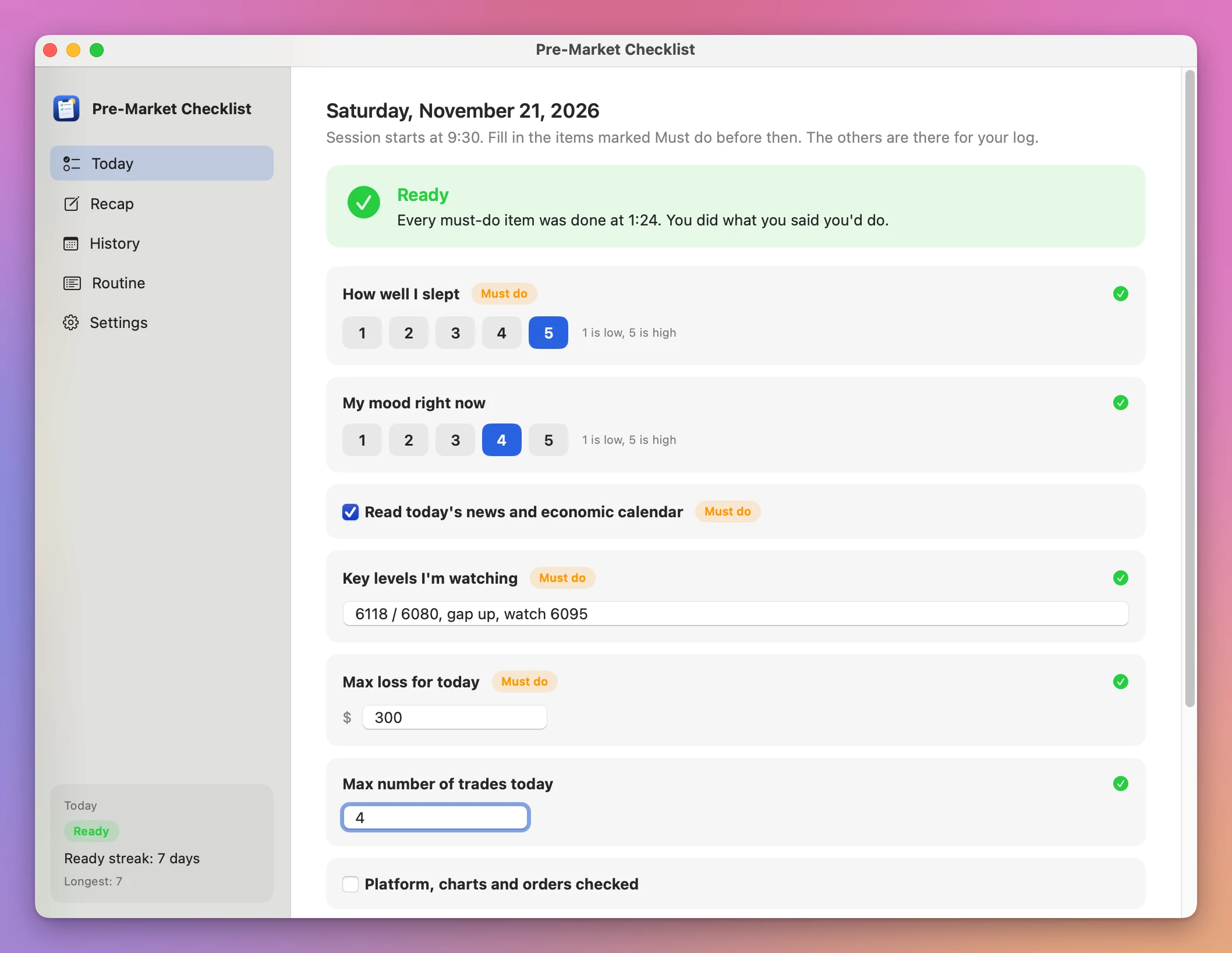
The Today page shows the date, the session start and one card per item. Everything saves as you type. A number field takes values like 300 or -120.50, and anything else shows “Type a number, like 300 or -120.50.”
The banner at the top has one of these states:
- Not ready yet: the session hasn’t started and some must-do items are empty. It counts them, like “4 must-do items left before 9:30”. The main button, Go to: and the item’s name, scrolls to the first one.
- Ready: every must-do item was done before the session start. It says when, like “Every must-do item was done at 8:43”. The buttons are Write the recap after the session and Close the window.
- Not today: the session started with must-do items empty, or you finished them after the start. The banner names the missing items, they get a red outline, and the menu bar icon turns red.
- Day off and Not a trading day: the app doesn’t expect a checklist.
Skip today (day off) marks today as a day off, and Count today again undoes it. A day off doesn’t count for or against your streak.
Recap
After the session, the Recap page asks What went well, What didn’t go well, P&L today, Kept my rules and Mood after the session. Every item is optional, and a day counts as having a recap once any item is filled. See today in History opens today’s entry. Turn the recap off in Settings with Show the recap after the session.
History
The tiles at the top show your current ready streak, your longest streak, and the Ready and Not today counts for the range. The month calendar colors each day: green for Ready, red for Not today, orange for Not ready yet, grey for a day off, and a blue dot for a written recap. Click a day to see every answer.
Past days are read-only. On a past day you can only click Mark as day off or Count this day again.
Search your notes finds text in your answers, like a key level you wrote weeks ago. How often each item was done lists each item as “done X of Y, skipped N”, with the average for checklist numbers and ratings, the total for recap numbers such as the P&L, and a count for yes/no items. Pick 30 days, 90 days, 12 months or everything.
Export Markdown… saves a readable log, day by day. Export CSV… saves one row per answer, with the date, weekday, the day’s state, the section, the item, its type, whether it’s a must-do, the value and whether it was done.
Routine
Edit the checklist and the recap: each item’s title, its type (tick, number, short text, rating 1 to 5, yes/no), the unit for numbers, and Must do for checklist items. Move items up and down, remove them, or click Add an item. The checklist needs at least one item. Reset to the starter routine… asks before it replaces your lists.
Changes apply from today. Past days keep their own copy of the list.
Settings
Times are in this Mac’s time zone. If you trade New York from Europe, type the session start in your own time, like 15:30.
- Trading days: Monday to Friday by default. A change applies from today and doesn’t rewrite past days.
- Reminder and Session starts: 8:30 and 9:30 by default. The app warns you if the reminder is at or after the session start.
- Show a notification at the reminder time on trading days and Open the checklist window at the reminder time. The window opens by itself only while the app is running. If notifications are turned off for the app, a button opens the notification settings.
- Show the recap after the session, and Remind me to write it at a time you pick.
- Days off and holidays: add dates with Add day off. The app has no holiday calendar, so add market holidays by hand. Days off get no reminder.
- Open at login.
- Export Backup…, Import Backup… and Show Data Folder. An import asks first, and copies your current data to the Backups folder before it replaces it.
Menu bar and menus
The app stays in the menu bar when you close the window, so the reminder and the menu bar state keep working. The icon shows a green check when today is Ready and a red octagon when it’s Not today. Its menu has today’s state, your streak, Open Checklist, Write Recap, History, Skip Today, Launch at Login and Quit Pre-Market Checklist.
The Checklist menu has Today (⌘1), Recap (⌘2), History (⌘3), Edit Routine (⌘4), Skip Today, and the export and backup commands.
Your data
Everything is in one JSON file, ~/Library/Application Support/Pre-Market Checklist/checklist.json: the routine, the settings and one entry per day. Nothing is sent anywhere. The app uses the internet only to check for and download updates.
Pre-Market Checklist is $19, a one-time purchase.