

Install Product Shot List Checker
Product Shot List Checker runs on macOS 14 Sonoma or later, on Apple silicon and Intel Macs. After buying, you land on a page with a Download button. You can also get the app from your Creem receipt. Unzip the app and drag Product Shot List Checker to your Applications folder.
The app is signed and notarized by Apple. Confirm Open at the normal first-launch prompt.
The app checks for updates once a day. When a new version is ready, click Install and Relaunch. The first time, it asks for the license key from your Creem receipt, and remembers it. To check anytime, choose Product Shot List Checker → Check for Updates….
Start
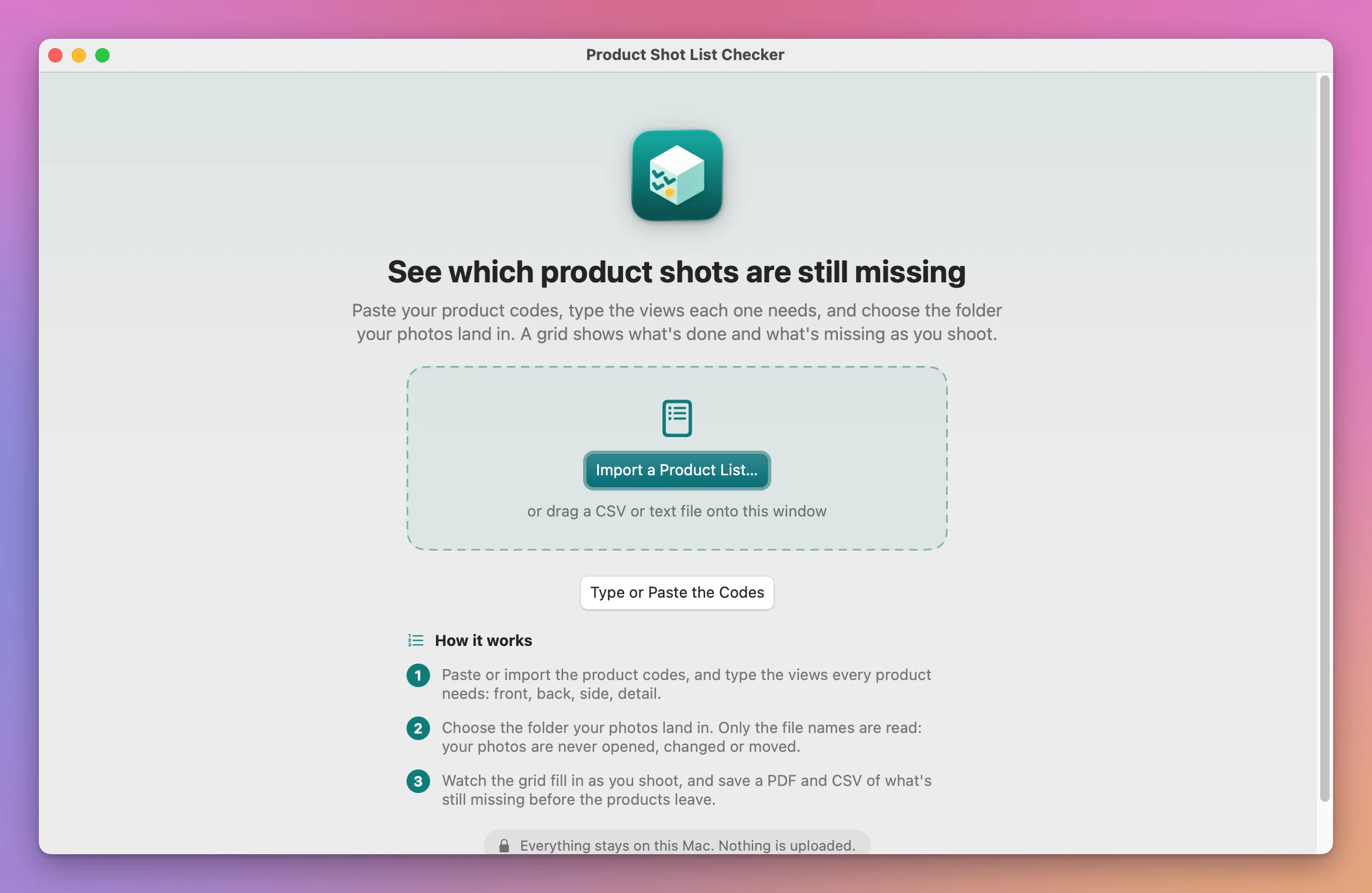
The first screen has three ways in:
- Import a Product List… (⌘O) to pick a CSV or a text file;
- Type or Paste the Codes to open the checker with an empty list;
- Continue Last Shoot, from the second time on, which brings back the list, the views, the naming and the folder you used last.
You can also drag a CSV or text file onto the window to import it, or a folder to make it the photo folder.
1. Product codes
Type or paste the codes in Product codes, one per line. Cells copied from a spreadsheet column work too. Under the box, the app says how many products it read, and whether a code was written twice (it counts once).
A product that needs other views than the rest gets them after a colon:
MUG-0412
MUG-0413
BWL-1182: front, top
Import a List… reads:
- a text file with one code per line, in the same form;
- a CSV, with commas, semicolons or tabs between the columns. The code is the column named like SKU, Code, Product or Item, or the first column when there are no column names. A column named Views or Angles gives a product its own views, separated by semicolons:
front; top.
Excel and Numbers files aren’t read. Save the list as CSV from your spreadsheet app, or copy the column of codes and paste it. When a file can’t be used, an orange note says why and the list on screen stays as it was.
2. Views every product needs
Type the views separated by commas, like front, back, side, detail. Upper and lower case don’t matter, so Front in a file name matches front. The app shows the views it read under the field.
3. Photo folder
Click Choose a Folder… and pick the folder your camera, card reader or capture app saves the photos into. Click Choose… to switch to another one.
Tick Include the folders inside it when the photos are in folders by day or by set. The app reads up to three levels of folders inside the one you chose.
The app looks at the folder again every two seconds, and less often when a network drive is slow to answer. Watching and the time of the last look show under the folder. Shoot → Look at the Folder Again (⌘R) looks right away.
Only the names, sizes and dates of the files are read. Photos are never opened, changed or moved. Hidden files, sidecars (.xmp), session files and anything that isn’t a photo are left out. Photos are JPEG, TIFF, PNG, HEIC, WebP, PSD and the raw formats of the camera makers (CR2, CR3, NEF, ARW, RAF, ORF, RW2, DNG and others).
4. How the photos are named
Pick what goes Between the parts: _, -, . or Space, and the Order: Product code, then view or View, then product code. A line shows an example, like MUG-0412_front.jpg.
Under How three of your photos read, three real names from the folder show how they’re read: a product and a view, a product or view not on the list, or why the name can’t be read.
The rules:
- The code and the view are matched against your lists, longest first, so a code with the separator in it (
MUG-0412with-) still reads. - A take number after the view counts:
MUG-0412_front2.jpgandMUG-0412_front_2.jpgare both the front. - Words after the view are ignored:
MUG-0412_detail_retouched.tifis the detail. - A RAW and a JPEG with the same name are one shot.
When most names would read better with another separator or order, the hint line says so, and Use This Naming switches to it.
The grid
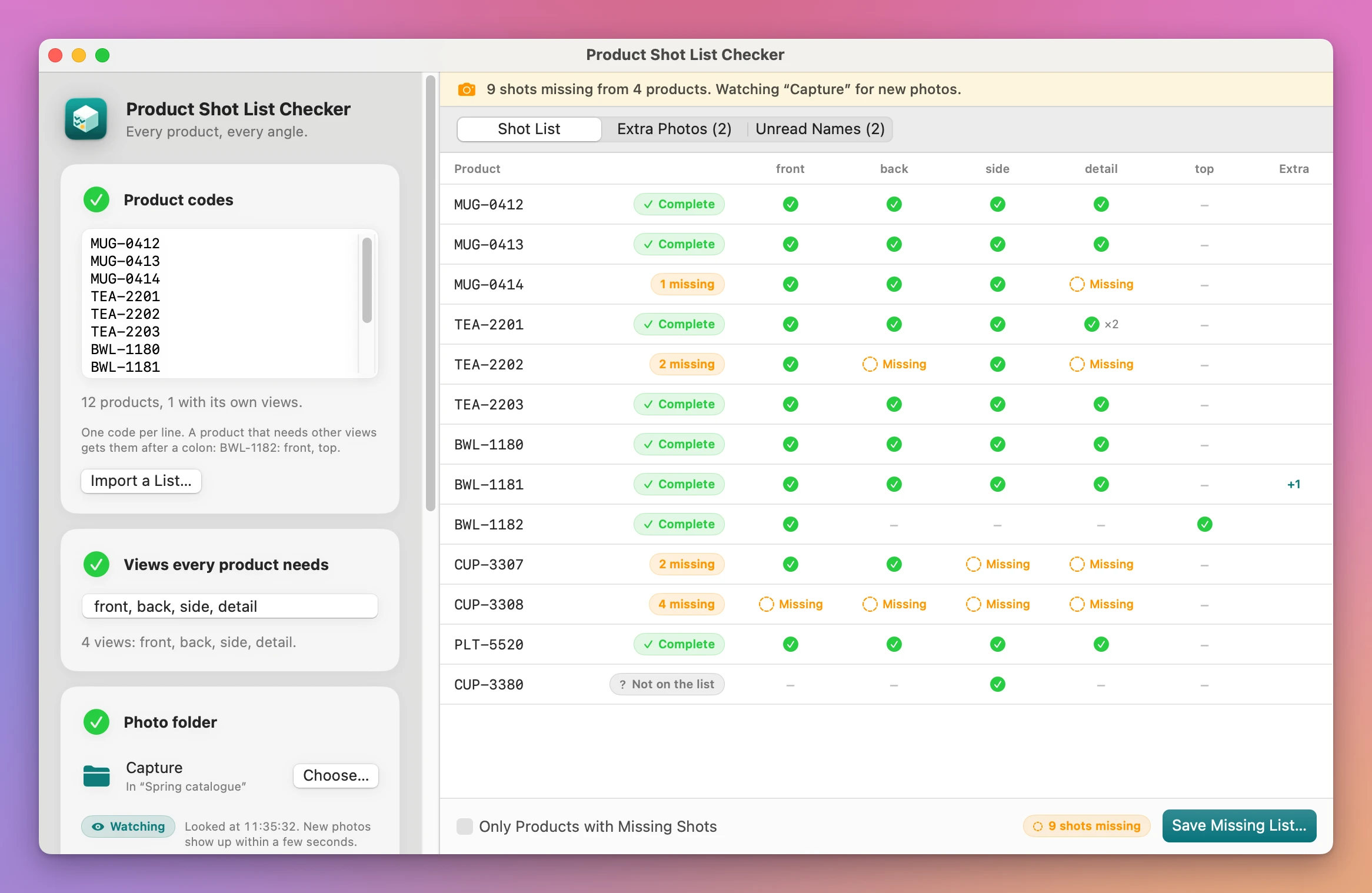
One row per product, in the order of your list, and one column per view. A green tick is a photo, with ×2 when there are two takes. An orange Missing is a shot still to take. A dash means this product doesn’t need that view. Hover over a tick to see the file names.
Each row says Complete or how many shots are missing. The Extra column counts the photos of that product with a view that isn’t on the list. Products found in the folder that aren’t on the list come last, marked Not on the list.
The line at the top says how many shots are missing from how many products, or “Every product has every view” when the shoot is done. Tick Only Products with Missing Shots (⇧⌘M) to hide the finished ones.
Extra photos and unread names
Extra Photos (⌘2) lists the photos that were read but aren’t on the shot list:
- Product not on the list: the view is on the list, the code isn’t. Often a typo.
- View not on the list: the product is on the list, the view isn’t.
- View not needed: the view is on the list, but this product has its own views without it.
Unread Names (⌘3) lists the files that aren’t counted, with the reason:
- No separator: the name doesn’t contain the separator you picked.
- No view: a product code with nothing after it, like
CUP-3308.jpg. - No product code: a view with nothing after it.
- Not on the lists: neither a code nor a view from your lists, like
IMG_8841.jpg. - Empty file: 0 bytes, still copying or a failed copy.
The magnifying glass on a row shows the file in the Finder. Rename it there and the grid counts it within a few seconds.
Save the missing list
Click Save Missing List… (⌘S) and pick where the PDF goes. A CSV with the same name goes next to it. If a CSV with that name is already there, the new one gets a number instead of replacing it.
- The PDF has the folder, the time and a summary, then every product with a missing shot and a box to tick for each missing view, then the extra photos and the names that couldn’t be read.
- The CSV has one row per missing shot: Product, Missing view, Views done and Views needed.
Show in Finder shows both files. Back to the Shot List goes back to the grid.
Troubleshooting
Every shot shows Missing. The separator or the order doesn’t match the names. Look at the three names under How the photos are named, or click Use This Naming if the hint line offers it.
A photo is in the folder but not in the grid. Look under Unread Names for the reason, and under Extra Photos for a typo in the code. A file that isn’t a photo (a .mov, a .xmp) is left out.
The folder can’t be found. Its disk was ejected or the folder was renamed. Plug the disk back in, or click Choose… and pick it again.
macOS asks whether the app can read the folder. That’s macOS protecting memory cards, network drives, the Desktop, Documents and Downloads. Click Allow. The app reads only file names.
The folder holds too many files to watch. You picked a whole disk or your home folder with Include the folders inside it ticked. Choose the folder the photos land in.
Product Shot List Checker isn’t made by, affiliated with or endorsed by Apple, Adobe, Capture One, Shopify, Amazon or any camera maker, store platform or retailer.