
Install Reference Sheet Maker
Reference Sheet Maker runs on macOS 14 Sonoma or later, on Apple silicon and Intel Macs. After buying, you land on a page with a Download button. You can also get the app from your Creem receipt. Unzip the app and drag Reference Sheet Maker to your Applications folder.
The app is signed and notarized by Apple. Confirm Open at the normal first-launch prompt.
It asks for nothing when it opens. When you open a board again another day and its images are in Desktop, Documents or Downloads, or on another disk, macOS may ask once whether the app can read that folder. Click Allow.
The app checks for updates once a day. When a new version is ready, click Install and Relaunch. To check anytime, choose Reference Sheet Maker → Check for Updates….
Start a board
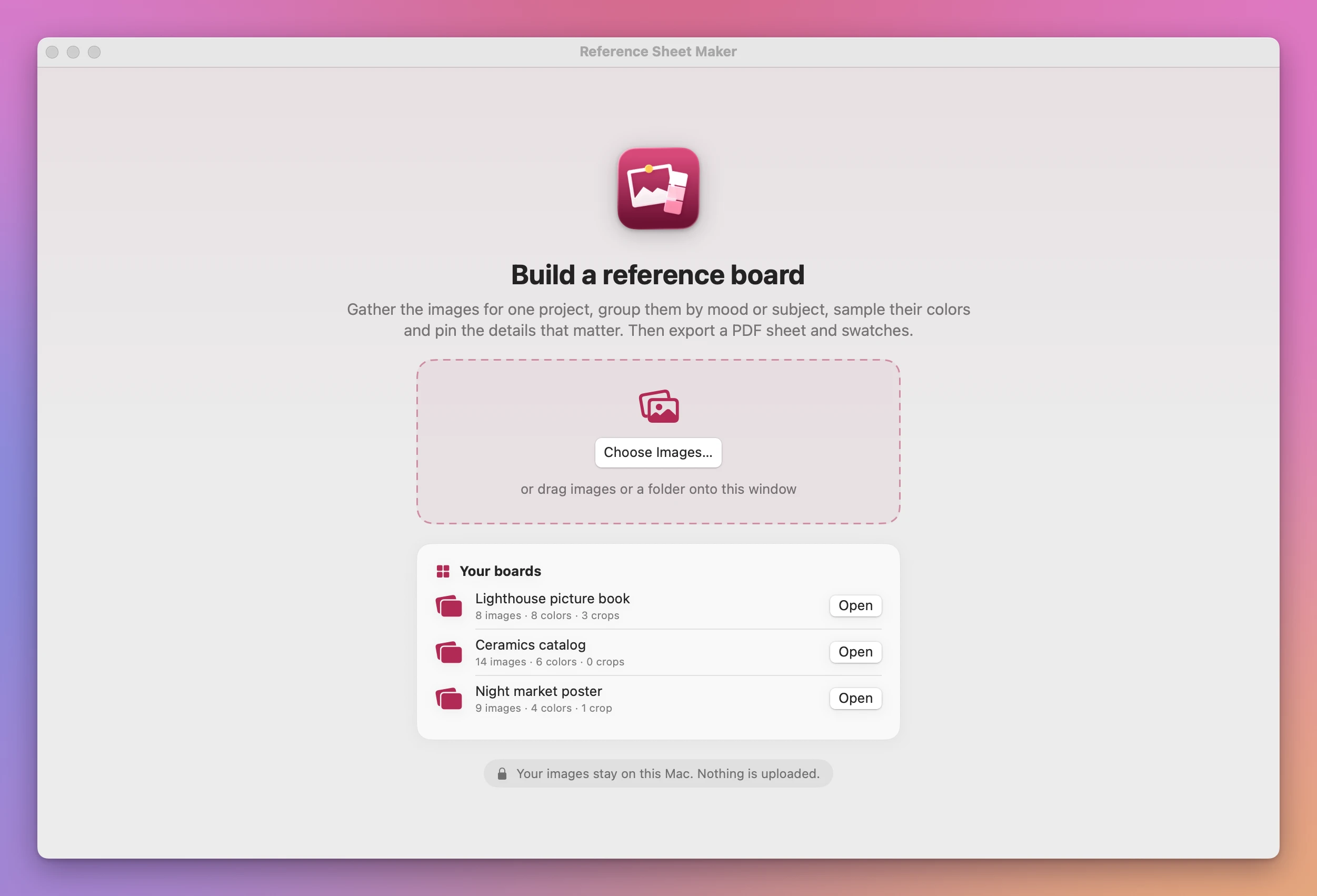
Click Choose Images…, or choose File → New Board… (⌘N), and pick images, folders of images, or both. You can also drag them onto the window.
- A folder adds the images directly inside it, in name order. Images in its subfolders aren’t added.
- Files that aren’t images are skipped, and the line at the top says how many.
- The app takes the images macOS can open: JPEG, PNG, HEIC, TIFF, WebP, GIF and raw photos from most cameras. PDFs aren’t taken.
The board is named after the folder of the first image. Rename it on the right, under Board name.
Boards are saved as you work, in the app’s own folder on your Mac. All Boards in the sidebar, or File → Show All Boards (⌘0), goes back to the list. To remove a board, Control-click it in Your boards and choose Move Board to Trash. Only the board goes to the Trash: its images aren’t touched.
Add more images
Click Add Images… at the bottom of the sidebar, choose File → Add Images to Board… (⌘O), or drag images onto the window. If a group is selected in the sidebar, the new images go into it. An image already on the board isn’t added twice.
Groups
Click New Group (or File → New Group, ⇧⌘N), then name it on the right under Group name, like “Mood: foggy mornings” or “Subject: boats”.
To put an image in a group:
- drag it from the grid onto the group’s name in the sidebar;
- open the image and pick the group under Group on the right;
- Control-click it in the grid and choose a group under Group.
Remove Group removes the group only. Its images stay on the board, under Not in a group.
Credits and notes
Click an image to open it. On the right:
- Credit: who made it and where it’s from, like “Own photo, pier walk, October”. It goes under the image on the sheet and in the sheet’s list of sources.
- Note: why it’s on the board. It goes under the image on the sheet.
Both are saved as you type.
Sample colors
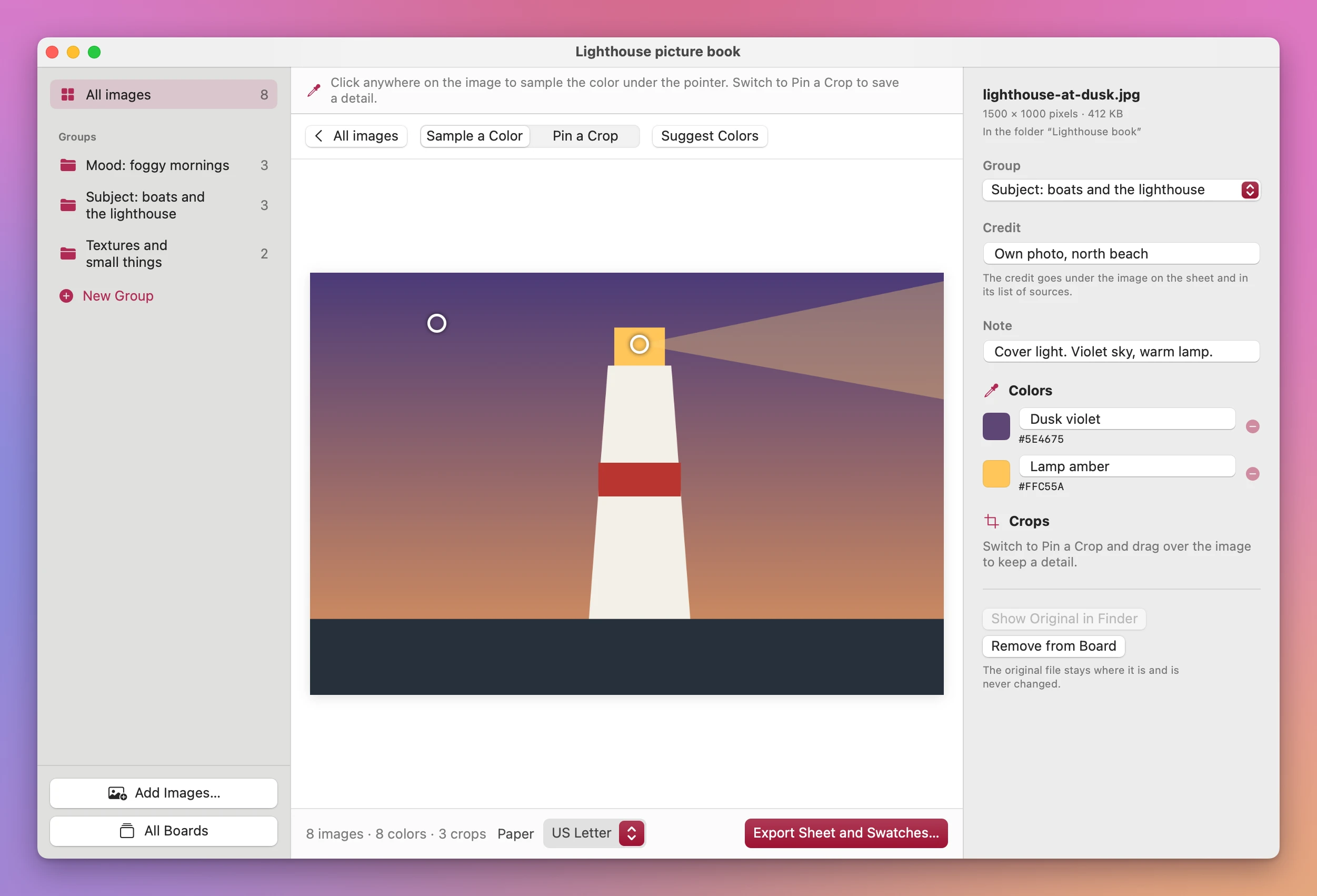
With an image open and Sample a Color selected, click anywhere on it. The color under the pointer is added to the board, with a plain name like “Deep rose” or “Light grey”, and its spot is marked on the image. The app averages a small square around the click, so grain or noise doesn’t throw the color off.
Suggest Colors adds up to five colors that sum the whole image up, the most used first. Colors that are already on the board aren’t added again.
Rename a color by typing in its name field. The minus button removes it. With no image open, the right side lists every color on the board and the image it came from.
Pin crops
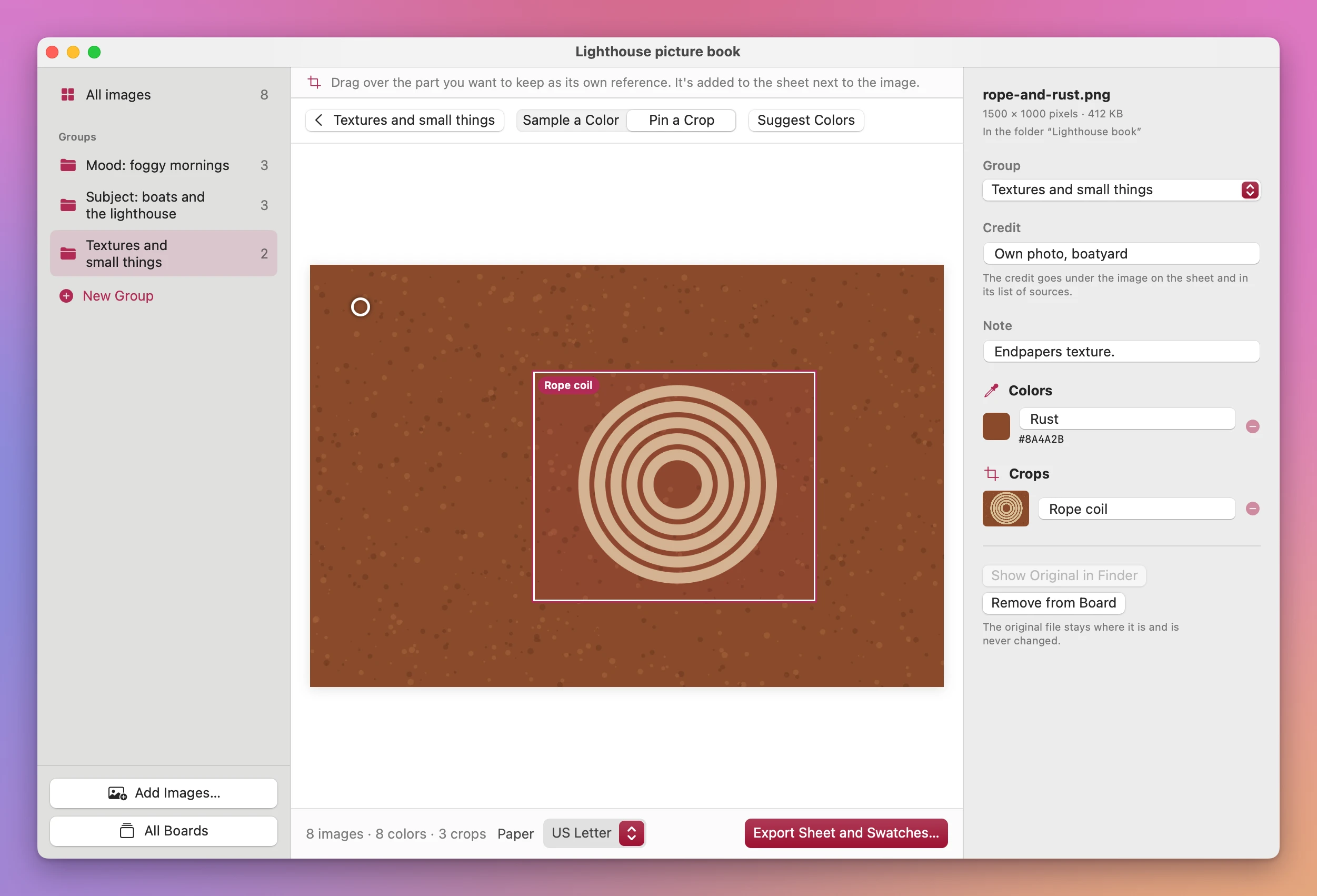
Switch to Pin a Crop and drag over the part of the image you want to keep, like a texture or a detail. The crop is named “Crop 1”, “Crop 2” and so on: type a better name on the right. It shows on the image, and on the sheet as its own picture next to the image it came from.
A crop is kept as a rectangle on the board. No new image file is made.
Remove an image
Open it and click Remove from Board, or Control-click it in the grid. Its crops go with it. Its colors stay on the board. The file itself stays where it is: Show Original in Finder shows it.
Export the sheet and swatches
Pick the paper at the bottom, A4 or US Letter, then click Export Sheet and Swatches… (⌘E) and choose a folder. The app makes a new folder in it called ”
.pdf : the reference sheet. The board’s name, the counts and the date, the colors with names and hex codes, each group’s images with their file name, credit and note, the crops, and a list of sources with the folder of each original. Landscape, numbered pages..ase : an Adobe Swatch Exchange file with the colors as RGB, in a group named after the board..clr : an Apple color list, for the Colors window that Mac apps share.colors.txt : one color per line, like#A8332B Hull red.
A board with no colors gets only the PDF. If the folder already has a sheet with that name, the new one gets a number (”… reference sheet 2”): nothing is ever replaced.
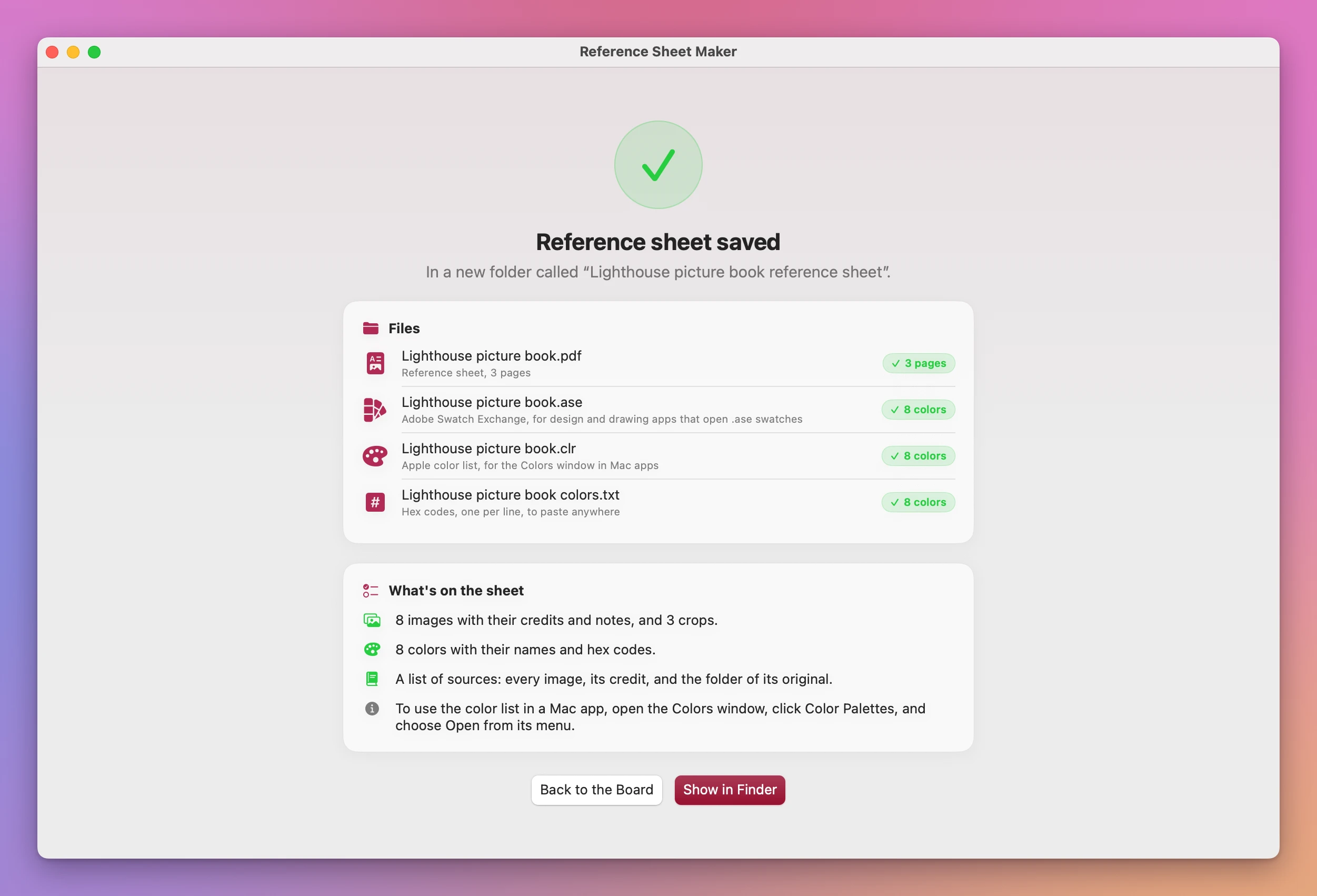
Show in Finder opens the new folder.
When an original is missing
The board links to your images, it doesn’t copy them. If one is moved, renamed or deleted, or it’s on a disk that isn’t connected, it shows a Missing label.
When you export, the app checks every original first. If any is missing, it lists them with the folder each one was in:
- Find… opens a panel: choose the image where it is now. Other missing images with the same names in that folder are found at the same time.
- Leave Out and Export… makes the sheet without them. They’re listed in the sheet’s sources as “Not found when this sheet was made”.
- Back to the Board goes back without exporting.
Their credits and notes stay on the board either way.
Troubleshooting
- “The folder … can’t be written to.” Choose another folder, like Documents or Desktop, and click Export Again…. Nothing was changed.
- An image shows a folder with a question mark. Its original was moved, renamed or deleted, or it isn’t an image any more. Open it and click Find….
- “That board’s file can’t be read.” It may come from a newer version of the app. Update the app with Check for Updates….
- The colors look different in another app. Colors are sampled and saved as sRGB. An app that works in another color space shows them converted.
Privacy
The app reads the images you add and writes only the files you export and the board itself. Nothing is uploaded. It connects to updates.flaviocopes.com only to check for new versions.
Reference Sheet Maker isn’t made by, affiliated with or endorsed by Adobe or Apple. Adobe Swatch Exchange is named only to say which file the app writes.