
Install Revision Round Tracker
Revision Round Tracker runs on macOS 14 Sonoma or later, on Apple silicon and Intel Macs. After buying, you land on a page with a Download button. You can also get the app from your Creem receipt. Unzip the app and drag Revision Round Tracker to your Applications folder.
The app is signed and notarized by Apple. Confirm Open at the normal first-launch prompt.
Revision Round Tracker asks macOS for no permission. It reads only the files you attach, and keeps its projects in its own folder.
The app checks for updates once a day. When a new version is ready, click Install and Relaunch. To check anytime, choose Revision Round Tracker → Check for Updates….
Make a project
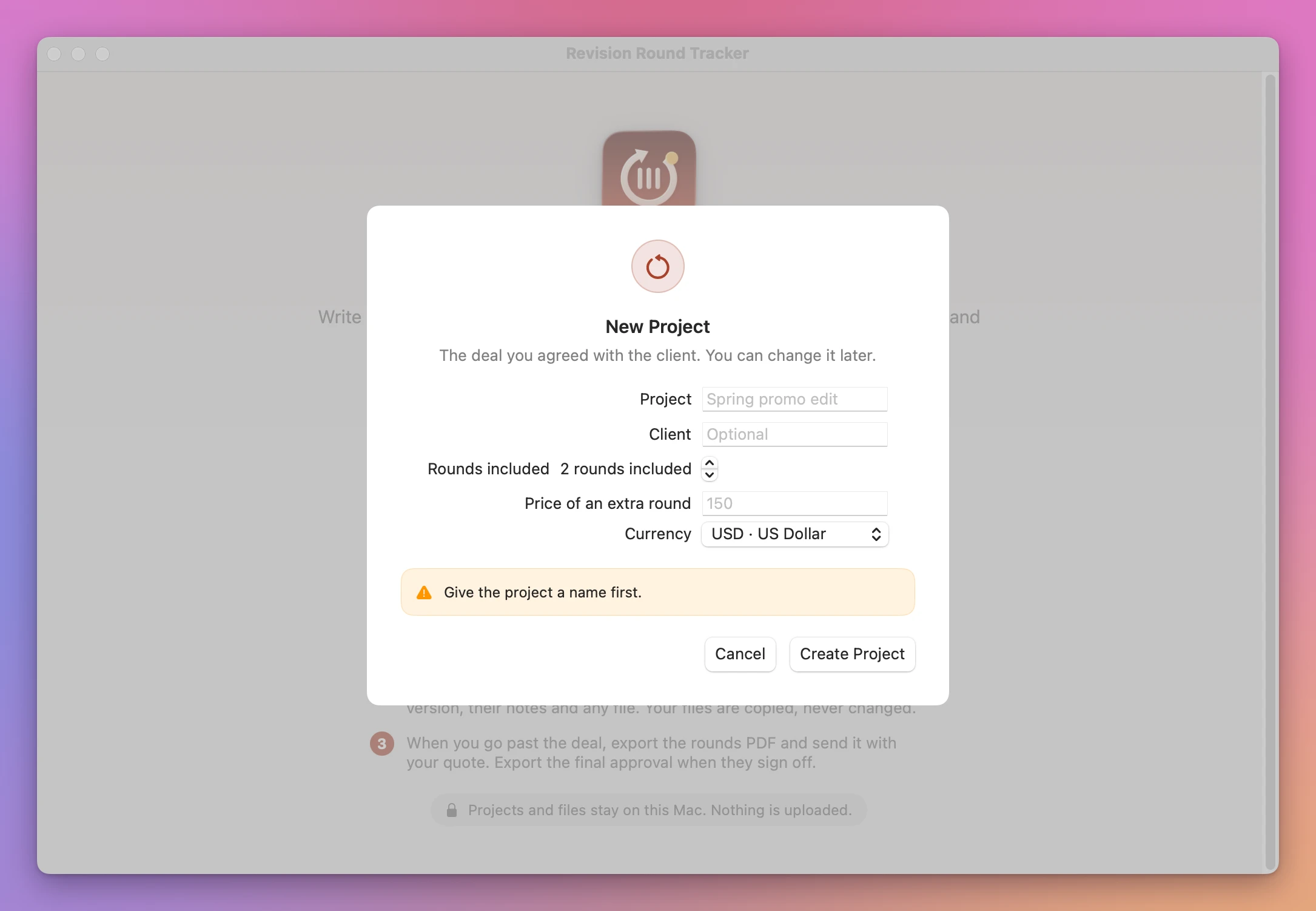
Click New Project… on the start screen, or choose File → New Project… (⌘N). The sheet asks for:
- Project: the job’s name, like “Spring Promo Edit”. It’s the title of the PDFs.
- Client: optional. The PDFs say “For” and this name.
- Rounds included: how many rounds of revisions the deal includes, from 0 to 99.
- Price of an extra round: type it the way you write it, like
150,150.50,$150or1.500,50. Leave it empty if you don’t charge per round. - Currency: the currency of the price.
Click Create Project. You can change all of it later in The deal, the card at the top of the project.
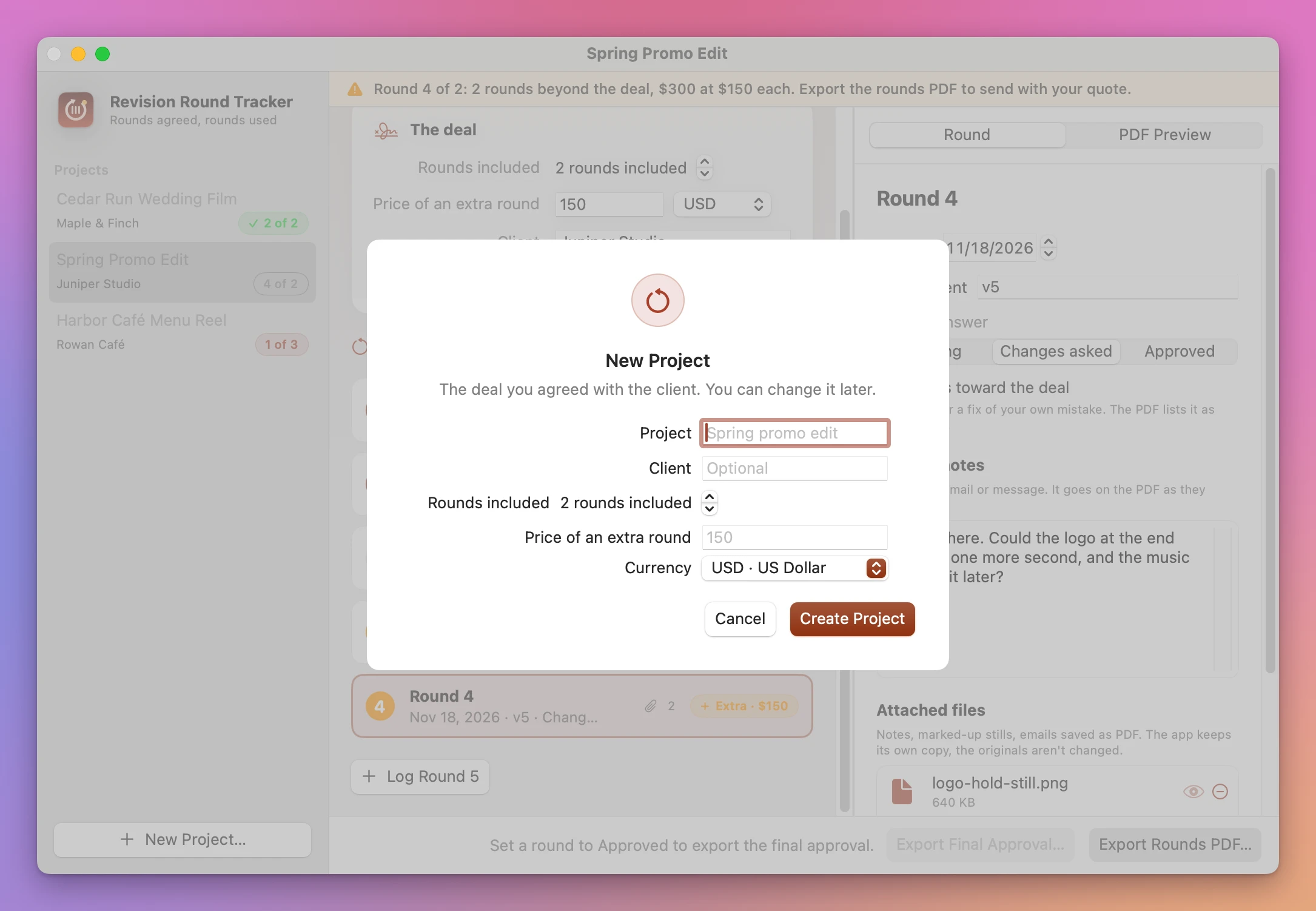
Type your name or your studio’s under Your name on the PDF, once. Every PDF says “Prepared by” and that name, for every project.
Log a round
A round is one set of changes the client asks for and the version you send back. Your first cut isn’t a round: the first round starts when the first notes arrive.
Click Log Round 1 under the list of rounds, or choose File → Log Round 1 (⌘R). The new round opens on the right:
- Sent on: the day you sent the version, today to start.
- Version sent: your name for it, like “v2 cut”.
- Client’s answer: Waiting while they look, Changes asked when they come back with notes, Approved when they sign off.
- Client’s notes: paste their email or message. It goes on the PDF as they wrote it.
- Attached files: drop files here or click Attach Files… (⇧⌘A). Notes as a PDF, a marked-up still, an email saved as PDF.
Changes are saved as you go. There’s no Save button.
To see another round, click it in the list. To remove one, click Remove Round… at the bottom of the round and confirm. The later rounds move up one number.
A round that doesn’t count
If a new version fixes your own mistake, like a typo in a title, turn off Counts toward the deal. The round stays in the list without a number, marked Not counted, and the PDF lists it as “A fix on my side”.
Attached files
The app copies each file into the project’s own folder, so it’s still there if you move or delete the original. Your file is only read. A different file with a name already used gets ” 2” at the end. The eye button opens the app’s copy, and the minus button removes it from the round (the copy goes to the Trash).
Where you stand
The line at the top of the window says where the project is against the deal:
- “Round 1 of 3. 2 included rounds are left.”
- “Round 4 of 2: 2 rounds beyond the deal, $300 at $150 each. Export the rounds PDF to send with your quote.”
- “Approved in round 2. Export the final approval to keep a record of it.”
Each round in the list has a pill: Included, Extra · $150, Not counted or Approved. The projects on the left show the count, like “4 of 2”, in orange when the project is past the deal and in green when it’s approved.
Export the rounds PDF
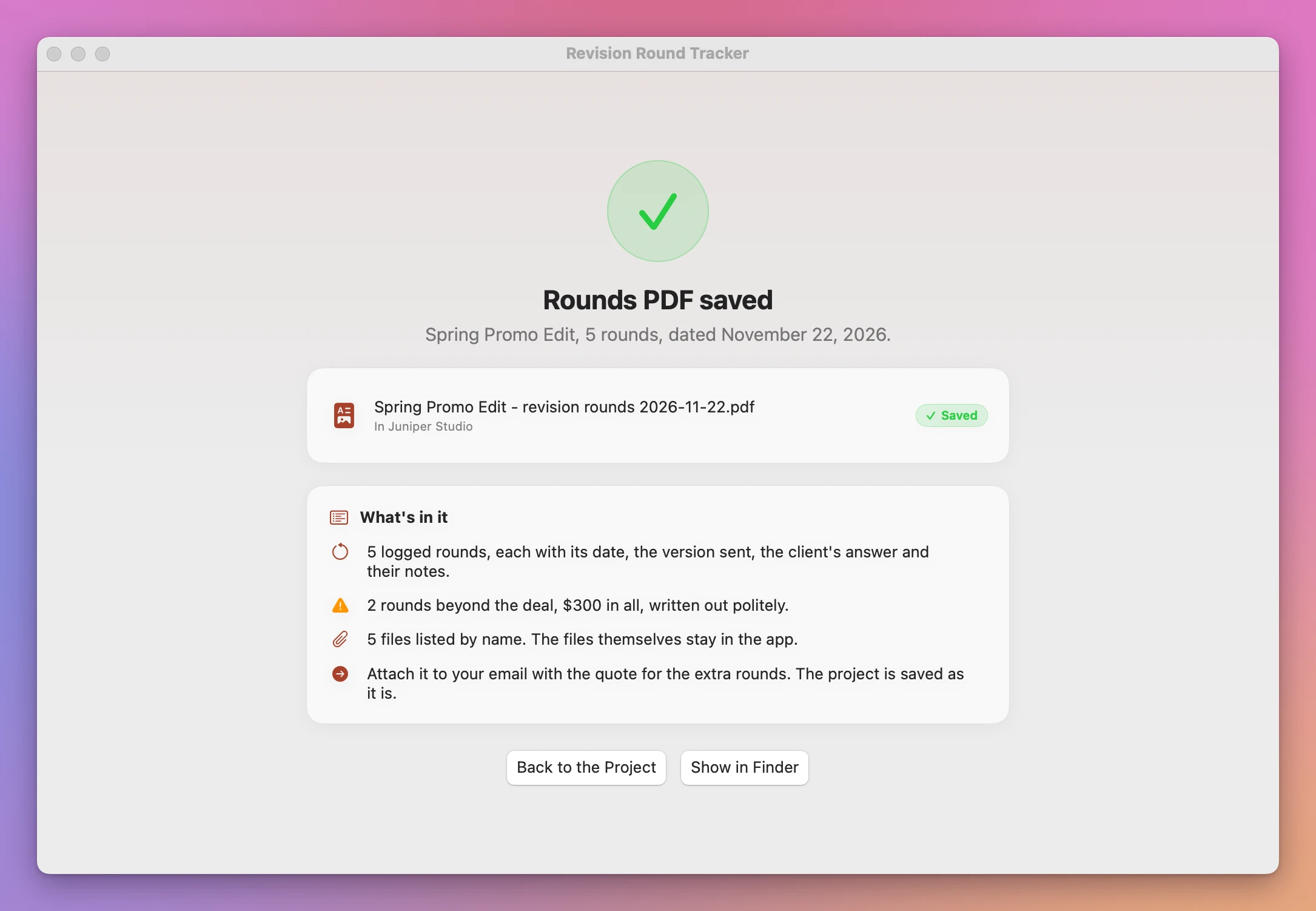
Click Export Rounds PDF… at the bottom of the window, or choose File → Export Rounds PDF… (⌘E). Pick where to save it. The name starts as “Spring Promo Edit - revision rounds 2026-11-22.pdf”.
The PDF has:
- the project, the client, your name and the date;
- where the project stands, in sentences, with the extra rounds and what they cost;
- each round, with its standing, date, version, the client’s answer, their notes and the names of the attached files.
Click PDF Preview above the round to see it before you save. The paper is Letter in the United States and Canada, A4 elsewhere. Very long notes are shortened on the PDF and say so; the app keeps them in full.
After saving, the window shows what’s in the PDF. Show in Finder shows the file, and Back to the Project takes you back.
Export the final approval
When the client approves a version, set that round’s answer to Approved. Export Final Approval… (⇧⌘E) becomes the main button. Its PDF says which round and version was approved and on which day, quotes the client’s notes for that round, and lists every round before it.
Projects
Click a project on the left to open it. New Project… at the bottom adds one.
To remove a project, right-click it and choose Move Project to Trash…, or choose it from the File menu. Its folder, with every round and the copies of its files, goes to the Trash, where you can put it back.
File → Show Project Folder in Finder opens the project’s folder. The projects live in your user Library, under Application Support › Revision Round Tracker.
Troubleshooting
A file couldn’t be attached
The app says why under the line at the top. “Couldn’t be read” usually means the file is still downloading from iCloud: wait for it to finish and attach it again. A folder can’t be attached: attach the files inside it.
The PDF wasn’t saved
The window says what happened. Pick another folder, like Documents, and click Export Again…. The project isn’t changed.
A project is missing from the list
If a project’s folder can’t be read, the app says so and leaves the folder as it is. If you put a project back from the Trash, quit and open the app again to see it.