How to use Rotating Shift Calendar Maker
Rotating Shift Calendar Maker
Put a repeating shift rota in a new calendar in Calendar, check every shift on a month grid first, apply only the changes when the rota changes, and undo any run.
Bought Rotating Shift Calendar Maker? Sign in with the email you bought it with to download the latest version or ask me a question.
On this page
Install
Rotating Shift Calendar Maker requires macOS 14 Sonoma or later, on Apple silicon or Intel. Download the ZIP from the order page or your Creem receipt. Unzip it and move the app to Applications.
The app checks for updates once a day. When a new version is ready, click Install and Relaunch. To check anytime, choose Rotating Shift Calendar Maker → Check for Updates….
The window
The sidebar on the left is the rota: its name, the shift types, the pattern, the dates, the changes to the pattern and the calendar. It’s always there. The main area shows the start screen, then the preview, then the result.
The app remembers the rota you’re working on between launches.
Start from a preset
The start screen shows eight common rotas, each with its cycle drawn in colors. Click one to load it and go straight to the preview. The same presets are in the Presets menu at the top right of the sidebar.
| Preset | Cycle |
|---|---|
| 4 on, 4 off | Four 12-hour day shifts, then four days off. 8 days. |
| Days, nights, off | Two days, two nights, two off. 12-hour shifts, 6 days. |
| 4 on, 4 off, days and nights | Four days, four off, four nights, four off. 16 days. |
| 2-2-3 (Panama) | Two on, two off, three on; then two off, two on, three off. 12-hour days, 14 days. |
| Continental | Earlies, lates and nights of 8 hours for four crews. 28 days. |
| DuPont | Four nights, three off, three days, one off, three nights, three off, four days, seven off. 28 days. |
| 24 on, 48 off | A 24-hour shift from 08:00, then two days off. 3 days. |
| 5 on, 2 off | Five day shifts from 09:00 to 17:00, then two off. 7 days. |
Change anything in the sidebar after loading a preset.
Shift types
Each shift type is a card under Shift types:
- The colored letter badge. Click it to change the letter or pick one of nine colors. The letter is what you type in the pattern.
- The name, which becomes the title of each event, like “Night shift”.
- Off: tick it for a day off. Days off make no event.
- The start and end times. The note next to them says how long the shift is: “8 hours”, “next day, 12 hours” or “24 hours”. An end time at or before the start means the shift ends the next day.
- The remove button. It’s off while the type is used in the pattern.
Add Shift Type adds a card with the next free letter.
Pattern
Type the cycle under Pattern, one letter per day: D D N N O O, ddnnoo and D,D,N,N,O,O all work. A letter that isn’t a shift type gets a plain error under the field, like “There’s no shift type with the letter X, Q. The letters are E, L, N, O.”
Under the field, each day of the cycle is a colored chip. Click one to change that day to another type, insert a day before it or remove it. + adds a day at the end. The caption says how long the cycle is.
Dates
- Day 1 of the cycle: the first day of the pattern, like your first day shift. Days before it follow the same cycle backwards.
- Create from and Until: the range of dates to put in Calendar. Length sets Until for you: 1, 3 or 6 months, or 1, 2, 3 or 5 years. The range can be up to 1,830 days, about five years.
- Time zone: This Mac, or any time zone. When it isn’t your Mac’s, the preview reminds you that Calendar shows the shifts in your Mac’s time zone.
Changes to the pattern
- Swap a Day: pick a date range and the shift type to work instead, or the day-off type.
- Add Leave: pick a date range and an event title. The default is “Annual leave”. Each day becomes an all-day event with that title. Leave with an empty title just removes the shifts on those days.
When two changes cover the same day, the later one in the list wins. Remove a change with its minus button.
Calendar access and the calendar
The first time, click Allow Calendar Access… in the sidebar and allow full access in the dialog macOS shows. The app needs it to create the rota’s calendar and its events. Without access you can still preview the rota and export it as an .ics file.
Once access is granted, set the New calendar name and the Account the calendar goes in, like On My Mac. A calendar in On My Mac stays on this Mac.
When the rota is already in Calendar, this part says which calendar it updates, like “Updating “Ward 7 Rota” in On My Mac…”. Make a New Calendar Instead unlinks the rota so the next run makes a fresh calendar.
Preview
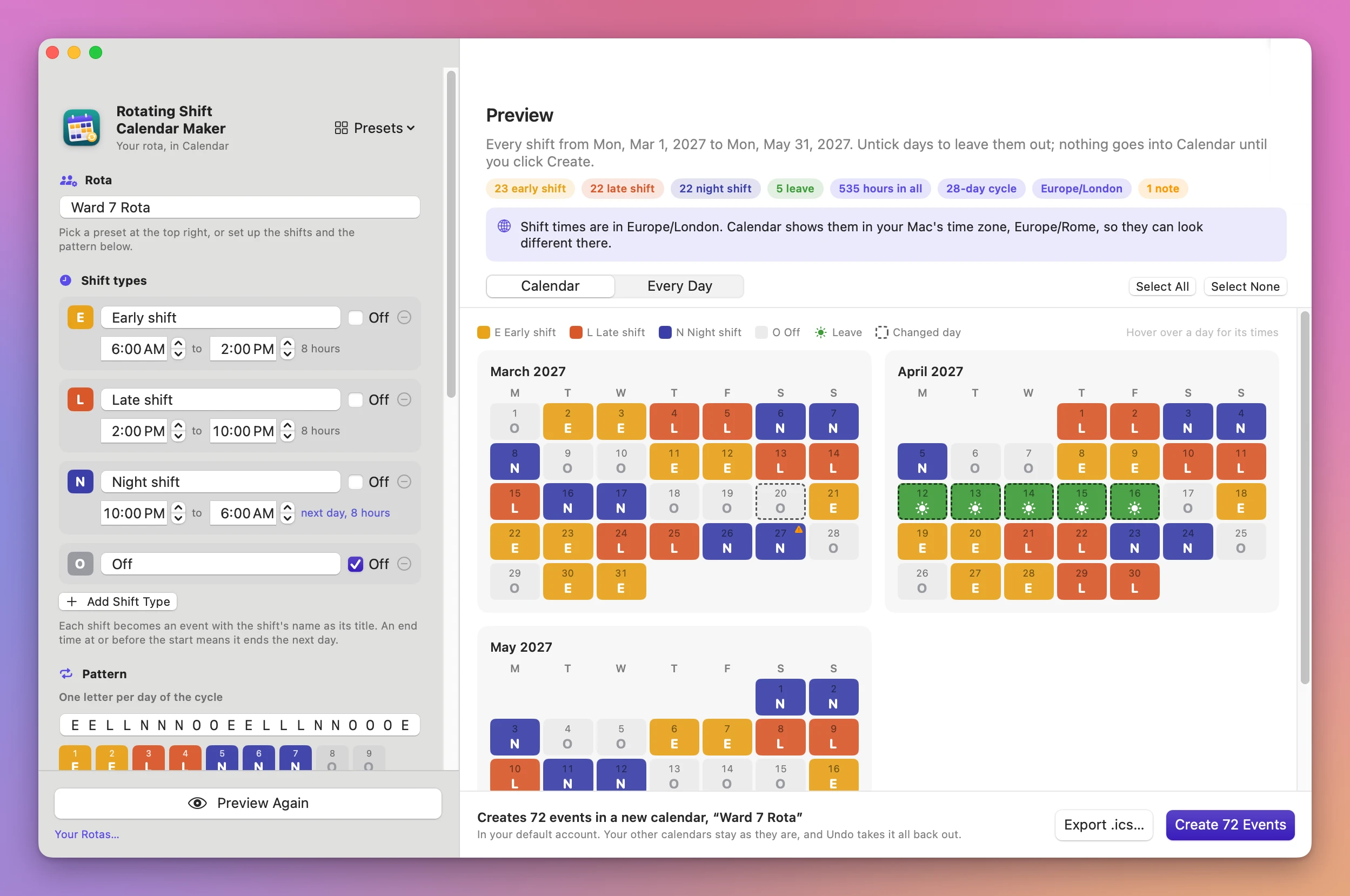
Click Preview Rota, or press Command-R. The pills at the top count the shifts of each type, the leave days and the total hours, with the cycle length, the time zone and the number of notes.
- Calendar shows one month grid per month. Each day has its letter in the shift’s color. Leave is a green sun, a changed day has a dashed outline, a day with a note has a small warning triangle, and an unticked day is faded. Hover over a day for its date, cycle day, times and notes.
- Every Day lists each day with a checkbox, the letter, the title, and the date and times as Calendar will have them, like “Sat, Mar 27, 2027, 22:00 – Sun, Mar 28, 06:00”. Untick a day to leave that shift out. Swapped days have a “Changed” pill.
Select All and Select None change every checkbox.
The preview adds notes where the clocks change or shifts overlap:
- “7 hours long, not 8 hours: the clocks go forward during this shift.”
- “02:30 doesn’t exist on 2027-03-14 because the clocks go forward, so it’s 03:30 instead.”
- “01:30 happens twice on 2027-11-07 because the clocks go back. It uses the first one.”
- “Starts before the previous shift ends.”
A problem that stops the rota, like a missing name, an empty pattern, a letter used by two types or a range longer than five years, shows as a red banner. Fix it in the sidebar.
Create the events
The bottom bar says what will happen, like “Creates 72 events in a new calendar, “Ward 7 Rota””, or why the button is off. Click Create N Events.
Each shift becomes its own event, titled with the shift type’s name. Leave becomes all-day events. The app adds no alerts, no attendees and no repeat rules, so nobody gets an invitation. If Calendar refuses any event, the whole run is rolled back.
The done screen lists what’s in the calendar now, per shift type with hours. Open Calendar opens Calendar, and Change the Rota goes back to the sidebar.
Change the rota later
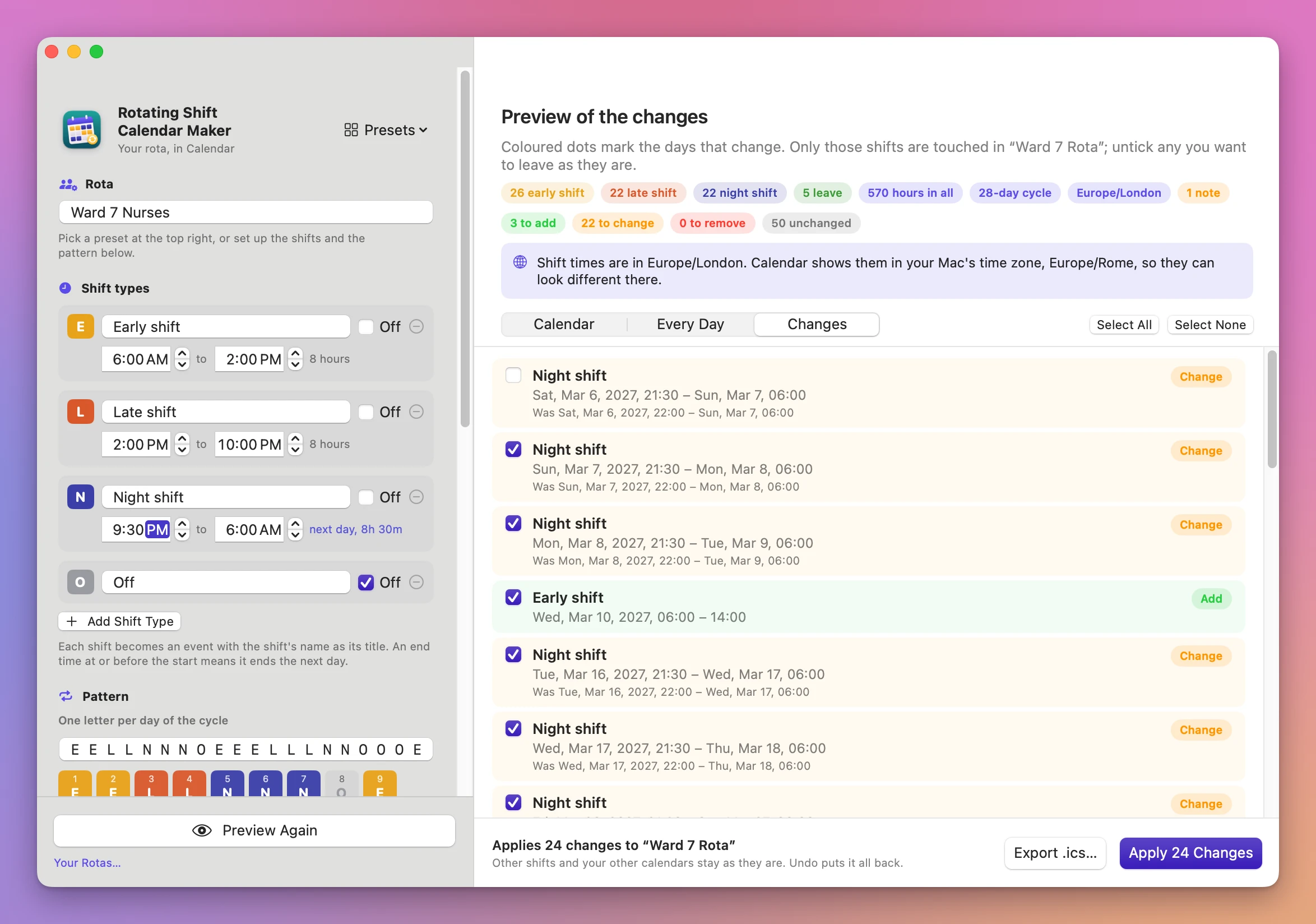
Edit the rota in the sidebar and click Preview Again. If the rota is in Calendar already, you get the Preview of the changes:
- Pills count what’s “to add”, “to change”, “to remove” and “unchanged”.
- Changed days get a colored dot on the month grid.
- The Changes tab lists every change with a checkbox, the new date and time, and the old one (“Was Sat, Mar 6, 2027, 22:00 – …”). A swap says what it was, like “Day shift becomes Night shift”. Each row has an Add, Change or Remove pill.
- A shift you deleted by hand in Calendar shows as “Deleted in Calendar since. It’s added back.”
Untick a change to leave that shift as it is, then click Apply N Changes. Only those events are touched.
Undo
Undo on the done screen takes back the last run. After the first run it removes the events and the calendar. If you added your own events to that calendar, the calendar stays with them. After an update, it removes what was added and puts the changed shifts back the way they were. The undone screen says what happened, and Back to the Preview returns to the rota.
Only the latest run of a rota can be undone. Undo again to go further back.
Your Rotas
File → Your Rotas… (Shift-Command-O), or the Your Rotas… link at the bottom of the sidebar, lists every rota with its calendar, number of events, date range and account. Each one shows its history, like “Created 72 events” and “Updated: 3 added, 21 changed”, with an “Undone” pill on runs that were undone.
- Open loads the rota into the sidebar and links it to its calendar.
- Undo Last Run undoes the latest run of that rota.
Export an .ics file
Export .ics… in the bottom bar saves the rota as a calendar file. Choose a folder, and the app writes “
Limits
- One shift per day. A shift belongs to the day it starts on.
- Shift letters are single letters or digits.
- Leave makes one all-day event per day.
- No alerts, attendees, repeat rules or per-event colors.
- A new rota always gets a new calendar.
- No payroll, staffing or working-time rules.
Help
Choose Help → Rotating Shift Calendar Maker Support to open the support site.
Everything happens on your Mac. The app uses the internet only to check for updates.
Rotating Shift Calendar Maker is $20, a one-time purchase.