
Install Script Runtime Estimator
Script Runtime Estimator runs on macOS 14 Sonoma or later, on Apple silicon and Intel Macs. After buying, you land on a page with a Download button. You can also get the app from your Creem receipt. Unzip the app and drag Script Runtime Estimator to your Applications folder.
The app is signed and notarized by Apple. Confirm Open at the normal first-launch prompt.
Script Runtime Estimator asks macOS for no permission. It reads only the script you open, drop or paste, and saves only into the folder you pick.
The app checks for updates once a day. When a new version is ready, click Install and Relaunch. To check anytime, choose Script Runtime Estimator → Check for Updates….
Open a script
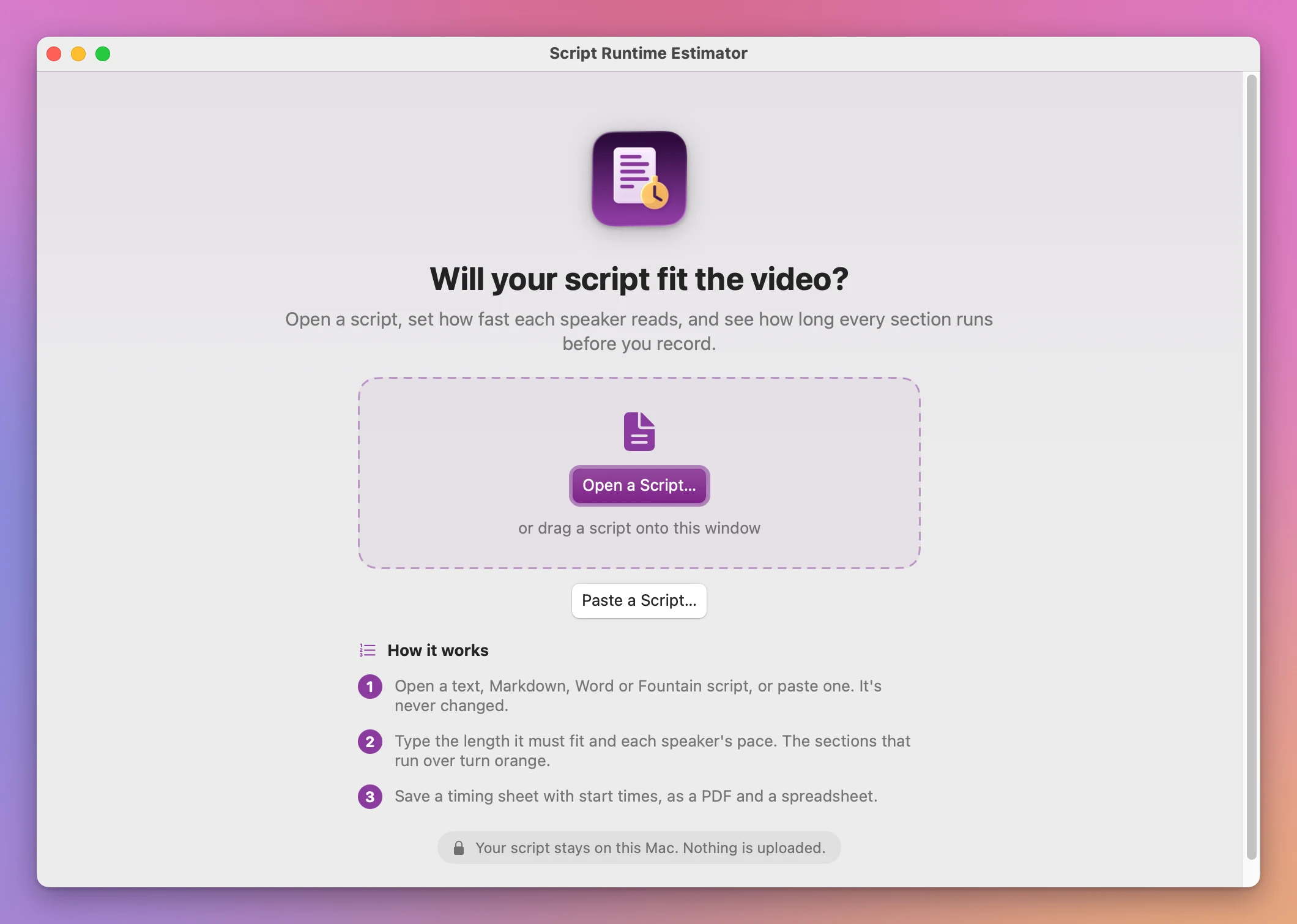
Click Open a Script…, or choose File → Open Script… (⌘O), and pick the script. You can also drag it onto the window, onto the app’s icon in the Dock, or Control-click it in the Finder and choose Open With → Script Runtime Estimator.
These files work:
- plain text (
.txt) and Markdown (.md) - Word (
.docxand.doc), RTF and OpenDocument (.odt) - Fountain screenplays (
.fountain)
Pages documents and PDFs don’t. In Pages, choose File → Export To → Word or Plain Text first, or copy the text and paste it.
To paste, copy the script from anywhere (a Google Doc, an email, a chat) and click Paste a Script… (⇧⌘V). The box opens with what you copied. Change anything you like, then click Time This Script (⌘Return).
Your script file is never changed.
Mark the speakers, sections and pauses
The app reads the marks most scripts already have.
Speakers. Write the name and a colon before their lines, like HOST: or Narrator:. One to three words, in capitals or with each word capitalized. A speaker keeps talking until another one is named, so you don’t have to tag every line. Note:, Tip:, Step 2: and times like 10:30: aren’t speakers. Words before the first name read at the pace of No speaker named.
Sections. A section starts at:
- a Markdown heading, like
## Intro - a paragraph with a Heading or Title style in Word
- a line like
SCENE 3,Part 2: The demoorSegment 4 - a screenplay scene heading, like
INT. KITCHEN - DAY
Put a length at the end of a heading to give that section its own target: ## Hook (0:15) or SCENE 2 [30s].
Pauses. [PAUSE] and [BEAT] add a pause as long as Each pause says. [PAUSE 2s] adds two seconds, and so does [2s] on its own.
Directions. Anything in square brackets is a direction and isn’t read, like [CUT TO WIDE SHOT]. A direction with a length in it adds that time: [MUSIC STING 3s], [B-ROLL 0:04]. Words in parentheses are read, like an aside, unless they hold a pause, like (pause), or fill the whole line, like (laughing).
Comments aren’t read: <!-- --> in Markdown, and /* */ and [[ ]] in Fountain.
Fountain screenplays. The title page is skipped, scene headings start sections, the name in capitals above a line of dialogue is the speaker ((V.O.) and (CONT'D) are dropped), and parentheticals and action lines aren’t timed.
Set the length and the paces
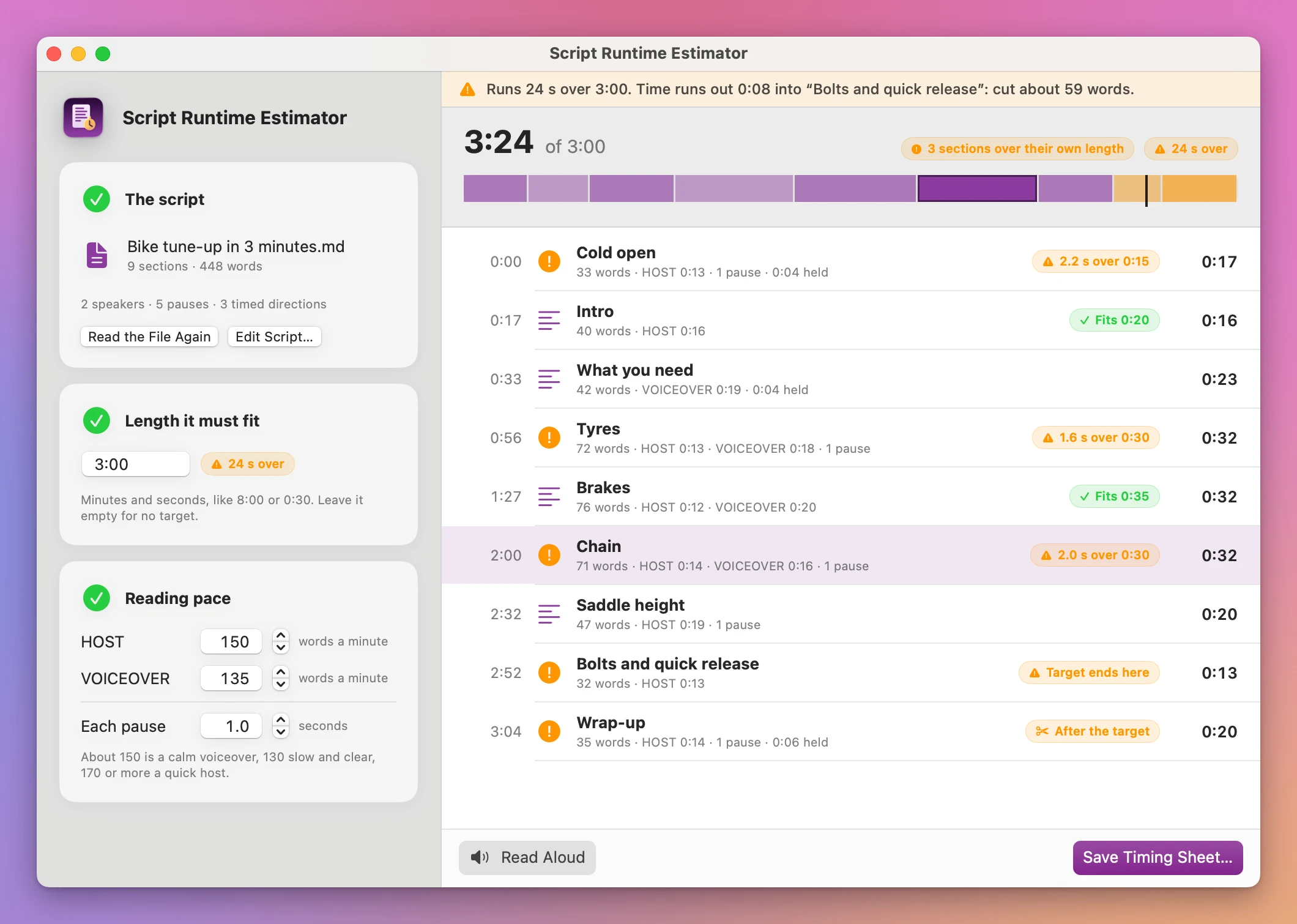
Under Length it must fit, type the length the video or spot must fit, as minutes and seconds: 8:00, 0:30, 1:02:00. Press Return or click elsewhere. Leave it empty for no target. A pill next to it says how far over you are, or the time to spare.
Under Reading pace, each speaker has a number of words a minute. Type it, or use the arrows to go up or down by five. About 150 is a calm voiceover, 130 slow and clear, 170 or more a quick host. For your own speaker, time one section read aloud, then change their pace until the app shows the same length.
Each pause is how long a [PAUSE] or [BEAT] with no length lasts, from 0 to 10 seconds.
The app remembers the paces, the pause and the last length, for the next script.
Read the sections
Every section shows its start time, its title (or its first words, for the text before the first heading), its words, each speaker’s time, its pauses and the time held by directions, then its length.
The pills say what matters:
- After the target: the section starts after the length it must fit, so none of it fits.
- Target ends here: the length runs out inside this section.
- 2.2 s over 0:15: the section reads longer than the length in its heading.
- Fits 0:20: the section fits the length in its heading.
The line at the top sums it up, like “Runs 24 s over 3:00. Time runs out 0:08 into “Bolts and quick release”: cut about 59 words.” The words to cut are worked out at the script’s average pace.
The bar under the total shows each section as long as it reads, with the target as a line. Click a block to pick that section. Script → Next Section (⌘↓) and Previous Section (⌘↑) move through the list.
Hear a section
Click a section, then Read Aloud (or Script → Read Section Aloud, ⇧⌘P). The Mac’s own voice reads it, each speaker’s part at that speaker’s pace. Click Stop Reading to stop. The voice is a guide to how a pace sounds: it doesn’t play the pauses, and it isn’t your speaker.
Change the script
Edit the script in your writing app, save it, and click Read the File Again (⌘R). The new lengths show right away.
To try a change without touching the file, click Edit Script… (⌘E), change the words, and click Time This Script. The script card then says Edited here, not in the file, and the app asks before you open another script or quit, so those edits aren’t lost by accident.
Save a timing sheet
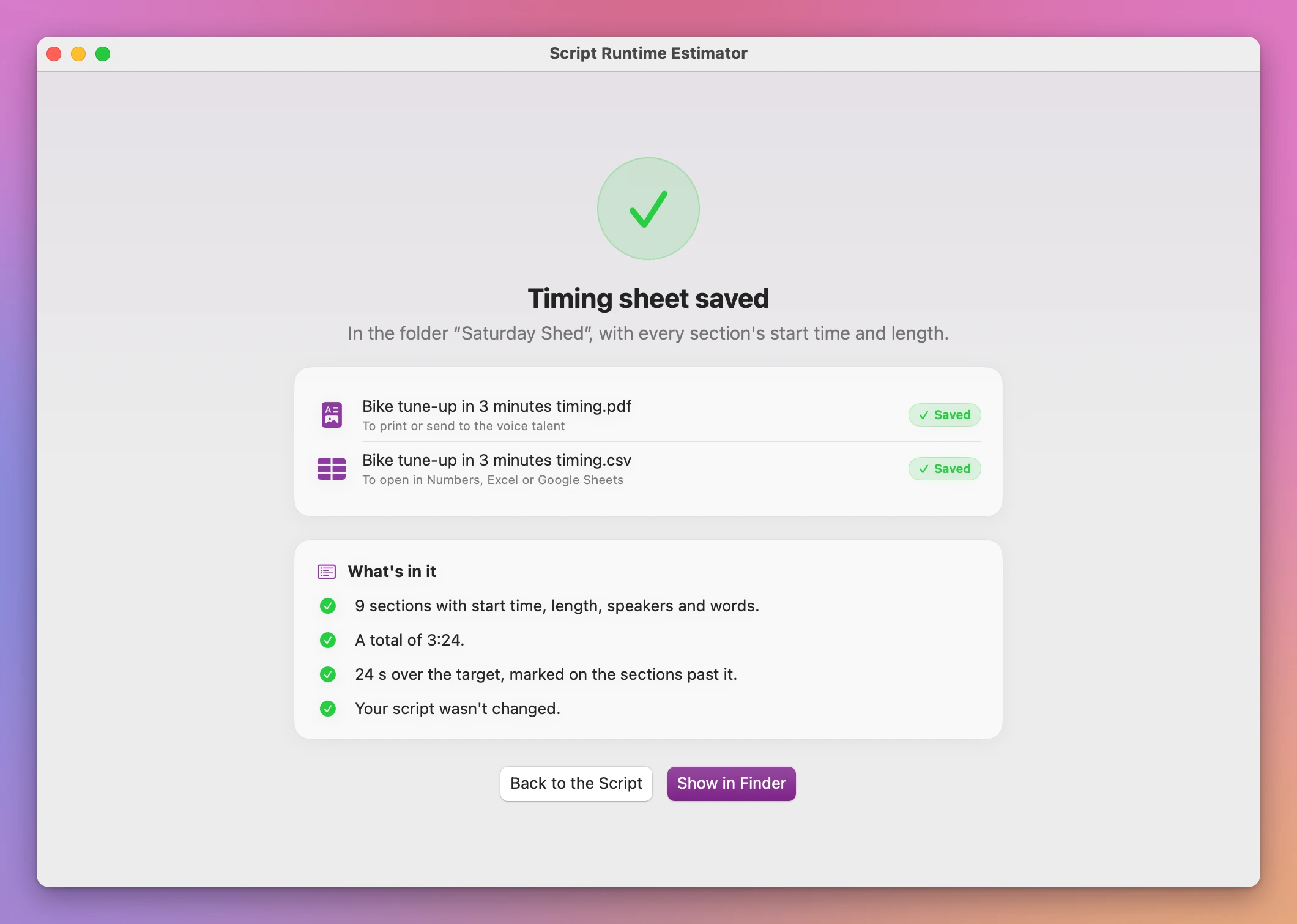
Click Save Timing Sheet… (⌘S) and pick a folder, then click Save Here. The app writes two files, named after the script:
<name> timing.pdf: an A4 page with the total, the target, the paces, and every section’s start time, title, speakers, words, length and target, with the sections past the target marked.<name> timing.csv: the same rows for Numbers, Excel or Google Sheets, plus each section’s end time and length in seconds, and a total row.
If those names are taken, the new files get a number, like timing 2. Nothing is written over. Click Show in Finder to see them, or Back to the Script to keep working.
Troubleshooting
“This script couldn’t be opened”: the file is a Pages document, a PDF or another kind the app can’t read, or it’s still downloading. Export it as Word, RTF or plain text, wait for the download, or paste the text.
“There’s nothing to time”: the file has no words to read. In a Fountain screenplay only dialogue is timed, so a script with only action lines has nothing to time.
A speaker is missing: the name needs a colon and a space after it, like HOST: Hello, and at most three words. In Markdown, **HOST:** works too.
A section is missing: a Markdown heading needs a space after the #. A line like Scene three needs a number, or a word from one to ten.
The times feel short or long: set each speaker’s pace from a real take, and check the pauses. Numbers count as one word as written, so a script with many long numbers reads a little longer than shown.
“The timing sheet wasn’t saved”: the folder can’t be written to. Pick another one, like Documents.
Script Runtime Estimator is not made by, affiliated with or endorsed by Apple, Microsoft or Google.