

Install Second Shooter Sorter
Second Shooter Sorter runs on macOS 14 Sonoma or later, on Apple silicon and Intel Macs. After buying, you land on a page with a Download button. You can also get the app from your Creem receipt. Unzip the app and drag Second Shooter Sorter to your Applications folder.
The app is signed and notarized by Apple. Confirm Open at the normal first-launch prompt.
Nothing is asked when the app opens. If the job folder is on a card, a drive or a network folder, or in your Desktop, Documents or Downloads folder, macOS may ask whether Second Shooter Sorter can read it the first time you choose it. Click Allow.
The app checks for updates once a day. When a new version is ready, click Install and Relaunch. The first time, it asks for the license key from your Creem receipt, and remembers it. To check anytime, choose Second Shooter Sorter → Check for Updates….
Get the job ready
Copy every card from the job into one folder. The layout inside doesn’t matter: Card A/DCIM/100KX, Theo's card, or everything loose in one folder. The app looks in the folder and every folder inside it.
It reads JPEG, HEIC and TIFF photos, and the raw formats your Mac opens: DNG, CR2, CR3, NEF, ARW, RAF, ORF, RW2 and others. Videos, sidecar files and documents are counted and left out. A RAW and JPEG pair counts as two photos.
Choose the job folder
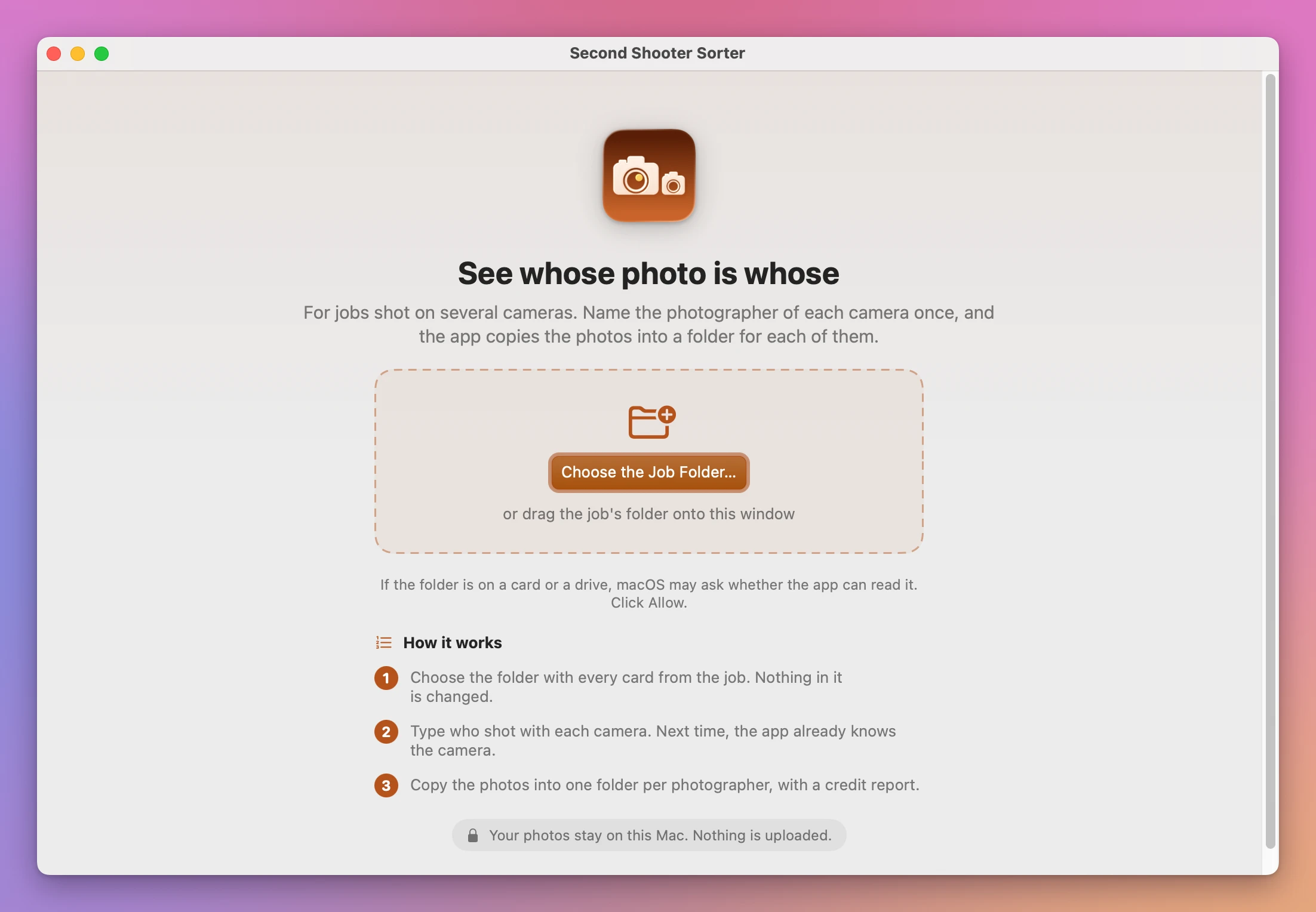
There are two ways:
- click Choose the Job Folder…, or choose File → Open Job Folder… (⌘O), and pick the folder;
- drag the folder from the Finder onto the window.
The app reads the camera details of every photo: the make, the model, the body serial number, when it was taken and the Creator field. It doesn’t open the images themselves, so it’s quick, and nothing in the folder is changed. The window shows “Reading 1,840 photos” and how far it got.
When the folder has no photos, the app says so and offers Choose Another Folder….
Name the photographers
The Cameras tab has a card for each camera body:
- the model, like “Kestrel X5”, and the serial number;
- how many photos it took, and its first and last photo of the day, as the camera’s clock wrote them;
- five thumbnails spread over the day, from the first photo to the last.
Click the field under a camera, type who shot with it, and press Return. A few shortcuts help:
- Names lists the names you’ve used before. Pick one to fill the field, or Clear the Name.
- When most of a camera’s photos carry a name in their Creator field, the card says so and offers a button, like Use “Ana Ruiz”.
- Two cameras with the same name, in any capitals, belong to the same photographer.
Names given to cameras with a serial number are remembered on your Mac. The next time a job has photos from that body, its name is already there, with “Remembered from an earlier job” under it. Change the name to change what’s remembered.
Cameras with no serial number
Most phones, and some older cameras, don’t write a serial number. The app puts their photos in one group per model, with an orange No serial number pill. You can name that group for this job, but the name isn’t remembered, because two people with the same phone model would land in the same group. Photos with no camera details at all go into “Unknown camera”.
Check the Photographers tab
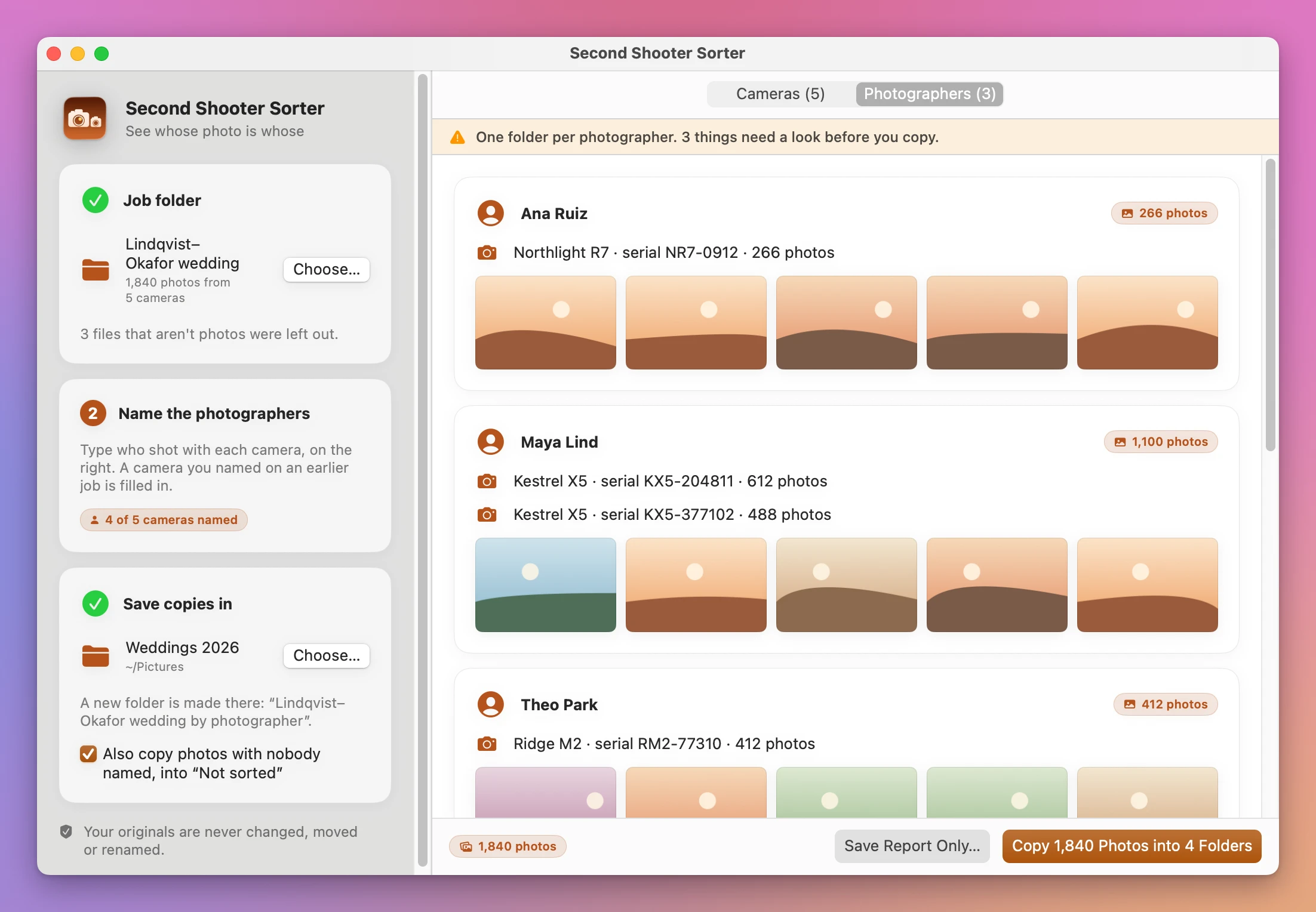
The Photographers tab (⌘2, and ⌘1 for Cameras) shows each photographer with their cameras, their photo count and a few of their photos. Under them, it lists what you may want to check:
- Nobody named yet: the cameras still without a name, and where their photos will go. Name These Cameras takes you back to the Cameras tab.
- No serial number: the groups of photos from cameras that don’t write one.
- Creator field names someone else: photos whose Creator field disagrees with the camera’s photographer, like a camera lent for a few frames. The first eight are listed; the report lists all of them.
Copy the photos
In the sidebar, Save copies in shows where the copies go. It starts as the folder that holds the job folder. Click Choose… to pick another place. The copies can’t go inside the job folder.
Also copy photos with nobody named, into “Not sorted” is ticked to start with, so no photo is left behind. Untick it to copy only the photos with a photographer.
Click Copy 1,840 Photos into 4 Folders (or press ⌘Return). The button says how many photos and folders, and when it can’t be clicked, the reason is written next to it.
The app makes a new folder, named after the job with “by photographer” added, like Lindqvist–Okafor wedding by photographer. If that name is taken, it adds a number. Inside there’s a folder for each photographer. When two cameras used the same file name, the second copy gets a number, like KX5_0001 (2).JPG, and nothing is overwritten. Each copy is checked to be the same size as its original.
Click Stop to stop after the photo it’s on. The copies made so far stay in the new folder.
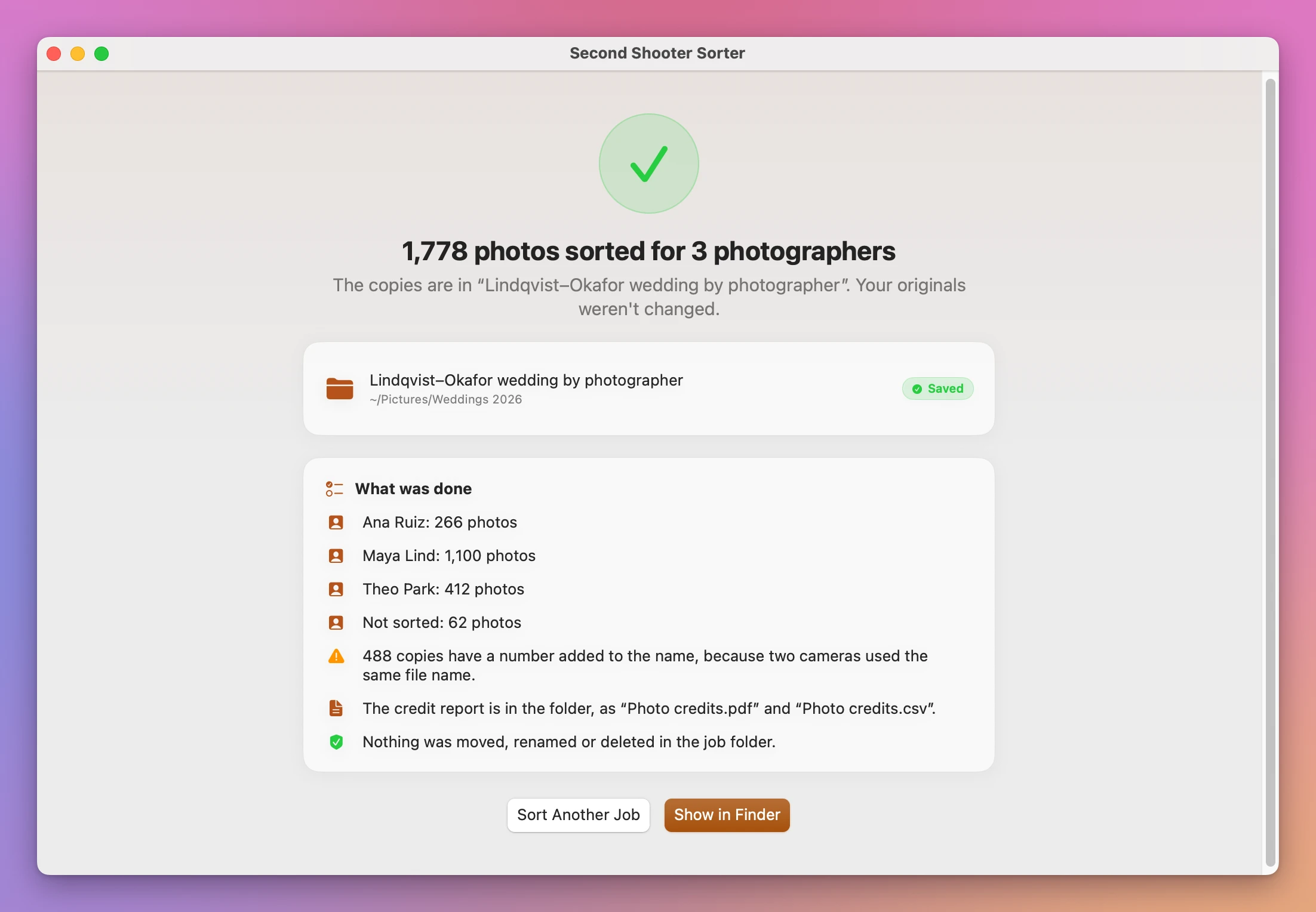
When it’s done, the window says how many photos went to how many photographers and what was done. Show in Finder opens the new folder. Sort Another Job goes back to the start.
The credit report
Every copy writes two files in the new folder:
Photo credits.pdf: each photographer with their cameras, serial numbers, photo counts and times, then the cameras with nobody named, the photos with no serial number, the Creator mismatches and anything that couldn’t be copied or read.Photo credits.csv: one row per photo, with the file, its path in the job folder, the photographer, the camera, the serial number, when it was taken, the Creator field, a note and where its copy went. It opens in Numbers, Excel or Google Sheets.
To save the report without copying, click Save Report Only… (or File → Save Credit Report…, ⌘S) and pick a folder. If the files are already there, the new ones get a number.
Troubleshooting
A camera shows up twice. The two cards have different serial numbers, so they’re two bodies. Give them the same name and they go to the same photographer.
All the phone photos are in one group. Phones don’t write a serial number, so photos from two phones of the same model can’t be told apart. Name the group for this job, or sort those few photos by hand.
The times look wrong. They’re what each camera’s clock wrote. The app doesn’t change or line up camera clocks.
“No photos in” a folder you know has photos. Check that you chose the job folder, not a folder of videos or exported files. Photos the app can’t read are listed in the report as “Couldn’t be read”.
macOS asked for access. That’s the first time you chose a folder on a card, a drive or in a protected folder. Click Allow. If you clicked Don’t Allow, open System Settings → Privacy & Security → Files and Folders, and turn on the folder for Second Shooter Sorter.
Second Shooter Sorter isn’t made by, affiliated with or endorsed by Apple or any camera maker.