
Install Sponsor Proof Sheet
Sponsor Proof Sheet runs on macOS 14 Sonoma or later, on Apple silicon and Intel Macs. After buying, you land on a page with a Download button. You can also get the app from your Creem receipt. Unzip the app and drag Sponsor Proof Sheet to your Applications folder.
The app is signed and notarized by Apple. Confirm Open at the normal first-launch prompt.
Sponsor Proof Sheet asks macOS for no permission. It reads the video you choose or drag in, and saves the PDF where you say.
The app checks for updates once a day. When a new version is ready, click Install and Relaunch. To check anytime, choose Sponsor Proof Sheet → Check for Updates….
Open the final video
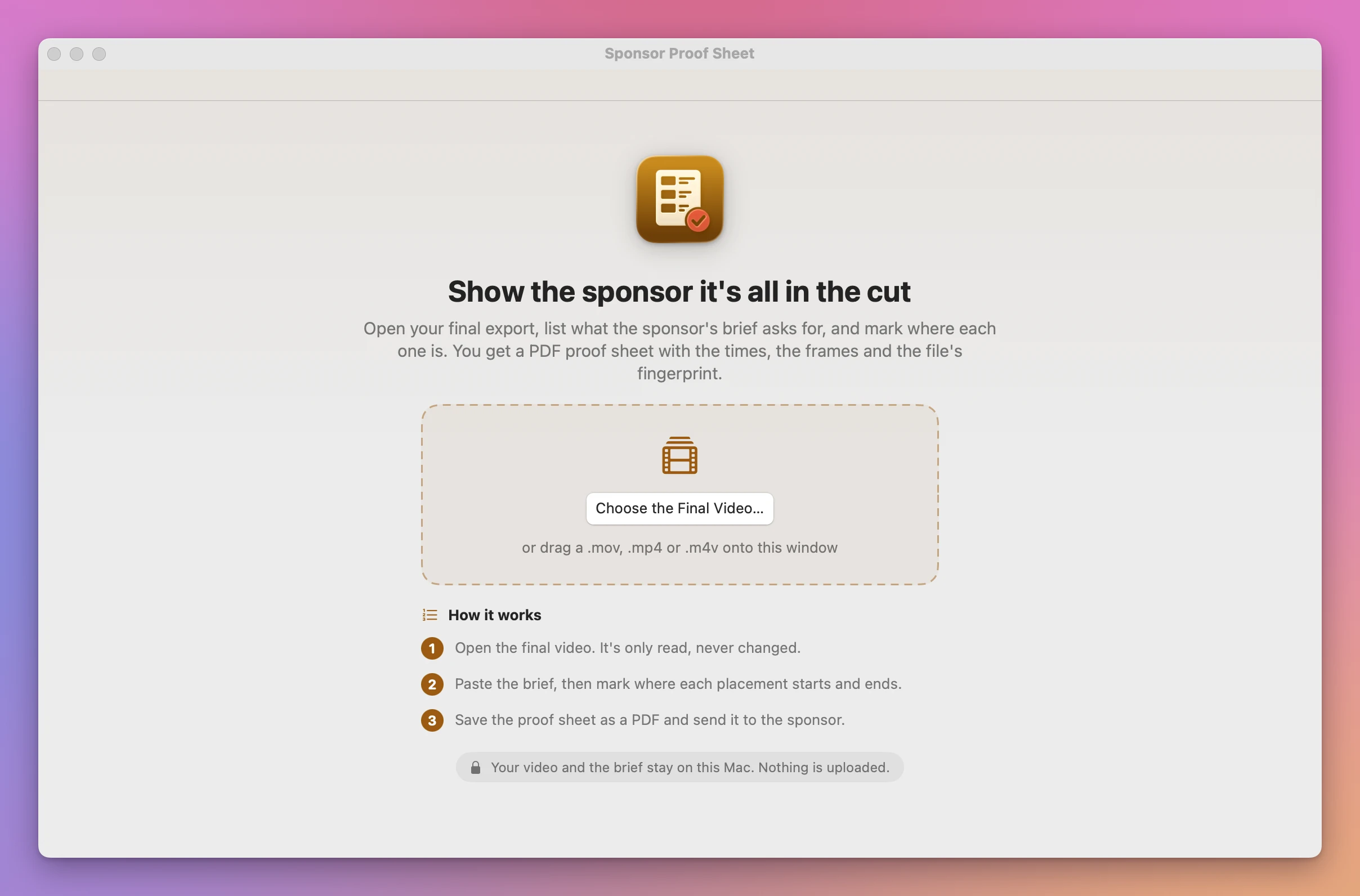
Click Choose the Final Video…, or choose File → Open Video… (⌘O), and pick the export you’re about to publish. You can also drag it onto the window, onto the app’s icon in the Dock, or right-click it in the Finder and choose Open With → Sponsor Proof Sheet.
It opens MP4, MOV and M4V videos your Mac can play. Open the exact file you’ll upload: the sheet is about that file.
The first card on the left shows the file’s name, size, length, picture size, frame rate and codec. Under it, Working out the fingerprint… counts up to 100%, then shows the fingerprint, like 4f1c9a07…b5c9d264. Hover over it to see all 64 characters. You can go on while it works. A big file on a slow drive takes a while, and Save Proof Sheet… waits until it’s done.
The video is only read. Nothing about it changes.
Add the brief
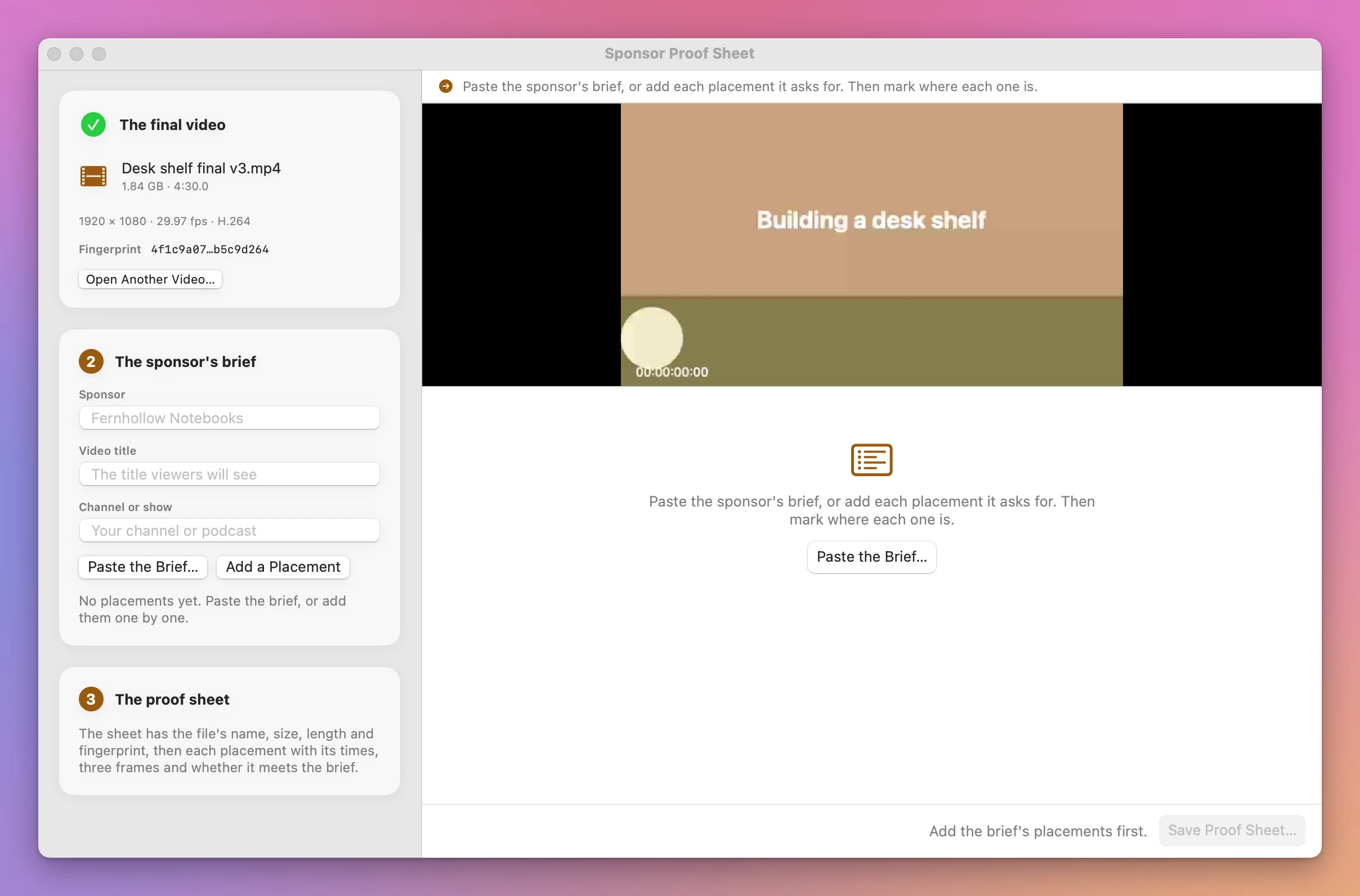
Type the Sponsor, the Video title and your Channel or show. They go at the top of the sheet. Press Return or click elsewhere to keep what you typed.
Click Paste the Brief… (or Placements → Paste the Brief…, ⇧⌘V) and paste the placements from the sponsor’s email, one per line. The count under the text says how many it found. Click Add 4 Placements (or press ⌘Return).
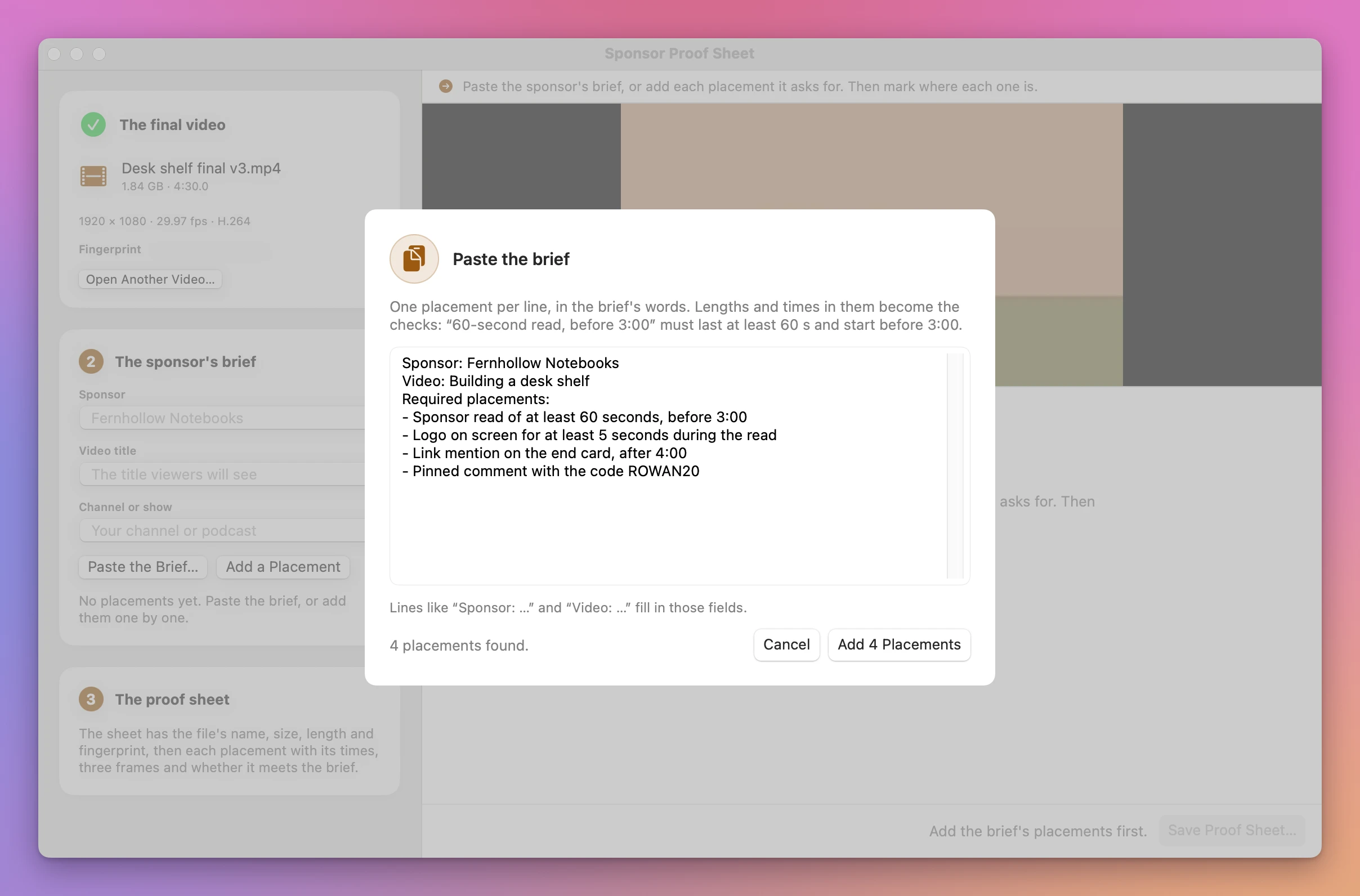
What the app reads in each line:
| In the brief | Becomes |
|---|---|
| ”60-second read”, “at least 60 seconds”, “60 s”, “1 minute” | At least 60 s |
| ”no more than 90 sec”, “at most 90 s”, “under 90s”, “up to 90 seconds” | At most 90 s |
| ”30 to 45 seconds”, “30-45 s” | At least 30 s and at most 45 s |
| ”before 3:00”, “by 3:00”, “in the first 3 minutes” | Starts before 3:00 |
| ”after 7:00”, “from 7:00”, “at 7:00 or later” | Starts at or after 7:00 |
| ”pinned comment”, “description” | Not in the video |
| ”Sponsor: …”, “Brand: …” | The Sponsor field |
| ”Video: …”, “Title: …” | The Video title field |
| ”Channel: …”, “Show: …” | The Channel or show field |
Dashes, bullets and numbers at the start of a line are dropped. A line that ends with a colon, like “Required placements:”, is a heading and is skipped. Each placement keeps the brief’s words as its name, so the sheet uses the sponsor’s own wording.
To add one by hand, click Add a Placement (⇧⌘N) and type what the brief asks for.
Check the rules
Click a placement on the left. On the right, What the brief asks for is its name, and What it has to meet has four fields:
- At least and At most: how long it has to last, in seconds.
- Starts at or after and Starts before: where in the video it has to start, like
3:00.
Change any of them, or clear one to drop that rule. A placement with no rules passes as soon as it’s marked.
Mark where each placement is
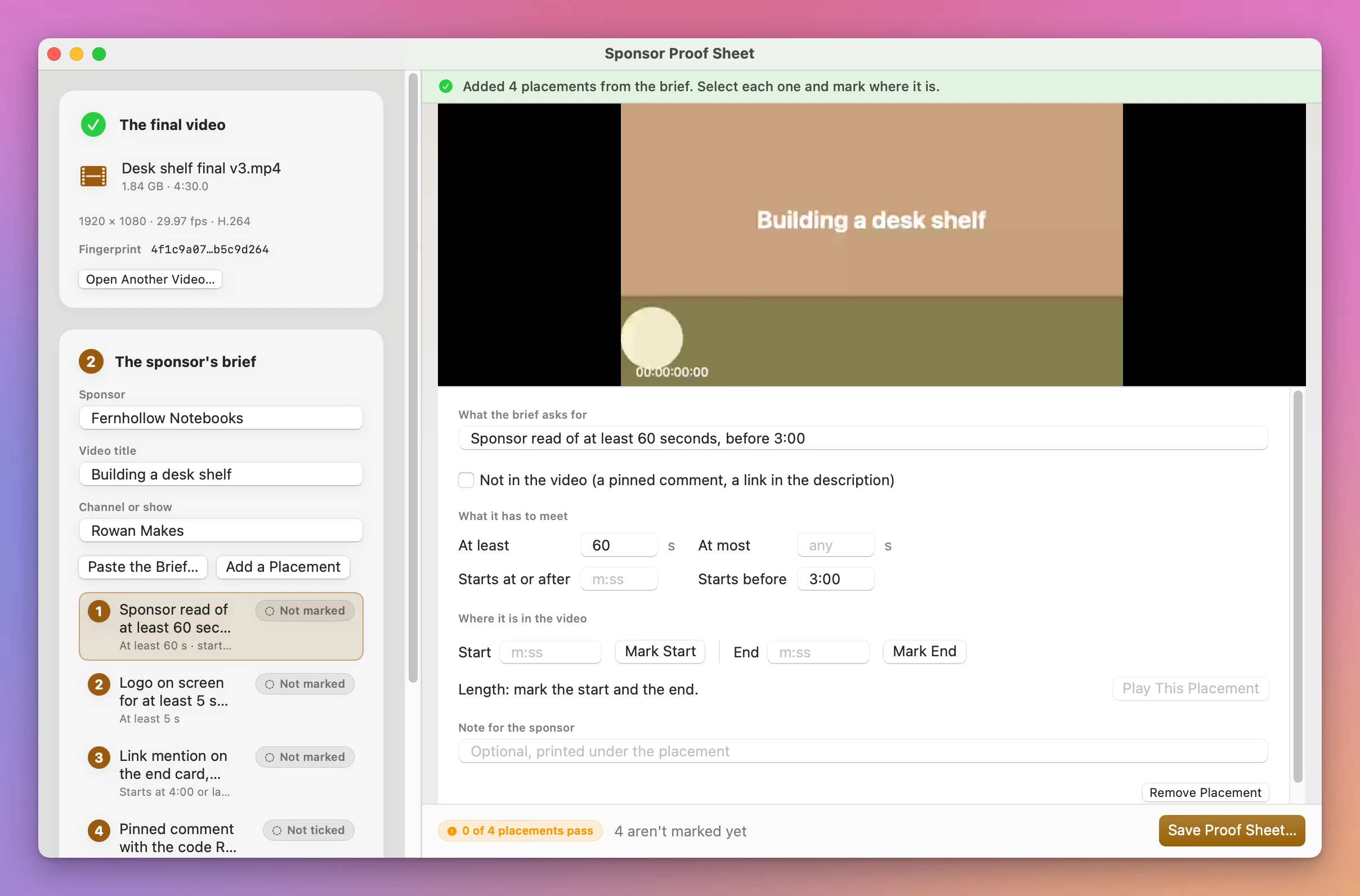
Play the video to where the placement starts, using the player’s controls or the frame-step buttons, and click Mark Start (⌘[). Then play to where it ends and click Mark End (⌘]). The marks go on the frame the player shows.
You can type the times instead, in the Start and End fields, and press Return:
1:42or1:42.5, minutes and seconds, with tenths if you like.1:02:15past an hour.00:01:42:15, hours, minutes, seconds and frames, the way editing apps show timecode.102.5, in seconds.
If what you typed isn’t a time, the line at the top says so, and the field goes back to the time it had.
Length shows how long the placement lasts. Play This Placement (⇧⌘P) plays just that stretch and stops at its end. Under it, Frames on the sheet shows the three frames that will go in the PDF: the start, the middle and the last frame. Click one to move the video there.
Clicking a placement in the list moves the video to its start. Placements → Next Placement (⌘↓) and Previous Placement (⌘↑) go through the list.
Passes and Fails
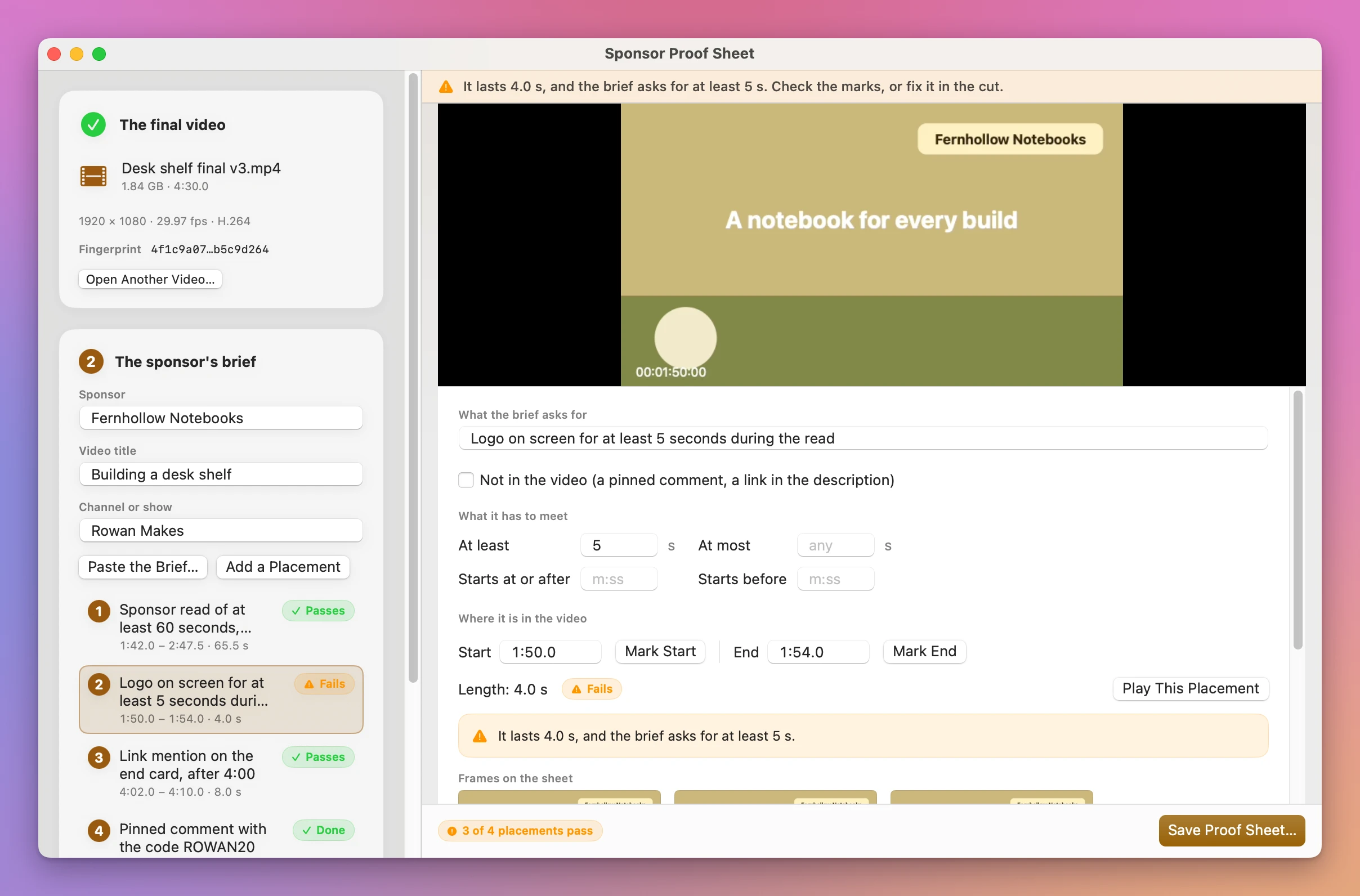
Each placement in the list has a pill:
| Pill | What it means |
|---|---|
| Passes | Marked, and it meets every rule. |
| Fails | Marked, and one or more rules aren’t met. The reason is under the marks and at the top. |
| Not marked | The start or the end isn’t marked yet. |
| Done | Not in the video, ticked as checked. |
| Not ticked | Not in the video, not ticked yet. |
A placement fails when it’s shorter or longer than the brief allows, starts too early or too late, ends after the video ends, or ends before it starts. “Starts before 3:00” means before: a placement that starts at exactly 3:00.0 fails.
The bar at the bottom sums it up, like 3 of 4 placements pass.
Placements that aren’t in the video
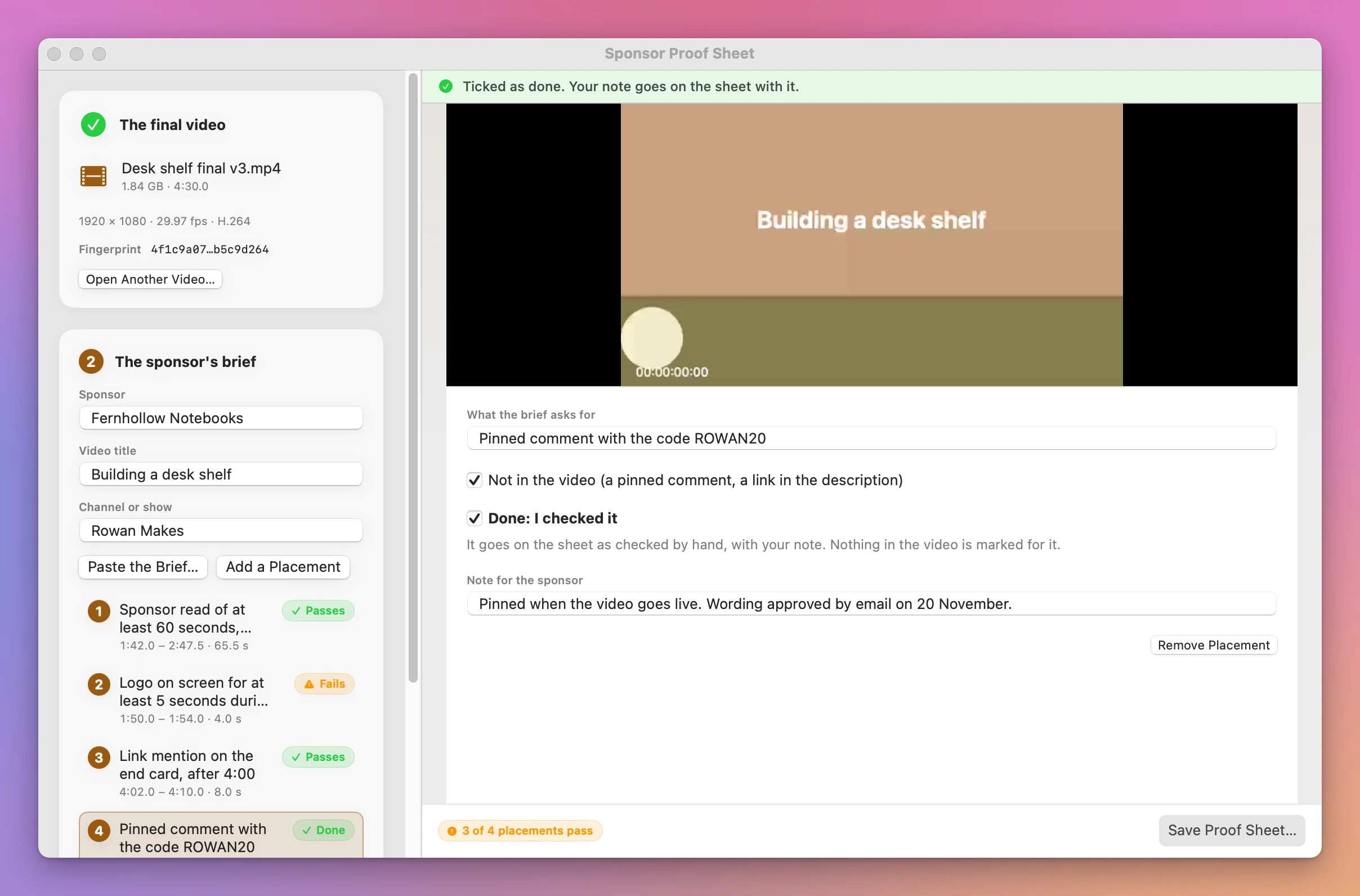
A brief often asks for things outside the video: a pinned comment, a discount code in the description, a link above the fold. A line about a pinned comment or the description is set this way when you paste the brief. For any other, tick Not in the video (a pinned comment, a link in the description).
Once you’ve checked it, tick Done: I checked it, and write how in Note for the sponsor. The sheet lists it as “Done, checked by hand”, with your note. The app doesn’t look at YouTube or anywhere else.
Any placement can have a note. It’s printed under it on the sheet.
Save the proof sheet
Click Save Proof Sheet… (⌘S). The Save panel opens in the video’s folder, with a name like Building a desk shelf proof sheet (Fernhollow Notebooks).pdf. Pick a folder and click Save.
You can save with placements that fail or aren’t marked: the sheet shows them as they are. The button is off only while there are no placements, or while the fingerprint is still being worked out. The reason is next to it.
The PDF has:
- the video title, the sponsor and the channel, the date, and how many placements pass;
- the file’s name, size in bytes, length and timecode, picture size, frame rate, codec, when it was last changed, and its SHA-256 fingerprint;
- each placement with its brief, where it starts and ends, its length and timecodes, its result and why, your note, and three frames with their times.
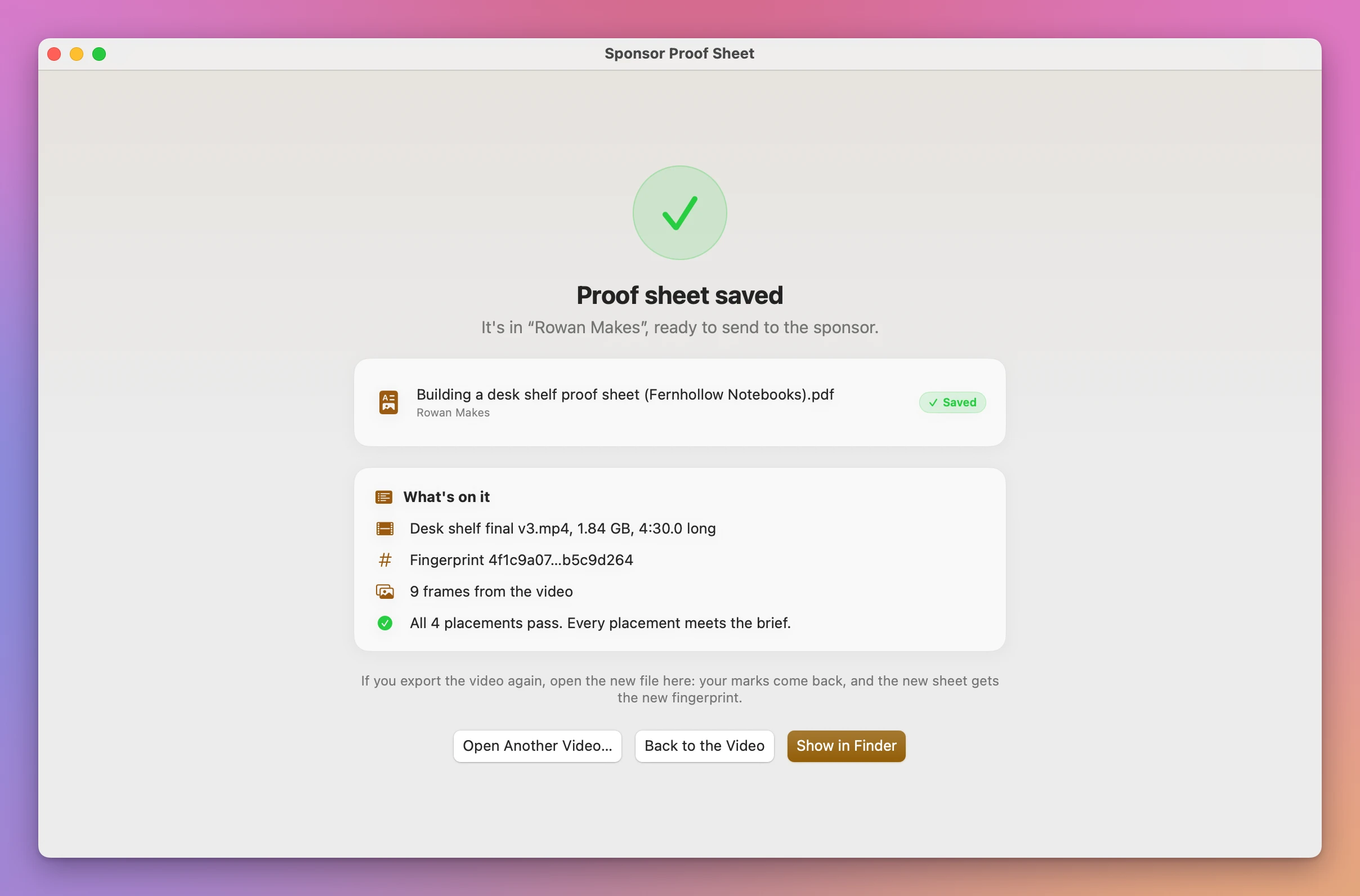
Show in Finder shows the PDF. Back to the Video takes you back to the placements. Open Another Video… starts with another file.
The fingerprint
The fingerprint is the file’s SHA-256 checksum: 64 characters worked out from every byte. The same file always gives the same fingerprint, and a file with even one byte changed gives a different one. It’s how a sponsor knows the file on the sheet is the file you upload. Any SHA-256 tool gives the same result.
Your work is saved
The brief and the marks are saved as you go, on your Mac. Open the same video again and they’re back, with the note Your brief and marks from last time are back.
When the file changed since you marked it, for example after a new export with the same name, the marks come back with the note This file changed since you marked it. Play each placement to check it’s still in the right place: the cut may have moved. The new sheet gets the new file’s fingerprint.
Troubleshooting
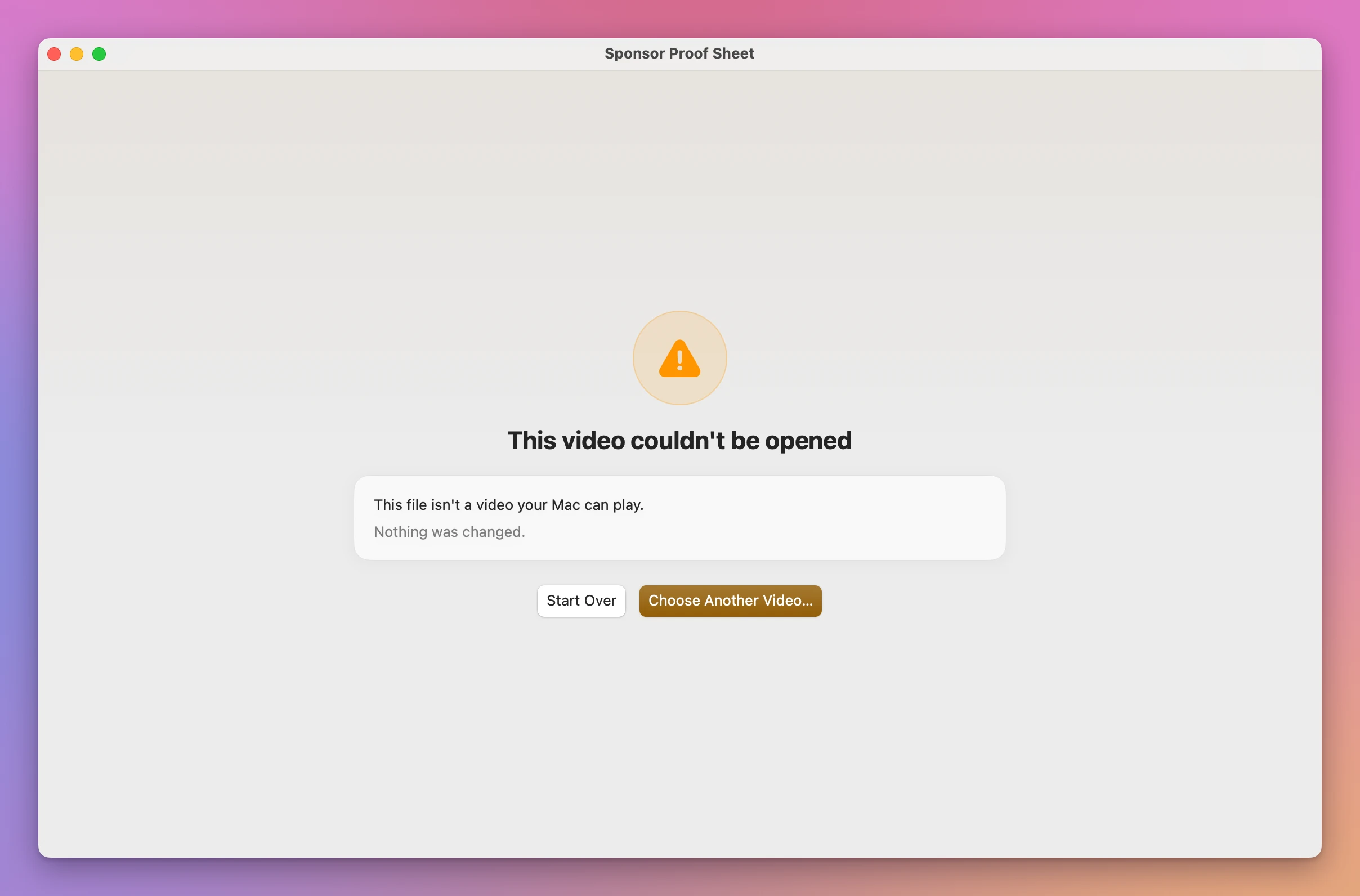
This file isn’t a video your Mac can play
The app opens MP4, MOV and M4V files that macOS can play. An MKV or WebM file, a file that’s still being exported, or a copy-protected video won’t open. Export an MP4 or MOV and open that.
The fingerprint takes a long time
It reads the whole file. A 40 GB master on a USB drive can take a few minutes. You can mark the placements meanwhile.
The proof sheet wasn’t saved
The folder may be read-only, or the drive full or unplugged. Pick another folder, like Documents, and save again.
Get help
Choose Help → Sponsor Proof Sheet Support to write to me.
Sponsor Proof Sheet is an independent app. It’s not made by, affiliated with or endorsed by Apple, Google, YouTube, Adobe or Blackmagic Design.