
Install Stock License Binder
Stock License Binder runs on macOS 14 Sonoma or later, on Apple silicon and Intel Macs. After buying, you land on a page with a Download button. You can also get the app from your Creem receipt. Unzip the app and drag Stock License Binder to your Applications folder.
The app is signed and notarized by Apple. Confirm Open at the normal first-launch prompt.
Stock License Binder asks macOS for no permission. It reads only the files you choose or drag in.
The app checks for updates once a day. When a new version is ready, click Install and Relaunch. To check anytime, choose Stock License Binder → Check for Updates….
Add your first license
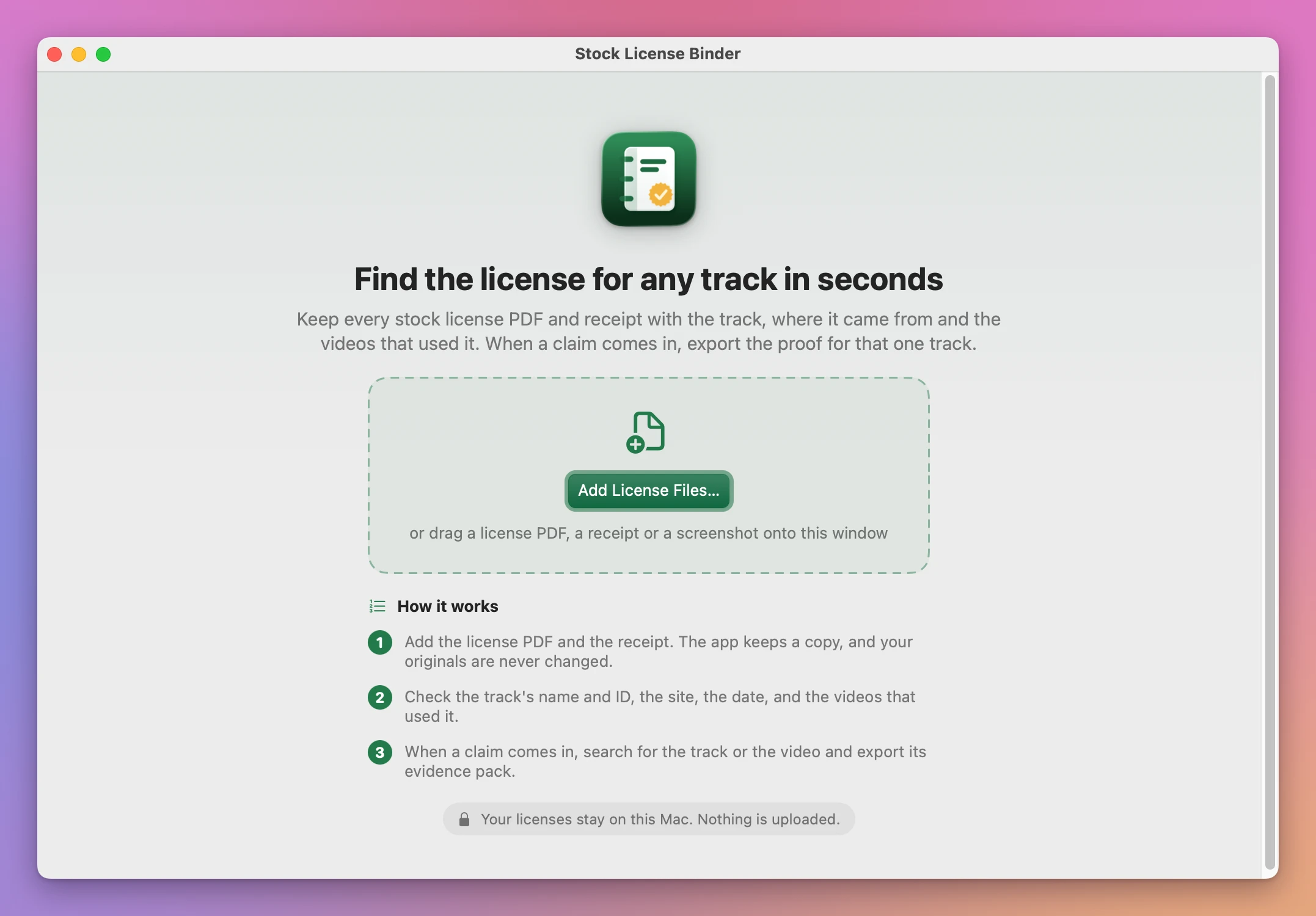
Click Add License Files… and choose the files for one asset: the license PDF, the order receipt, a screenshot of the license page. Hold Command to pick more than one. You can also drag them onto the window.
The app copies each file into its library. The files you chose stay where they were and are never changed, so you can tidy your Downloads folder afterwards.
The new license gets a name from the first file’s name. morning_coffee_groove_license_TRK-48213_2026-03-14.pdf becomes Morning Coffee Groove, with the asset ID TRK-48213 and the day March 14, 2026. Words like license, receipt and invoice are left out. Check the guess and fix it if needed.
Fill in the details
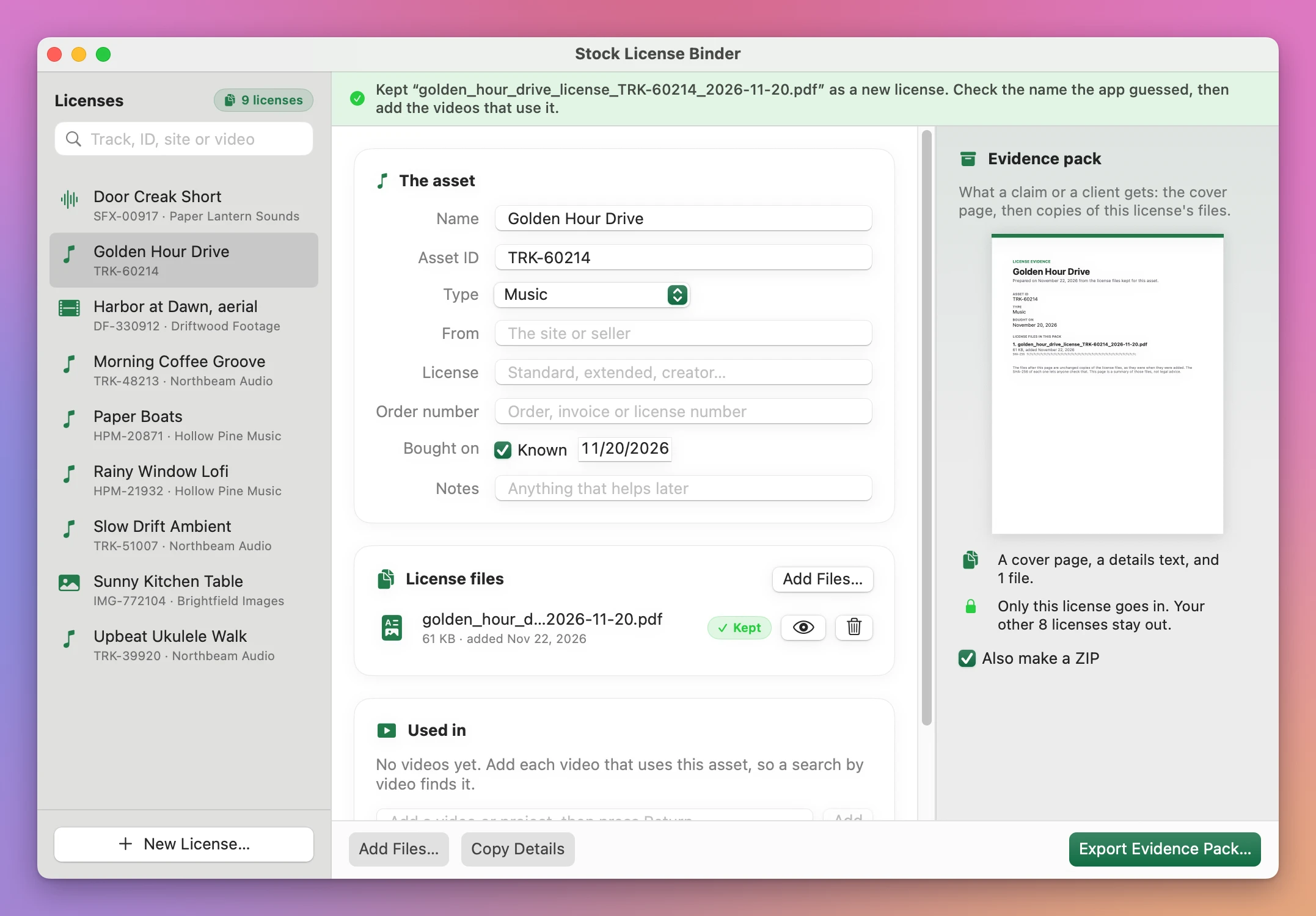
Each license has these fields:
- Name: the track, clip or photo, as the site calls it.
- Asset ID: the site’s number for it, like a track ID. It’s what a claim usually quotes.
- Type: Music, Sound effect, Stock footage, Photo or illustration, Template or graphics, Font, or Something else.
- From: the site or seller.
- License: the name of the license you bought, like “Standard license, online video”.
- Order number: the order, invoice or license number.
- Bought on: tick Known and pick the day.
- Notes: anything that helps later, like which channel the license covers.
Changes are saved when you press Return, click another field, or pick another license.
Under Used in, type the name of each video or project that uses the asset and press Return, or click Add. Click the × on a name to remove it. A search by a video’s name finds every license with that video.
Add more files to a license
Select the license and click Add Files…, choose File → Add Files to This License… (⇧⌘A), or drag the files onto the License files card. A file that’s already kept for that license is skipped, and the hint line says so.
Each file shows its size, the day it was added and a pill:
- Kept: the copy is in the library, as it was added.
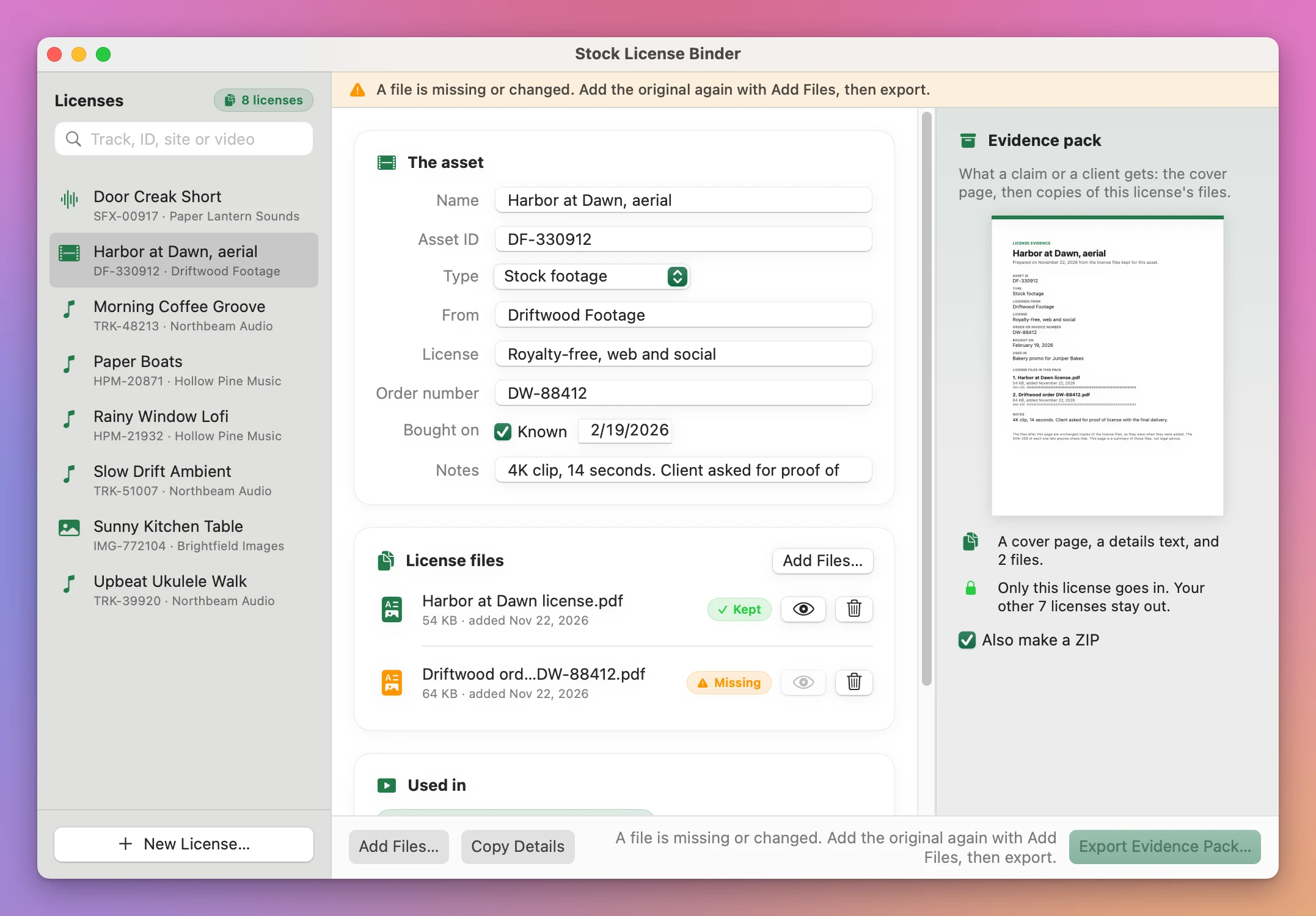
- Missing: the copy isn’t in the library any more. Add the original again to put it back.
- Changed: the copy is different from when it was added.
Click the eye to open a file. Right-click it for Show in Finder. The trash button removes the copy from the license after asking, and moves it to the Trash. The file you added it from isn’t touched.
Find a license
Type in the search field at the top of the list, or press ⌘F. The search looks at the name, the asset ID, the site, the license, the order number, the notes, the file names and the videos. Every word you type has to match somewhere, and case and accents don’t matter.
When the words match a video, the list shows it under the license, like Used in Lakeside Vlog 12, Lakeside Vlog 14.
Export the evidence pack
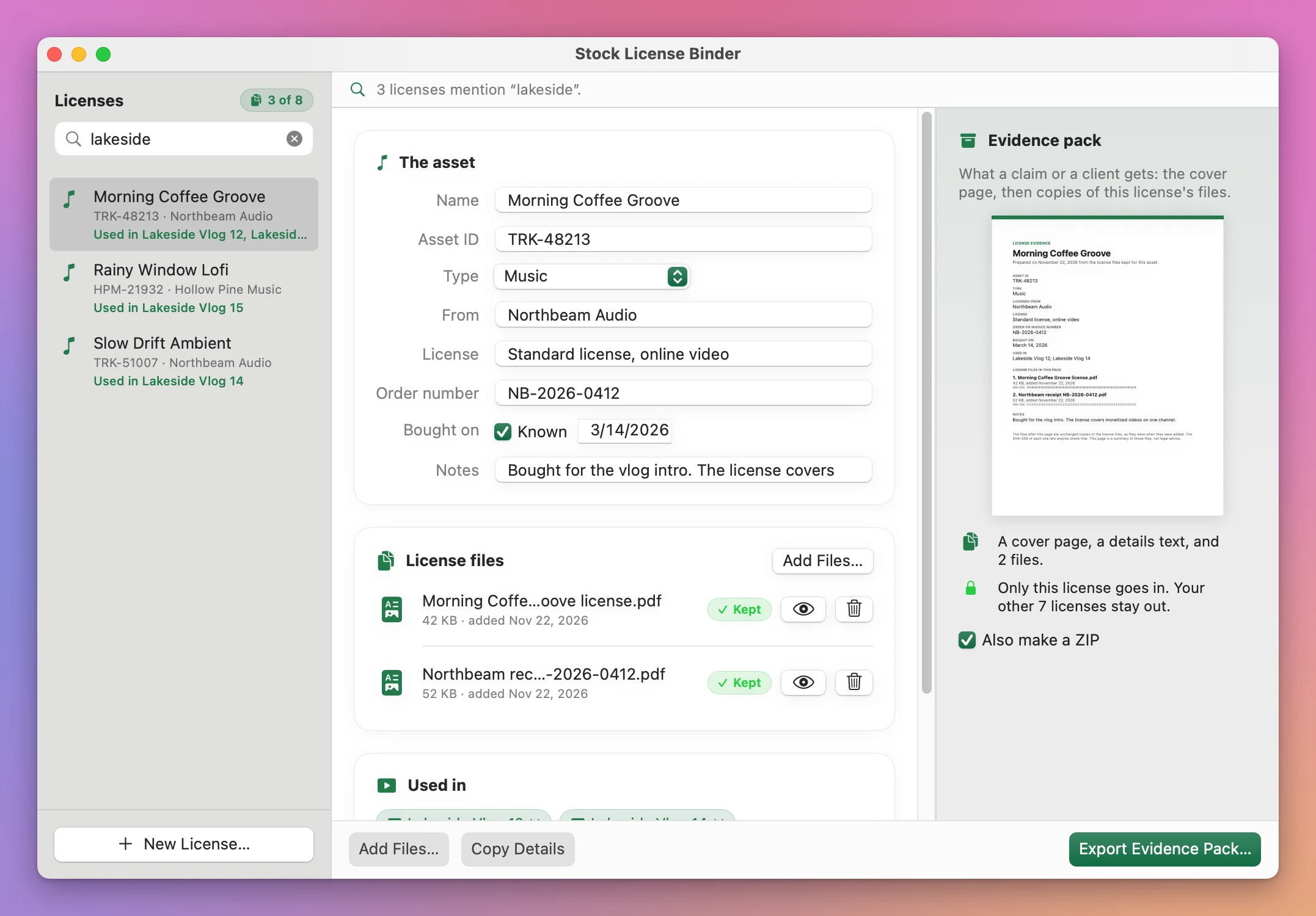
The Evidence pack column on the right shows the cover page as it will be saved, what goes in, and how many of your other licenses stay out.
Click Export Evidence Pack… (⌘E) and choose a folder. The app makes a new folder in it, named like License evidence - Morning Coffee Groove - 2026-11-22, with:
Cover page.pdf: the asset, its ID, type, site, license, order number, the day it was bought, the videos that used it, the notes, and each license file with its size, the day it was added and its SHA-256 fingerprint.Details.txt: the same facts in plain text.- Copies of the license’s files, with their original names.
With Also make a ZIP ticked, a ZIP of that folder is saved next to it, ready to attach to a form or an email. If you export the same license twice in a day, the second folder ends in “2”.
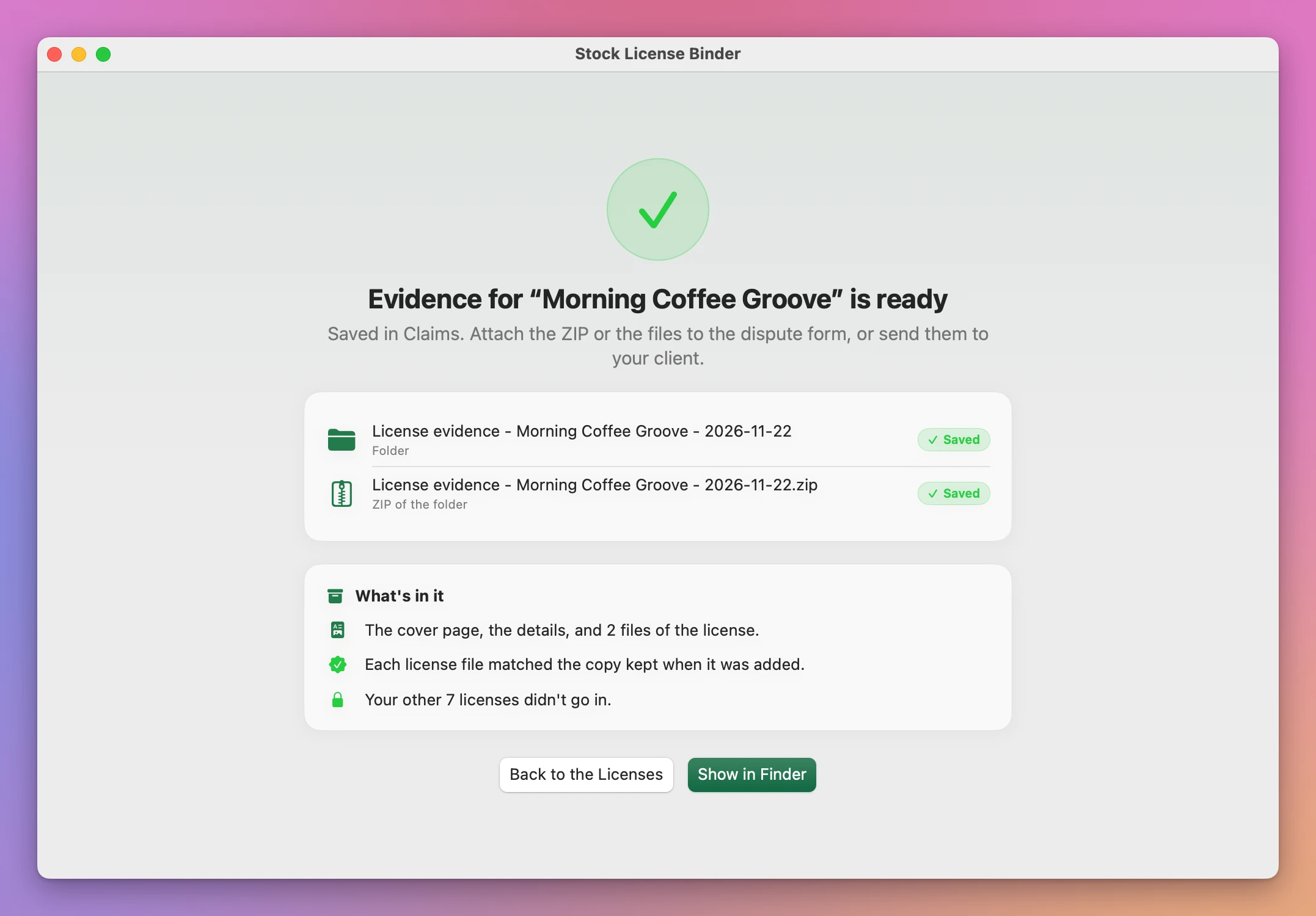
Click Show in Finder to see the pack, or Back to the Licenses.
Copy Details (⇧⌘C) puts the same text as Details.txt on the clipboard, for a dispute form that only takes text.
When export is off
The reason is written next to the button:
- Add a license file first, then export. The license has no files yet.
- A file is missing or changed. Click Add Files… and choose the original again: the app puts its copy back. The hint line at the top says the same.
- Give the asset a name first, then export.
If the pack can’t be saved, for example because the folder is on a disk that’s full, the window says so, and nothing is left behind. Click Try Again and pick another folder.
Remove a license
Select it and click Remove This License… at the bottom of its details, or choose File → Remove This License… (⌘⌫). The app asks first. Keep It is the default for Return and Escape. Move to Trash moves its kept copies to the Trash.
Where the library is
The library is in your user Library folder, under Application Support. File → Show Library in Finder opens it. Back it up with the rest of your files, with Time Machine or another backup. Don’t rename or edit the files inside it: the app would mark them as missing or changed.
Troubleshooting
The name it guessed is wrong
File names from stock sites vary a lot. Type the right name in Name. Only the first file’s name is used for the guess.
A search finds nothing
Try fewer words, the asset ID, or the video’s name. If the license has no videos under Used in, a search by video can’t find it.
It says “The library couldn’t be opened”
The list of licenses couldn’t be read. Your files are still in the library folder. Click Show Library in Finder: the copy of the list from before the last change is next to it, named library.previous.json. Write to support and I’ll help you get it back.
Not legal advice
Stock License Binder keeps your records and makes copies of them. It doesn’t check your licenses with any site, and it doesn’t say whether a license covers a use. That depends on the license’s terms.
Stock License Binder isn’t made by, affiliated with or endorsed by Apple, YouTube, Google, Meta, TikTok, Vimeo or any stock music, footage or photo site.