

Install Subtitle Checker
Subtitle Checker runs on macOS 14 Sonoma or later, on Apple silicon and Intel Macs. After buying, you land on a page with a Download button. You can also get the app from your Creem receipt. Unzip the app and drag Subtitle Checker to your Applications folder.
The app is signed and notarized by Apple. Confirm Open at the normal first-launch prompt.
Subtitle Checker asks macOS for no permission. It reads the files you choose or drag in, and saves into the folder you pick.
The app checks for updates once a day. When a new version is ready, click Install and Relaunch. To check anytime, choose Subtitle Checker → Check for Updates….
Open a video and its subtitles
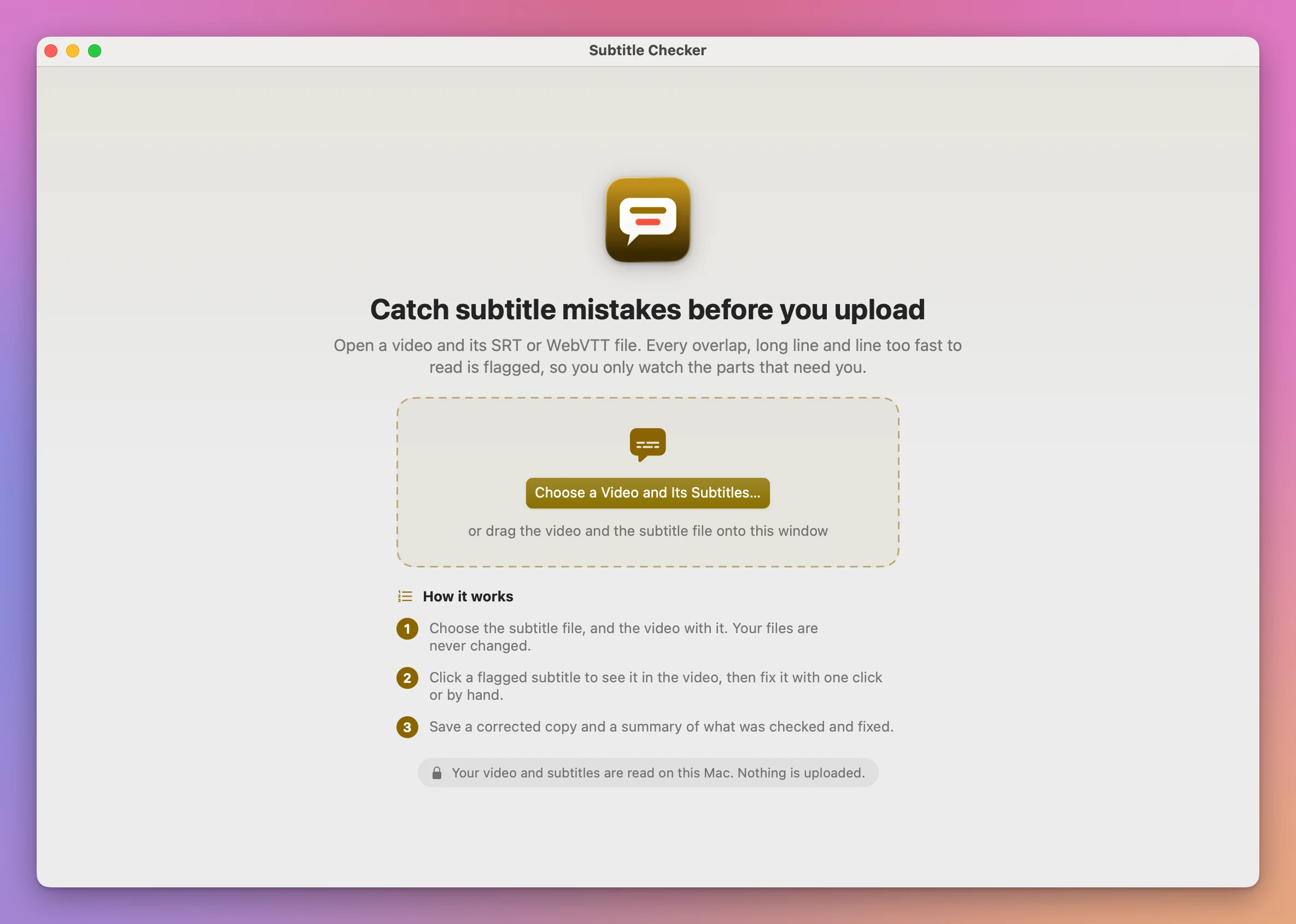
Click Choose a Video and Its Subtitles…, or choose File → Open Video and Subtitles… (⌘O). In the panel, click the subtitle file, then hold Command and click the video, and click Open. You can also drag both files onto the window at once.
The subtitle file can be SRT (.srt) or WebVTT (.vtt). The video can be MP4, MOV or M4V.
The video is optional. If you open only the subtitles, the place where the video goes says No video open, with a Choose Video… button. You can add it at any time with that button, with File → Choose Video… (⇧⌘O), or by dragging the video onto the window.
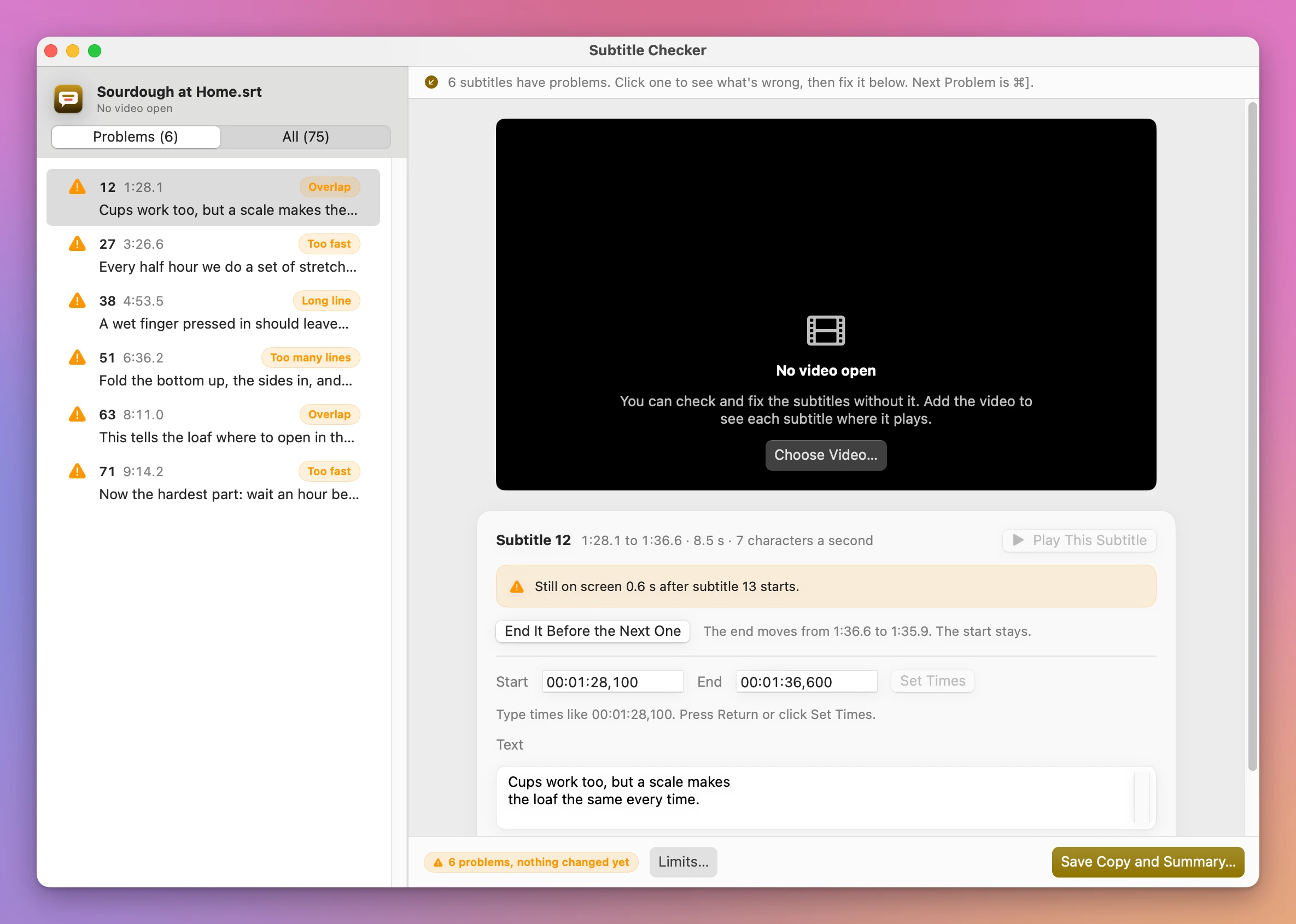
Nothing you open is changed.
Files it reads
- SRT and WebVTT, in UTF-8, UTF-16, or the older Windows Western encoding.
- Files with a byte order mark, Windows line endings, a dot instead of a comma in SRT times (or a comma in WebVTT), and a missing blank line between two subtitles.
- When a blank line was typed inside a subtitle, the words after it are kept with that subtitle.
If the file isn’t one of these, the window says why. A .ass, .ssa, .scc or .stl file is refused: export SRT or WebVTT from the tool that made it.
The review
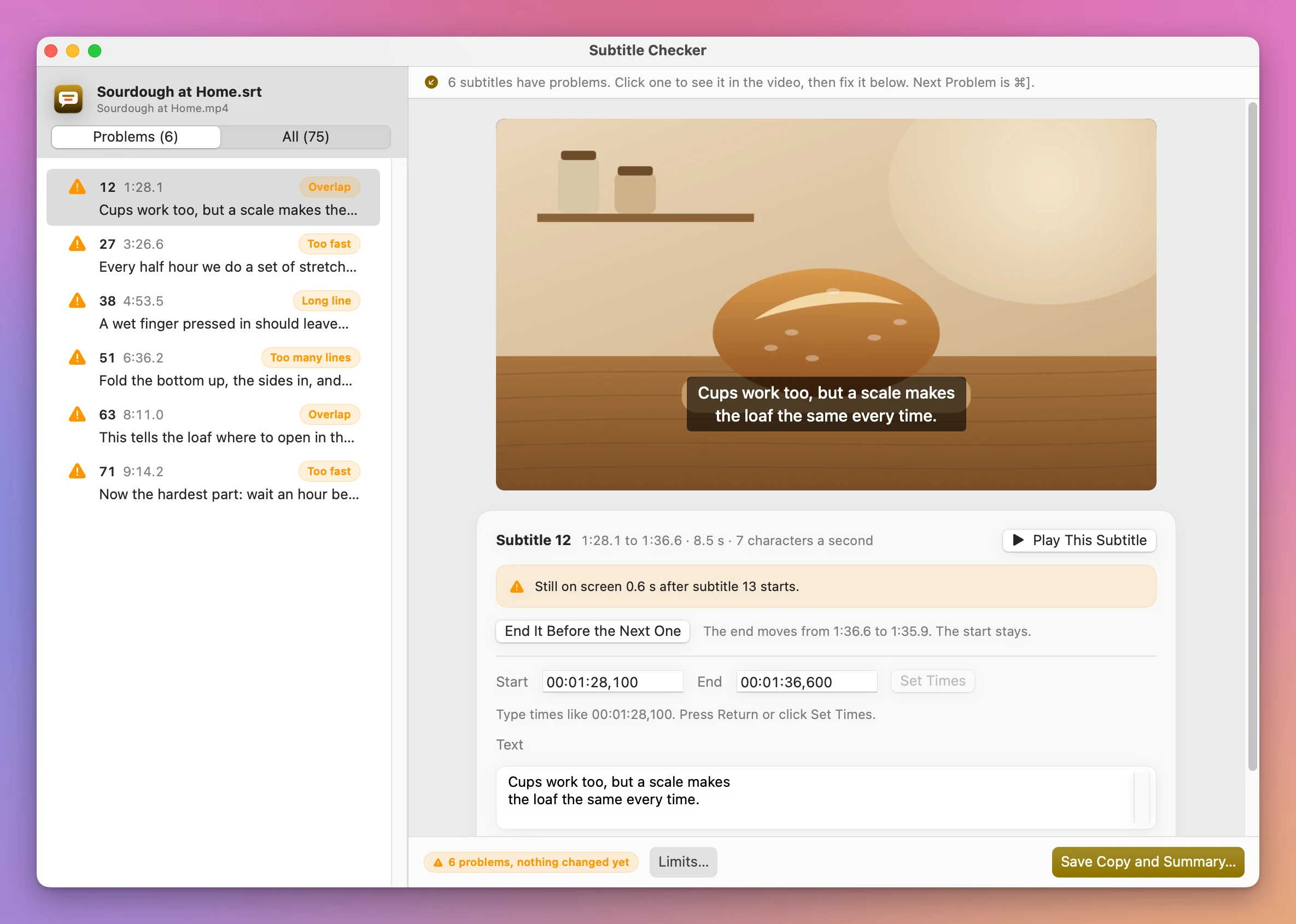
The list on the left shows Problems: the subtitles with a problem now or when you opened the file, and the ones you changed. Click All to see every subtitle. Each row has its number, its start time, its first words and a pill:
| Pill | What it means |
|---|---|
| Overlap | Still on screen when the next subtitle starts. |
| Too fast | More characters a second than your limit. |
| Long line | A line longer than your limit. |
| Too many lines | More lines than your limit. |
| Out of order | Starts before the subtitle above it in the file. |
| No time on screen | Its end isn’t after its start. |
| After the video | Starts after the video ends. |
| No text | Empty. Some players show an empty box. |
| Fixed | Had a problem and doesn’t now. |
| Edited | You changed it, and it had no problem. |
A subtitle with more than one problem shows the first one and how many more, like Long line +1.
Click a row, or move with the arrow keys. The video jumps to the start of that subtitle and shows it over the picture, from the text as it is now, so your edits show at once. Subtitles → Next Problem (⌘]) and Previous Problem (⌘[) go round the problems.
Play This Subtitle (⇧⌘P) plays the selected subtitle from its start and stops at its end. The player’s own controls work too.
Fix a subtitle
Under the video, the selected subtitle shows its times, how long it stays on screen and its reading speed. Each problem is a sentence with the numbers, like “Still on screen 0.6 s after subtitle 13 starts.”
Under it are the fixes that would help. Each one says what it will do before you click:
- End It Before the Next One moves the end to just before the next subtitle starts, leaving a gap of two frames. The start stays. If the gap would leave less than half a second on screen, it ends right where the next one starts.
- Rewrap the Lines spreads the words over as few lines as fit your longest-line limit, about the same length each, and breaks after a comma or a full stop when that keeps them close. It doesn’t rewrap lines that start with a dash (two people speaking) or a word longer than a line.
- Keep It On Screen Longer moves the end later until the subtitle can be read at your speed limit. It never runs into the next subtitle or past the end of the video. If there’s no room, the subtitle stays flagged: shorten its text.
The same three are in the Subtitles menu, with Apply Every Offered Fix, which applies them to every subtitle in one go.
The line at the top of the window says what your last click did, like “Subtitle 12 now ends at 1:35.9 instead of 1:36.6.”
By hand
- Type new times in Start and End, like
00:01:28,100, and press Return or click Set Times. The end must be after the start. - Edit the words in Text. Each line in the box is a line on screen.
- Revert This Subtitle puts it back the way the file had it.
Change the limits
Click Limits… (⌘L).
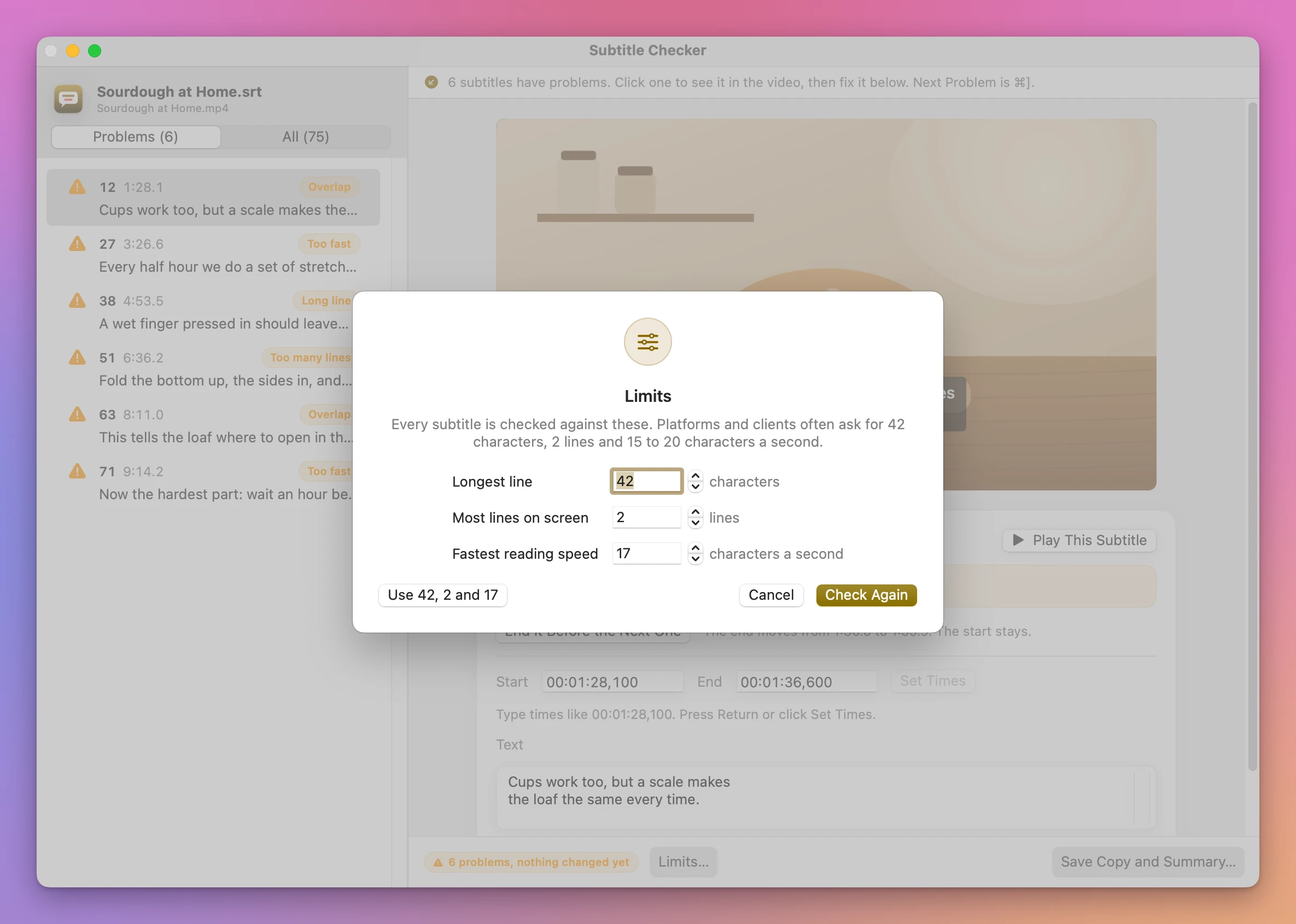
| Limit | Starts at | Range |
|---|---|---|
| Longest line | 42 characters | 20 to 80 |
| Most lines on screen | 2 lines | 1 to 4 |
| Fastest reading speed | 17 characters a second | 8 to 40 |
Click Check Again and every subtitle is checked with the new limits. The app remembers them. Use 42, 2 and 17 puts the starting values back.
Characters are what a viewer reads: italic and bold tags like <i>, and position codes like {\an8}, don’t count. Line breaks don’t count toward reading speed.
Save the corrected copy
Click Save Copy and Summary… (⌘S) and pick a folder. The folder of the subtitle file is chosen to start with. Two new files go there:
- the corrected subtitles, named after the original with “(checked)”, like
Sourdough at Home (checked).srt; - the summary, like
Sourdough at Home (checked) summary.txt.
If a file with that name is already there, the new one gets a number, like Sourdough at Home (checked) 2.srt. Nothing is written over, and the copy can’t replace the original.
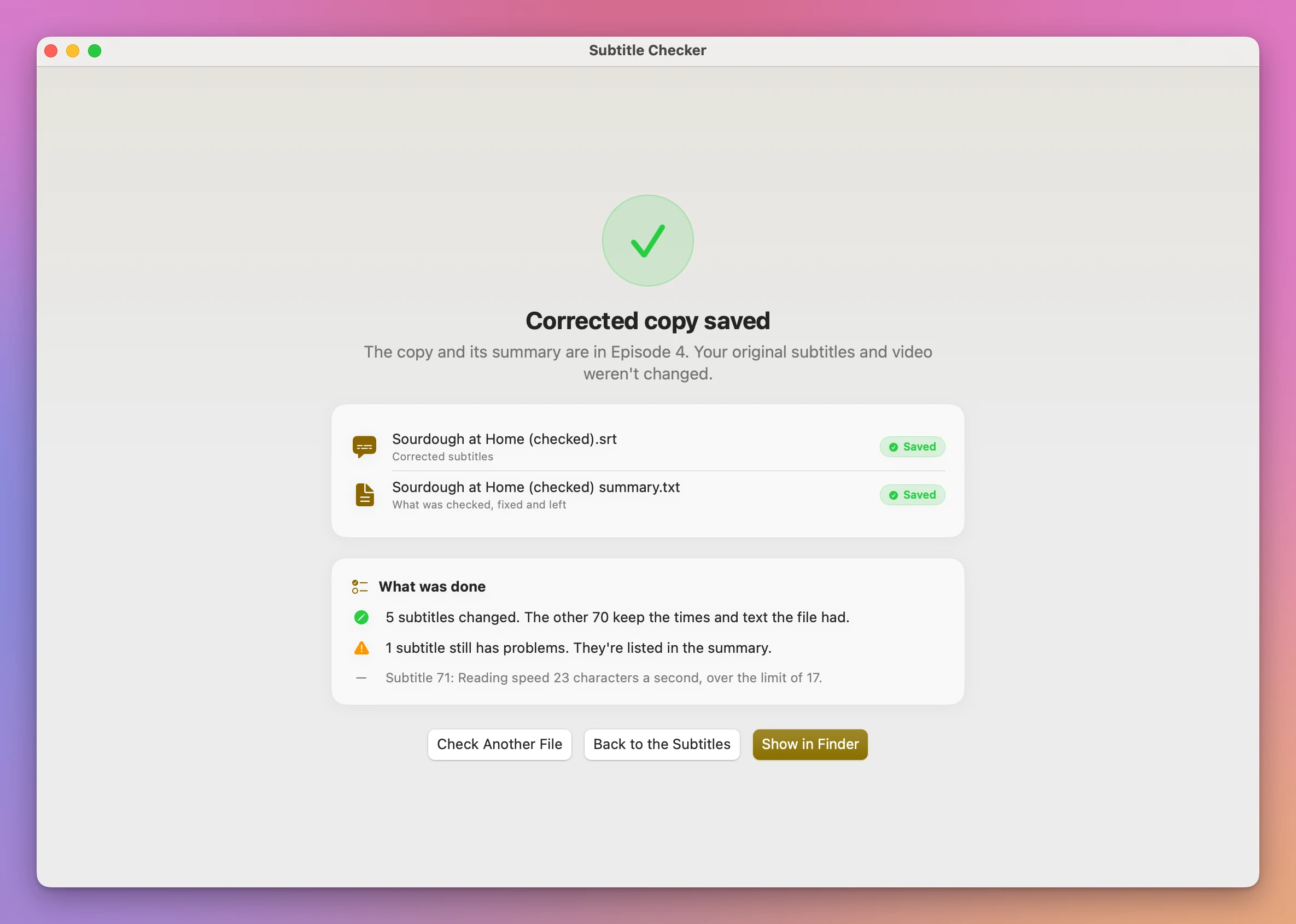
Show in Finder shows the copy. Back to the Subtitles takes you back to keep working. Saving again writes new files with the next number.
What’s in the copy
The copy is in the same format as the original. Subtitles you didn’t change keep their times exactly as the file wrote them. WebVTT headers, NOTE, STYLE and REGION blocks, cue names and cue settings are kept, and so are the byte order mark and the line endings. SRT numbers are written 1, 2, 3 in order. A file that wasn’t UTF-8 is saved as UTF-8.
What’s in the summary
The summary is a plain text file with:
- the subtitle file, the copy and the video, with its length;
- the date and the limits;
- how many subtitles had problems when opened and how many still do;
- every change, with the old and new times, and the old and new text when it changed;
- every problem left, and every problem the file had when you opened it.
Unsaved changes
If you choose Check Another File or Quit with changes you haven’t saved, the app asks first. Keep Working is the default, and Return and Escape both press it.
Troubleshooting
The video doesn’t play
The app plays what macOS can play. If the video can’t be played but its length can be read, the subtitles are still checked against its length. Otherwise the app says the file isn’t a video it can read: you can go on without it.
A subtitle I fixed is still in the list
The Problems list keeps the subtitles you fixed, with a green Fixed pill, so you can check them again. Click All to see every subtitle.
The file opens with the wrong letters
The app reads UTF-8 and UTF-16 first, then the older Windows Western encoding. A file in another encoding, like one for Cyrillic or Asian languages saved by an old tool, can open with the wrong letters. Save it as UTF-8 from the tool that made it.
Help
Choose Help → Subtitle Checker Support to reach the support portal.