How to use Trading Session Clock
Trading Session Clock
Set up the menu bar clock, pick your markets, read the sessions and overlaps, add your own sessions and alerts, and check the holiday tables.
Bought Trading Session Clock? Sign in with the email you bought it with to download the latest version or ask me a question.
On this page
Install
Trading Session Clock requires macOS 14 Sonoma or later, on Apple silicon or Intel. Download the ZIP from the order page or your Creem receipt. Unzip it and move the app to Applications.
The app checks for updates once a day. When a new version is ready, click Install and Relaunch. To check anytime, open the settings window and choose Trading Session Clock → Check for Updates….
First launch
The app has no Dock icon: it lives in the menu bar. The first time you open it, a welcome window opens on the Markets tab. Turn on the markets you follow, then click Done, Show the Menu Bar Clock. The four forex sessions and NYSE / Nasdaq are on to start with.
To open the settings again later, click the clock in the menu bar and then Settings….
The menu bar
By default the menu bar shows whichever of your markets opens or closes next, like “NYSE opens in 20m” or “London closes in 14m”. In Menu Bar & General you can pick one market instead, and a style:
- Status and countdown: “NYSE open · 2h 14m to close”, “TSE lunch · reopens in 45m”, “NYSE holiday · opens in 22h 30m”
- Short countdown: “NYSE ▼2h 14m”
- Icon only
The tab shows what the clock reads right now. Launch at login is on the same tab.
The Now tab
Click the clock to open the popover. The top shows your local time, date and time zone.
The bar below is your local day from 00 to 00, with one lane per market. Regular sessions are solid, pre-market and after hours are pale, and the red line is now. The Overlaps lane is yellow and gets darker where more markets overlap. The sentence under it names the overlap you’re in (“Overlap now: London + NY + LSE until 15:30 (20m left)”) or the next one. CME is left out of the overlaps, because its 23-hour session overlaps everything.
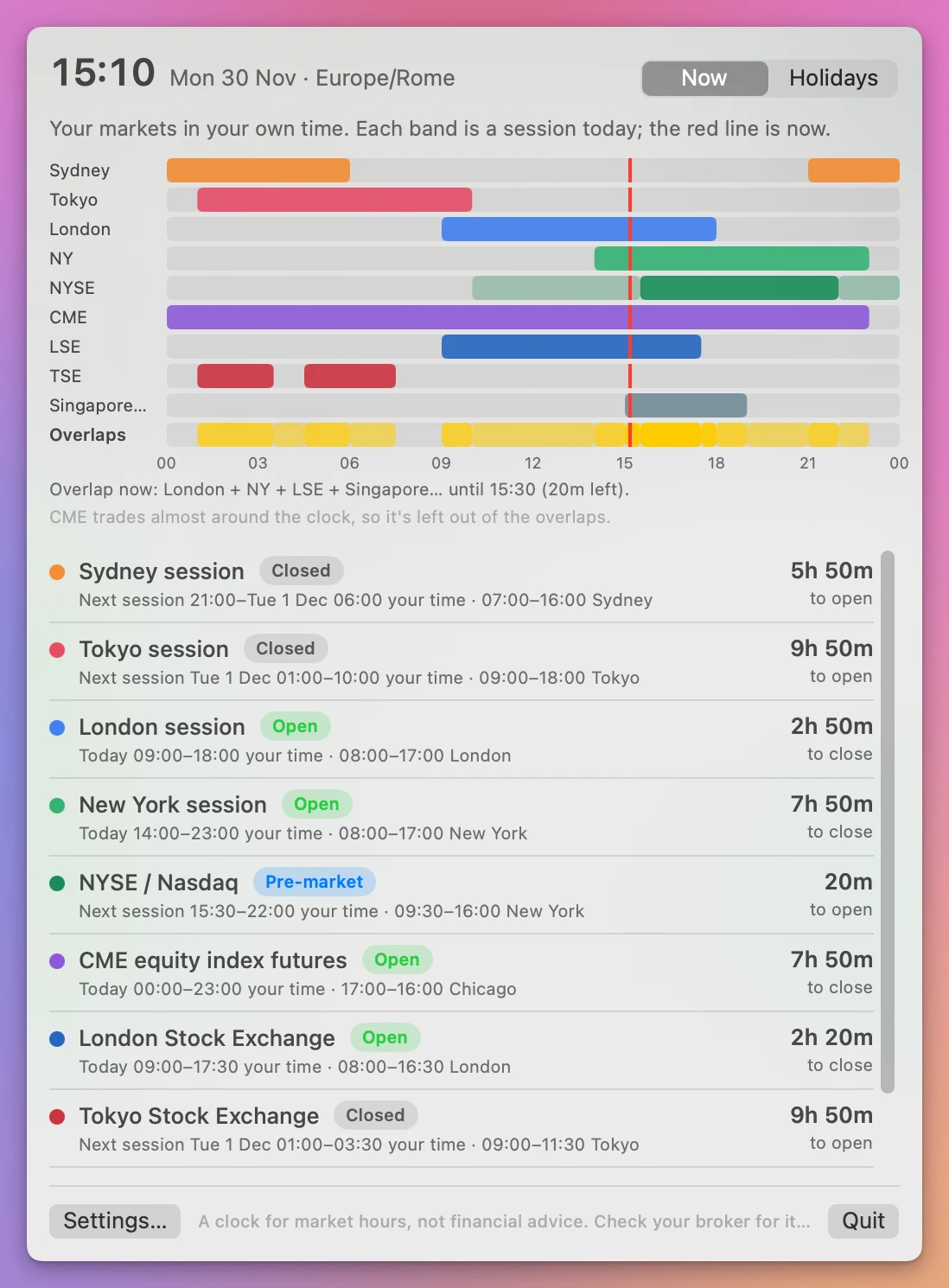
Each market row has:
- a status pill: Open, Open · early close, Lunch break, Pre-market, After hours, Holiday or Closed
- today’s session, or the next one, in your time and in the exchange’s time
- a line when today is an early close or a holiday
- a countdown to the close or the open
- a warning when the current year has no holiday table
The Holidays tab
The Holidays tab lists the holidays and early closes in the next 60 days for the exchanges you follow, like “Closes early at 13:00 New York time (19:00 your time)”, with any note about the day. Forex sessions and your own sessions have no exchange holidays.
Markets
The Markets tab has a checkbox per market, with its days and hours, today’s hours in your time, notes, and a pill with the years its holiday table covers. NYSE / Nasdaq has Show pre-market and after hours. Those are NYSE Arca’s times: 04:00–09:30 and 16:00–20:00 New York time, with after hours ending at 17:00 on early-close days.
| Market | Hours, exchange time |
|---|---|
| Sydney, Tokyo, London, New York forex sessions | 07–16, 09–18, 08–17, 08–17 local, Monday to Friday |
| NYSE / Nasdaq | 09:30–16:00 |
| CME equity index futures | 17:00–16:00 Chicago, Sunday evening to Friday |
| London Stock Exchange | 08:00–16:30 |
| Xetra (Frankfurt), Euronext Paris | 09:00–17:30 |
| Tokyo Stock Exchange | 09:00–11:30 and 12:30–15:30 |
| Hong Kong Exchange | 09:30–12:00 and 13:00–16:00 |
| Australian Securities Exchange | 10:00–16:00 |
Your sessions
In Your Sessions, add a market the app doesn’t have, or your own trading window. Fill in:
- Name
- Time zone: type in the search field, then pick from the menu
- the days it opens
- Opens at and Closes at, as HH:MM in that time zone
A sentence under the form says what the session will be. A close earlier than the open makes an overnight session that closes the next day. If the times are the same or not valid, or the name or the days are missing, the sentence says what to fix and Add Session stays disabled. Saved sessions have Edit and Delete. A custom session has one stretch of trading a day and no holidays.
Alerts
In Alerts, each market you follow has Before open and Before close, the minutes before (0 to 120, in steps of 5), and Notification and Sound. Send a Test Alert checks that they reach you, and Last alert shows the most recent one. If notifications are off for the app, the tab says so and has an Open System Settings button.
Alerts fire only while the app is running. If the Mac was asleep when an alert was due, that alert is skipped, not sent late. Turn on Launch at login if you rely on them.
Holidays and sources
Holidays & Sources shows each exchange’s holiday table for 2026, 2027 or 2028, with Closed and early-close pills, the links the table was copied from, the date it was last checked (21 November 2026) and notes. For 2028 it says the table isn’t in this version, and those weeks show as normal.
CME’s own site couldn’t be read automatically, so its holiday times come from broker copies of CME’s calendar. A few early closes weren’t published when the tables were made, like the Euronext half-day times and Xetra’s 30 December 2027 close. The notes for each exchange say what’s uncertain. Check the exchange before trading a holiday.
Privacy
Your settings stay on your Mac, in a JSON file in Application Support. The app has no market data feed and goes online only to check for its own updates.
A clock for market hours, not financial advice. Check your broker for its own hours.
Trading Session Clock is $19, a one-time purchase.