
Install Vertical Video Safe Zones
Vertical Video Safe Zones runs on macOS 14 Sonoma or later, on Apple silicon and Intel Macs. After buying, you land on a page with a Download button. You can also get the app from your Creem receipt. Unzip the app and drag Vertical Video Safe Zones to your Applications folder.
The app is signed and notarized by Apple. Confirm Open at the normal first-launch prompt.
Vertical Video Safe Zones asks macOS for no permission. It reads the video you choose or drag in, and saves pictures into the folder you pick.
The app checks for updates once a day. When a new version is ready, click Install and Relaunch. To check anytime, choose Vertical Video Safe Zones → Check for Updates….
Open a video
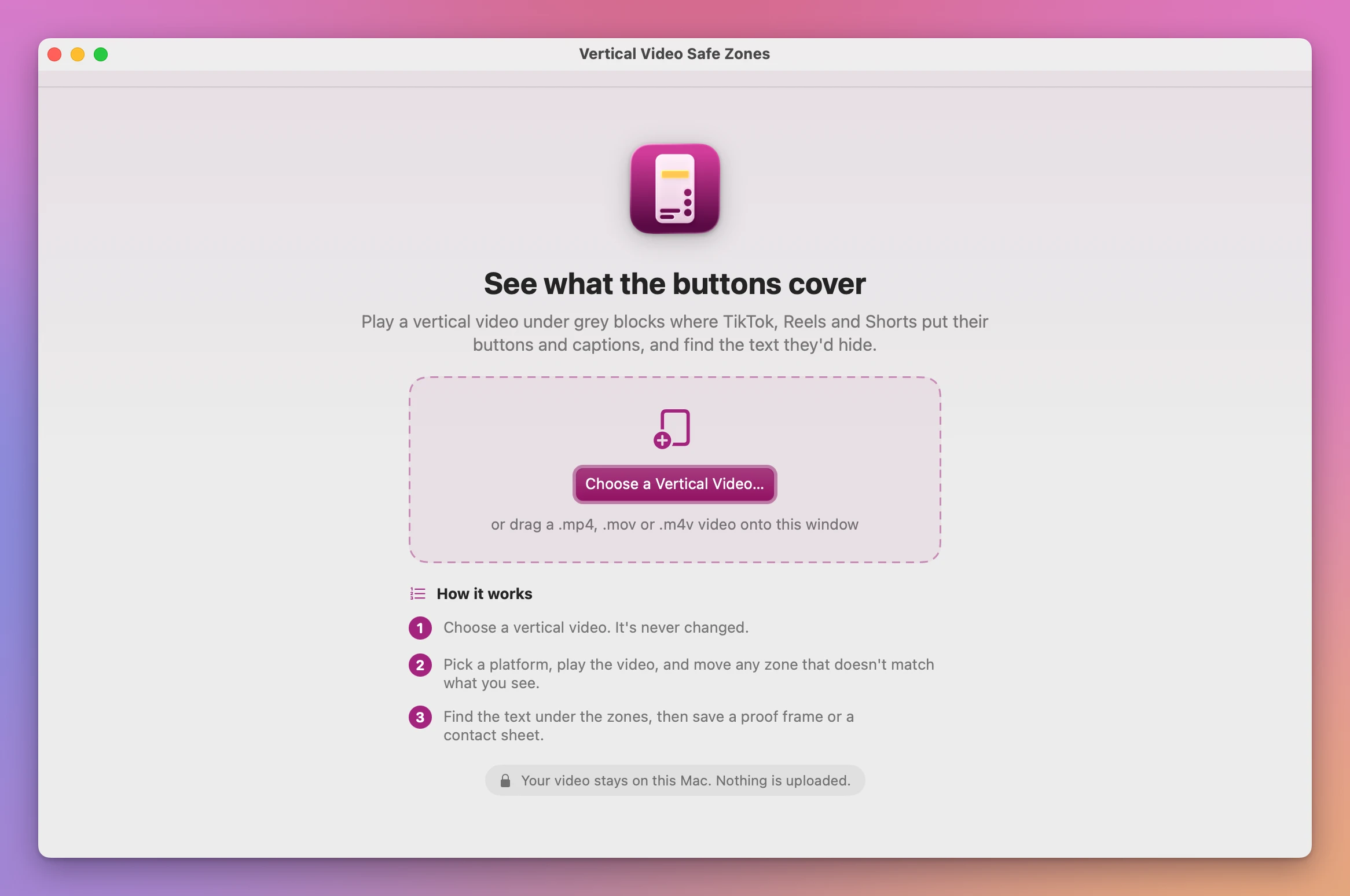
Click Choose a Vertical Video…, or choose File → Choose a Vertical Video… (⌘O). You can also drag the video onto the window, or onto the app’s icon in the Dock.
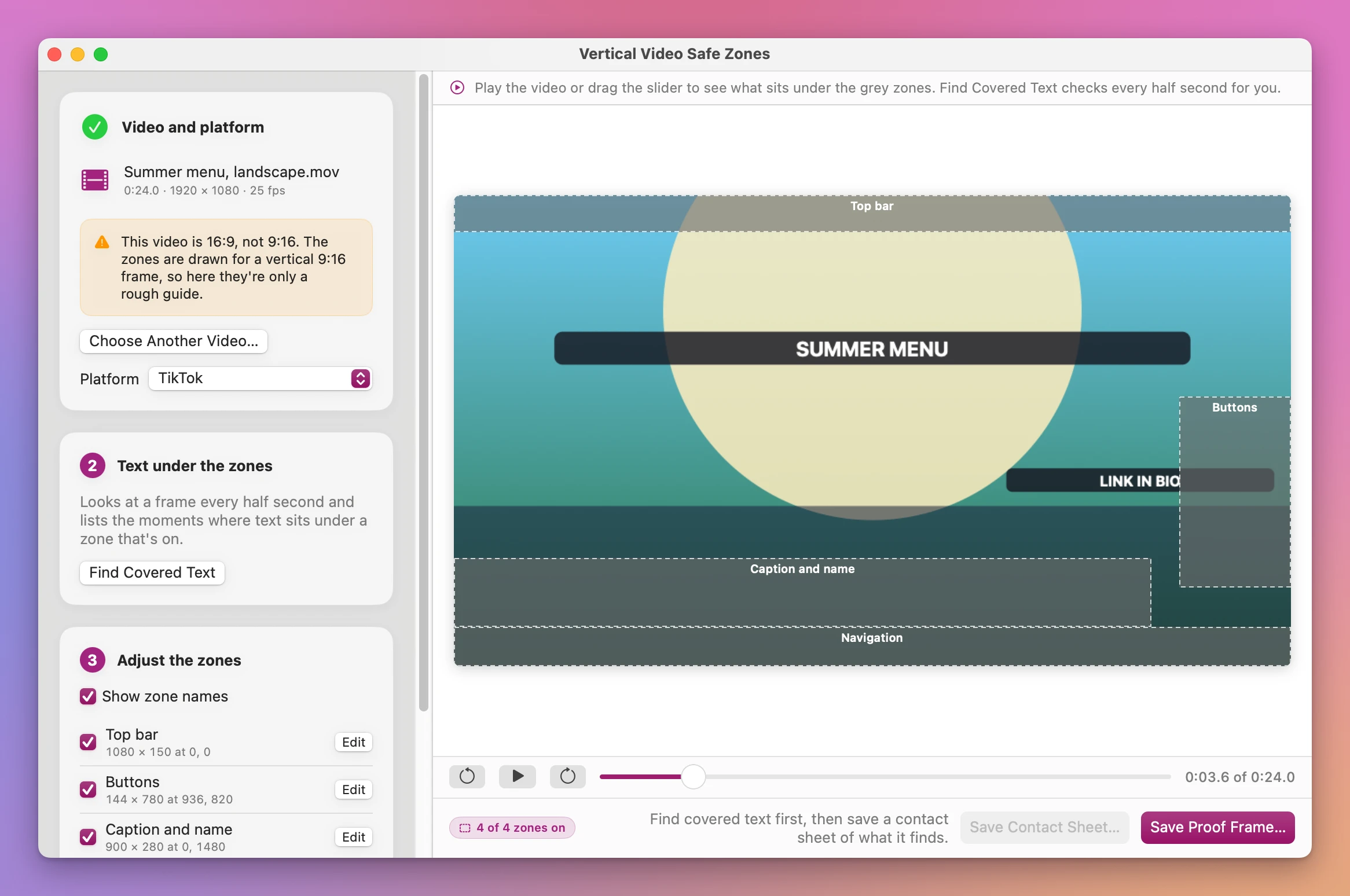
The video can be MP4, MOV or M4V, any size. The zones are drawn for a vertical 9:16 video, like 1080 × 1920. A video of another shape still opens, with a note that the zones are only a rough guide for it.
Nothing you open is changed.
Pick the platform
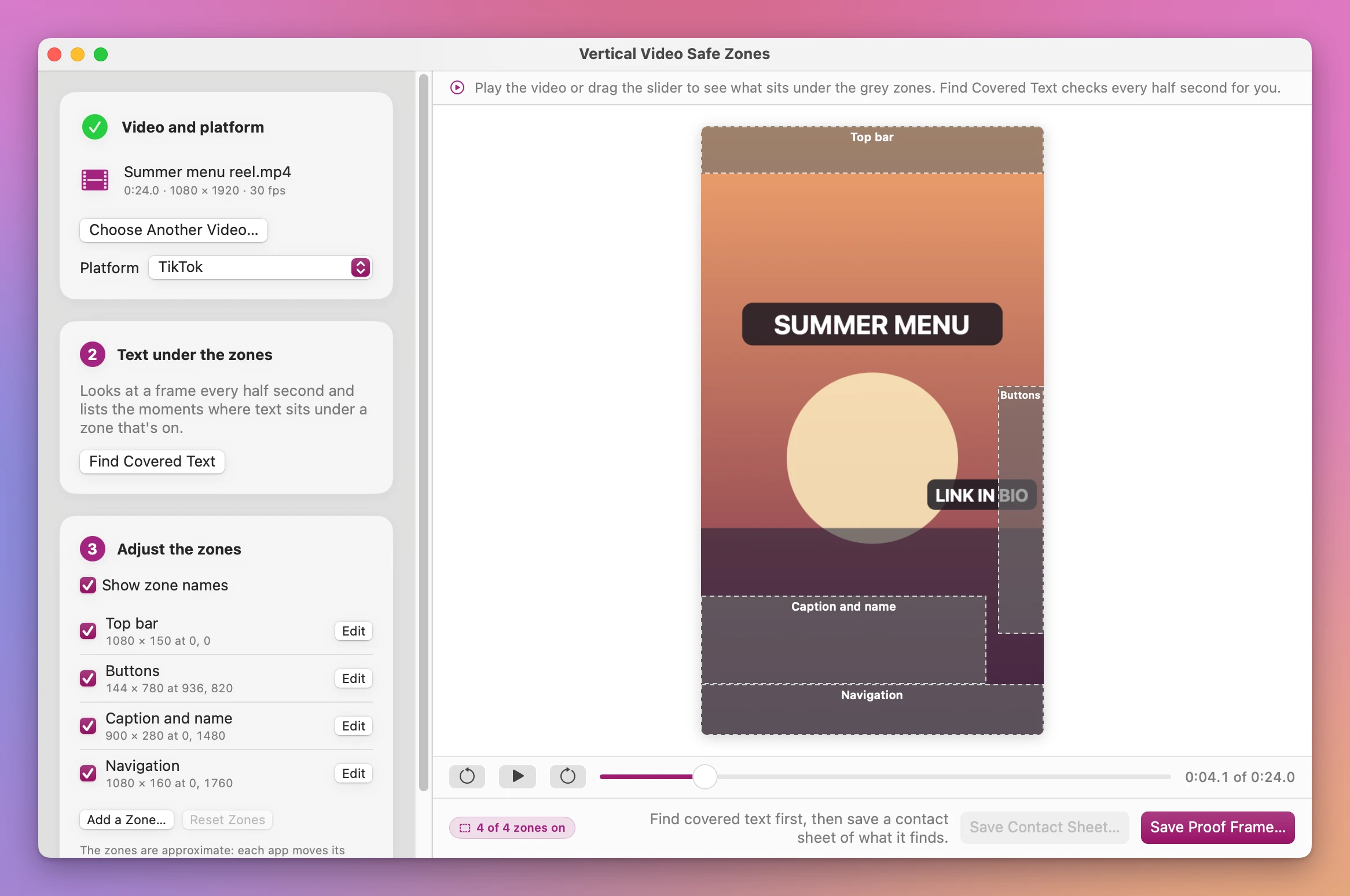
Under the video’s name, the Platform menu has TikTok, Instagram Reels, YouTube Shorts and Facebook Reels. Each one puts four grey blocks over the video:
- Top bar, where the app shows its tabs or search.
- Buttons, the column of like, comment and share on the right.
- Caption and name, the account name, the caption and the sound at the bottom left.
- Navigation, the bar at the very bottom.
The blocks are approximate. Each app moves its buttons now and then, and they differ from phone to phone. The app remembers the platform you picked last.
Look at the video
Under the video:
- the play button plays and pauses (Space does the same, or Video → Play, ⌥⌘P);
- the two round arrows go back and forward half a second (the left and right arrow keys, or ⌘← and ⌘→);
- the slider moves anywhere in the video, with the time next to it.
Find covered text
Click Find Covered Text in the second card, or choose Video → Find Covered Text (⇧⌘F). The app reads a frame every half second, finds the text in it with the text recognition built into macOS, and checks which text sits under a block. It takes a few seconds for a short video. Stop cancels it.
A piece of text counts as covered when at least a quarter of it is under a block that’s on. Frames in a row with covered text become one moment. Each moment in the list shows:
- its time, like 0:03.1 to 0:05.1;
- the words it read, like “LINK IN BIO”;
- the block it sits under, in an orange pill, like Buttons.
Click a moment and the video jumps there, with an orange box around the covered text.
If nothing is under the blocks, the card says No text under the zones.
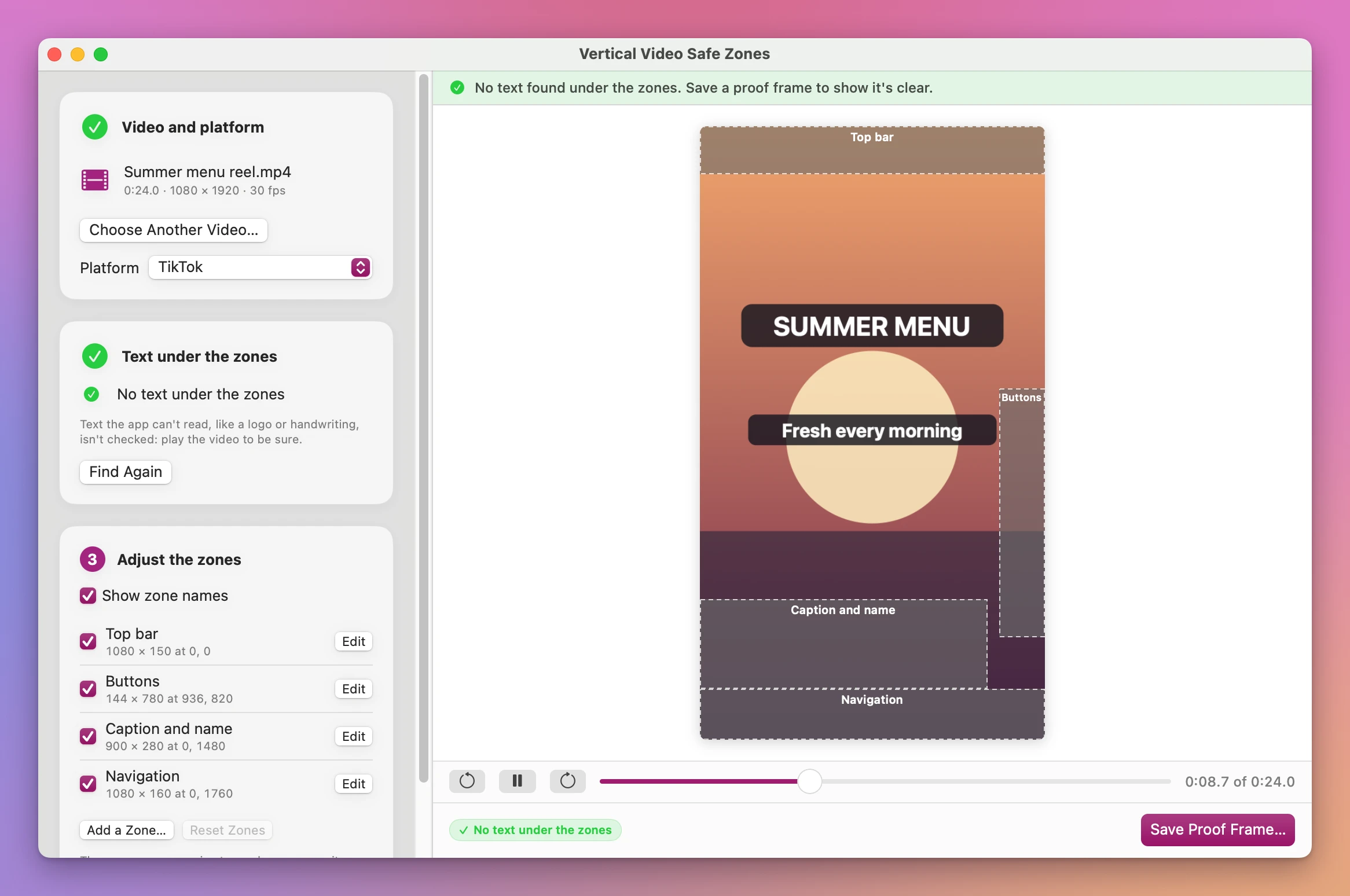
The app finds text it can read. Logos, handwriting and very stylized lettering aren’t checked, and text on screen for less than half a second can be missed. Play the video through once as well.
Adjust the zones
The third card lists the blocks of the platform you picked, each with its size and position in pixels of a 1080 × 1920 frame.
- Untick a block to hide it. A hidden block doesn’t count when looking for covered text.
- Show zone names turns the words on the blocks on and off.
- Drag a block on the video to move it.
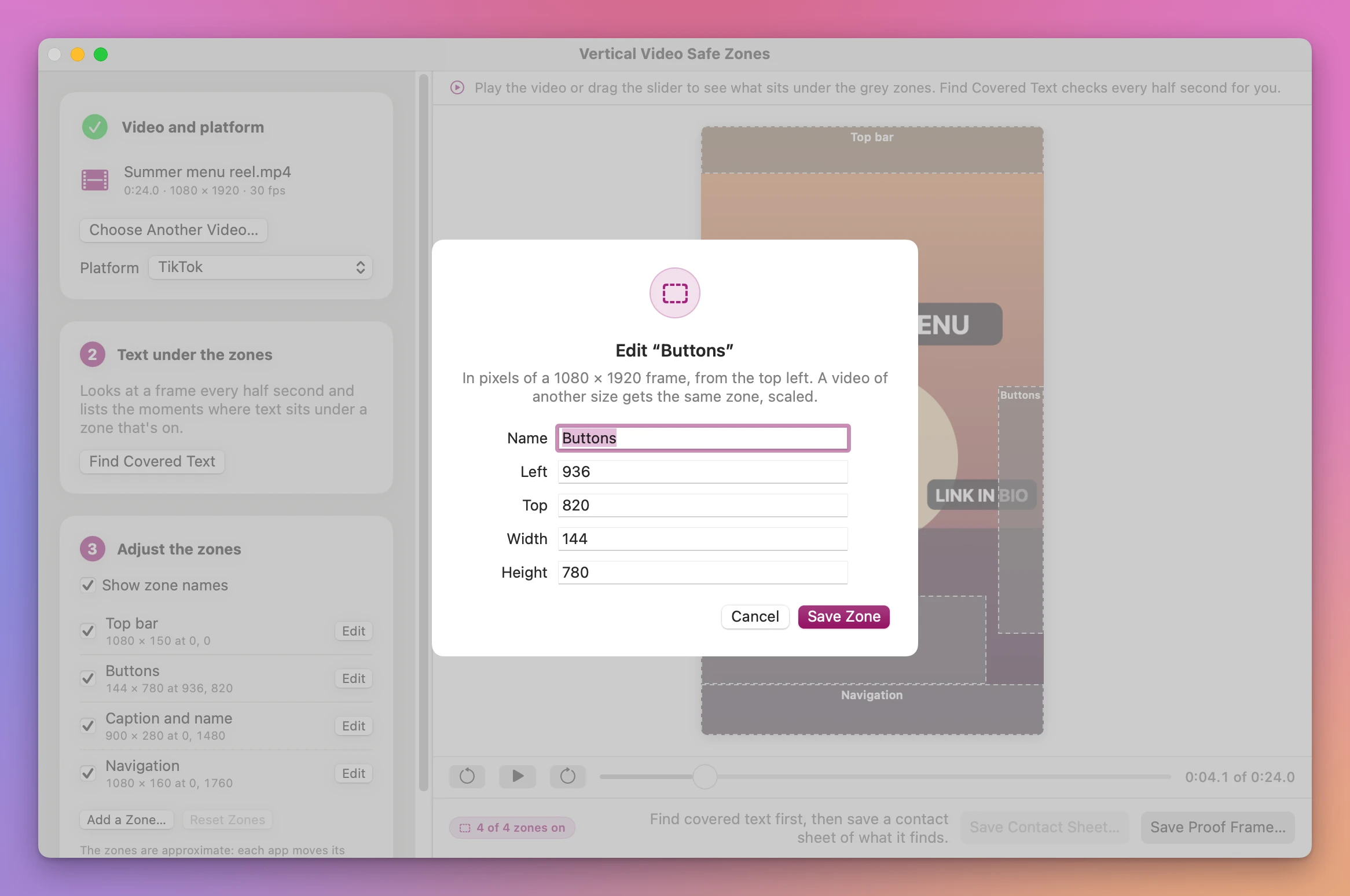
- Click Edit to type its name, Left, Top, Width and Height, then click Save Zone or press Return.
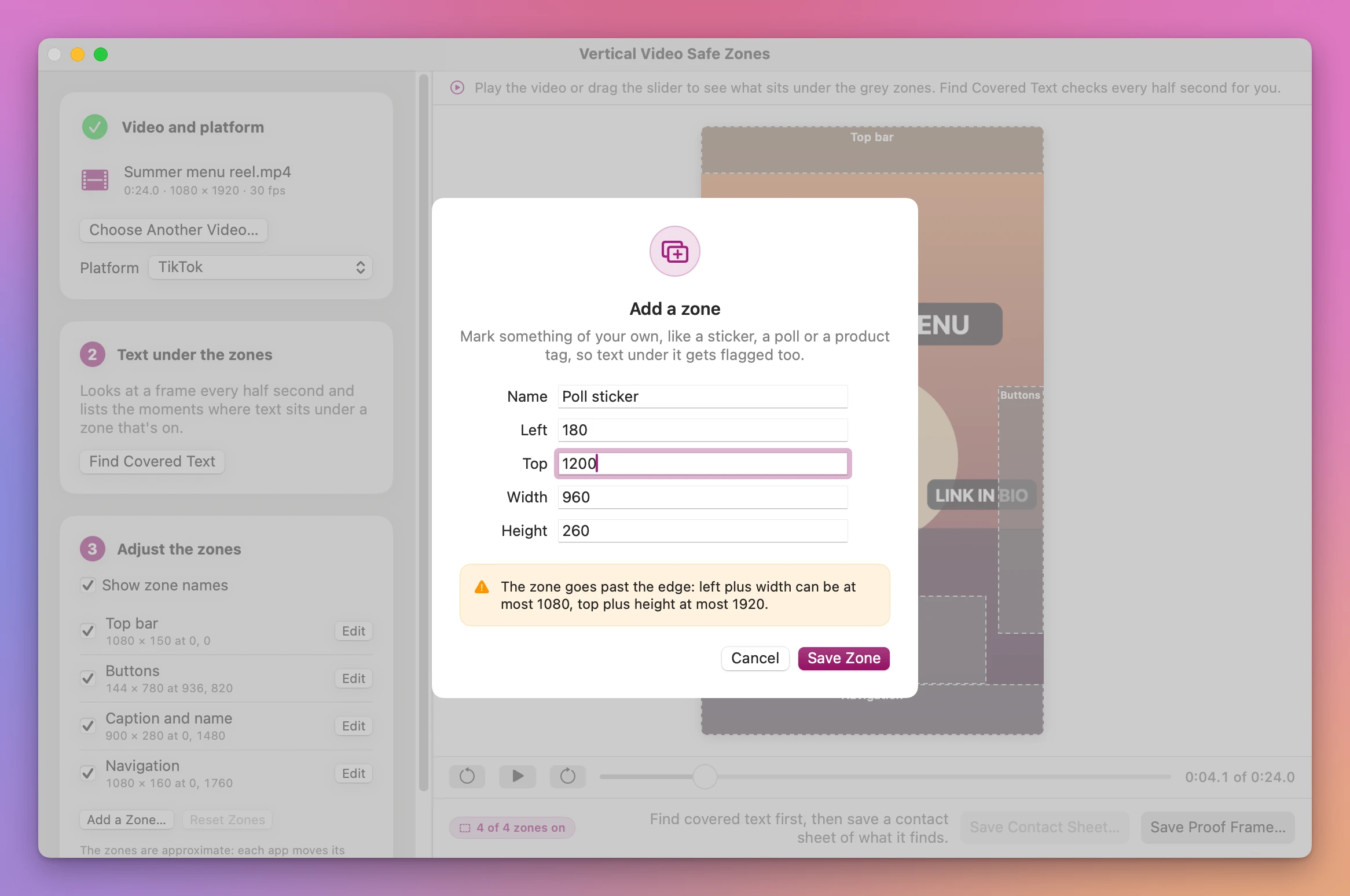
Add a Zone… (⌥⌘N) adds a block of your own, like a poll sticker or a product tag. A block you added can be removed in its sheet with Remove Zone. The built-in ones can only be hidden.
If a value doesn’t fit, the sheet says why, like “The zone goes past the edge: left plus width can be at most 1080, top plus height at most 1920.”
Reset Zones puts the platform’s built-in blocks back. Your changes are remembered for each platform, even after you quit.
When you change a block after a search, the list of moments is cleared and the hint says “You changed the zones. Click Find Again to check the video with the new ones.”
Save a proof frame or a contact sheet
Save Proof Frame… (⌘S) saves the frame on screen with the blocks over it, as a PNG. Its name is the video’s name, the platform and the time, like Summer menu reel, TikTok, 0m03s.png. Under the frame, a white strip says the video, the time, the platform, and that the zones are approximate.
Save Contact Sheet of 3 Moments… (⇧⌘S) saves every moment from the search side by side, with its time, the block and the words, as one PNG, like Summer menu reel, TikTok, covered text.png. It shows up to 24 moments. It’s available after a search that found something.
The Save panel opens in the video’s folder. If a file with that name is there, macOS asks whether to replace it.
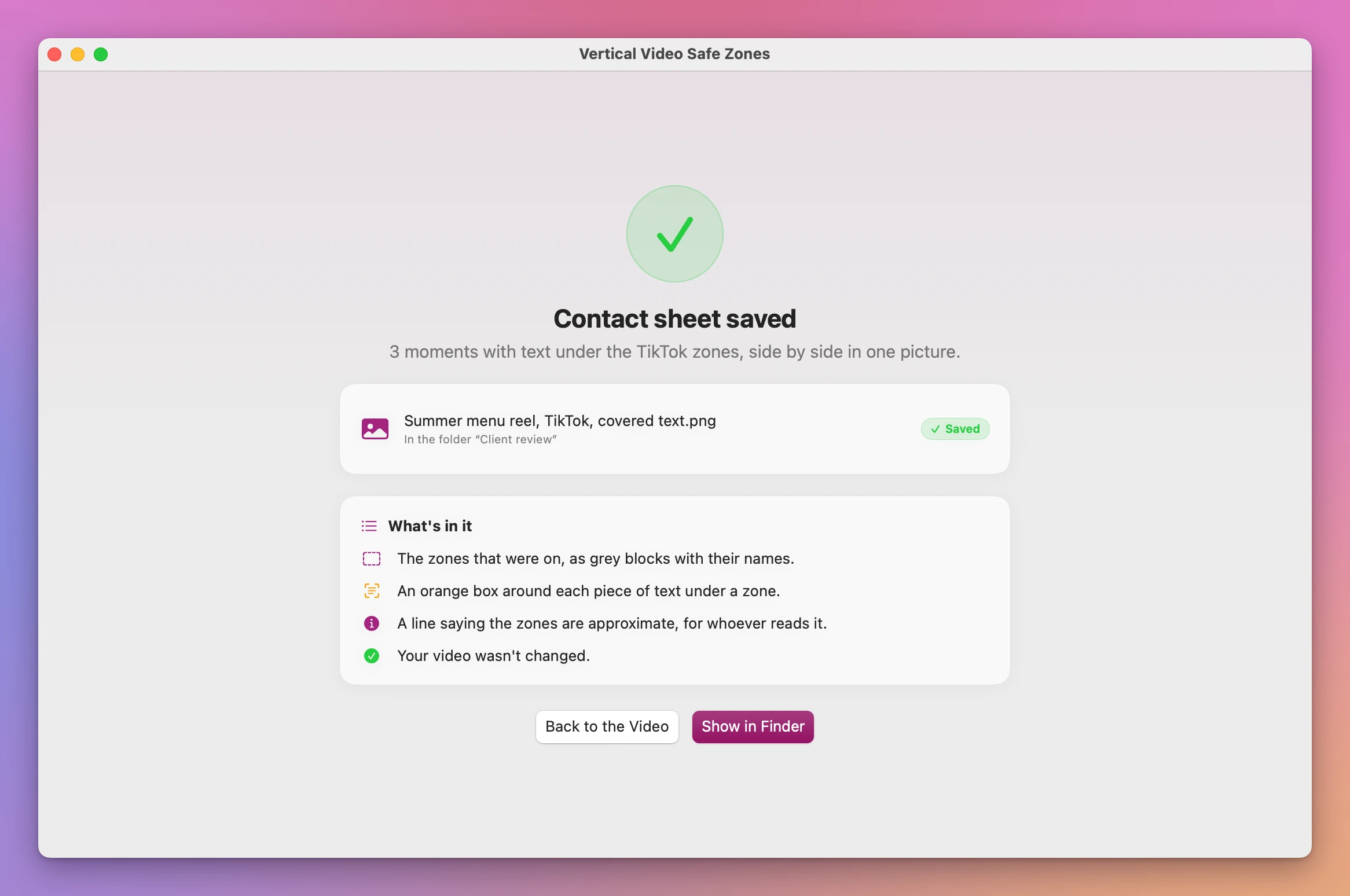
Show in Finder shows the picture. Back to the Video goes back, with the search still there.
Troubleshooting
”This file can’t be played as a video”
The file isn’t a video macOS can play, or it’s damaged. Export it again as MP4 or MOV from your editor.
The blocks don’t match my phone
They’re approximate. Drag them, or click Edit and type the values you measured on a screenshot from your phone scaled to 1080 × 1920.
Text I can see wasn’t found
The app reads text the way macOS reads it in a photo. Thin, tiny, very stylized or moving text can be missed, and so can text shorter than half a second. Check those moments by playing the video.
Is anything uploaded?
No. The video, the text it finds and the pictures you save stay on your Mac. The app connects to the internet only to check for updates.
Vertical Video Safe Zones isn’t made by, affiliated with or endorsed by TikTok, ByteDance, Meta, Instagram, Facebook, Google or YouTube.