

Install Video Editing Quote Builder
Video Editing Quote Builder runs on macOS 14 Sonoma or later, on Apple silicon and Intel Macs. After buying, you land on a page with a Download button. You can also get the app from your Creem receipt. Unzip the app and drag Video Editing Quote Builder to your Applications folder.
The app is signed and notarized by Apple. Confirm Open at the normal first-launch prompt.
It asks macOS for no permission. It saves a PDF only where you pick in the save window.
The app checks for updates once a day. When a new version is ready, click Install and Relaunch. To check anytime, choose Video Editing Quote Builder → Check for Updates….
Set your rates
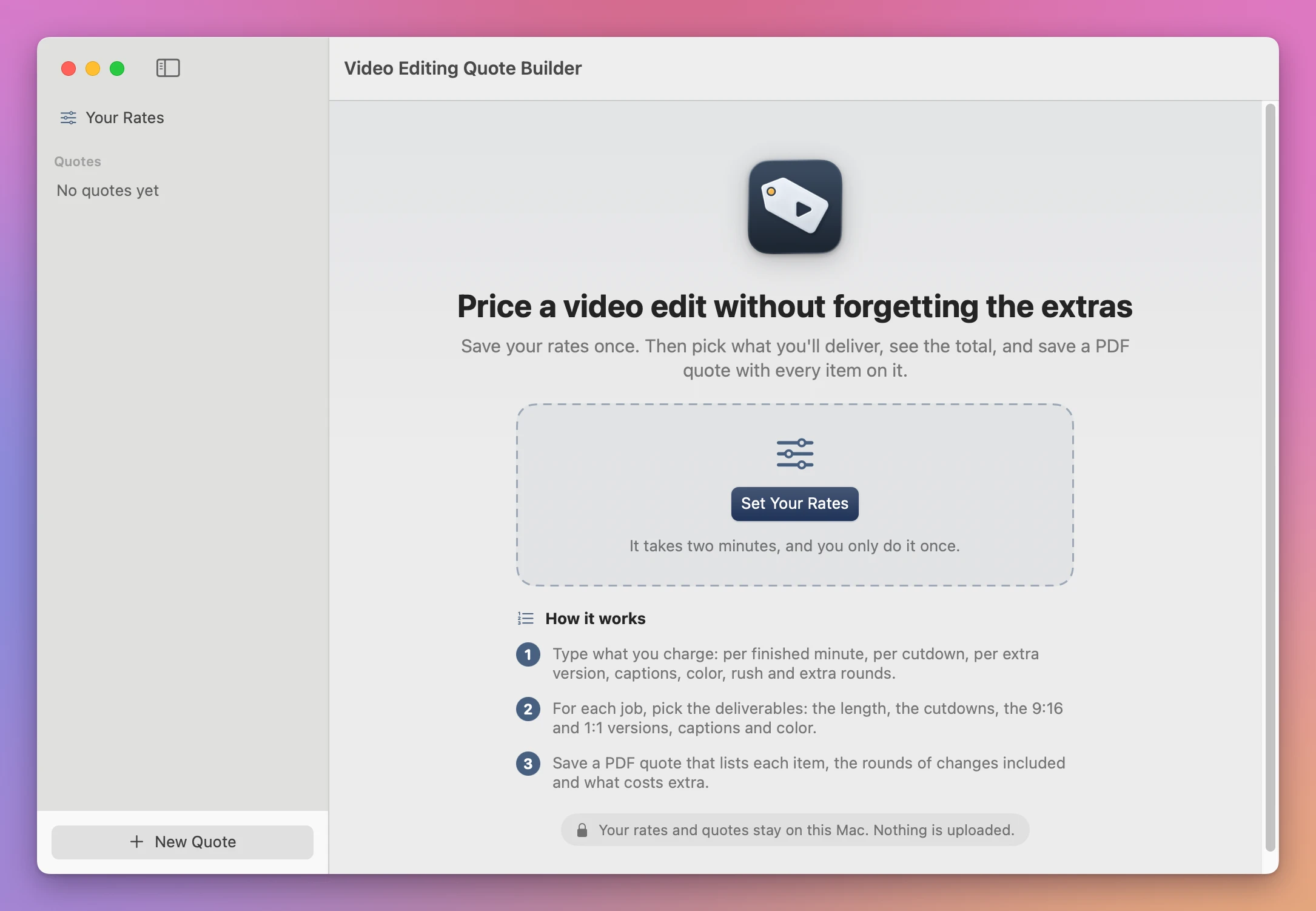
The first time, click Set Your Rates. The rates screen opens with starting numbers that aren’t yours. Change each one to what you charge, or set it to 0 to leave it off the quote.
- Your name or business and Contact line go at the top of every PDF.
- Currency and Paper (A4 or US Letter). Amounts are written the way your Mac’s region writes numbers.
- Per finished minute: the main edit, charged by the second. A 2:30 edit is two and a half minutes.
- Least an edit costs: a short edit costs at least this much. The quote says “minimum fee” on that line.
- Each cutdown: a shorter cut made from the main edit, like a 15-second ad.
- Each extra aspect ratio: each 9:16, 1:1 or 4:5 version, of the main edit and of every cutdown.
- Captions, per minute: per finished minute of everything captioned, cutdowns included.
- Color grade, per minute: per finished minute of the main edit.
- Each extra round: printed on every quote as what a round of changes past the included ones costs.
- Rush delivery: a percentage added on top of the subtotal.
- Rounds included and Quotes valid for: what each new quote starts with.
- Notes on every new quote: payment terms, tax, what the client sends you.
You can type 1,250.50 or 1.250,50: both are read as one thousand two hundred fifty and a half. A value that isn’t an amount gets a sentence under the field, and the last good amount stays in use.
Click Start a Quote when you’re done. You can come back anytime with Your Rates in the sidebar, or Video Editing Quote Builder → Your Rates… (⌘,).
Build a quote
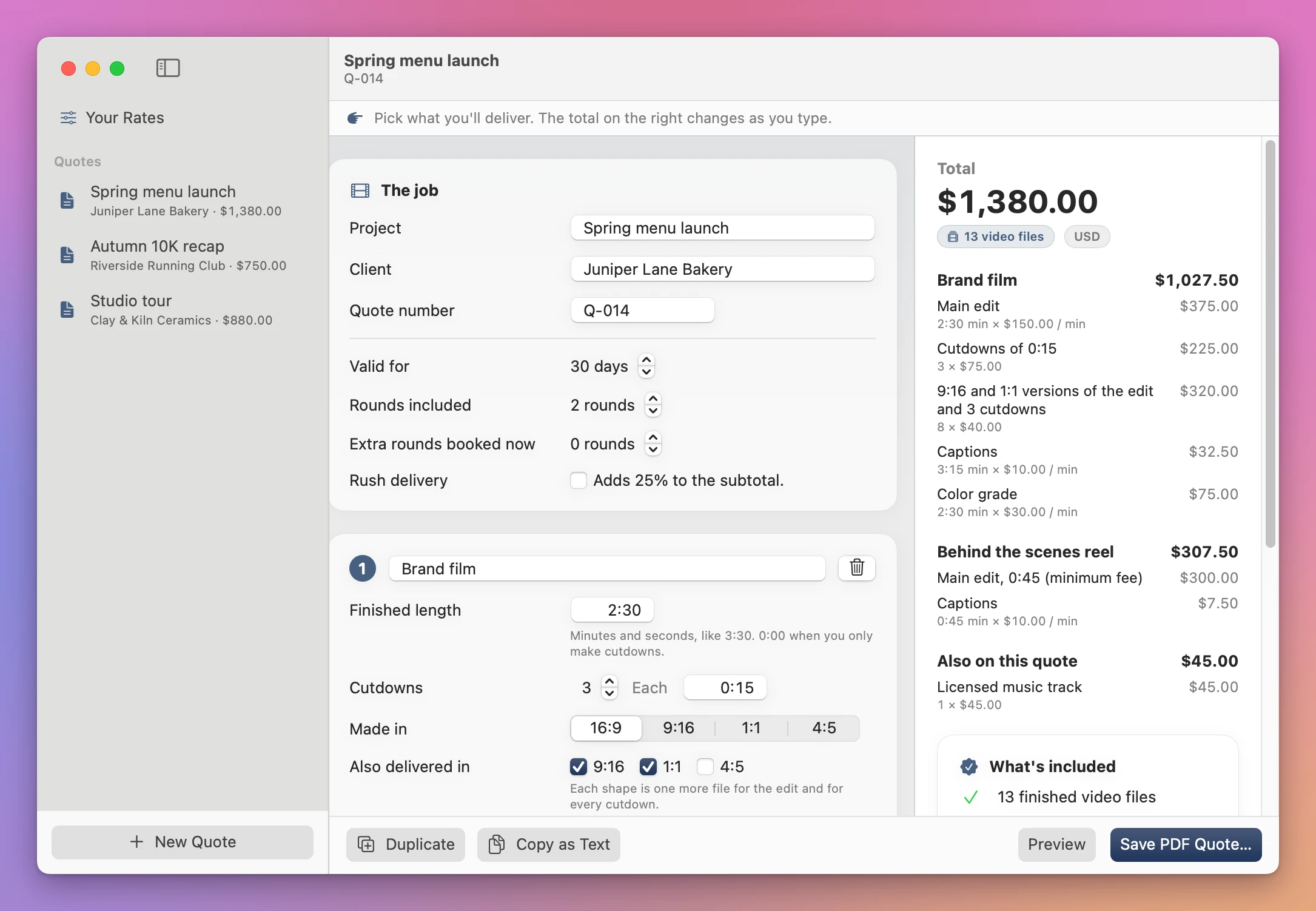
New Quote (⌘N) makes the next number, Q-001, Q-002 and so on, with today’s date and one deliverable to fill in. You can change the number to anything you like.
For each deliverable:
- Give it a name, like “Brand film”.
- Type its Finished length as minutes and seconds, like
3:30. You can also type3.5or90s. Type0:00when you only make cutdowns. - Set Cutdowns and the length of each one.
- Pick the shape it’s Made in, then tick the shapes it’s Also delivered in. Each shape is one more file for the main edit and for every cutdown: 3 cutdowns in two more shapes is 8 extra versions.
- Tick Captions and Color grade if they’re part of the job.
The bottom of each deliverable shows how many files it makes and what it costs. Add a Deliverable adds the next one, and the trash button removes one.
Under Other items, add anything with its own price and quantity, like a licensed music track. Notes on this quote starts from your notes, and you can change them for this client.
In the job card, set how long the quote is valid, the rounds of changes included, and any Extra rounds booked now, which are priced on the quote. Tick Rush delivery to add your rush percentage.
Read the total
The right side shows the total, the number of video files and the currency. Under it, each deliverable’s lines with the quantity and price, then the subtotal and rush fee on a rush job. What’s included lists the files and the rounds of changes. What costs extra lists what a longer edit, another cutdown, another version, another round, captions, color or a rush would cost, from the rates on this quote.
Each line is rounded to the cent, and the total is the sum of the lines, so the PDF always adds up.
Save the PDF
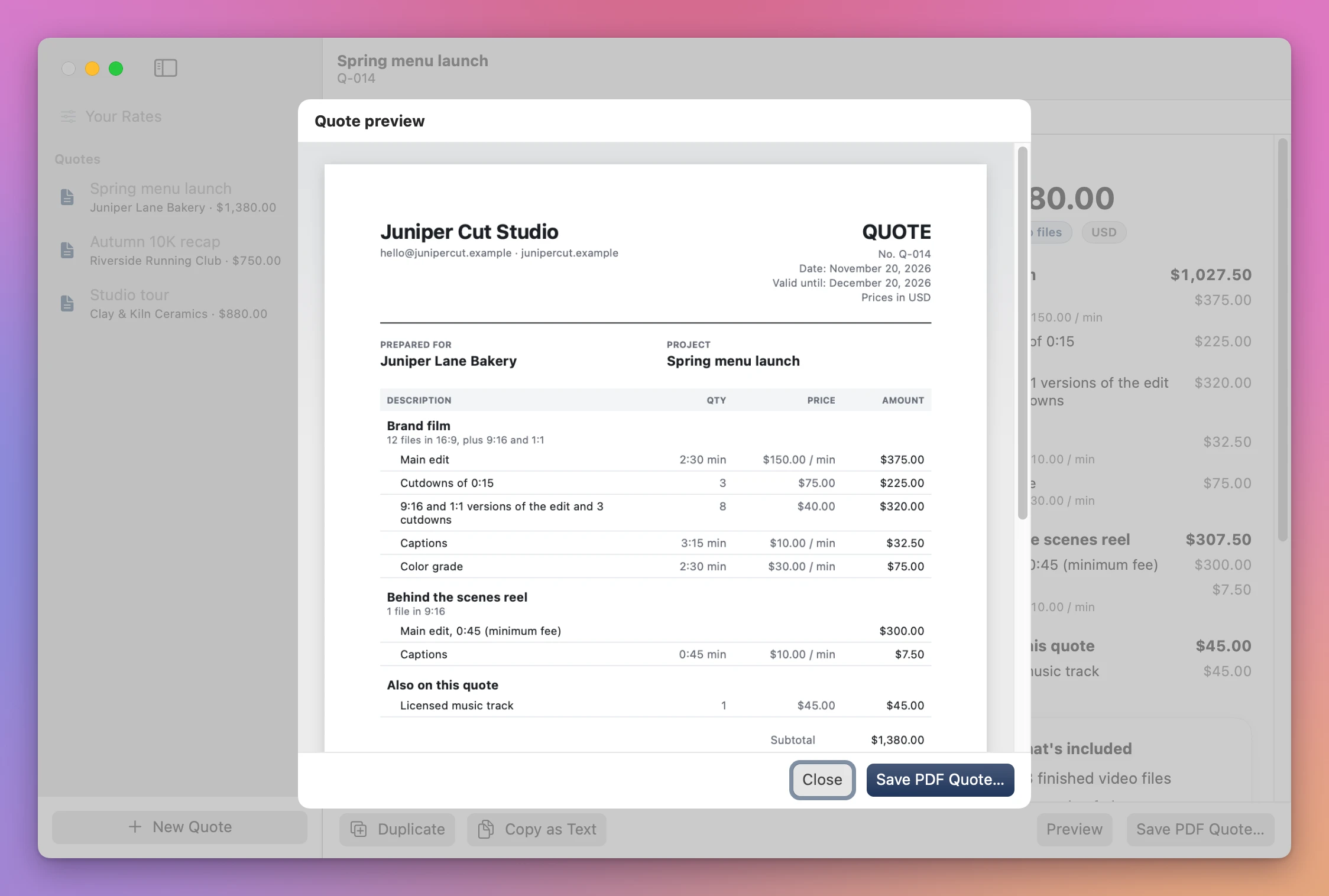
Click Preview (⌥⌘P) to see the page. A long quote runs onto more pages, with the table header repeated and “Page 1 of 2” at the bottom. Click Save PDF Quote… (⌘S), pick a folder and save. The name starts as “Quote Q-014 Spring menu launch.pdf”. A line under the quote says where it was saved, with Show in Finder.
Copy as Text (⇧⌘C) puts the same quote on the clipboard as plain text, to paste into an email or a message.
Duplicate, change rates, delete
- Duplicate (⌘D) makes a copy with the next number, today’s date and “(copy)” after the project name.
- When you change a rate, quotes you already made keep the rates they were made with. An open quote with older rates says so at the top, with Use My Current Rates.
- File → Delete Quote… (⌘⌫), or right-click a quote in the sidebar, moves it to the Trash after asking. PDFs you saved aren’t touched.
Where your quotes are
Your rates and quotes are saved as you type, on this Mac, in Library/Application Support/Video Editing Quote Builder in your home folder. Nothing is uploaded. If a change can’t be saved, for example because the disk is full, a line at the bottom of the window says so.
Troubleshooting
The Save PDF Quote button is greyed out. The quote has nothing on it yet. Add a deliverable or an other item.
A field shows “Type an amount, like 150.” The text isn’t a number. The quote keeps the last amount that was.
“couldn’t be saved in” a folder. That folder can’t be written to. Pick another one, like Documents, and save again. The quote itself is safe.
Video Editing Quote Builder isn’t made by, affiliated with or endorsed by Adobe, Apple, Blackmagic Design, YouTube, TikTok or Meta.