
Install Video Loop Checker
Video Loop Checker runs on macOS 14 Sonoma or later, on Apple silicon and Intel Macs. After buying, you land on a page with a Download button. You can also get the app from your Creem receipt. Unzip the app and drag Video Loop Checker to your Applications folder.
The app is signed and notarized by Apple. Confirm Open at the normal first-launch prompt.
Video Loop Checker asks macOS for no permission. It reads the clip you choose or drag in, and saves the trimmed copy where the save panel says.
The app checks for updates once a day. When a new version is ready, click Install and Relaunch. To check anytime, choose Video Loop Checker → Check for Updates….
Open a clip
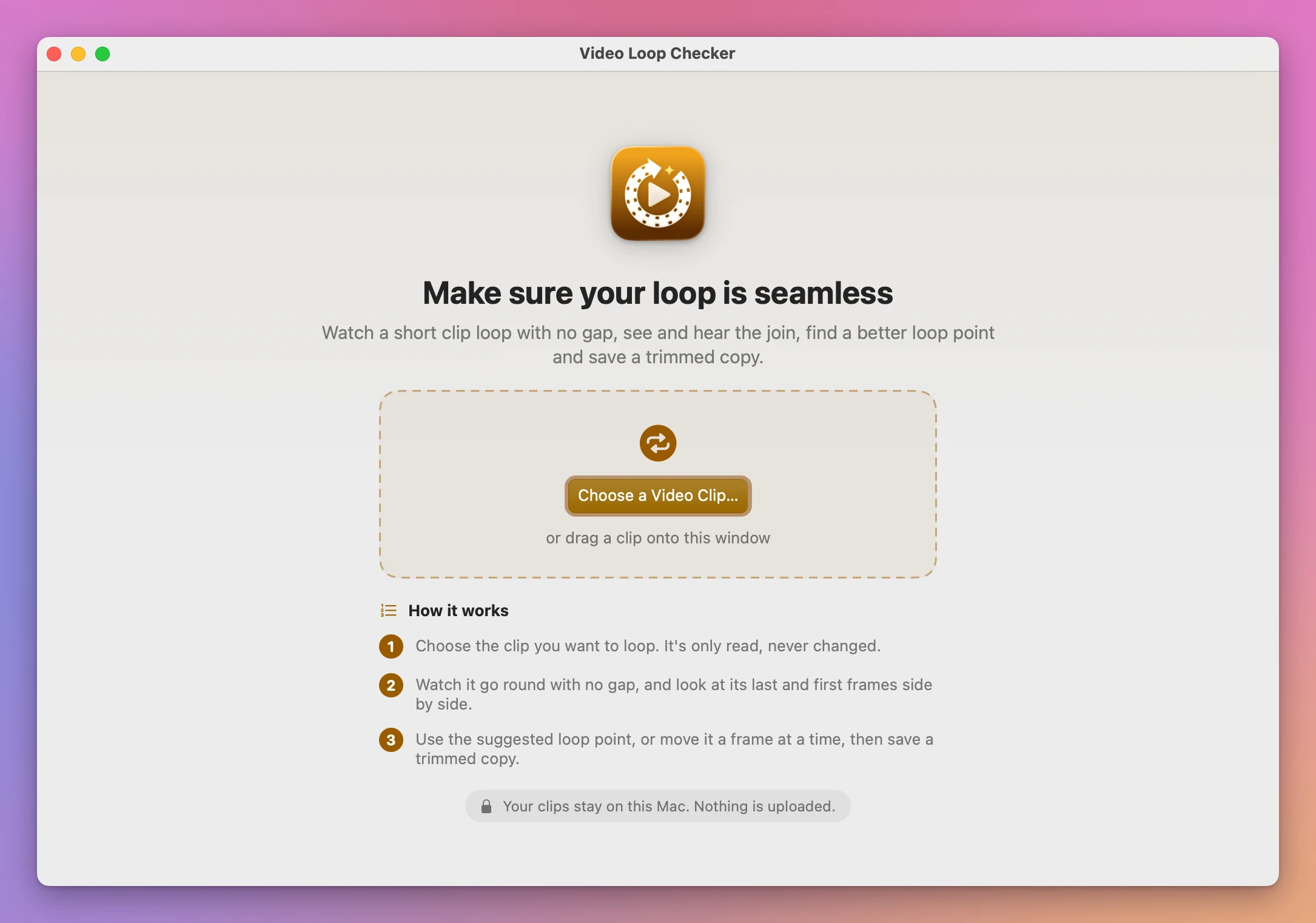
Click Choose a Video Clip…, or choose File → Open Clip… (⌘O), and pick the clip. You can also drag it onto the window, or Control-click it in the Finder and choose Open With → Video Loop Checker.
The app opens QuickTime movies (.mov) and MP4 files (.mp4, .m4v) up to 3 minutes long, in any codec your Mac can play: H.264, HEVC, ProRes and others.
It reads every frame first, with a progress bar that counts them. An 8-second clip takes a few seconds. Your clip is only read, never changed.
If the clip can’t be opened, the window says why and what to do: a file that isn’t a video, a sound file with no picture, a clip longer than 3 minutes, fewer than 4 frames, or a copy-protected movie.
Read the seam
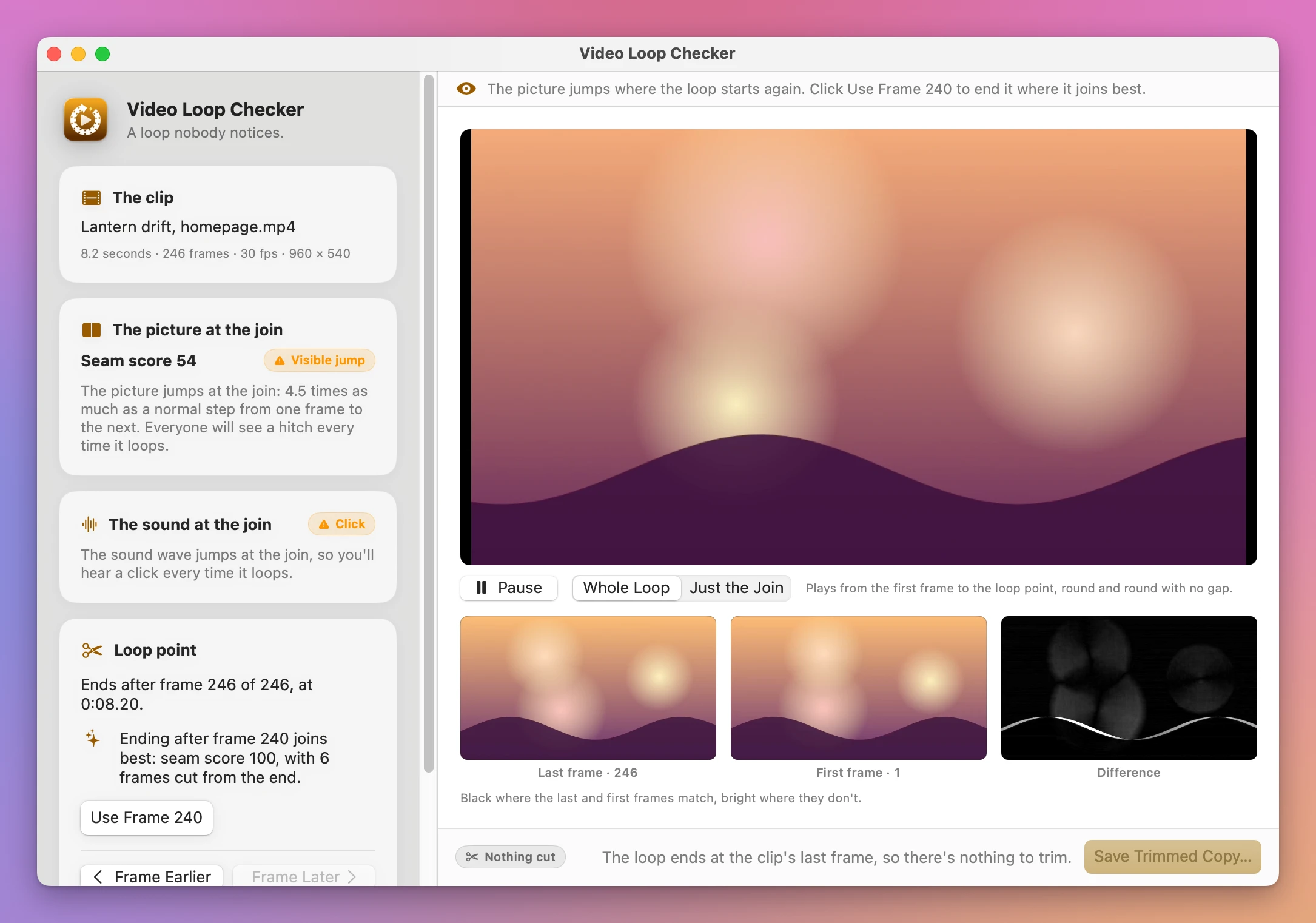
The left side has four cards.
- The clip: its name, length, number of frames, frame rate and size.
- The picture at the join: the seam score, a pill and a sentence. The score goes from 0 to 100, where 100 is a join nobody can see. The pill is Smooth, Small jump, Visible jump or Frame shows twice.
- The sound at the join: Smooth, Click, Level jump, Silent or No sound.
- Loop point: where the loop ends now, the suggestion, and the controls to move it.
The line at the top of the right side always says what to do next, and after a click, what the click did.
How the score works
The app compares every frame with the next one and finds the usual size of that step for this clip. Then it compares the last frame of the loop with the first frame, the step the viewer sees when it loops.
If the join is about as big as a normal step, it’s Smooth. If it’s bigger, the sentence says how many times bigger, like “4.5 times as much as a normal step”. Up to 3.5 times is a Small jump, more is a Visible jump.
Frame shows twice means the last frame is the same as the first one, so that picture is on screen twice in a row each time it loops. Ending one frame earlier fixes it.
A clip with no motion at all is always smooth: there’s nothing to jump.
The sound
The app looks at the sound wave at the moment the loop jumps back to the start. If the wave jumps there, you hear a click every loop. If the level just before the join and just after it differ by more than 6 dB, it says the sound gets suddenly louder or quieter, and by how much.
Watch and listen to the loop
Under the preview:
- Pause and Play (⇧⌘P) stop and start the preview.
- Whole Loop (⌘1) plays the clip from its first frame to the loop point, round and round with no gap.
- Just the Join (⌘2) plays the second and a half before the join and the one after it, again and again, so you can watch and listen to the seam alone.
Under that, three pictures: the Last frame of the loop, with its number, the First frame, and the Difference. The difference is black where the two frames match and bright where they don’t.
Change the loop point
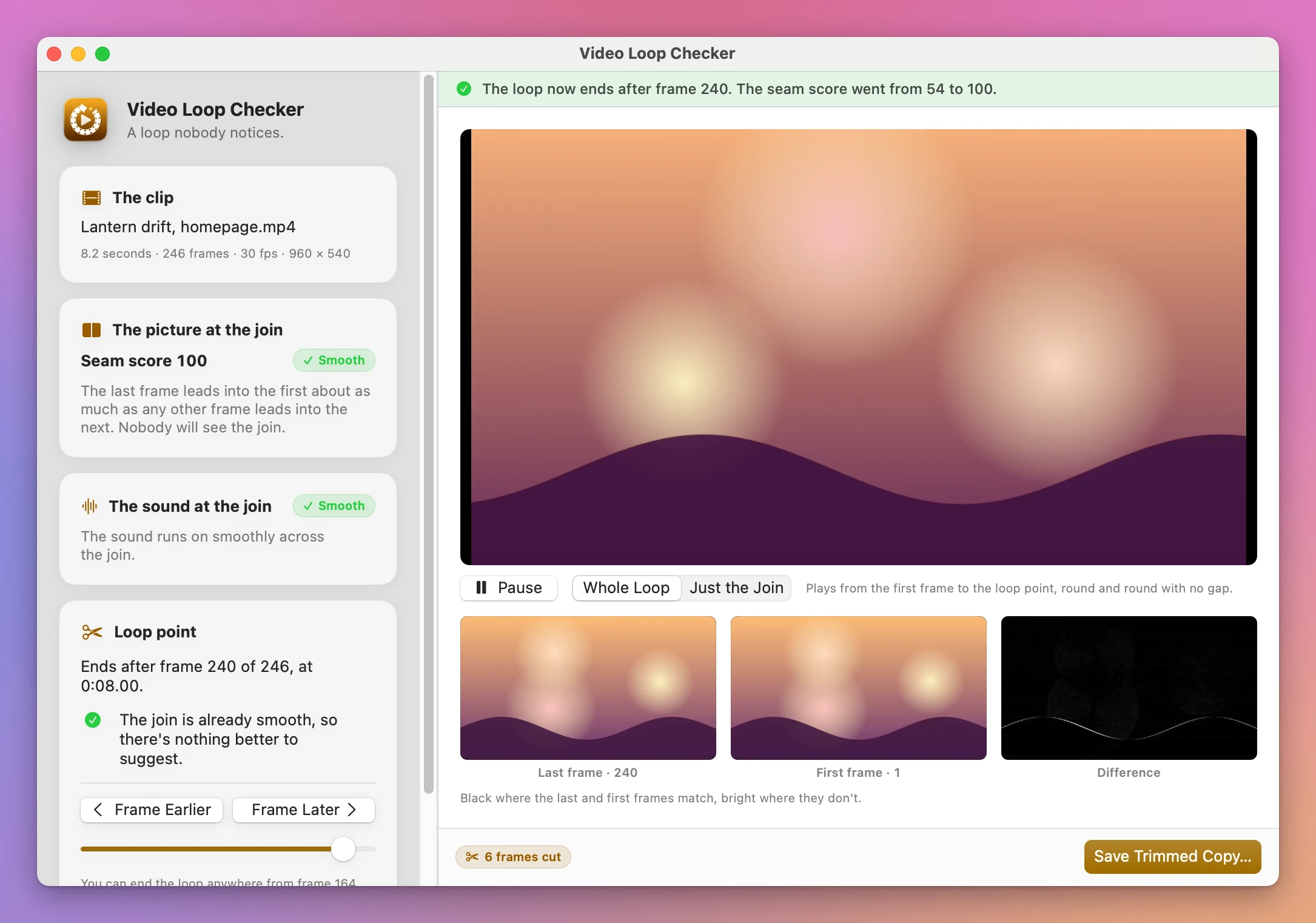
The loop always starts at the first frame. You choose where it ends.
- When there’s a better end, the Loop point card says which frame and what the score would be, with a button like Use Frame 240. The menu item is Loop → Use Frame 240 (⇧⌘U).
- Frame Earlier and Frame Later move the end by one frame, also with ⌘← and ⌘→.
- The slider moves it anywhere in the last few seconds of the clip, at most a third of it. The line under the slider says the range.
- Back to Frame 246 (with the clip’s own last frame) puts the end back where the clip ends.
The suggestion is the frame whose next frame looks most like the first frame, so the jump back to the start looks like any other step. It’s only offered when it’s clearly better than the clip’s own end.
Save a trimmed copy
Click Save Trimmed Copy… (⌘S). The save panel opens in the clip’s folder with a name like Lantern drift, homepage (loop).mp4. Change the name or the folder if you like, then click Save.
The button is off while the loop ends at the clip’s own last frame, and the bar says why: there’s nothing to trim.
The copy has the frames from the first one to the loop point. When the clip can be cut exactly there without encoding it again, the picture and the sound are copied as they are. When it can’t, the app encodes it again at high quality. Then it opens the copy and counts its frames.
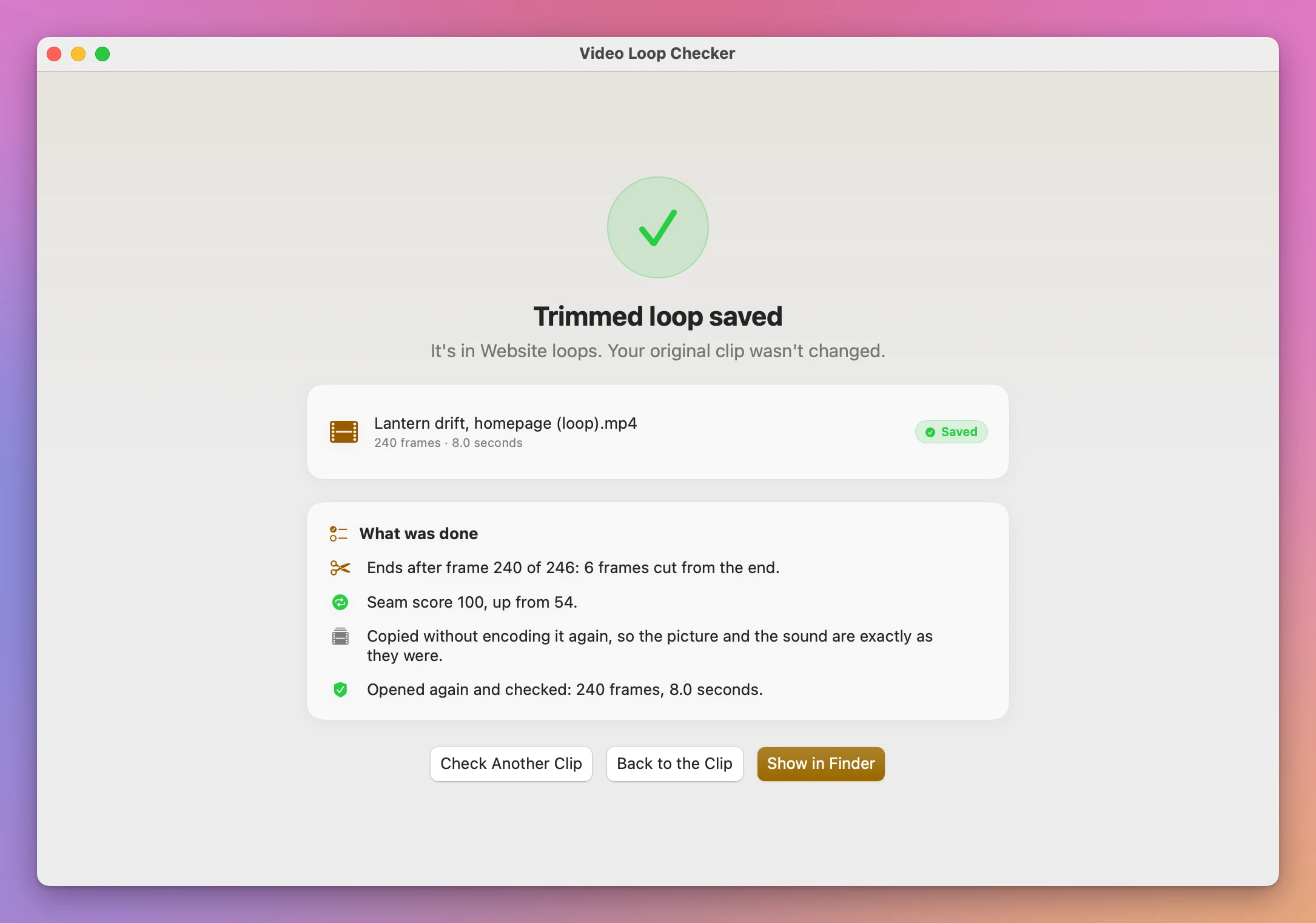
The done screen says how many frames were cut, the new score, whether the copy was encoded again, and what the check found. Show in Finder shows the copy, Back to the Clip goes back with the same loop point, and Check Another Clip starts over.
Troubleshooting
The trimmed copy wasn’t saved
The window says why. Usually the folder can’t be written to or the disk is full: click Save Somewhere Else… and pick another folder. The original clip is never changed.
The clip is longer than 3 minutes
Video Loop Checker reads every frame, so it checks clips up to 3 minutes. Export the part that loops from your editing app and open that.
The suggestion cuts more than I expected
The suggestion only looks at the picture. If the sound has to line up too, check The sound at the join after you click it, and try Frame Earlier or Frame Later to find an end where both are smooth.
The preview looks smooth but the score doesn’t
Trust your eyes on the preview, and use Just the Join to look closer. The score compares the join with the clip’s usual motion, so a clip that’s almost still can show a small jump that’s hard to see.
Video Loop Checker is an independent app. It’s not made by, affiliated with or endorsed by Apple, Adobe, Blackmagic Design, Spotify or any video platform.