How to use Website Screenshot Runner
Website Screenshot Runner
Capture a list of web pages as full-page PNG screenshots at several widths, with readable file names and a report of what failed.
Bought Website Screenshot Runner? Sign in with the email you bought it with to download the latest version or ask me a question.
On this page
Install
Website Screenshot Runner requires macOS 14 Sonoma or later, on Apple silicon or Intel. Download the ZIP from the order page or your Creem receipt. Unzip it and move the app to Applications.
The app checks for updates once a day. When a new version is ready, click Install and Relaunch. To check anytime, choose Website Screenshot Runner → Check for Updates….
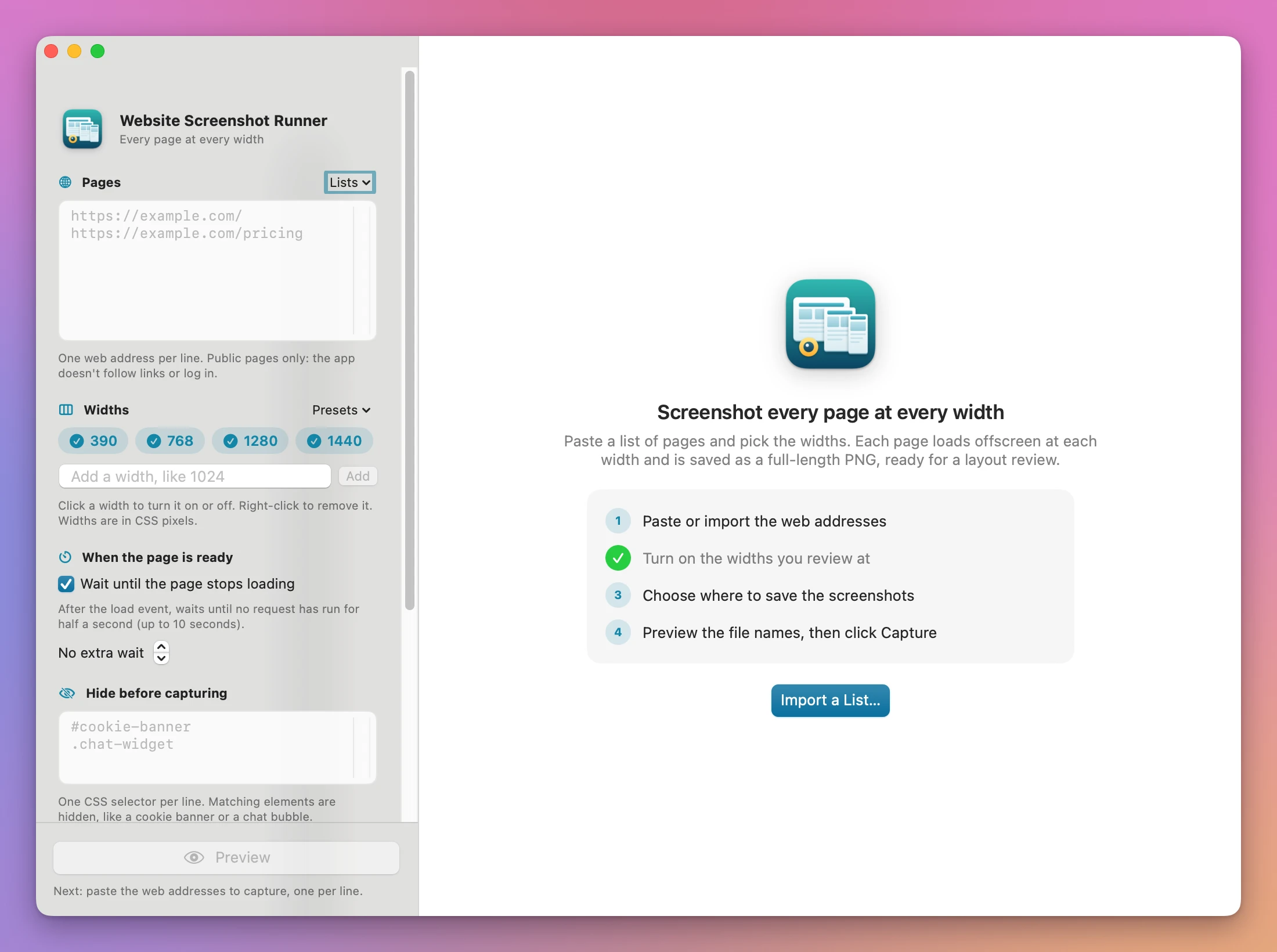
The first time you open the app, the start screen lists four steps and a button for the next one that’s missing: Import a List…, Use Phone, Tablet, Laptop, Desktop, Choose Where to Save…, then Preview. Every setting lives in the sidebar and is kept between launches.
Pages
Type or paste one web address per line in the Pages box. Under it, pills count the pages and the lines that will be skipped.
- A line that starts with
#is a note and is ignored. - An address without
https://gets it.localhost, names ending in.testand IP addresses gethttp://. - A duplicate of an earlier line, a line with spaces, an address that isn’t
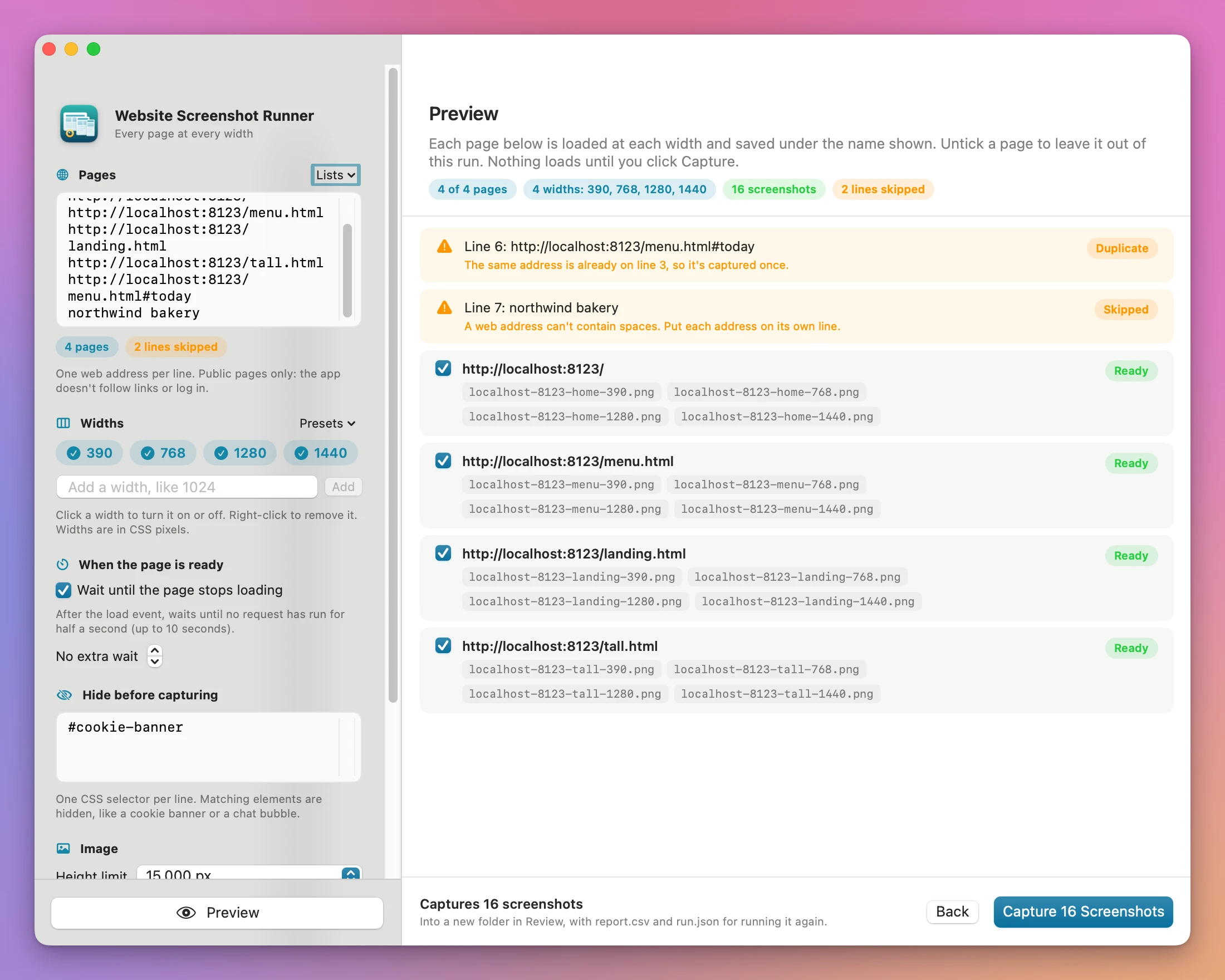
httporhttps, an address with a user name and password, and a host without a dot (other thanlocalhost) are skipped. The preview lists each one with the reason.
The Lists menu has:
- Import List… reads a text file, or the first column of a CSV file.
- Open Past Run… loads the list and the settings from a run folder’s
run.json. - Save This List… keeps the current list under a name. Saved lists appear in the menu, with a way to delete them.
The app captures only the addresses on your list. It doesn’t follow links, log in or keep cookies.
Widths
Each width is a chip. Click a chip to turn it on or off, and right-click it to remove it. Type in Add a width, like 1024 and click Add to add one, or several separated by commas (375, 414). Widths are in CSS pixels.
The Presets menu has four built-in sets:
| Preset | Widths |
|---|---|
| Phone, tablet, laptop, desktop | 390, 768, 1280, 1440 |
| Phones | 360, 390, 430 |
| Tablets | 768, 820, 1024 |
| Desktops | 1280, 1440, 1920 |
Save These Widths as a Preset… adds your own, and Delete a Preset removes one.
When the page is ready
Wait until the page stops loading is on by default. After the load event, the app waits until no request (fetch, XHR, an image or another file) has run for half a second, up to 10 seconds. Turn it off to capture right after the load event.
The extra wait stepper adds 0 to 30 seconds, in half-second steps, after the page is ready. Use it for pages that animate in.
Before capturing, the app scrolls through the page once so images that load on scroll show up, then waits again.
Hide before capturing
Write one CSS selector per line, like #cookie-banner or .chat-widget. Every element that matches is hidden before the capture. A selector that isn’t valid CSS hides nothing, and the results say so.
Image
- Height limit: 5,000, 10,000, 15,000 (the default), 20,000 or 30,000 px. A taller page is cut at the limit, and the results and the report say so.
- Pixels: 1×, so a 1280 capture is 1280 pixels wide, or 2× Retina, twice as wide and tall.
Save in
Choose the folder under Save in. Each run creates its own new folder inside it, named like Screenshots 2026-11-20 at 10.07.24. If that name exists, the new folder gets ” (2)”. Nothing is ever replaced.
Preview and capture
Click Preview (Command-R). If something is missing, the line under the button says what comes next.
The preview shows the number of pages, widths and screenshots. Skipped lines come first, in orange, with their reason. Every page has a checkbox to leave it out of this run, and shows the file name it gets at each width. Click Capture N Screenshots to start, or Back to change the settings.
While it runs, the window shows “Capturing 3 of 16”, a progress bar, and a pill per width for each page: waiting, capturing, the captured size, or failed. Stop ends the run and keeps the screenshots already saved.
Results
The done screen shows how many screenshots were saved and the name of the run folder.
- Couldn’t capture lists each page and width that failed, with a sentence that says why.
- Saved, with a note lists screenshots that were cut at the height limit, used a selector that isn’t valid, or came from a page still busy after 10 seconds.
- Every page follows with its width pills. Click a saved pill to open the PNG.
The buttons are Edit the List, Retry Failed (only the failed pages at the failed widths, into a new folder), Run Again (the same list and settings, into a new folder) and Show in Finder.
The run folder
A run folder contains:
- One PNG per page and width, named
<host>-<path>-<width>.png. The home page’s path ishome, a query string is kept,.htmlis dropped, and names that would clash get-2. Examples:www.example.com-home-1440.png,localhost-8123-menu-390.png. report.csv, one row per page and width, with the columns url, width, file, status, page height, captured height and notes.run.json, the list and the settings, for Open Past Run….
Why a page fails
| Sentence | What to do |
|---|---|
| The server answered 404 Not Found, so there’s no page to capture. | Check the address, or remove the page from the list |
| The server answered 403: this page needs a login or isn’t public. | The app captures public pages only |
| No website answers at this name. Check the address for typos. | Fix the address |
| The page didn’t finish loading in 30 seconds. | Try again later, or check the server |
| The website’s security certificate isn’t valid… | The site’s HTTPS setup has a problem |
| Nothing came back from this address… | WebKit blocks some ports, like 9 and 25 |
| WebKit stopped while drawing this page… | Try again, or lower the height limit |
A server error like 500 gets its own sentence with the status code.
How a capture works
Each page and width loads in its own offscreen WebKit view, the engine Safari uses, with no cookies or saved data shared between pages. The view is the chosen width and 900 px tall. After the page is ready, the app scrolls one screen at a time and joins the screens into one PNG.
After the first screen, elements that stay fixed while you scroll (a sticky header, a chat bubble) are hidden, so they appear once instead of on every screen. A bar fixed to the bottom of the window appears at the bottom of the first screen. Sections sized in vh units use the 900 px height.
Limits:
- A page that scrolls an inner box instead of the window is captured at the 900 px height only.
- Animations and carousels are captured wherever they are at that moment.
- Captures run one at a time. A 15,000 px page takes a few seconds per width.
- The screenshots show WebKit’s layout, not Chrome’s or Firefox’s.
Command line
The app includes a command line tool at Website Screenshot Runner.app/Contents/Helpers/website-screenshot-runner. It uses the same capture engine and writes the same run folders.
Capture a list at four widths, hiding a cookie banner:
website-screenshot-runner capture --list pages.txt --widths 390,768,1280,1440 --hide '#cookie-banner' --out ~/Desktop/ScreenshotsCapture one page at 2× with an extra wait, and print the report as JSON:
website-screenshot-runner capture https://flaviocopes.com --delay 2 --max-height 10000 --scale 2 --out ~/Desktop/Screenshots --jsonCheck a list and see the file names without loading anything:
website-screenshot-runner plan --list pages.txt --widths 390,1280Run a past run’s list and settings again, into a new folder next to it:
website-screenshot-runner rerun "$HOME/Desktop/Screenshots/Screenshots 2026-11-20 at 14.05.33"Other capture options are --no-network-idle, --viewport-height (400 to 2000) and --timeout. website-screenshot-runner presets lists the built-in presets, and capabilities --json describes the tool for coding agents. The tool exits with 1 when a screenshot failed, and 2 when nothing could start.
Privacy
Pages load on your Mac and the PNGs are written to the folder you chose. The app uses the internet to load the pages on your list and to check for and download updates.
Website Screenshot Runner is $20, a one-time purchase.