How to use Word Revision Finalizer
Word Revision Finalizer
Make clean final copies of many .docx files: accept or reject every tracked change, remove comments, preview each change, and get every copy checked, with a report of what happened to each change.
Bought Word Revision Finalizer? Sign in with the email you bought it with to download the latest version or ask me a question.
On this page
Install
Word Revision Finalizer requires macOS 14 Sonoma or later, on Apple silicon or Intel. Download the ZIP from the order page or your Creem receipt. Unzip it and move the app to Applications. Microsoft Word isn’t needed.
The app checks for updates once a day. When a new version is ready, click Install and Relaunch. To check anytime, choose Word Revision Finalizer → Check for Updates….
Add documents
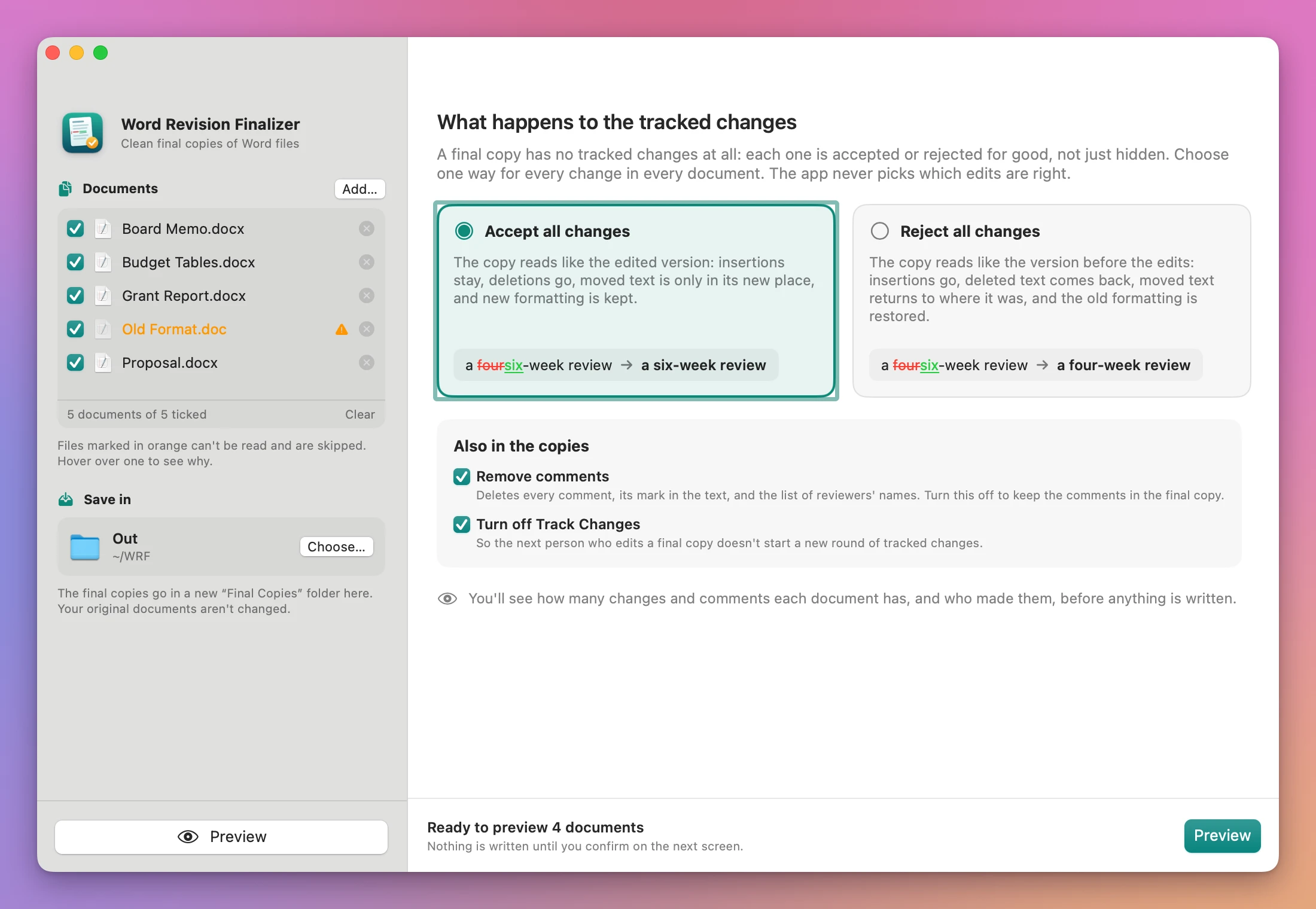
Drop .docx files or a folder on the Documents box in the sidebar, or click Add…. A folder is searched for Word files (.docx, .doc and .docm). Each document has a checkbox: untick one to leave it out of this batch, or click its remove button. Clear empties the list.
Files the app can’t read show in orange with a warning sign. Hover one to see why. To include a .doc, open it in Word or Pages, save it as .docx and add the new file.
Choose what happens to the tracked changes
The main area, What happens to the tracked changes, has two cards. Nothing is selected at first, and the choice isn’t remembered: you pick one every time.
| Choice | The copy reads like | Example |
|---|---|---|
| Accept all changes | The edited version: insertions stay, deletions go, moved text is only in its new place, new formatting is kept | a |
| Reject all changes | The version before the edits: insertions go, deleted text comes back, moved text returns to where it was, the old formatting is restored | a |
The choice applies to every change in every document. The app never picks which edits are right.
Under Also in the copies:
- Remove comments (on at first) deletes every comment, its mark in the text, and the list of reviewers’ names. Untick it to keep the comments.
- Turn off Track Changes (on at first) makes sure the next person who edits a copy doesn’t start a new round of tracked changes.
Under Save in, click Choose… and pick a folder. The copies go into a new Final Copies folder there. These two options and the save folder are remembered between launches.
The bottom bar says what’s still missing, and its button changes with it: Add Documents…, then the accept or reject choice, Choose Where to Save…, then Preview.
Preview
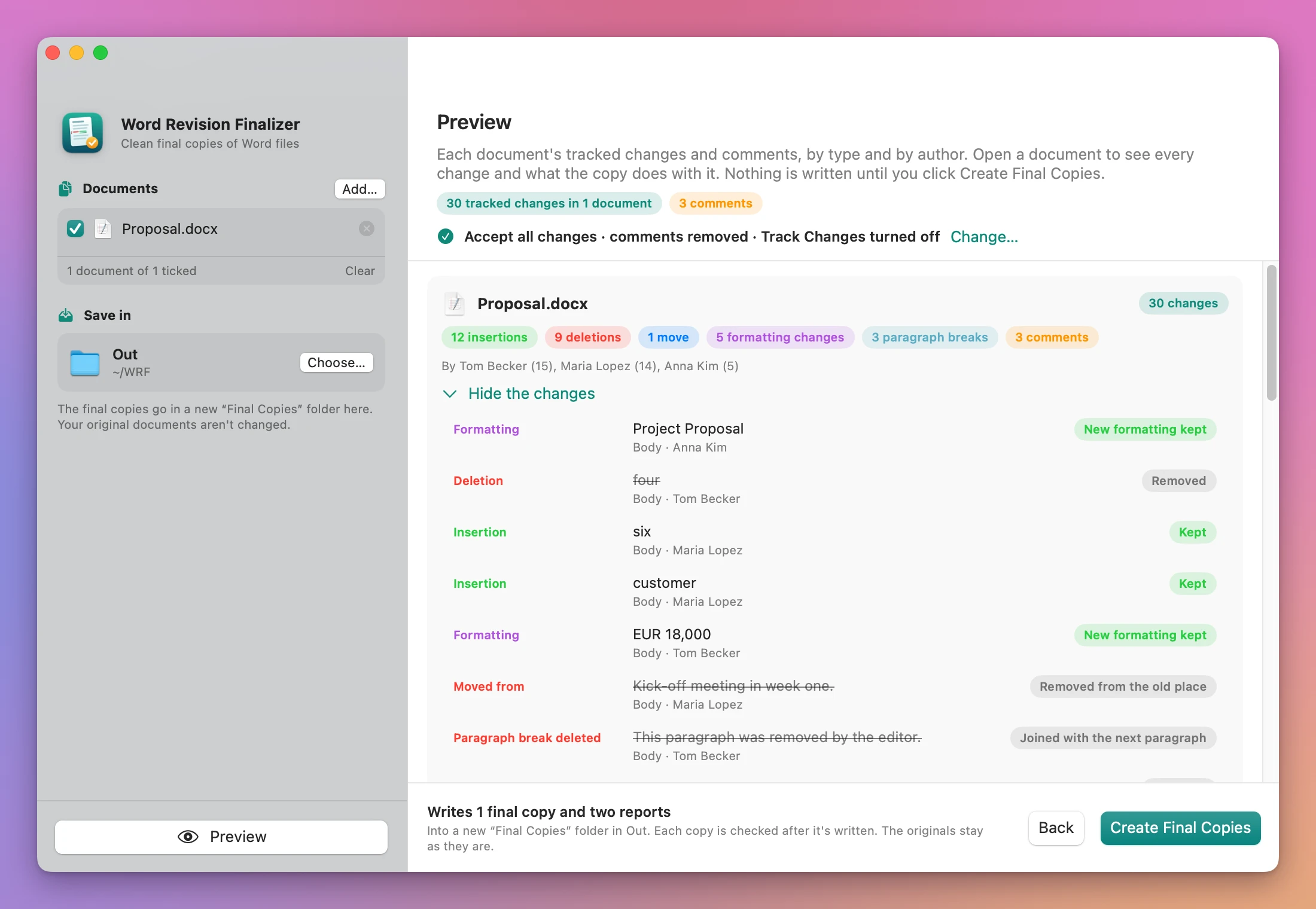
Click Preview (Command-R). Nothing is written yet. The top of the screen counts the tracked changes, the comments and the files that can’t be read, and a line repeats your choices. Change… goes back to them.
Each document has a card with its changes by type: insertions, deletions, moves, formatting changes, paragraph breaks and comments, and who made them (“By Tom Becker (15), Maria Lopez (14), Anna Kim (5)”). Click Show every change and what the copy does with it to list each change with:
- its type, and its text, struck through when it won’t be in the copy
- where it is: Body, Header, Footer, Footnotes, Endnotes or Comments
- who made it
- what happens to it: Kept, Removed, Removed from the old place, Joined with the next paragraph, New formatting kept, Old formatting restored, and so on
A document with no tracked changes says Already clean. A file that can’t be read says why, in red.
Create the final copies
Click Create Final Copies. The done screen lists each copy with what was done to it (“30 tracked changes accepted, 3 comments removed”) and a green Checked: clean pill, the two reports, and under Not copied the files that were skipped, with the reason. Open Revisions.csv opens the report, Show in Finder opens the folder, and Finalize More Documents starts over.
The output folder contains:
- one final copy per readable document, with the same name (two documents with the same name from different folders become
Name.docxandName (2).docx). A document with nothing to change is copied as it is. Report.csv: per document, the copy, the counts by type, who made the changes, your choice, whether comments were removed, the result of the check, and notes. Skipped files are listed with the reason.Revisions.csv: every tracked change and comment, with the document, where it was, the type, who made it, when, the text, and what the final copy did with it.
If Final Copies already exists, the app makes Final Copies 2, and so on. The folder appears only when every copy is finished.
How each copy is checked
After writing a copy, the app reads it back. The file must open as a valid Word document, and no tracked change of any kind may be left in it. With Remove comments on, no comment may be left either. A copy that fails the check isn’t saved, and the report says so.
The app changes only the parts of the document that need it. Every other part of the file is copied as it was. Tracked changes are handled in the body, tables, text boxes, headers, footers, footnotes and endnotes.
Files that are skipped
| File | What to do |
|---|---|
Old Word format (.doc) | Open it in Word or Pages, save it as .docx, and add the new file |
Macro document (.docm, or one renamed to .docx) | Save a copy as a plain .docx in Word |
| Protected with Restrict Editing | Turn off protection in Word (Review → Restrict Editing → Stop Protection), save, and add it again |
| Password to modify | Remove the password in Word (Save As → Options), save, and add it again |
| Encrypted | Remove the password in Word and add it again |
| Damaged | Skipped, with the reason in Report.csv |
Limits
- One choice for every change in every document: no accepting some changes and rejecting others.
- A deleted paragraph mark joins its paragraph with the next one, but not across a section break or into a table.
- Document properties (author, last modified by, title) aren’t changed. Hidden text, document variables and custom data aren’t cleaned.
- Tracked changes inside charts, SmartArt and embedded objects aren’t covered.
- With comments kept, a comment attached only to text the copy no longer has is removed, and
Report.csvsays so. - Files over 4 GB aren’t supported.
- The final copies were checked in LibreOffice and with macOS’s own text tools, not in Microsoft Word or Pages.
Help
Help › Word Revision Finalizer Support opens the support site in your browser.
Everything happens on your Mac. The app uses the internet only to check for and download updates.
Word Revision Finalizer is $20, a one-time purchase.